Working with absence types
 Updated
by
Leigh Hutchens
Updated
by
Leigh Hutchens
Configuring absence types
An absence type defines how an employee's time off is categorized, calculated, and paid. Whether it is "annual leave," "sick leave," or "jury duty," these types ensure your organization stays compliant with labor laws and internal policies.
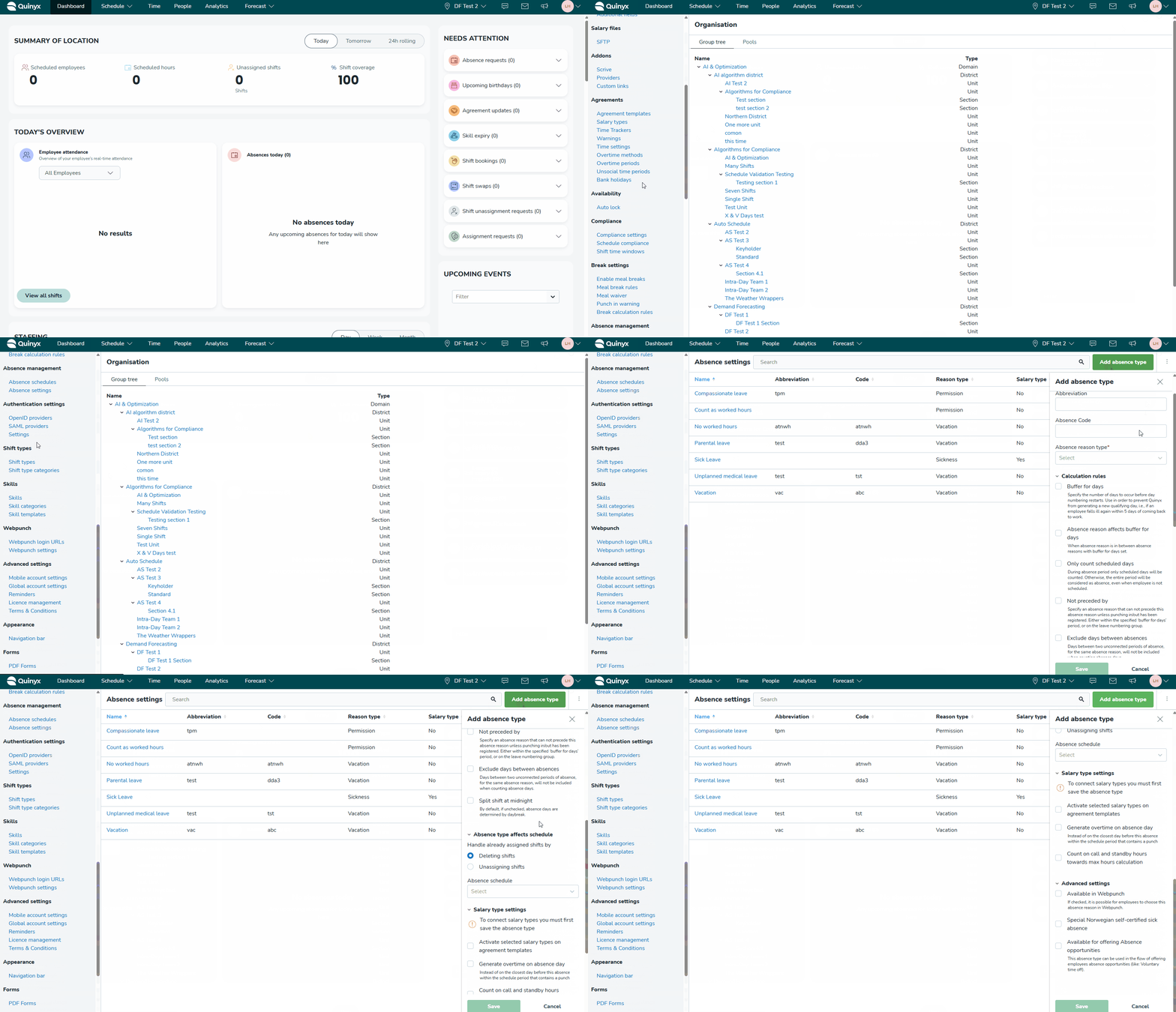
To get started, navigate to Account settings and click Add absence type in the top right corner of the page.
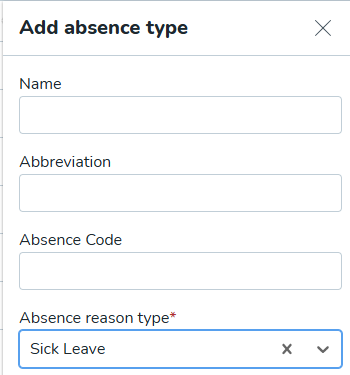
General information
This section establishes the basic identity of the absence.
- Name: The display name (e.g., "Annual leave").
- Abbreviation: A short code used in compact schedule views.
- Absence code: The unique ID often used to sync data with external payroll systems.
- Absence reason type: Select a category from your pre-configured reasons to group similar absences for reporting.
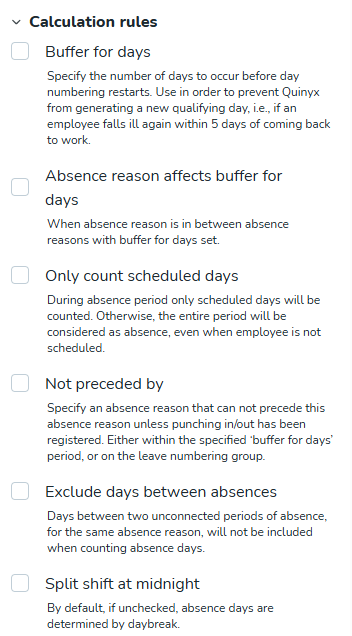
Calculation rules
These rules determine how Quinyx counts the duration of an absence and how it handles recurring instances.
Setting | Purpose |
Buffer for days | Used for linked absences. This prevents Quinyx from generating a new qualifying day if an employee falls ill again within a specific window (e.g., 5 days). |
Absence reason affects buffer for days | When absence reason is in between absence reasons with buffer for days set. |
Only count scheduled days | During an absence period, only scheduled days will be counted. Otherwise, the entire period will be considered as an absence, even when the employee is not scheduled. |
Not preceded by | Restricts this absence from following another specific reason unless the employee has "punched" in or out between the two. |
Exclude days between absences | If checked, gaps between two unconnected periods of the same absence reason will not be included when counting total absence days. |
Split shift at midnight | Determines if the absence follows the calendar day or your organization’s defined "daybreak" (common for overnight shifts). |
Absence type affects schedule
When an absence is approved, Quinyx needs to know how to handle the shifts the employee was already assigned to work.
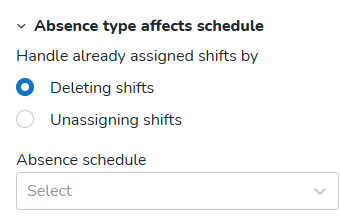
- Handle already assigned shifts by:
- Deleting shifts: Removes the shifts from the schedule entirely.
- Unassigning shifts: Moves the shifts to the "unassigned" pool so another manager can cover them.
- Absence schedule: Link this to a specific schedule configured in your account settings to ensure hours are calculated against the correct daily or weekly contract.
Salary type settings
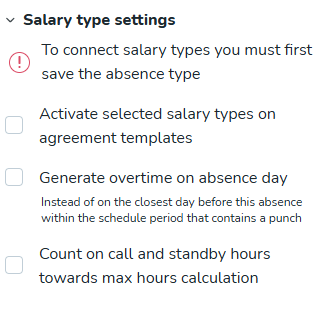
- Activate selected salary types on agreement templates: Automatically applies these payroll rules to your existing employee agreements.
- Generate overtime on absence day: This should generally only be used if a single salary type is connected to this absence.
- Count on call and standby hours towards max hours calculation: Includes these non-active hours when calculating maximum working hour thresholds.
Advanced settings
Use advanced settings as a proactive tool rather than just reactive absence tracking.
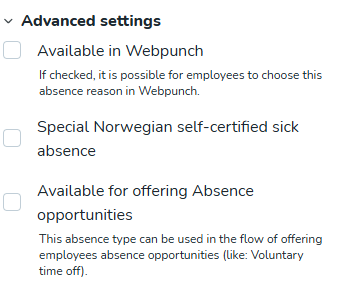
- Available in Webpunch: If checked, employees can select this absence reason themselves when using the Webpunch terminal.
- Special Norwegian self-certified sick leave: Activates specific logic required for compliance with Norwegian labor regulations (Egenmelding).
- Available for offering absence opportunities: If ticked, this absence type can be used in the flow of offering employees advanced opportunities like voluntary time off. Read more about absence opportunties here.
Monitoring absences on your dashboard
Once these types are configured and employees begin requesting time off, you can manage them directly from your dashboard.
- Needs attention: New requests will appear in the sidebar under Absence requests.
- Today's overview: Any approved absences occurring today will be listed in the Absences today widget, giving you immediate visibility into your staffing levels.
