Mobile - Customise your mobile apps logo
 Updated
by
Victor Jespersen
Updated
by
Victor Jespersen
Customizing the Mobile app logo
You can white-label the Quinyx mobile app by adding your organization’s logo to the side menu. To ensure your branding remains clear and legible regardless of a user's device settings, you can upload specific logos for both Light and Dark modes.
Logo display logic
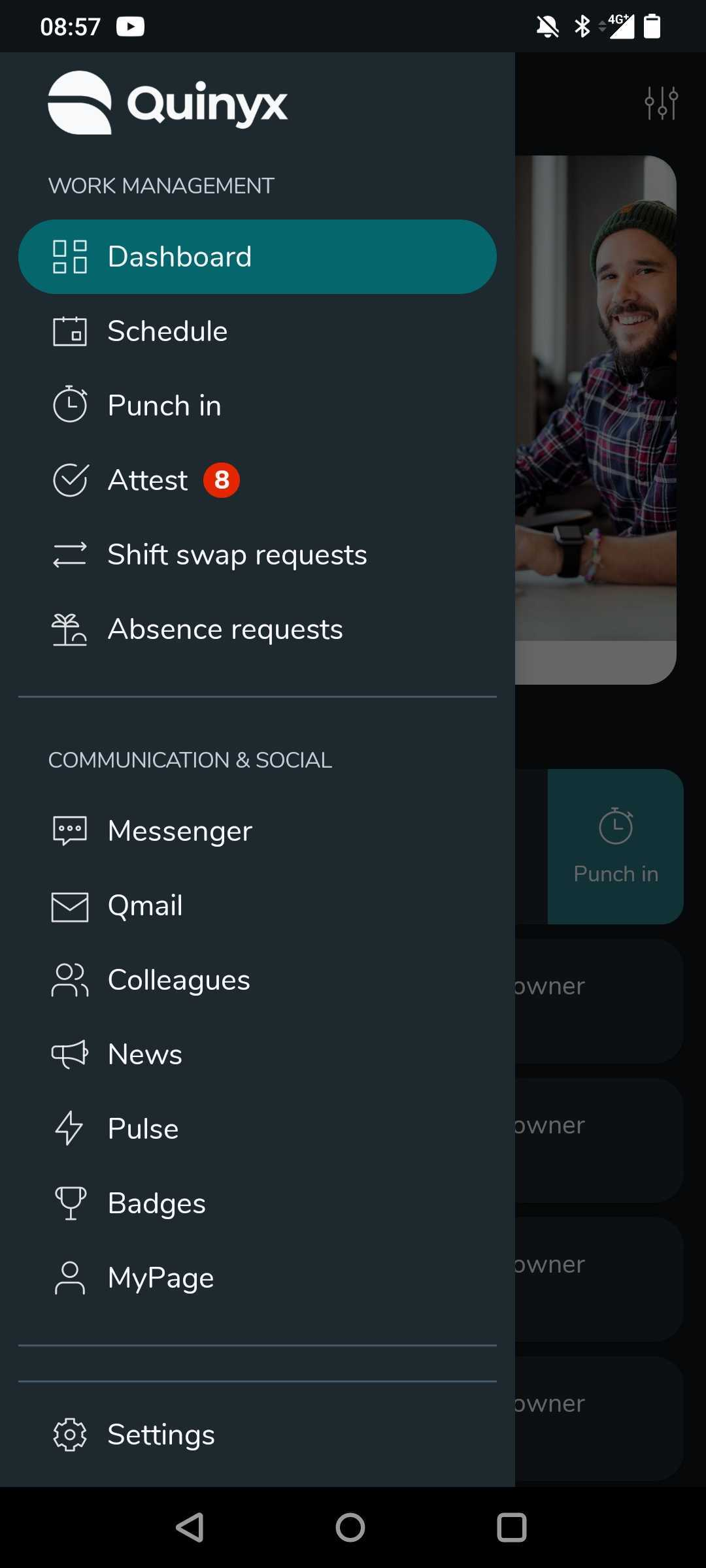
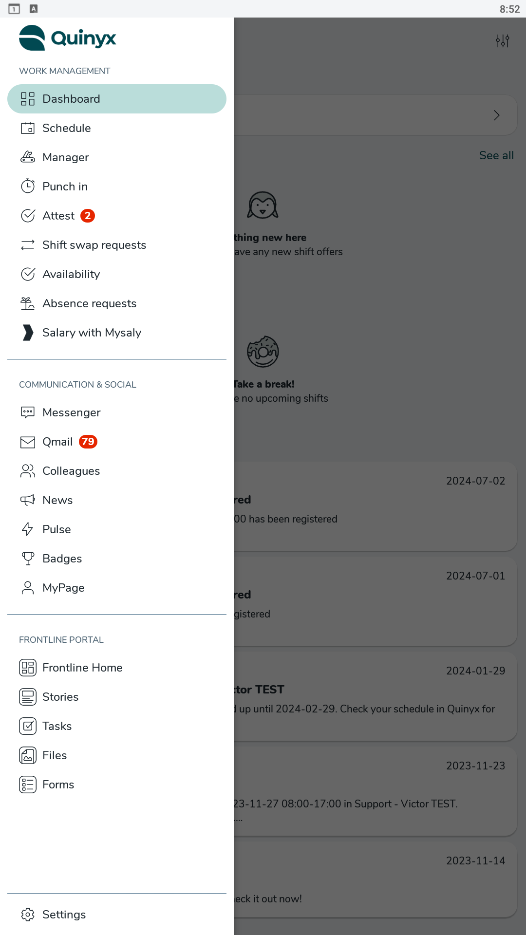
The mobile app side menu automatically adjusts its background color based on the user's system theme (Light or Dark mode). To maintain high contrast, we recommend using two different versions of your logo:
- Dark Mode: The menu background is dark. Use a logo with white or light colors.
- Light Mode: The menu background is light. Use a logo with black or dark colors.
Technical specifications and resolution guidelines
To ensure your logo displays correctly across all devices and doesn't appear stretched or blurry, please follow these requirements:
Feature | Requirement |
File format | .png (Note: .svg is not currently supported) |
Minimum width | 796px |
Aspect ratio | 4:3 is recommended |
Scaling | The app uses "aspect fit" mode. Your logo will maintain its original proportions and will not be stretched, even if it is square. |
Resolution and performance tips
- Prioritize clarity: To avoid a blurry or pixelated look, ensure your resolution is high enough. It is always safer to provide an image slightly larger than the suggested size than smaller.
- Manage file size: While high resolution is generally safe, avoid "truly enormous" files. Extremely large images can technically slow app performance and, in rare cases, may scale inconsistently or look "off."
- Visual consistency: Aim for a balance—high-quality resolution without unnecessary file bloat ensures your branding remains sharp and the app remains fast.
How to check your logo's dimensions
Before uploading, you can verify if your file meets the 796px minimum width requirement by checking the image properties on your computer:
On Windows
- Right-click the image file.
- Select Properties, then click the Details tab.
- Look for Dimensions or Width under the image section.
On macOS
- Click the image file once to select it.
- Press Command (⌘) + I (or right-click and select Get info).
- Expand the More info section to see the dimensions.You can also select the file and press the spacebar for a quick look, which often displays dimensions in the window header.
How to upload
- Log in to the Quinyx web portal.
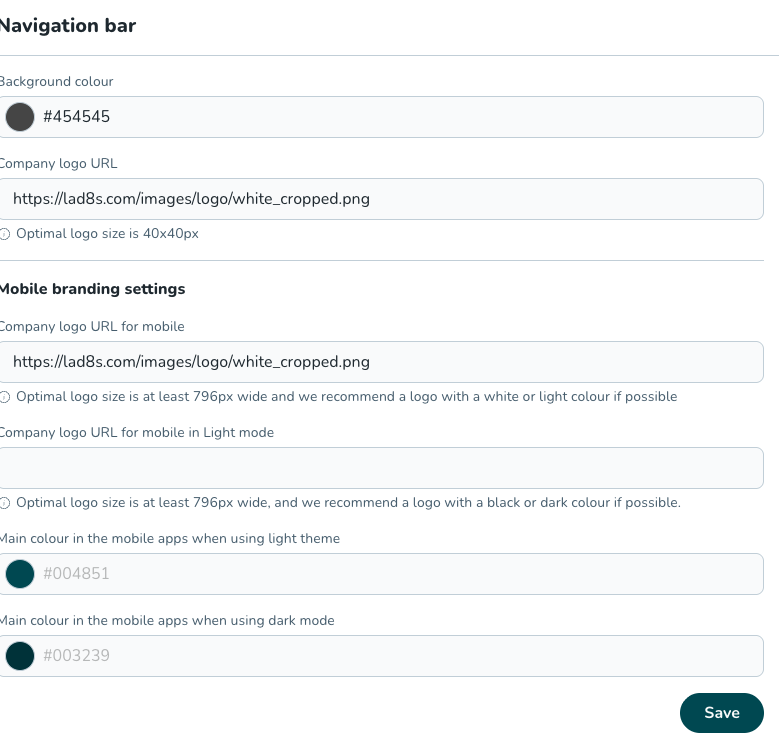
- Navigate to Account settings > Appearance > Navigation bar.
- Locate the Mobile branding settings section:
- Company logo URL for mobile in Dark mode: Upload your light-colored logo here. This version is also used for legacy compatibility with older app versions.
- Company logo URL for mobile in Light mode: Upload your dark-colored logo here. This will be shown to all users who have Light mode enabled on their devices.
- Click Save.
Pro tip: Use transparent backgrounds
For the best results, use a PNG with a transparent background. This ensures your logo looks integrated into the side menu regardless of the exact shade of the background color, preventing awkward "white boxes" around your branding when in Dark Mode.
