Employee Hub - Logging in
 Updated
by
Leigh Hutchens
Updated
by
Leigh Hutchens
Whether you are checking your schedule on the go or managing tasks from your desk, accessing the Employee Hub is designed to be seamless across all your devices.
Mobile app
- Open the Quinyx or Frontline Portal app on your iOS or Android device.
- Enter your Username and Password.
- Enable notifications: When prompted, allow notifications to ensure you receive real-time updates on shift changes, tasks, and company announcements.
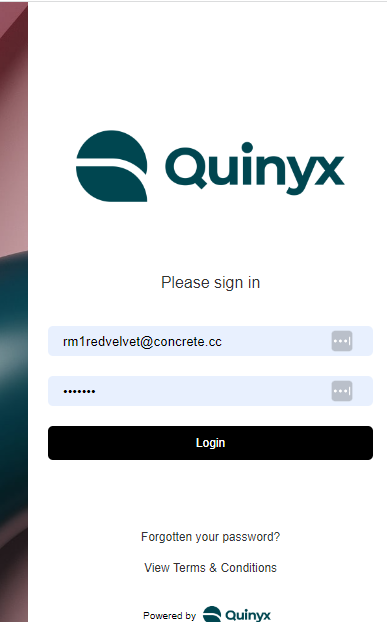
Browser (desktop & web)
- Open any supported web browser.
- Visit your specific Employee Hub URL (typically customer.retailcloud.net)
- Enter your username and password to log in.
Switching to the full Quinyx experience
If you are working in the standalone browser version and need to access the full suite of Quinyx tools (such as Messenger or advanced WFM features), you can switch environments instantly without logging in again.
- The Shortcut: Click your Company logo in the top navigation bar.
- The Result: This triggers a redirect to https://web.quinyx.com moving you into the integrated "i-Frame" version of the Employee Hub. This ensures you have full access to all integrated modules while staying within the same workflow.
Troubleshooting navigation
We are currently unifying our web experiences to ensure that links always work, regardless of which group or store you belong to.
- Broken links: If you click a link in a task and receive an error, it may be because the URL contains a specific "Group ID." Clicking the Company Logo to refresh your session in the Quinyx Web version often resolves these access issues.
- Missing features: If you cannot see the Messenger icon, you are likely in the "Standalone" view. Use the Company Logo shortcut mentioned above to switch to the integrated view where Messenger is available.
