Understanding and applying break calculation rules

Incorrect break deductions are one of the most common causes of payroll errors — and one of the hardest to catch before it's too late. If your employees punch in and out without manually recording breaks, or if their actual worked time regularly differs from their scheduled shift, you need a reliable way to ensure the right break time is always deducted.
Break calculation rules in Quinyx let you define exactly when a break should apply and how long it should be, based on either scheduled shift length or actual punch duration. Rules can be set organisation-wide or per unit, with exceptions at the agreement template or individual employee level.
This article covers how to configure and apply break calculation rules for both shifts and punches.
Break calculation rules can be set up in two places: Account settings and Group settings (available only at the unit level).
- Account settings: Rules created here will be shared with all units within the organisation.
- Group settings: Rules created here will be local and only available for that group (unit).
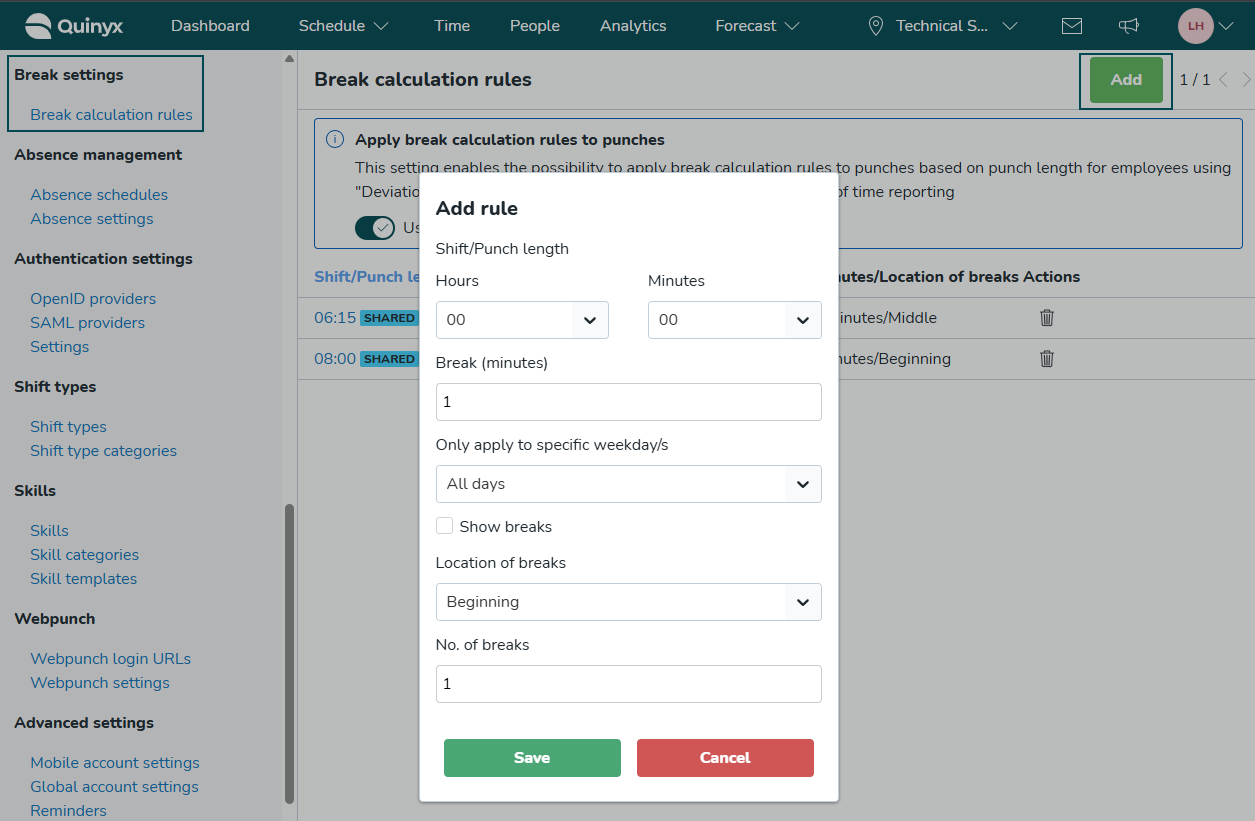
To create a rule, click Add and define the following criteria:
- Shift/Punch length: Enter the length of the shift in hours and minutes.
- Break: Enter the length of the break (in minutes).
- Only apply to specific weekday/s: Add whether the rule applies to all days or a specific day of the week.
Show breaks: You can uncheck Show breaks if the scheduled break doesn't need to be displayed in the schedule. It's useful if staff can take their break when there is time rather than at a fixed time. - Location of breaks: Specify whether the break should be scheduled at the Beginning, Middle, End, or After the shift.
- No. of breaks: Specify the number of breaks.
Exceptions to standard break calculation rules
You can also create exception rules for specific employees or group of employees by setting specific break calculation rules at the agreement template and employee agreement level instead of using the standard break calculation rules:
- Agreement templates: Rules created here will be applicable to employees assigned to this agreement template.
- Employee agreement: Rules created here will be personal and applicable to the employee only.
Applying break calculation rules to shifts
There are two primary methods for applying break rules: the original schedule-based method and the punch-based method.
Schedule-based calculation (manual application)
This method applies break rules based on the scheduled shift length and is typically applied manually to a shift.
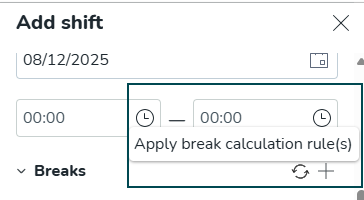
To apply existing break calculation rules to an individual shift:
- Open the Add shift or Edit shift window.
- Click the circular icon with two arrows to apply break calculation rules to a shift.
Punch break calculation rules
This calculation method that allows managers to apply break deduction rules directly to punches, ensuring that the correct amount of break time is deducted based on the actual duration of the punch/worked time. This feature is designed to give you greater control over recorded worked hours and salary outcomes when employees use time punching methods.
Hierarchy of break rules
The system determines which break calculation rules to apply based on the following hierarchy, starting with the most specific rule and moving toward the most general:
- Employee agreement
- Agreement templates
- Group settings (Unit Settings)
- Account settings
Eligibility criteria (phase 1)
To ensure accuracy in this initial phase, the new calculation will only apply to punches that meet all of the following criteria:
Criterion | Description |
Punch type | Must be a single, closed punch (a single "punch in" and "punch out" record) and not transfered to payroll. |
Shift connection | The punch must be connected to a shift in the Schedule view. |
Agreement type | The employee's agreement must use the time reporting methods "Deviation reporting" or "punch in/out no breaks". |
Punching settings | The employee's agreement must not have any of the following settings enabled: Allow punching on tasks, Split shift’s existing punch upon task addition, Generate salaries on task, Mobile: Allow punching on past tasks, or Mobile: Split punch on tasks. |
Manager workflow: applying break calculation rules based on punch length
As a manager, you can initiate the break calculation for a batch of eligible punches directly from the Schedule View.
Step 1: Enable the calculation toggle (administrator action)
An administrator must enable the global setting before the bulk action can be used:
- Navigate to Account settings > Break settings.
- Toggle the button to "Apply break rules based on actual worked time" (enabled).
Step 2: Use the bulk action button (manager action)
Once enabled, you can apply the rules in the Schedule View:
- Navigate to the Schedule view.
- Apply any necessary filters (e.g., date range, specific employees).
- Click the "Calculate break rules" bulk action button.
Identifying affected punches
To help you easily monitor and correct punches impacted by this new calculation, a new system Warning has been introduced.
Enabling the warning (administrator action)
An administrator should enable this warning in Account settings:
- Navigate to Account settings > Agreements > Warnings.
- Enable the warning flag “Break time is based on punch length”.
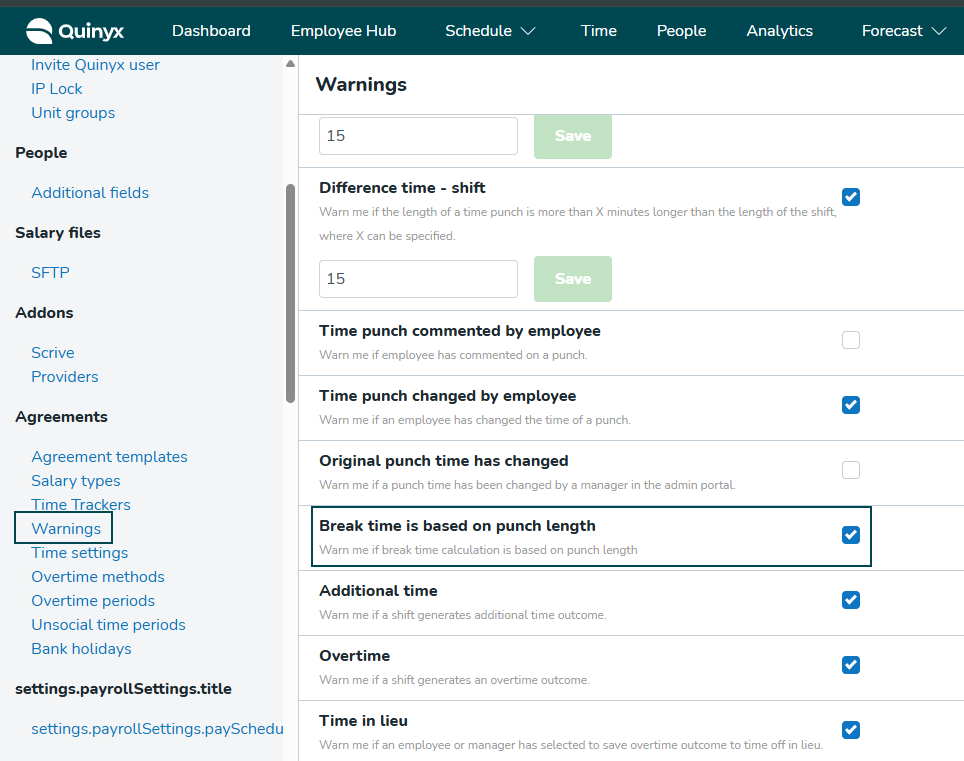
Once the warning is enabled, you can use the Schedule view filters to quickly identify any punches that have had their break time calculated using this new punch-based logic. This allows you to review the corrected worked hours and ensure the salary outcome is accurate.
