How to adjust your time and date display settings
 Updated
by
Leigh Hutchens
Updated
by
Leigh Hutchens
Quinyx allows you to customize how time and dates are displayed in the portal.
By default, the system first references your company's set language/locale before checking individual user settings. This may result in the system displaying the 12-hour (AM/PM) clock or the MM/DD/YYYY date format if your company's default is set that way.
If you wish to change to a different standard, such as the 24-hour clock or the European date format (DD/MM/YYYY), you can easily ensure the system uses your preferred display by updating your personal language setting.
How to change the time and date format
Setting a specific personal language preference will override the company's default and ensure you see your preferred format.
The quickest way for most users to switch to the 24-hour clock and DD/MM/YYYY date is by selecting a non-US English variation, like English (GB).
Step-by-step instructions
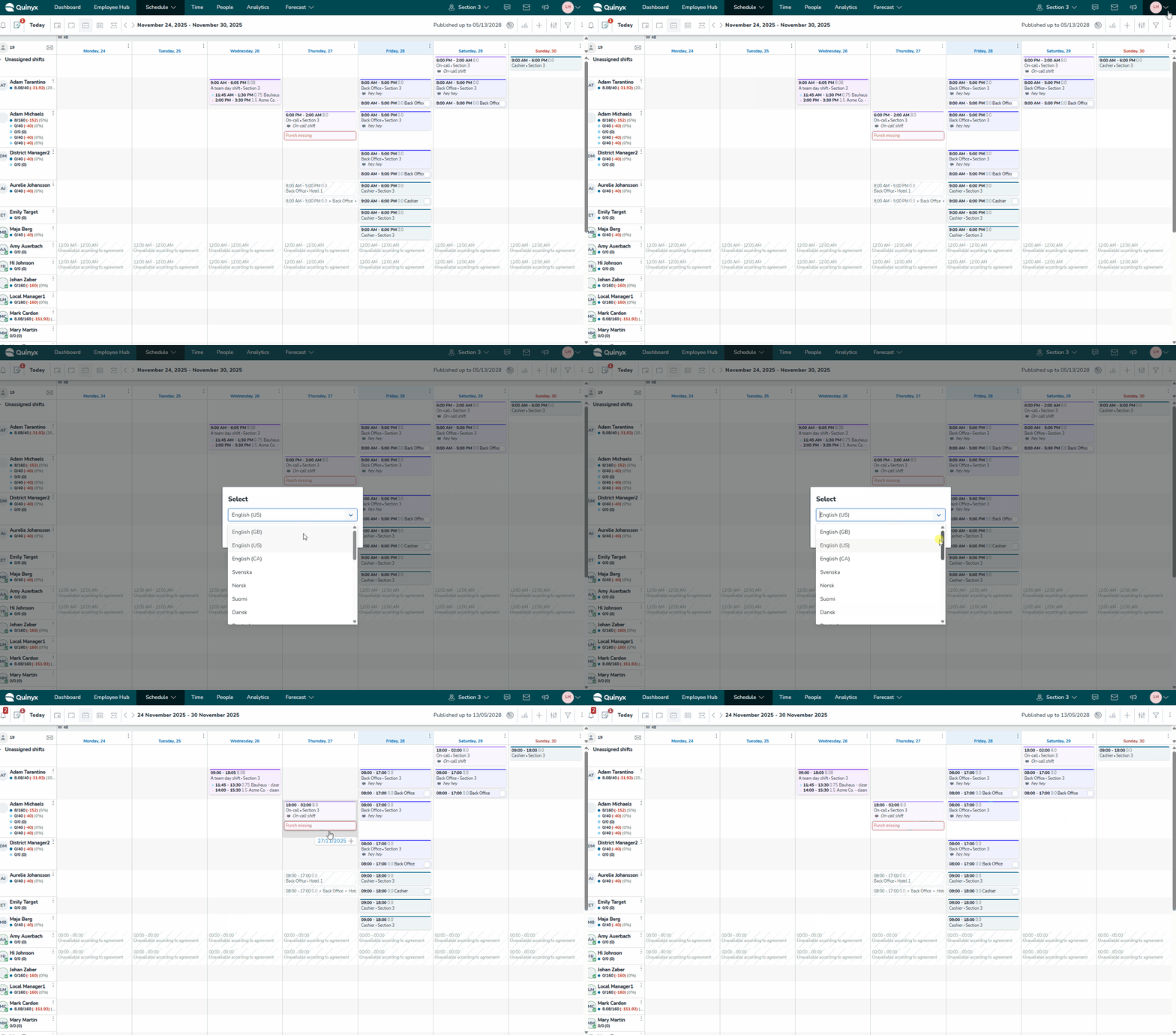
- Navigate to Account settings.
- Locate your Language setting.
- Change your current selection. For example, selecting English (GB) (or another non-US language) will update your time to the 24-hour format and your date to DD/MM/YYYY.
- Save your changes.
The system will update immediately, though you may need to refresh the page to see the new format applied across all views.
For System Administrators changing the company default language
If your organization needs to change the default time and date format for all users, the company's language/locale setting must be updated in the administrative control panel.
Please consult your organization's system administrator for assistance with updating this global setting contact your dedicated Quinyx support contact.
