Shared Employee Absence Management
 Updated
by
Victor Jespersen
Updated
by
Victor Jespersen
The Shared Employee Absence Management (SEAM) functionality enables additional features in Quinyx for management of shared employee absences; working across multiple units, making it easier for managers to take actions and for employees to request leave, no matter which unit they’re working in. This functionality will enable shared employees to route absence requests to the correct managers based on where they are actually scheduled and for those shared unit managers to take actions without impacting other units.
Configuration
Activation of SEAM module
To begin using the SEAM module, users must contact Quinyx Support to have it activated.
Module name: Cross-unit absence management
- Employees with the shared units configured can now select managers from their shared units when sending an absence request.
- Managers from an employee’s shared units can receive and process absence requests, i.e. not restricted to just the home unit.
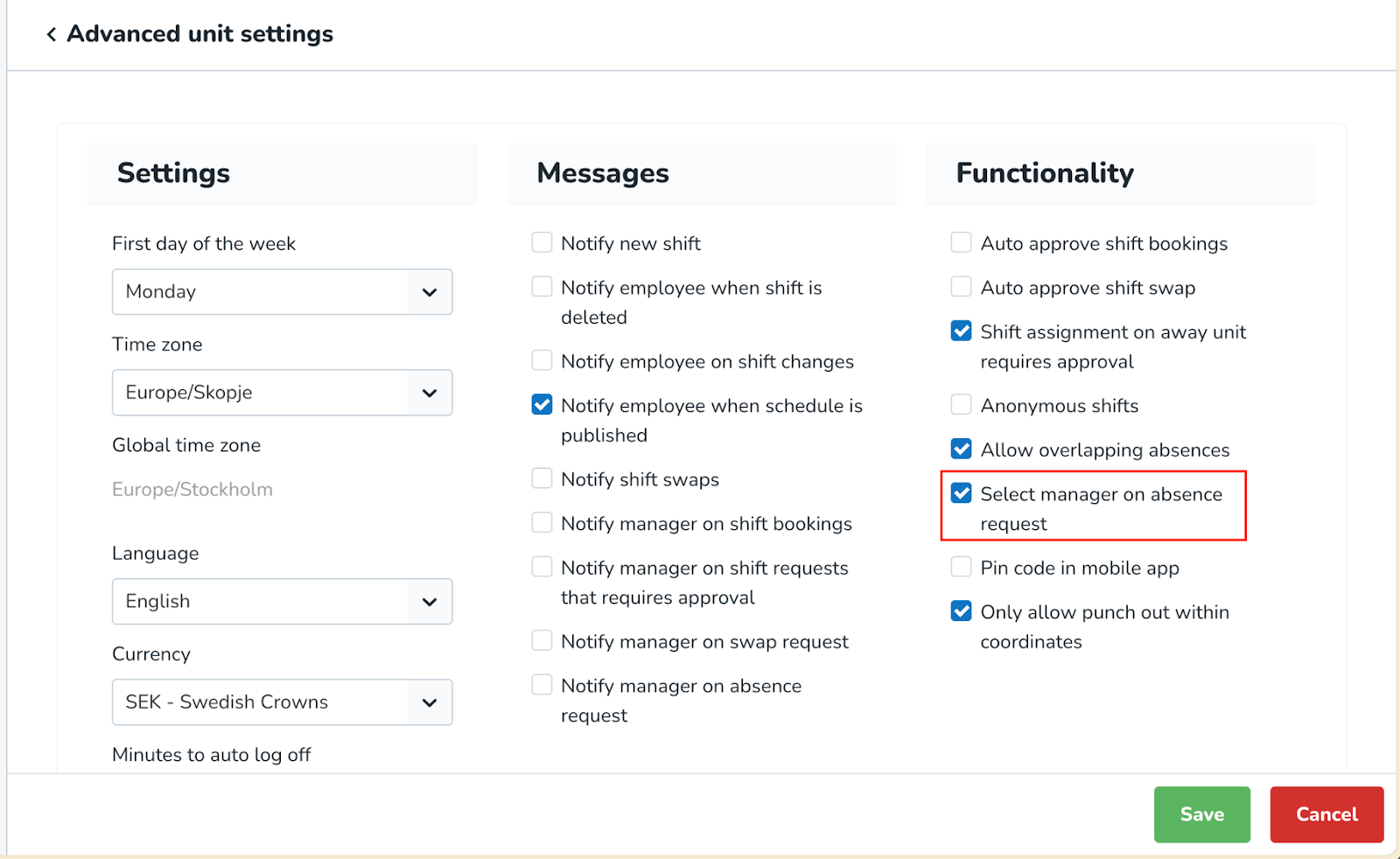
For employees to be able to select a manager from other shared units to route the absence request, the Select manager on absence request functionality must also be enabled in the Advanced unit settings.
How it works
Employee workflow
Absence request submission
With the SEAM module activated, when a shared employee submits absence requests through the mobile app:
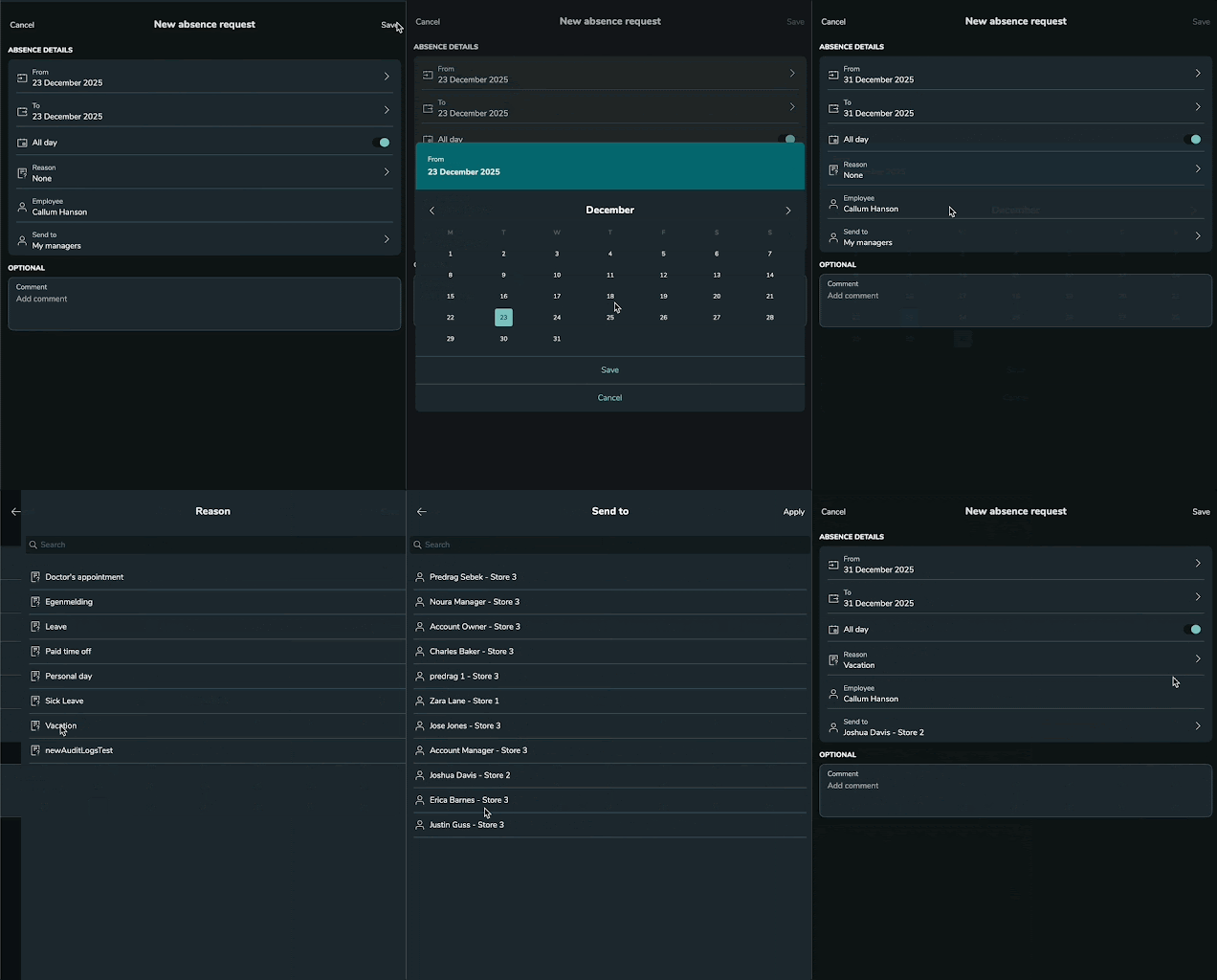
- The app shall show an extended drop-down, enabling employees to choose which shared unit manager the absence request be routed to.
- Employees can see and select from all managers in their shared units.
- Employees will only be able to select one manager per absence request.
In the example GIF below, Callum is an employee shared across units: Store 1, Store 2, and Store 3.
Manager workflow for absence requests
Actions for selected managers (home or away)
- The chosen manager receives the absence request with full context.
- Can approve or deny the absence.
- Can take action on shifts within their own unit.
- Shifts in other units are unassigned by default.
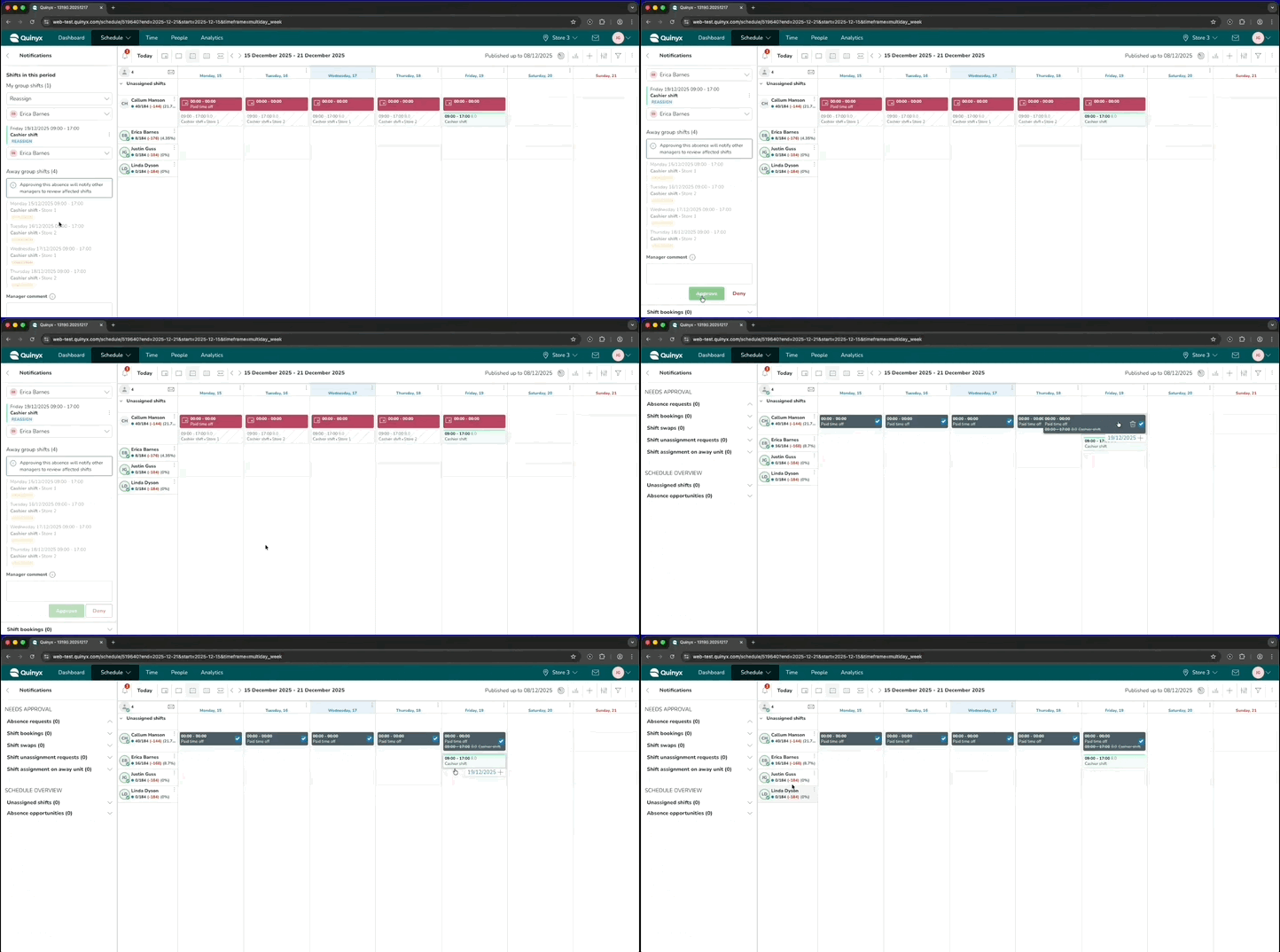
In the example GIF below, Callum requests an absence for a week that has shifts scheduled in three of his shared units. This view shows how the absence request appears in the schedule view for the selected manager, i.e., the manager selected by the employee when submitting the absence request.
Actions for non-selected unit managers
- Can view the absence request in schedule view for planning only.
- Cannot take action or make decisions on the request or associated shifts.
In the screenshot below, the other non-selected unit manager (Store 2) can see the pending absence request.

Home unit manager (If not selected)
- Can view the absence request in schedule view for planning only.
- Cannot take action or make decisions on the request or associated shifts.
Absence request outcomes
Approved
When the absence request is approved by the selected manager:
- Absence shift is created.
- The employee receives an in-app notification.
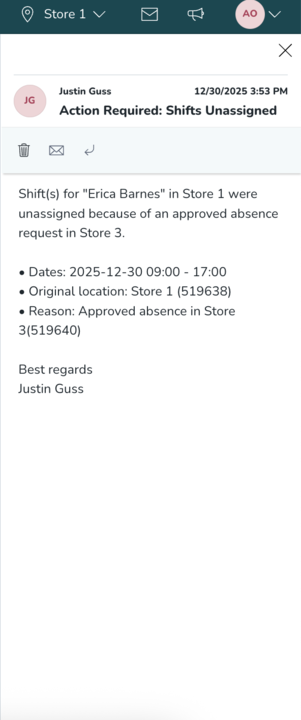
- Affected unit managers (i.e., shared units that have a shift scheduled in the absence period that is affected by the absence approval) receive a notification that their scheduled shift is unassigned due to absence approval.
Denied
The absence request is denied by the selected manager:
- The absence request is removed from the schedule.
- Employee receives an in-app notification.
Permissions & visibility
Role | Can decide on the absence request | Can act on own unit shifts | Can act on other units' shifts | Can view the absence request in the schedule |
Selected manager (home or away) | Yes | Yes | No (other units' shifts are unassigned by default) | Yes |
Non-selected away unit manager | No | No | No | Yes |
Home unit manager (not selected) | No | No | No (other units' shifts are unassigned by default) | Yes |
