Mobile - Accept & decline Absence Opportunities
 Updated
by
Leigh Hutchens
Updated
by
Leigh Hutchens
What's the difference between standard Absence Requests and Absence Opportunities?
A standard Absence Request is initiated by you for dates you choose , while an Absence Opportunity is a proactively offered time-off opening from management when demand drops unexpectedly. Instead of last-minute shift cancellations, this feature gives you the choice to volunteer for time off.
Why Absence Opportunities functionality matters
In industries where demand changes quickly, operational needs can shift at short notice. Until now, the main option was to cancel shifts last minute, which often leads to lost pay and frustrated employees. Absence Opportunities gives employees a choice, helping maintain trust and morale while still aligning staffing to demand.
This guide explains how to manage Absence Opportunities using the Quinyx mobile app. As an employee, you can use the app to view, decline, or request to be considered for these opportunities.
Mobile - Accept/Decline Absence Opportunities
As an employee, you can either decline or submit a request to be considered for an absence opportunity via the mobile app.
- You can view new absence request notifications in the side menu.
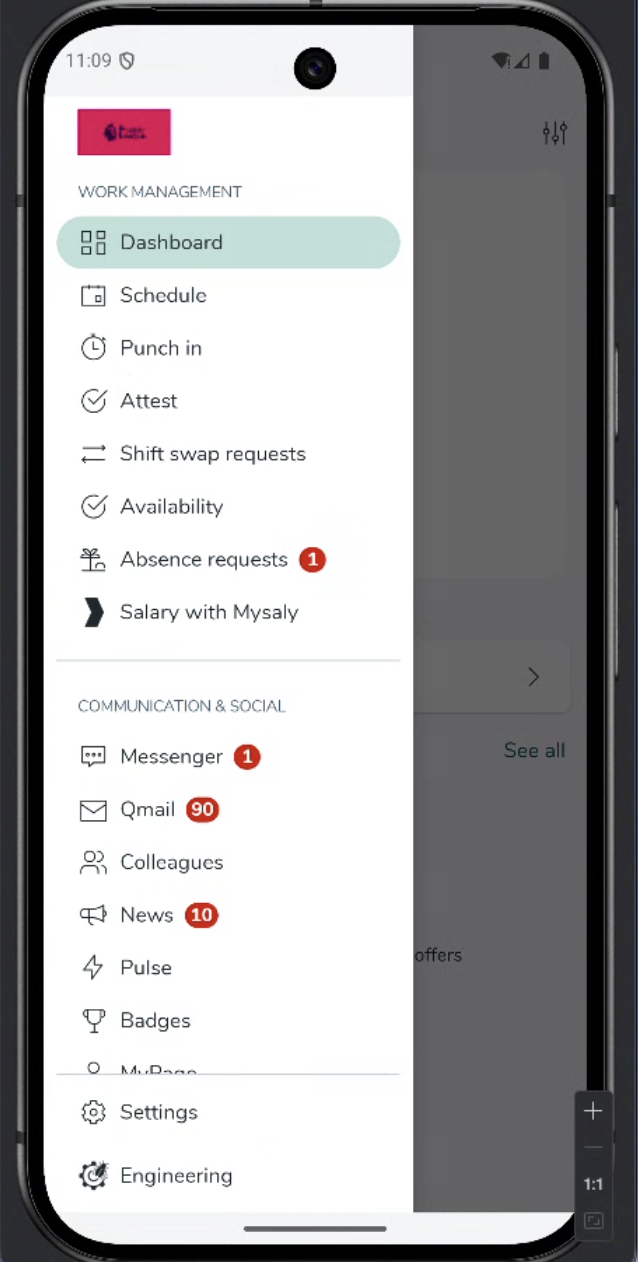
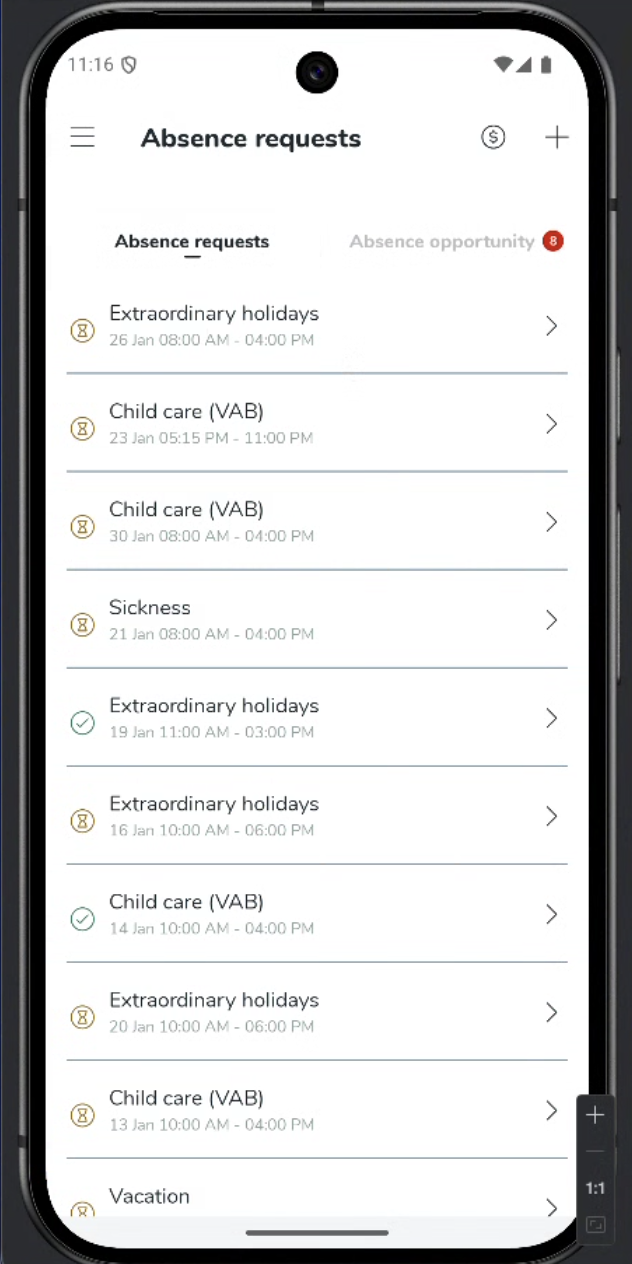
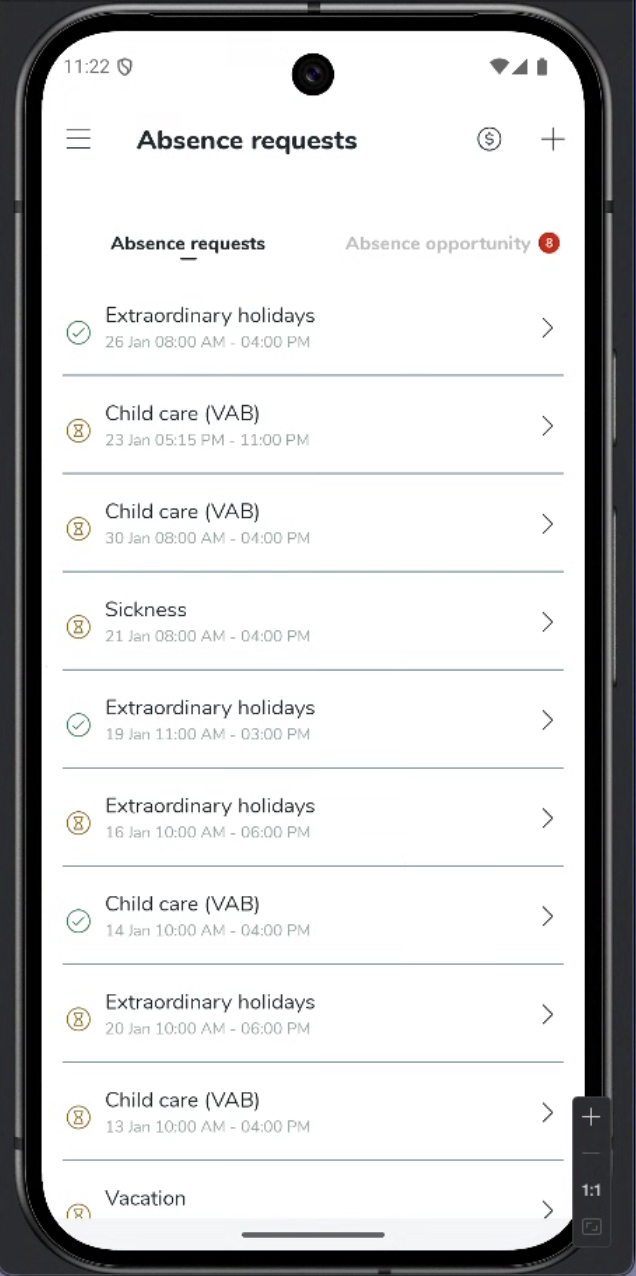
- Select Absence requests to navigate to the tab, and select the Absence opportunity tab.
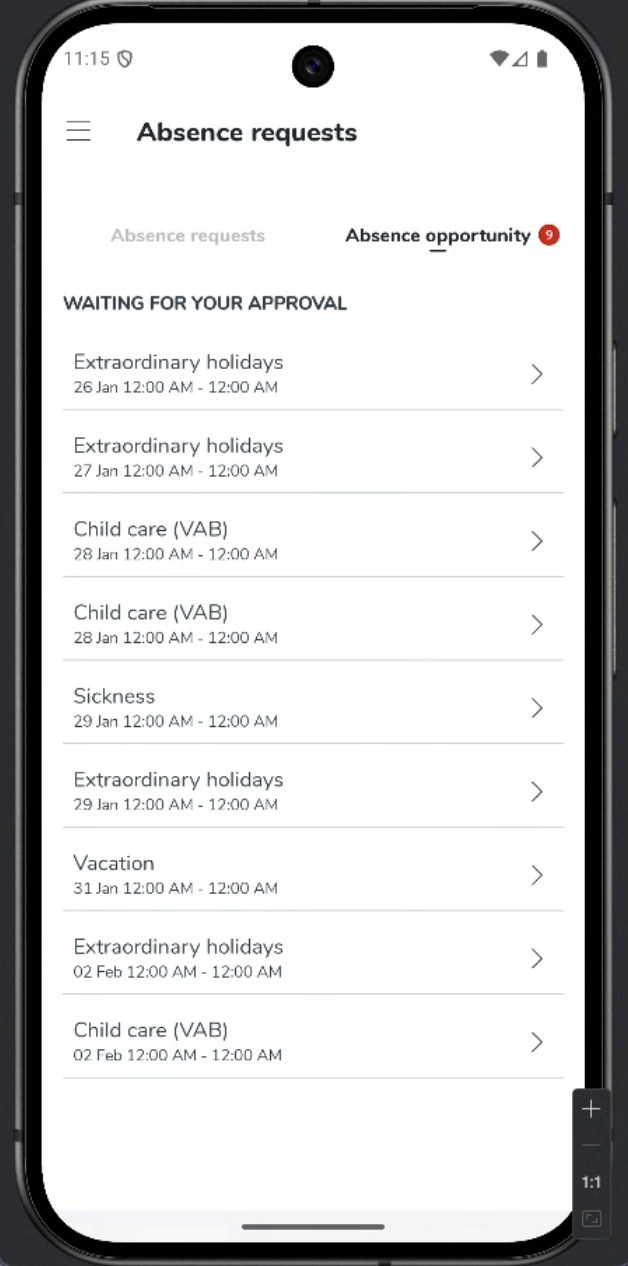
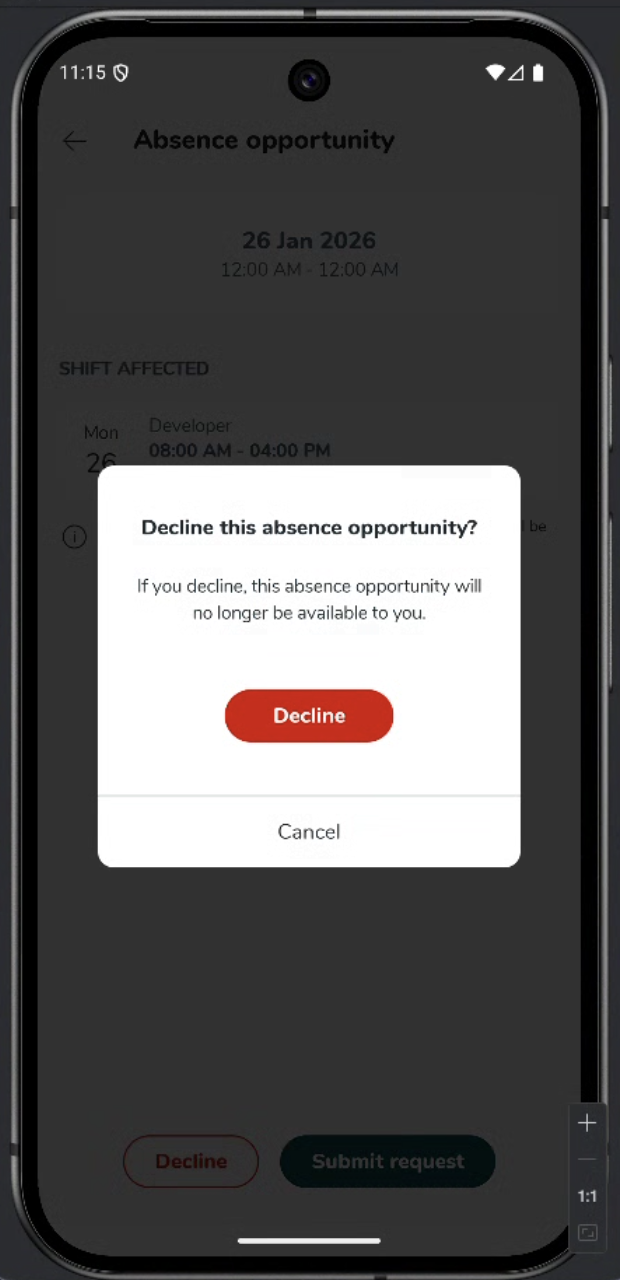
- Select any absence opportunity to view its details. If you do not want to be considered for an absence opportunity, select decline and confirm your wish to decline.
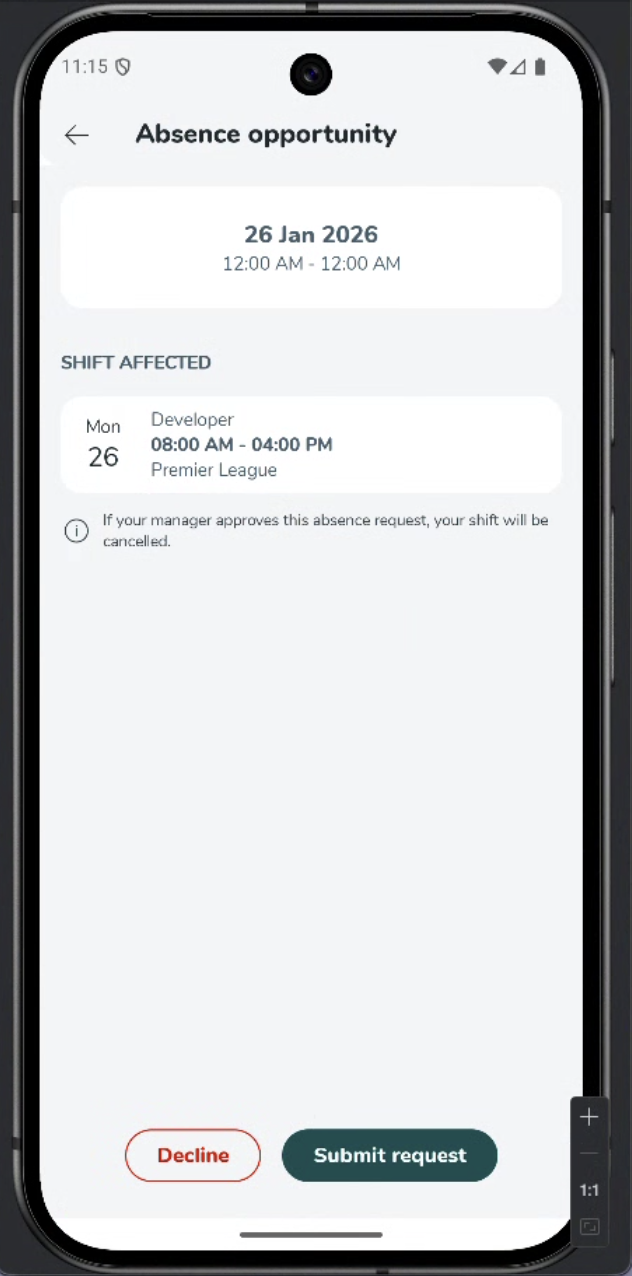
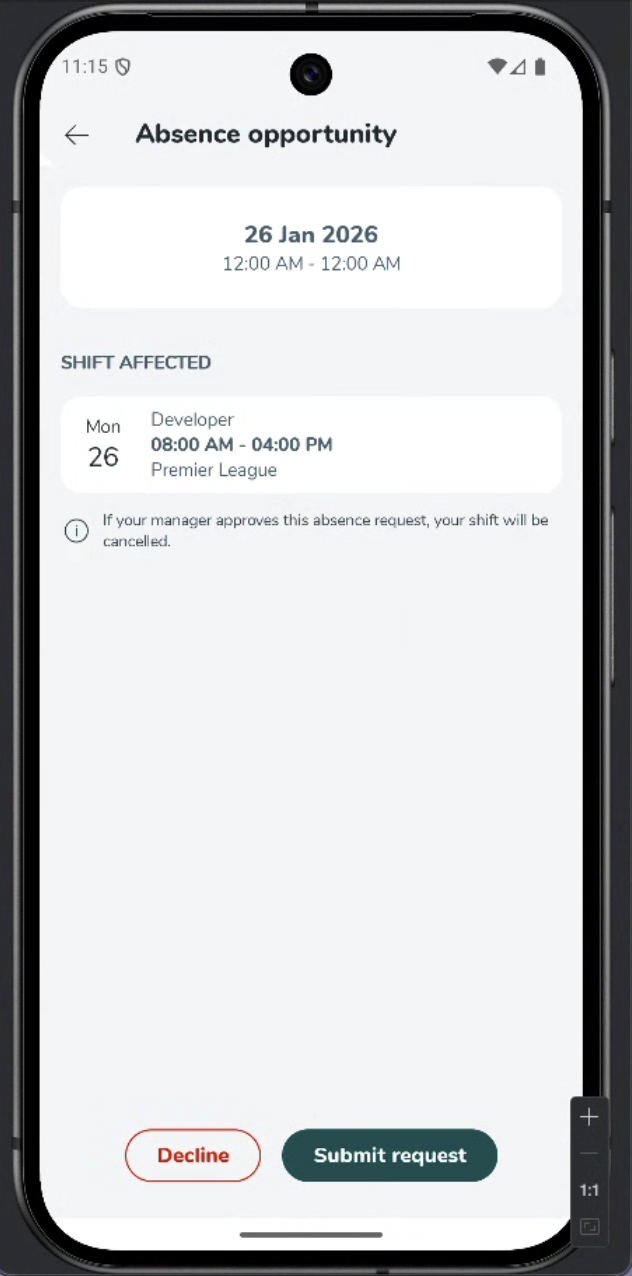
- To submit a request to be considered for an absence opportunity, select submit request and then OK to confirm.
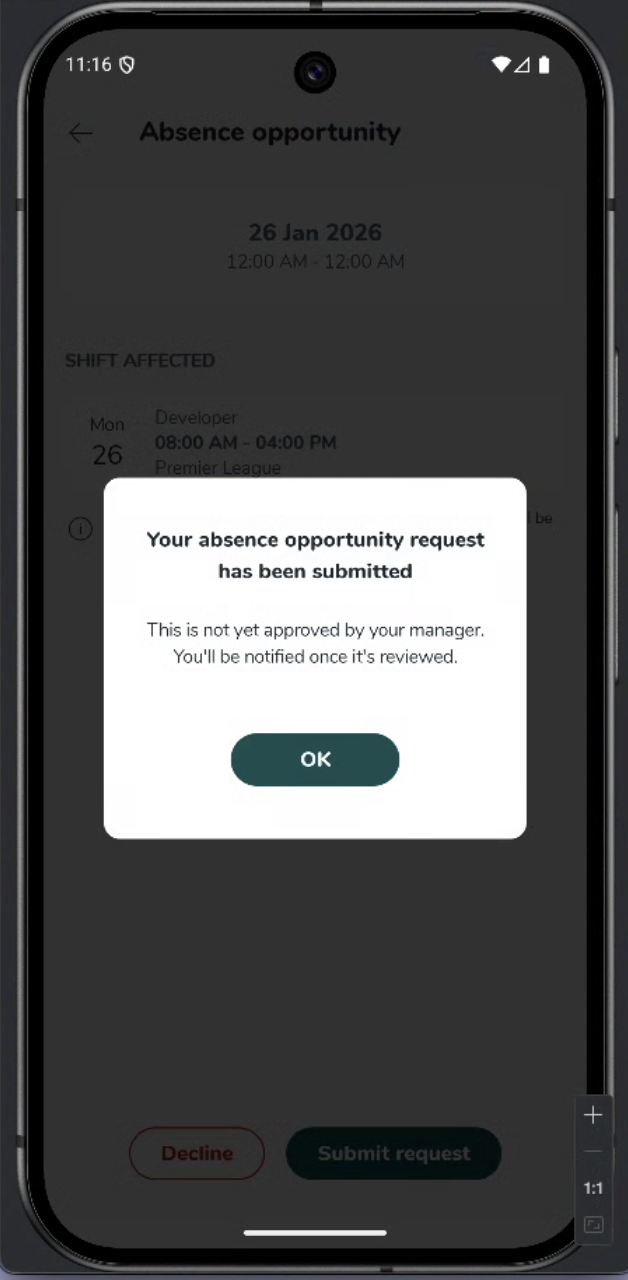
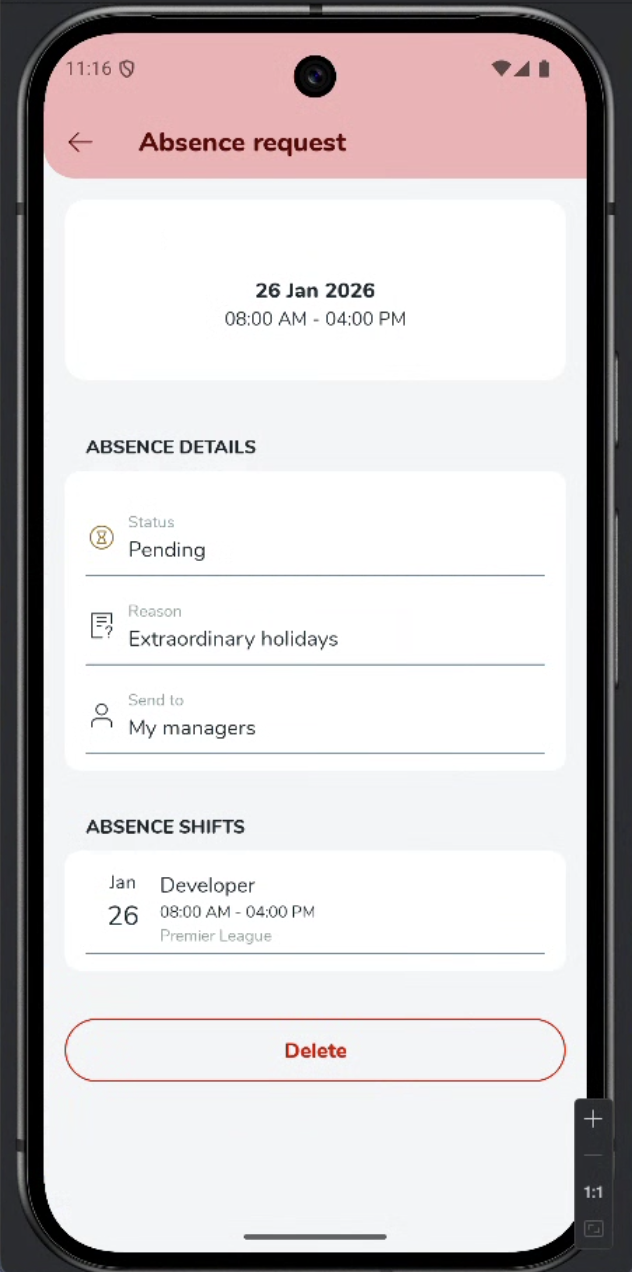
- You will see your absence request in a pending state until your manager approves. Select the pending absence request to view its details.
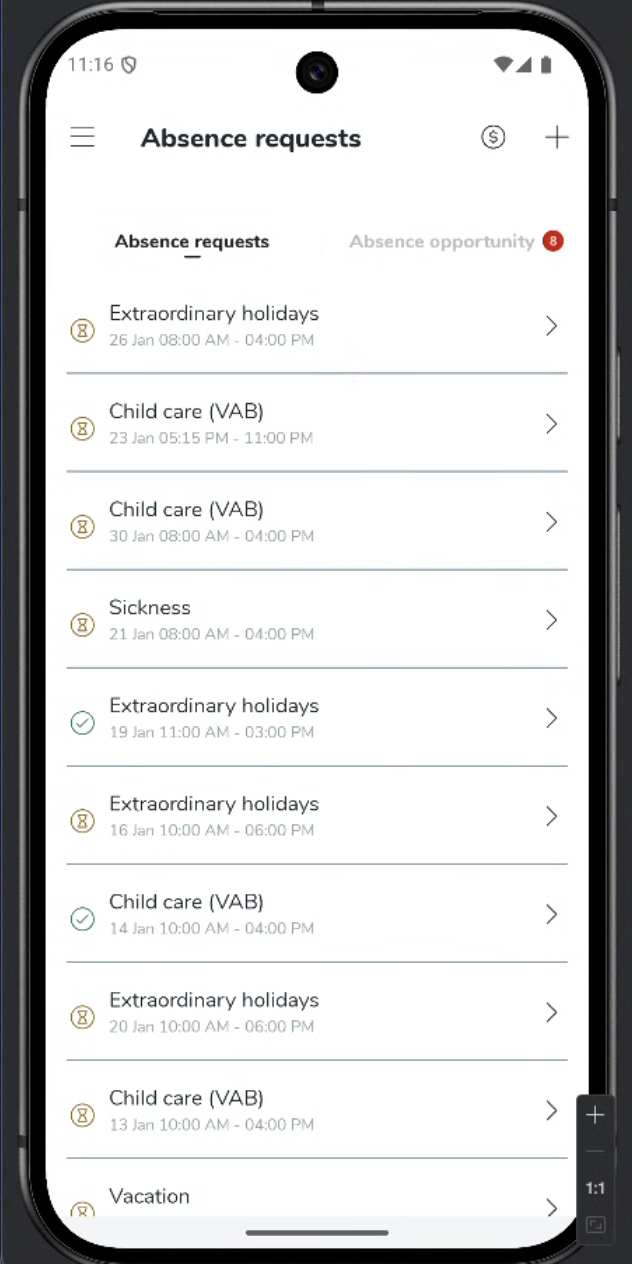
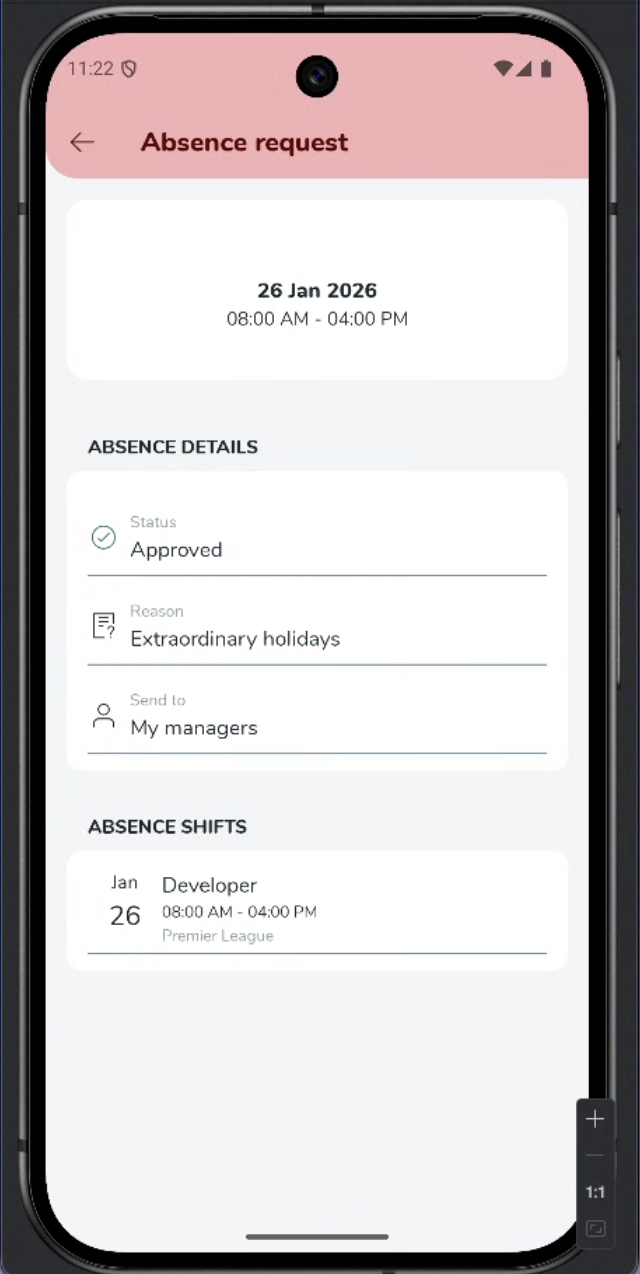
- Once your manager has approved your absence request, the status will update to "Approved".
Quick reference
Action/Status | Description |
Viewing opportunities | Check notifications in the side menu and navigate to the Absence opportunity tab within Absence requests. |
Reviewing details | Select any specific opportunity from the list to see its full details. |
Declining | Select Decline if you do not want to be considered; you will be asked to confirm this choice |
Submitting | Select Submit request and then OK to confirm your interest in the opportunity |
Pending status | Your request remains "Pending" while it is waiting for manager approval. |
Approved status | The status updates to "Approved" once your manager has authorized the request. |
