Working with shift type rules at the section level
 Updated
by
Leigh Hutchens
Updated
by
Leigh Hutchens
To ensure your Auto Schedule results accurately reflect your staffing needs, you can define shift type rules at either the Unit or Section level. By aligning these rules with your Optimal Headcount (OHV) requirements, you can reduce scheduling gaps and minimize the need for manual adjustments.
Why configure rules at the section level?
Many organizations define their labor standards and staffing demand at the section level rather than for the entire unit. Aligning your shift rules to this same level provides several benefits:
- Improved accuracy: Auto Schedule generates shifts that specifically meet the demand of each section rather than averaging demand across a unit.
- Increased efficiency: You reduce scheduling failures where valid demand exists but unit-level rules prevent a shift from being created.
- Operational flexibility: You can maintain different shift requirements (such as specific durations or start times) for different areas of your operation within the same unit.
How to assign shift rules to a section
Follow these steps to define the scope of your shift rules within your Auto Schedule configuration:
- Navigate to the Auto Schedule configuration settings.
- Locate the Shift type rules section.
- Click to add a new rule or edit an existing one.
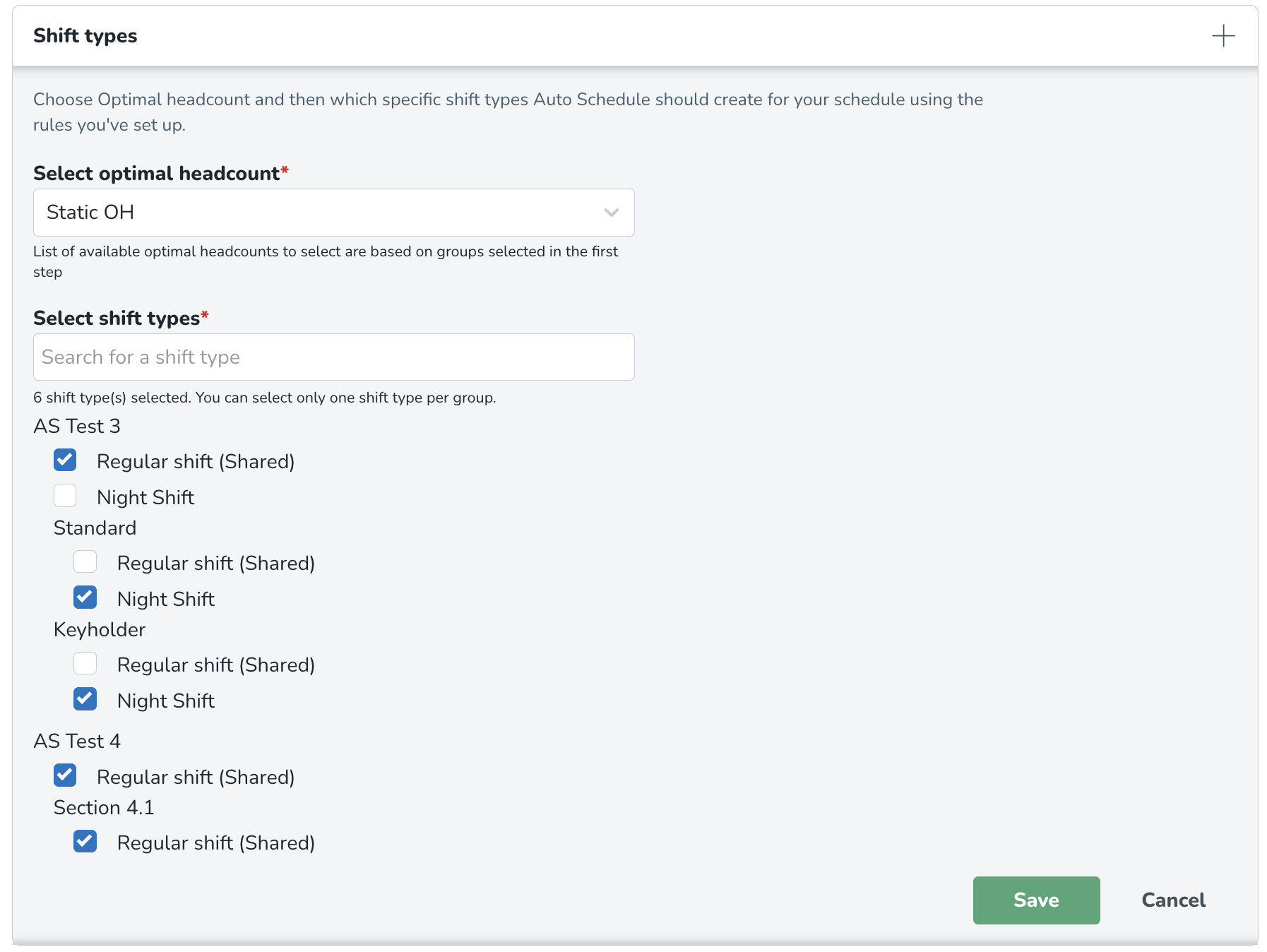
- When adding or editing a rule, use the selection tool to choose the Units or Sections where this rule set applies.
- Select Unit if these rules apply to the whole location.
- Selection Section from the drop-down menu to apply rules to a specific area.
- Choose the specific section(s) to which this rule applies.
- Configure your shift requirements (such as start times and durations). Note that these settings will apply only to the level you selected in Step 4.
- Save your configuration.
A single rule set applies its parameters (like start times and durations) equally to everything selected within it. If you need a 9:00 AM start time for the Unit, but a unique 8:00 AM start time for the "Garden Center" section, you must create two separate rule sets.
Best practices for rule management
To get the most out of your automated scheduling, keep these tips in mind:
- Mix and match at the rule-set level: You can apply some rules at the unit level and others at the section level within the same configuration. However, keep in mind that this selection happens at the rule-set level. While you can apply one rule set to the unit and a separate rule set to a specific section, you cannot apply different levels (e.g., one start time for the unit and another for a section) within the same rule set. While you can"mix and match" which sections or units a rule set applies to, the definitions inside are universal for that set.
- Check your OHV: Ensure your section-level shift rules align with the labor standards defined in your OHV to prevent under-staffing or "unfillable" demand.
- Review outcomes: If you notice gaps in a specific section, verify that the shift rules for that section aren't too restrictive—for example, ensuring the minimum shift length doesn't exceed the total demand window for that section.
