Working with Absence Opportunities
 Updated
by
Leigh Hutchens
Updated
by
Leigh Hutchens
Absence Opportunities is a functionality developed in close collaboration with our customers. It gives managers a way to proactively offer employees optional time off when demand drops unexpectedly.
Why it matters
In industries where demand changes quickly, operational needs can shift at short notice. Until now, the main option was to cancel shifts last minute, which often leads to lost pay and frustrated employees. Absence Opportunities gives employees a choice, helping maintain trust and morale while still aligning staffing to demand.
How it works
- A manager identifies overstaffing and creates an absence opportunity for a specific shift or time period.
- Employees within a selected shift receive a notification and can accept or decline the offer.
- If accepted, an absence request is created and sent to the manager for approval.
- The manager reviews and approves or denies the absence request, useful when more employees request than slots are available.
- Once approved, the absence is reflected in the schedule.
Configuration requirements
Before using Absence Opportunities, ensure the following is set up:
- In the absence type configuration, enable "Available for offering Absence opportunities" for the relevant absence types (e.g. Voluntary Time Off). Only absence types with this setting enabled will appear as options when creating an opportunity.
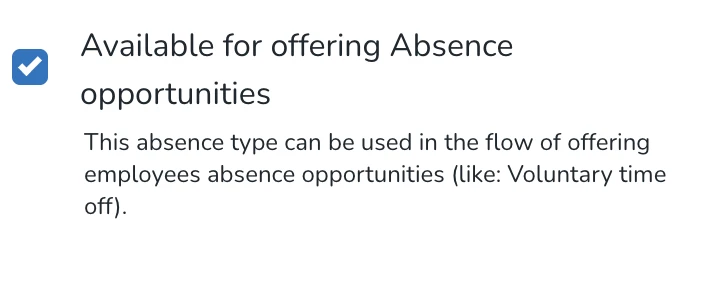
- Ensure the absence type is available on the employee's agreement template. Employees without the absence type on their agreement won't receive the offer, for example, if 4 employees have a shift but only 3 have the absence type on their agreement, only those 3 will be notified.
How to get started
- In the Schedule view, click the three-dot menu and select "Offer absence opportunity".
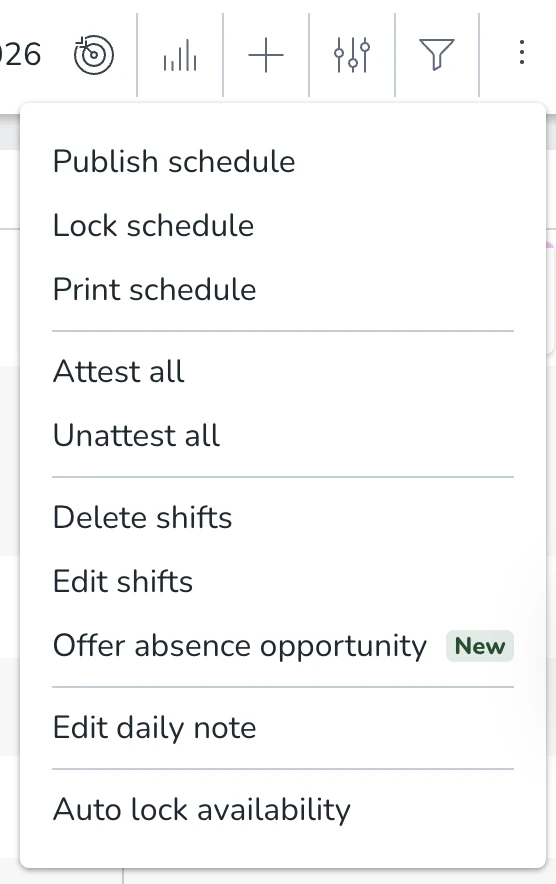
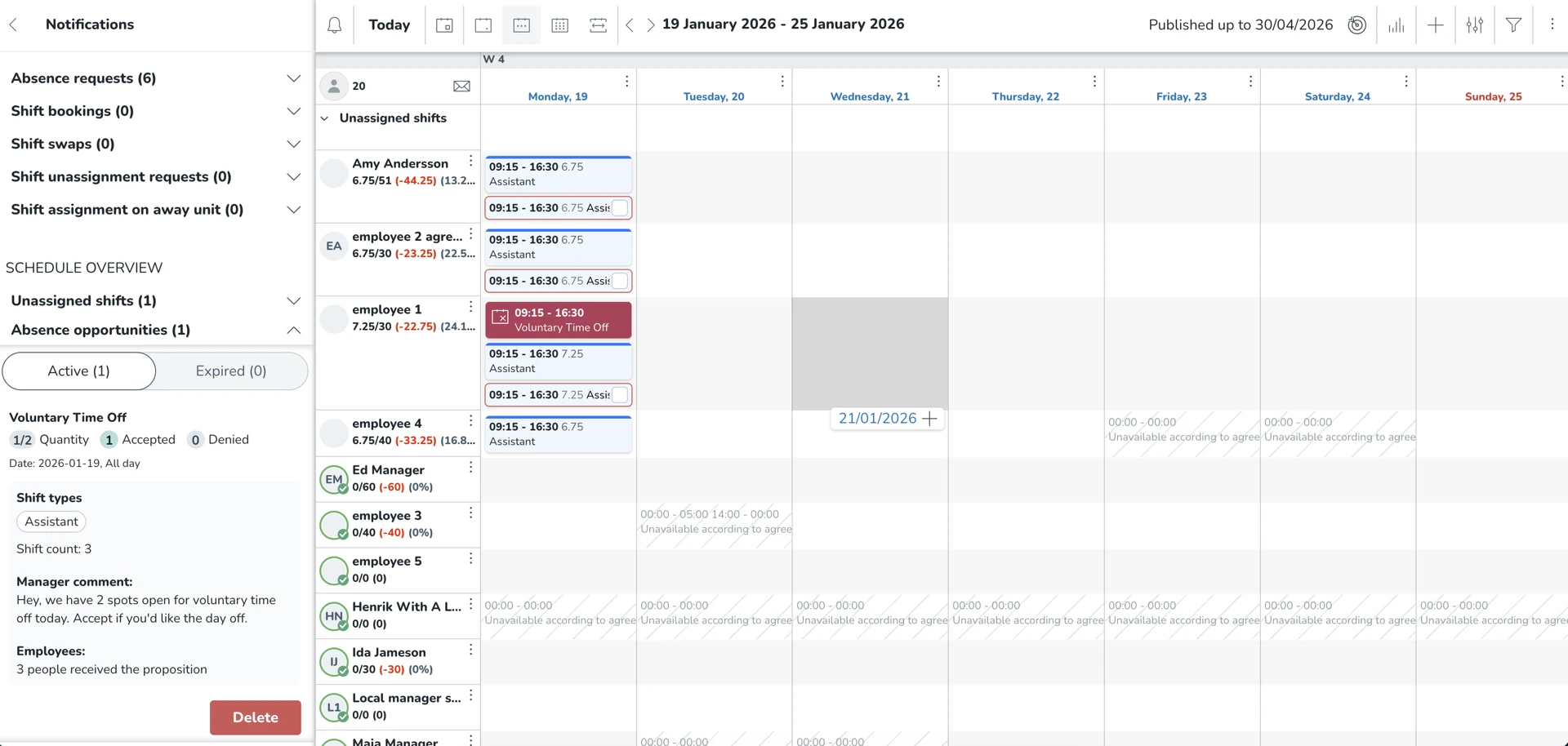
- Fill in the details: date, shift type, absence type, and quantity (number of slots available). Optionally add a comment to inform employees (e.g. "2 spots open for voluntary time off today").
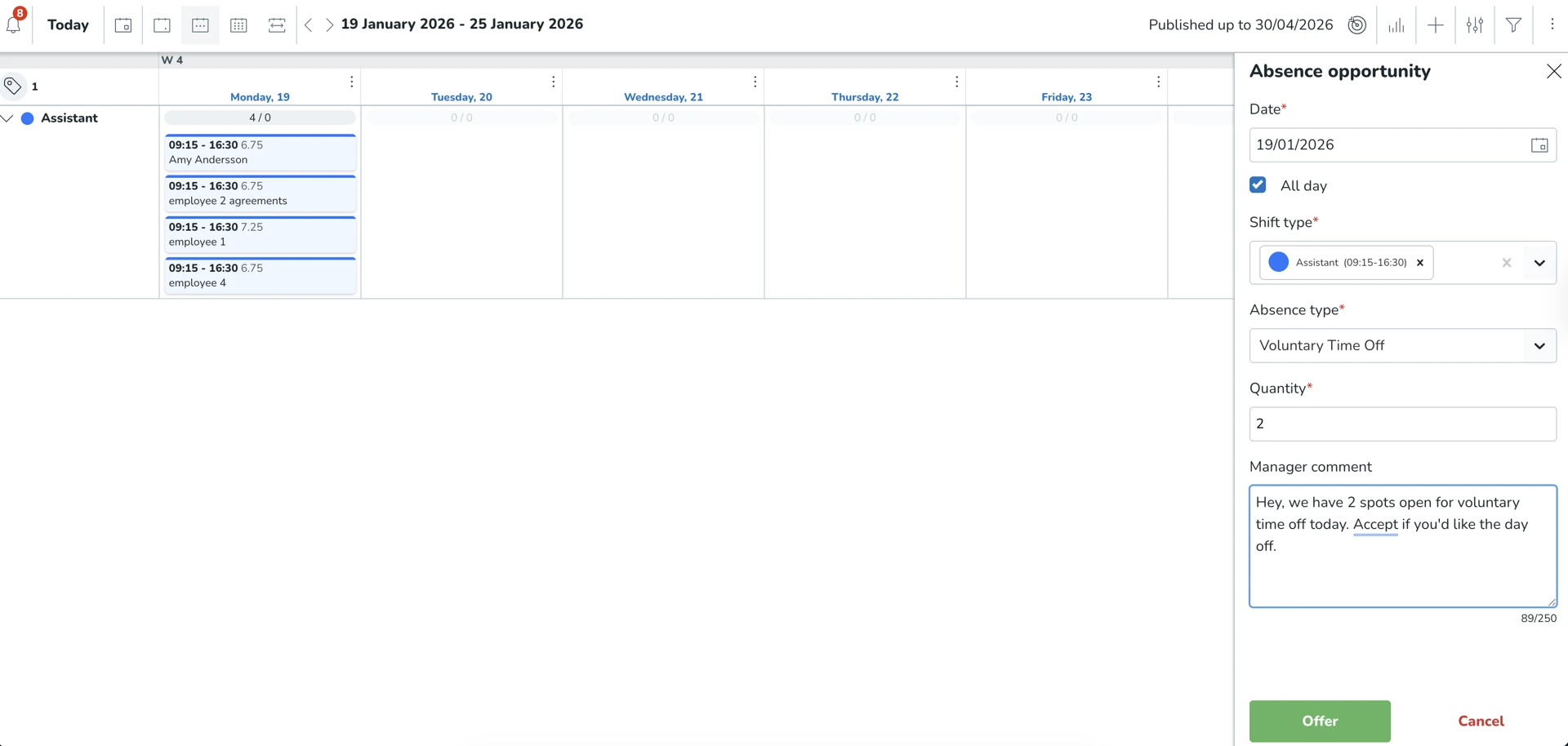
- Click "Offer" to send the opportunity to eligible employees.
- Track progress in the Notifications panel under "Absence opportunities" to see active/expired offers and how many have accepted or been denied.
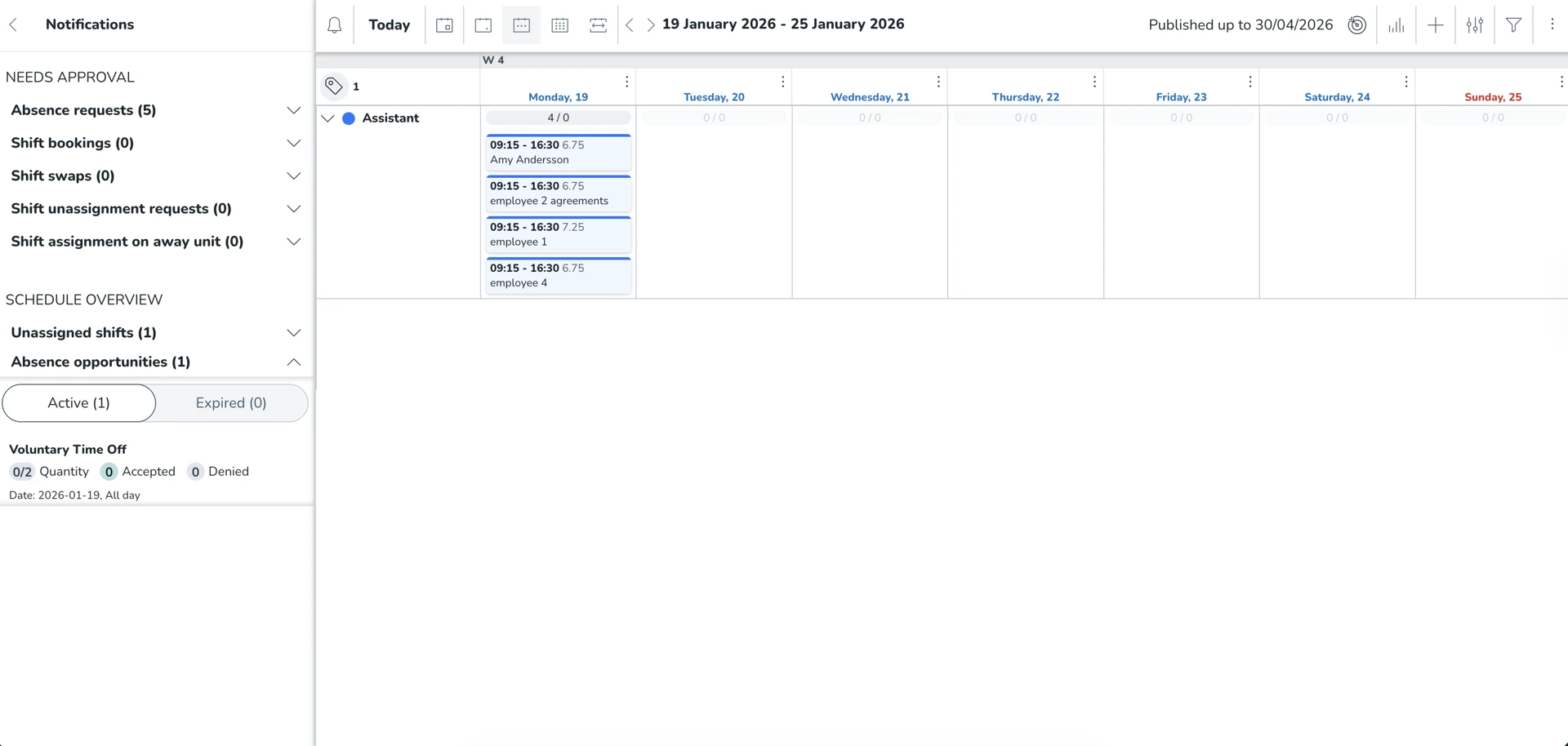
- When employees accept via the mobile app, an absence request is created. Please notes that absence requests can be approved/denied in the Absence requests, not Absence Opportunities.
Good to know
- Opportunities can be for a full day or part of a shift, the absence request will always match employee’s assigned shift.
- Employees accept or decline via the mobile app.
- Managers retain full control over approvals, so if more employees accept than slots available, you decide who gets the time off
This is our initial release. As part of continuous discovery, we'd love to hear your feedback to help us improve it further.
