Version 0231
 Updated
by
Leigh Hutchens
Updated
by
Leigh Hutchens
Release summary
Release date March 5 2026
Short on time and want a high-level summary? 🚀 Quinyx web app Version 0231 New functionality
New functionality requiring configuration updates
Updates and performance improvements
Bug fixes
Mobile apps
Employee Hub Version 0231 New functionality
New functionality requiring configuration updates
Updates and performance improvements
Bug fixes
REST API / Web service updates
|
Important information
Upcoming Webinar: Quinyx Unlocked
The Data Strategy: Preparing for a Seamless Transition to Automated Scheduling
Optimisation is the primary lever for sustainable growth. But the leap from manual scheduling to automation requires a clear prerequisite: a solid data strategy.
On March 11th, join us for Quinyx Unlocked - our exclusive monthly webinar series for the Quinyx customer community. In this session, we will explore how a unified data strategy serves as the bridge to seamless, automated optimisation. We'll demonstrate how to navigate the Workforce Maturity Curve and build schedules that perfectly balance profitability, compliance, and employee preferences, enhancing the great work your managers already do.
The Agenda
- The visibility layer – data as a strategic asset, how to get the most out of it in Quinyx
- The precision layer – translating business volume into the labour needed to meet it
- The automation layer – selecting the path to optimisation
👉 Register here!
Navigate 2026: Save the date
Navigate is back – our flagship workforce management event for customers, partners, and industry leaders.
Join us as we explore the challenges – and opportunities – shaping frontline industries, and hear directly from the people driving innovation across the sector. Navigate puts customers firmly at the centre, showcasing real-world impact, product innovation shaped by user input, and market insights that help organisations move forward with confidence.
What to expect
- Inspiring customer stories that show what’s possible when WFM comes to life
- A first look at product innovations shaped by customer feedback
- Insightful discussions on the trends impacting frontline industries
- Time to connect, learn, and exchange ideas with peers across the community
Event details
- 📅 Date: May 6, 2026
- 📍 Location: At Six, Stockholm — or join virtually
- 👉 Please join us: Register here!
Updated Communication: Swedish Collective "Additional Time" Agreement Changes
We are developing a solution to support the upcoming changes in the Swedish collective agreement, ensuring continued compliance and seamless scheduling for our customers.
Our teams are actively working on the technical implementation within Quinyx. We will have this solution available by 1 April 2026, in line with the agreement change.
To support a smooth rollout, we will host dedicated training sessions in March. These sessions will provide clear, step-by-step guidance on how to configure and manage the new requirements in your environment.
Quinyx web app Version 0231
Release date March 5 2026
New functionality
Configuring preconditions for Time Trackers
What's new
Customers can now configure a Precondition on a Time Tracker that controls when employees are allowed to use their accrued balance — for example, XL days (extra leave days).
Before this change, employees could use their accrued Time Tracker balance at any time. With a precondition, usage is locked until the employee has been continuously employed on an eligible agreement template for a minimum period set by the administrator. Accrual is never affected — balance always builds up as normal. Only the ability to book against it is gated.
Setting it up
The precondition is configured per Time Tracker under Account settings > Agreements > Time Trackers.
- Open or create a Time Tracker.
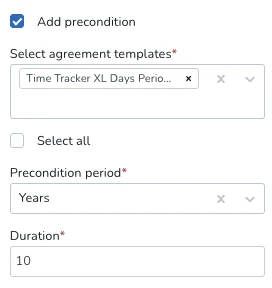
- Tick Add precondition — this reveals the precondition fields.
- Under Select agreement templates, choose which agreement templates count toward the employee's eligibility period.
- Choose a Precondition period: Days, Weeks, Months, or Years.
- Enter a Duration (for example: period = Weeks, duration = 1 means the employee must be on an eligible agreement template for at least 1 week before they can use their balance).
- Save the Time Tracker.
How it works
Eligibility counter
The system looks at the employee's agreement history and finds the earliest start date of an uninterrupted chain of agreements on the selected agreement templates. It adds the precondition duration to that date to determine when the balance becomes available.
Example: An employee's agreement starts on 01 January 2026. The Time Tracker has a precondition of 1 week. The balance becomes available from 08 January 2026 onwards.
Rules for what counts
- Consecutive agreements with no gaps are treated as one continuous period. The counter runs from the start of the earliest agreement in the chain.
- Any gap between agreements — even a single day — breaks the chain and resets the counter. The count restarts from the beginning of the next eligible agreement.
- Overlapping agreements on eligible agreement templates are merged into a single continuous coverage window. The system measures the total combined span they cover together — so if overlapping eligible agreements collectively add up to the precondition duration, the precondition passes. Overlapping agreements on non-eligible agreement templates are ignored as always.
- Only the agreement templates selected in the precondition configuration count. If an employee has agreements on multiple agreement templates, but only some are selected in the ime Tracker precondition, only those eligible agreements contribute to the counter.
What employees see
While the precondition has not yet been met, the Time Tracker balance in the employee's timecard shows.
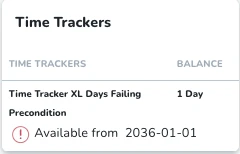
The accrued value is still visible, but employees cannot book absence against it.
Once the precondition is met, the balance appears as normal with no restriction, and employees can use it for absence booking.
Frequently Asked Questions
Q: Does the balance still accrue while the precondition is not met?
A: Yes. Accrual continues normally at all times. Only usage is restricted.
Q: What period types are supported for the precondition duration?
A: Days, Weeks, Months, and Years.
Q: Can multiple agreement templates be selected?
A: Yes. Agreements on any of the selected templates will count toward the eligibility period, as long as they form a continuous chain with no gaps.
Q: What if an employee switches agreement templates with no gap?
A: If both templates are in the precondition list, the chain continues uninterrupted.
Q: What happens if an employee switches to a second agreement template that has different Time Tracker associations?
A: The precondition check still applies based on the second Agreement Template's eligibility. If the precondition passes for the second agreement template, the Time Tracker associations from that active agreement template will be used.
Q: Does this work for Periodized Time trackers as well?
A: Yes, the precondition also works with periodized Time Trackers. All period balances are subject to the same precondition. Every balance will show "Available from: DATE" until the single shared threshold is met, at which point all balances become available at once.
Q: Do the "Include all employee data" and "Apply only on main agreement" checkboxes affect the precondition?
A: No. These settings have no effect on the Time Tracker precondition logic.
Q: Does this apply in the staff portal and mobile?
A: Yes. The balance availability and hard stop apply across all channels.
Pay Schedules
Pay Schedules is a new feature that allows organisations to automate and streamline their payroll runs by replacing manual grouping with a highly configurable system.
By grouping employees based on specific criteria such as pay cycle, employment type, and payroll file, companies can significantly improve processing efficiency while ensuring strict compliance with legal and local regulatory requirements.
This new feature is essential for modern organisations as it reduces administrative errors, supports accurate financial planning, and allows for the deep customisation of payroll processes to meet the unique needs of different employee groups.
The implementation of pay schedules involves identifying strategic criteria for grouping workers, such as pay frequency, geographic location, departmental structure, or the nature of work, including full-time, part-time, and contract roles. Once these criteria are established, employees are seamlessly assigned to their appropriate schedule within the Quinyx platform to ensure consistency and accuracy in all payroll records.
Beyond operational improvements, the introduction of this feature has a significant impact on workforce satisfaction and morale. By supporting batch processing for payments, wage calculations, and tax deductions, the system ensures that employees are paid accurately and on time, which fosters a culture of transparency and trust between the organisation and its staff. This automation minimises the likelihood of mistakes and reduces the overall administrative burden, allowing for faster and more reliable payroll processing across the entire enterprise.
Pay schedules creation and configuration
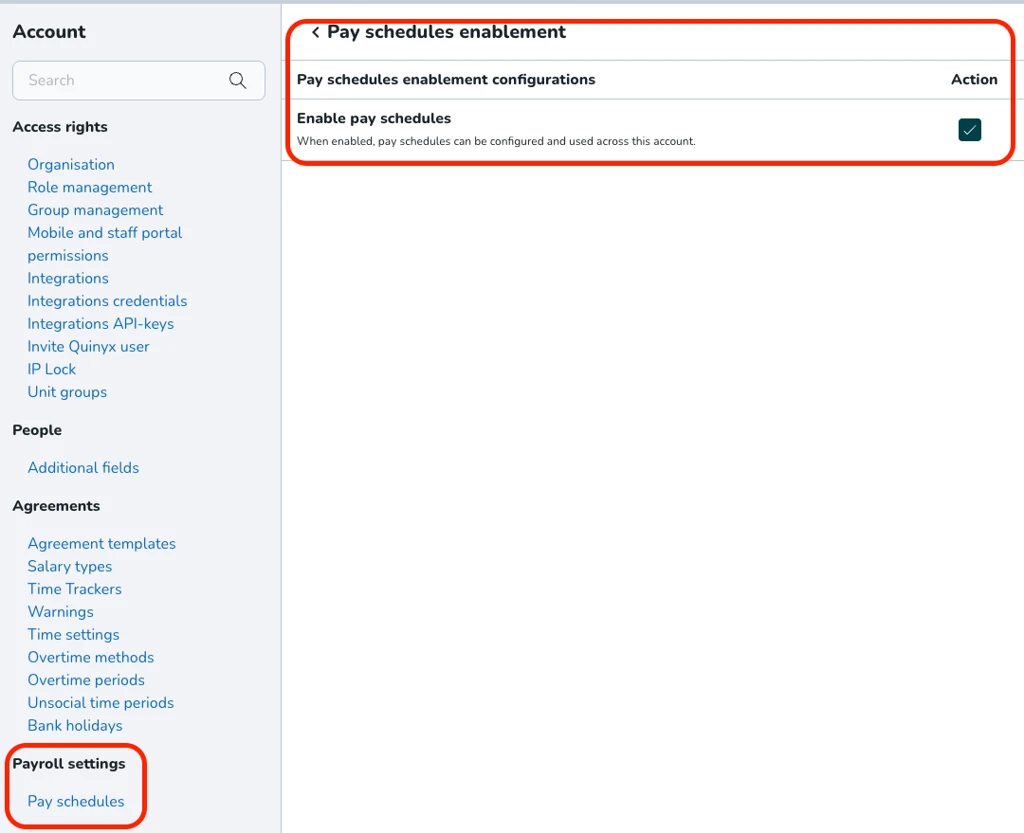
Here is the step-by-step workflow to enable the Pay Schedules setting within Quinyx
Workflow: Enabling pay schedules
Step 1: Access account settings
- Action: Click on the user profile/Account icon located in the top-right corner of the dashboard.
- Selection: From the dropdown menu, select Account settings.
Step 2: Navigate to advanced settings
- Action: Scroll down the left-hand navigation sidebar to the Advanced settings section.
- Selection: Click on Global account settings.
Step 3: Open pay schedules configuration
- Action: In the main "Global account settings" list, locate the option for Pay schedules enablement.
- Selection: Click the link to open the configuration page.
Step 4: Enable the setting
- Action: Locate the Enable pay schedules checkbox under the "Action" column.
- Selection: Click the Edit/Checkbox icon to toggle the setting to "Enabled" (indicated by a green checkmark).
Creating a new Pay schedule
Once enabled, you can define the specific parameters for your pay schedules.
- Access pay schedules: Select Pay Schedules under the Payroll settings section in the sidebar.
- Initiate creation: Click the green Add button in the top-right corner.
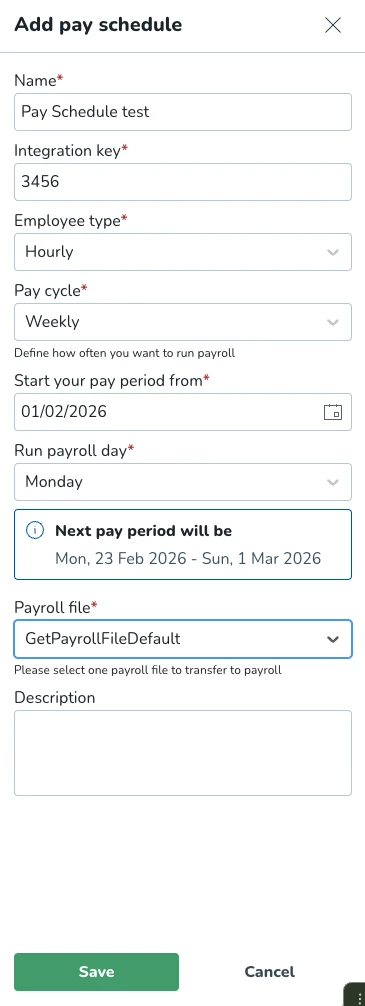
- Define Pay Schedule details: Fill in the following mandatory fields in the "Add pay schedule" slider:
- Name: Enter a descriptive name (e.g., "Pay schedule 1").
- Integration key: Provide a unique identifier code.
- Employee type: Select the applicable category between Hourly and Monthly.
- Pay cycle: Choose the frequency: Weekly, Bi-weekly, semi-monthly, monthly, and custom.
- Set pay period parameters:
- Start date: Select the date from the calendar when the pay period should begin.
- Run payroll day: Choose the specific day of the week (e.g., Monday) when the payroll is processed.
You will be presented with the next pay period, considering all the above parameters and the current date.
- Finalize configuration:
- Payroll file: Select the appropriate export format or file type from the dropdown - This file should match the file selected in the agreement templates of the employees you will assign to this pay schedule.
- Description: Add any relevant notes regarding the schedule.
- Save: Click the Save button to create the schedule.
ID and name validation: Quinyx will prevent duplicate IDs and case-insensitive duplicate names in pay schedule creation.
Field immutability: After creation, the ID, Pay cycle, Start date, Employee type, and Payroll file are locked to prevent payroll corruption.
Pay cycle logic description
The system must calculate periods and run dates using the following logic:
Weekly/Bi-weekly
- Logic: Calculated from a start date to a specific run day.
- Shortened periods: If the run day creates a mid-week start, the first period is shortened to align with the run day.
Monthly
- Logic: Runs on a specific day of the month (e.g., 31st).
- Boundary Handling: If a month is shorter than the selected day (e.g., February), the system will fallback to the last available day of that month.
Custom
- Logic: Incremental logic based on a user-defined number of days, weeks, or months.
- Continuity: The system will handle month and year boundaries, ensuring the next run date is the day after the period ends.
Review and edit pay schedules
- Confirmation: A success message ("Pay schedule successfully added") will appear at the top of the screen.
- Modification: If changes are needed, click the Pencil icon next to the schedule to reopen the editor. Note that only the Name and Description can be edited after a schedule is created; for other changes, a new schedule must be created.
Assigning the Pay Schedule to employees
The final step is linking the pay schedule to individual employee agreements.
- Navigate to people: Click People in the top navigation bar.
- Select employee: Choose an employee from the list to open their profile.
- Access agreements: Click the Agreements tab within the employee's side panel.
- Select agreement: Click on the specific agreement you wish to edit.
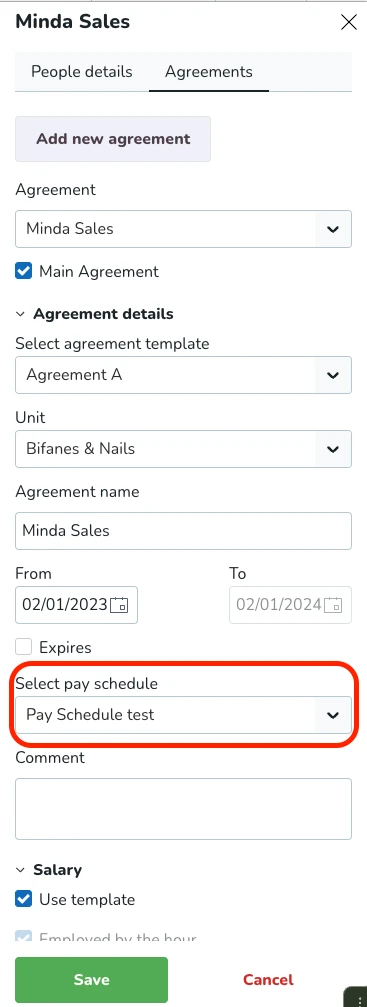
- Link schedule: * Locate the Select pay schedule dropdown menu.
- Select the desired schedule (e.g., "Pay Schedule test").
- Commit changes: Click Save at the bottom of the panel to apply the schedule to the employee.
Only Pay Schedules that match the employee type and payroll file will be displayed.
Important to know: An employee/agreement can only be assigned to one pay group at a time.
Changes to an agreement's employee type or payroll file to a value incompatible with its current assigned pay schedule will trigger a warning and automatically unassign the employee from the pay schedule.
Using pay schedules in the Time tab - Transfer to payroll
Once employees are linked to a pay schedule, use the following steps to process the payroll data:
- Click on the Time tab in the top navigation bar and select Adjust View from the sub-menu.
- Configure the view: An adjust view slider will appear on the right. You must define your data set here:
- Select pay schedule: Choose the specific schedule you wish to process (e.g., "Pay Schedule test").
- Date range: Selecting the pay schedule will auto-populate the From date and To date based on the defined period (e.g., 16/02/2026 to 22/02/2026).
- Filters: Pay schedule will apply additional filters such as districts, units, employees, and payroll file.
- Click the green Apply button at the bottom of the slider.
- Process Data: The system will display a progress bar while it compiles the data based on the defined filter. Once finished, the list will show employees and their status (e.g., "Ready to transfer").
Manual override: Verify that users can manually override these dates for historical reporting while the employee filter remains active.
New functionality requiring configuration updates
None at this time.
Updates and performance improvements
None at this time.
Bug fixes
- Resolved an issue where users received an error message when trying to update projects on all shift types in the Group settings.
- Resolved an issue where users received an error message when trying to create a shift type integration key through a SOAP API call.
- Resolved an issue where static rules and minimums gave incorrect resolutions.
- Resolved an issue where data in the Forecast view didn't match between the table and chart views.
- Resolved an issue where Schedule approval settings weren't copied over from the main unit to newly created units.
- Resolved an issue where schedule warnings displayed incorrect overtime while not applying it to employee metrics.
- Resolved an issue where skill expiry validations incorrectly prevented employees from being scheduled for shifts by treating still-valid skills as expired.
New HelpDocs content
None at this time.
Mobile apps
Remaining schedule period balance
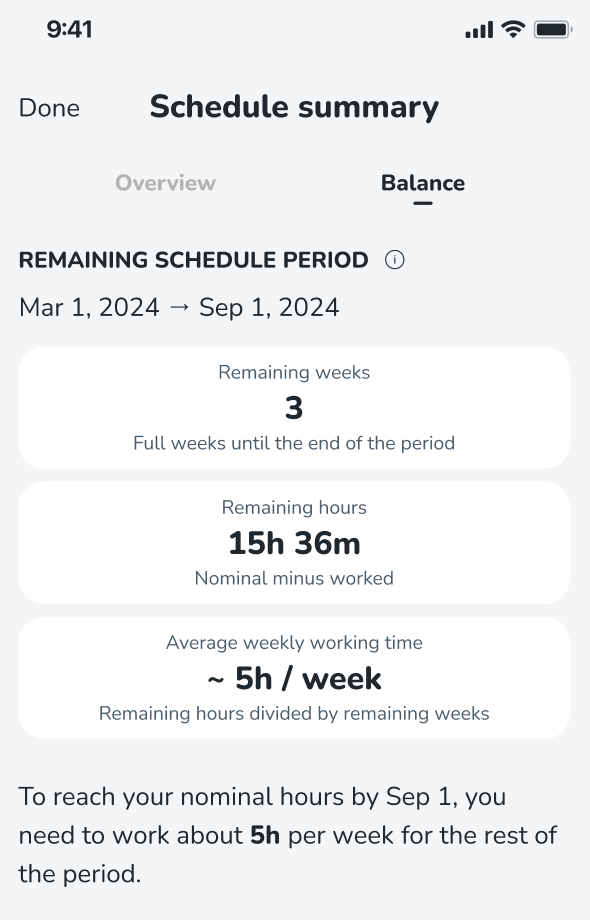
We have now made it easier for you to visualise the number of weeks/hours you have left to work during your current schedule period, as well as your suggested average weekly working time. We have introduced a new ‘Balance’ tab to the ‘Schedule summary’ view, which contains the following information:
- Remaining weeks - shows the number of full weeks left until the end of the schedule period. If you check this in the middle of a week, we do not count the ongoing week.
- Remaining hours - this is your total contracted hours (nominal hours) for the schedule period, minus the hours you have already worked. We do not include shifts which are ongoing today. If today’s shift has already ended, it will be included.
- Average weekly working time - this is a calculated average of your remaining working hours, spread across the remaining weeks of the schedule period i.e. remaining hours divided by remaining weeks.
Employee Hub web app Version 0231
Release date February 18 2026
New functionality
None at this time.
New functionality requiring configuration updates
None at this time.
Updates and performance improvements
None at this time.
Bug fixes
- Resolved an issue where different task statuses were displayed on the same tile task details for the identical task.
- Resolved an issue where users received task notifications from users in other stores.
New HelpDocs content
None at this time.
REST API / Web service updates
Tag Categories API update: Deprecation postponement
We are providing an update regarding the deprecation timeline for the unpaginated Tag Categories API endpoint.
The change
The planned deprecation date for the old API endpoint, GET /categories/{categoryExternalId}/tags has been postponed.
Detail | Original | Updated |
Old Deprecation Date | December 10, 2025 (Release 0226) |
|
Updated Deprecation Date | February 4, 2026 (Version 0229) | March 4, 2026 (Version 0231) |
Why the Change?
This extension to the dual-run period is being implemented to provide our customers with additional time to successfully migrate their integrations to the new, performant, and paginated API (GET /v2/categories/{categoryExternalId}/tags).
We remain committed to supporting a smooth transition to the new endpoint, which resolves critical performance issues (such as 504 Gateway Timeouts and OutOfMemoryError) experienced by customers using the old endpoint with large datasets.
Action required (for users still on the old API)
Customers using the old API are strongly encouraged to complete their migration to the paginated API as soon as possible.
- Old Endpoint (No Pagination, to be deprecated):
GET /categories/{categoryExternalId}/tags - New Endpoint (With Pagination, required for future stability):
GET /v2/categories/{categoryExternalId}/tags
The deprecation warning will be updated in our official Swagger documentation to reflect the new February 4, 2026, date.
New TimePunch service and Open Punch Validation
We are excited to share an update regarding how Quinyx handles time punch data. To ensure consistency, scalability, and better maintainability across our platform, we have released a new TimePunch Service.
Why the change?
This service centralises all punch operations into a single location. A key driver for this project is the requirement to robustly log data from every punch origin—including Webpunch, mobile app, and the manager portal. This centralised approach allows for superior data integrity and easier troubleshooting for both Quinyx and our partners.
What is changing?
We are reinforcing a 24-hour open punch creation validation specifically for our SOAP API. This validation is already in place for all other punch origins (Webpunch, mobile, etc.), and we are now aligning our validations to be consistent across the entire TimePunch service. This reinforcement ensures that punches remain within a strictly defined logical window based on specific "Business day break" settings.
Key validation rules
The valid punch interval is determined by the current time, the fixed limit of 24 hours, and your configured daybreak.
- Business day break: The system uses the "Business day break" value found under Advanced unit settings.
- Validation window: An open punch is considered valid if it falls between the "Current time with Auto punch out Flexibility" and the "Tomorrow daybreak" timestamp.
- Daybreak logic: The start of a new day is defined by the daybreak setting (e.g., 00:00 or 02:00).
Please make sure to forward this information to the party within your company responsible for integrations.
