How to use audit logs
 Updated
by
Leigh Hutchens
Updated
by
Leigh Hutchens
In Quinyx, audit logs are essentially records of past actions within a specific context. They are instrumental for resolving disputes or issues concerning workforce planning and attendance, providing clear insights into who performed specific actions and exactly when they occurred.
Any manager portal user can access these current audit logs to gain a comprehensive understanding of their team's historical activity.
Quick Reference: Audit Log Types
Use this table to identify which log type to search based on the discrepancy you are investigating.
Scheduling and shifts
If you need to know... | Use this log type |
Who created, edited, or deleted a specific shift | Shift |
Which employee claimed an open shift | Shift booking |
Who authorized a trade between two staff members | Shift swap |
Why a shift was removed from a specific person | Shift unassignment |
Details on a "shared" employee working at your unit | Shift assignment on away unit |
Who offered a shift to the staff pool | Shift offer |
When a finalized schedule was officially greenlit | Schedule approval |
When a schedule was locked or published to the team | Schedule lock / Schedule publish |
Attendance and availability
If you need to know | Use this log type |
Historical records of approved or denied time off | Absence |
When an employee first submitted a time-off request | Absence request |
Changes to an employee's preferred working hours | Availability |
Manual edits to clock-in/clock-out times (Webpunch)* | Punch |
* Currently, only a select group of customers has access to retrieve audit logs for punches. Once the feature is widely available, we will notify all customers via the Release Notes.
Configurations and permissions
If you need to know | Use this log type |
Changes made to organizational structure (Units/Districts) | Level |
Updates to user role definitions or permission sets | Role |
When a specific manager or employee was assigned a new role | Role assignment |
Modifications to labor laws, agreements, or templates | Rule / Rule set |
Navigation and access
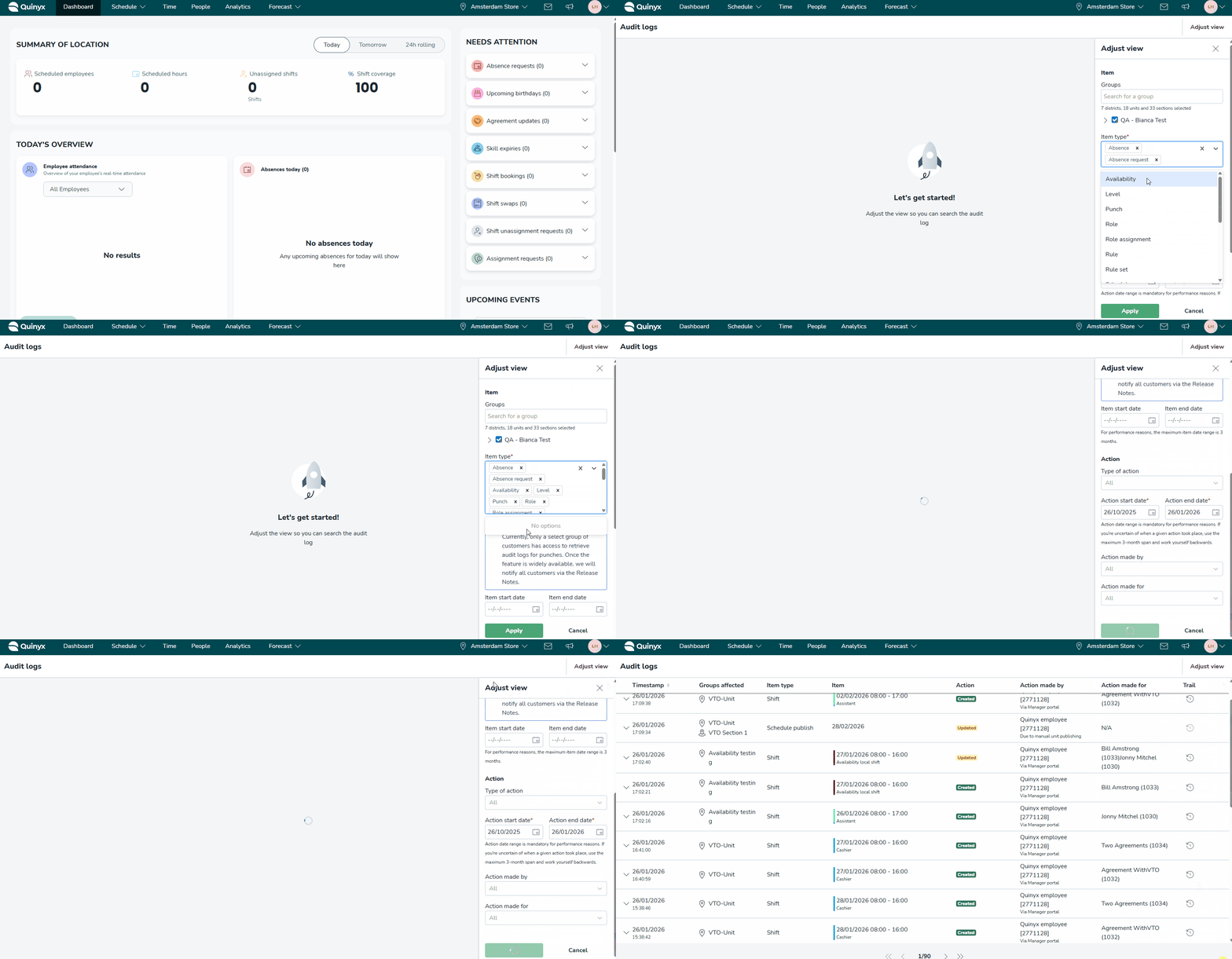
To access these records, click the Chevron in the top right corner of your screen, then select Audit logs. Click Adjust view to begin filtering your results.