How to manage and maintain salary types
 Updated
by
Victor Jespersen
Updated
by
Victor Jespersen
Salary types are one of the most important features in Quinyx. You can create, but not delete, salary types. So in this article, we will go through how to best manage and maintain salary types in Quinyx using the Salary type tab in the Account settings, and the salary types found in the Agreement template.
Salary types and agreement templates
Salary types in account settings and agreement templates are linked only temporarily.
When you create a new agreement template, it pulls in the salary types from Account settings. That’s why the salary types you see in the agreement template initially match what’s in the account settings.
At first, these salary types stay connected. However, if you edit a salary type inside the agreement template, it becomes independent. From that point on, it is no longer linked to the salary type in the account settings.
This means that any later changes made in the account settings will only affect that salary type there and will not update salary types that were modified in an agreement template.
Understanding custom salary types
There are generally two different salary types within Quinyx. Standard salary types that come with the system automatically, and salary types created by a user. Salary types that come with the system by default will generate automatically depending on your Quinyx setup. This is because the conditions under which the salary types generation has been hard coded into the system.
Example: If an employee is considered to be paid by the hour according to the agreement they have, salary type 1000 hourly salary will be generated during worked hours. But if the same employee is considered to be paid monthly instead, according to the agreement, salary type 1020 Monthly salary will be generated instead.
Custom salary types created by a user will not be generated unless the generation conditions haven't been created manually. The conditions in question can be salary type rules, Bank holiday settings, adding salary types manually in the time card, etc. This is because, compared to the salary types that come with the system, the custom salary types are created by users, and are used differently depending on the customer, so nothing is hard coded into the system in terms of conditions.
So, how do we tell if a salary type is a standard salary type that comes with the system by default, or a custom salary type? It is pretty simple. The first two numbers of the standard code of a custom salary type will always be 40.
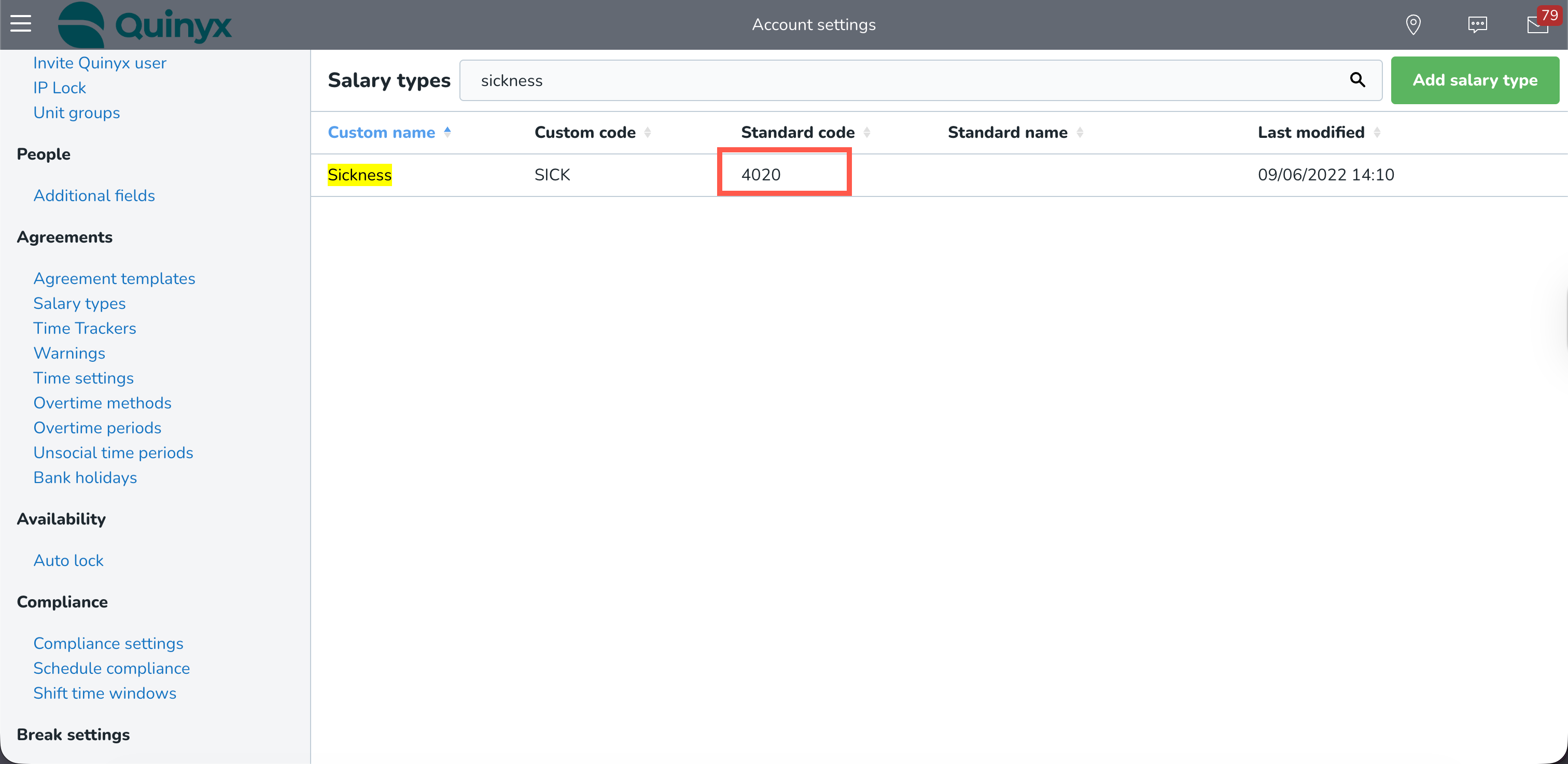
So if you look at the standard code field, and the number starts with 40, you know that the salary type was something created by a user in the organization. But if the first two numbers are something else, it is a salary type that comes with the system by default.
Managing salary types
Create a salary type
The critical thing to remember when creating new salary types is to give them a clear, descriptive name. This will be important in the long run, since salary types can not be removed or archived. So by giving the salary type a good name, it not only helps you to understand exactly what they are used for, but also helps you keep track of the salary type that is not in use.
Another good practice is not name a custom salary type the same as a standard salary type. This is to not confuse standard and custom salary types. It is a common occurrence to mix the two when you use standard salary type names for custom salary types. So to make it easier to review the data when the time comes, we recommend using unique names for your custom salary types.
Unused salary type
Since salary types can not be deleted or archived, you need to manage salary types by changing the name of the salary type instead. The general recommendation is to rename your salary type to xNotinUse. By renaming your salary type to this, it will be kept at the bottom of the list of salary types if you sort them by name, and let everyone know not use the salary type. You, of course, have to remove the salary type from all shift type rules, etc, so the salary type doesn't generate as well.
