Version 0226
 Updated
by
Victor Jespersen
Updated
by
Victor Jespersen
- Release summary
- Important information
- Quinyx web app Version 0226
Release date December 17, 2025
Release summary
Short on time and want a high-level summary? 🚀 Quinyx web app Version 0226 New functionality
New functionality requiring configuration updates
Updates and performance improvements
Bug fixes
Employee Hub Version 0226 New functionality
Updates and performance improvements
Bug fixes
SOAP API / Webservice updates
|
Important information
Swedish collective agreement change
We’re aware of recent changes in the Swedish collective agreement that may impact scheduling and compliance for some of our customers. Our teams are actively investigating how we can address these updates within Quinyx. Once we have a confirmed plan of action, we’ll share more details. Our intention is to have a solution in place by 1 April 2026. However, as we explore the technical feasibility of a solution, the timeline is subject to change - but we’ll do everything we can to deliver before the agreement change date.
Quinyx web app Version 0226
Release date December 17, 2025
New functionality
Punch-based break calculation (Phase 1)
We are introducing a new calculation method that allows managers to apply break deduction rules directly to punches, ensuring that the correct amount of break time is deducted based on the actual duration of the punch/worked time.
This feature is designed to give you greater control over recorded worked hours and salary outcomes when employees use time punching methods.
How the Calculation Works
Previously, break deductions were primarily based on scheduled shift length. For eligible punches, the system will apply existing shift break calculation rules against the total duration of the recorded punch.
Eligibility Criteria
To ensure accuracy in this initial phase, the new calculation will only apply to punches that meet all of the following criteria:
Criterion | Description |
Punch Type | Must be a single, closed punch (a single "punch in" and "punch out" record). |
Shift Connection | The punch must be connected to a shift in the Schedule View. |
Agreement Type | The employee's agreement must use the time reporting methods "Deviation reporting" or "punch in/out no breaks". |
Punching Settings | The employee's agreement must not have any of the following settings enabled:
|
Hierarchy of break rules
The system determines which break calculation rules to apply based on the following hierarchy, starting with the most specific rule and moving toward the most general:
- Employee agreement
- Agreement templates
- Group settings (Unit settings)
- Account settings
Manager workflow: Applying break rules
As a manager, you can initiate the break calculation for a batch of eligible punches directly from the Schedule View.
Step 1: Enable the calculation toggle
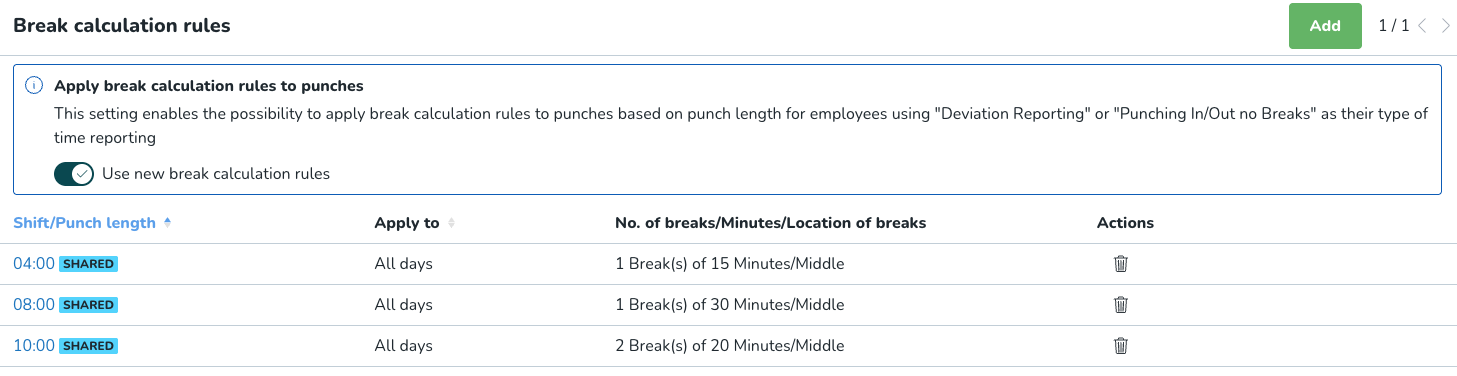
Before you can use the bulk action, a system administrator must enable the global setting:
- Navigate to Account settings → Break calculation rules.
- Toggle the button to "Apply break rules based on actual worked time" (Enabled).
Step 2: Use the bulk action button
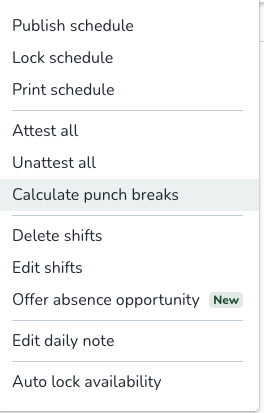
Once enabled, you can apply the rules in the Schedule view:
- Navigate to the Schedule view.
- Apply any necessary filters (e.g., date range, specific employees).
- Click the "Apply break rules" bulk action button.
This action will trigger the calculation only for the punches currently visible in your Schedule View. Any punches that are filtered out will not be considered.
Identifying affected punches
To help you easily monitor and correct punches impacted by this new calculation, we've introduced a new system Warning.
Enabling the Warning
An administrator should enable this warning in Account Settings:
- Navigate to Account settings → Agreements → Warnings.
- Enable the warning flag “Break time is based on punch length”.

Filtering punches
Once the warning is enabled, you can use the Schedule view filters to quickly identify any punches that have had their break time calculated using this new punch-based logic. This allows you to review the corrected worked hours and ensure the salary outcome is accurate.
Improved agreement grouping across schedule periods
We are introducing a new display option that gives scheduling managers better visibility and control when working with long schedule periods and multiple employee agreements.
A new checkbox — Display all agreements of the schedule period — allows you to view and group employee agreements more intuitively, helping you schedule flexibly across busy and quiet periods while still keeping track of total contracted hours.
To access: Display all agreements of the schedule period:
- Open Display options from the Schedule page
- Choose Employee view
- For Employee metrics, choose to compare Worked, Scheduled, or Expected hours with Nominal hours
- Set Calculation period to Schedule period
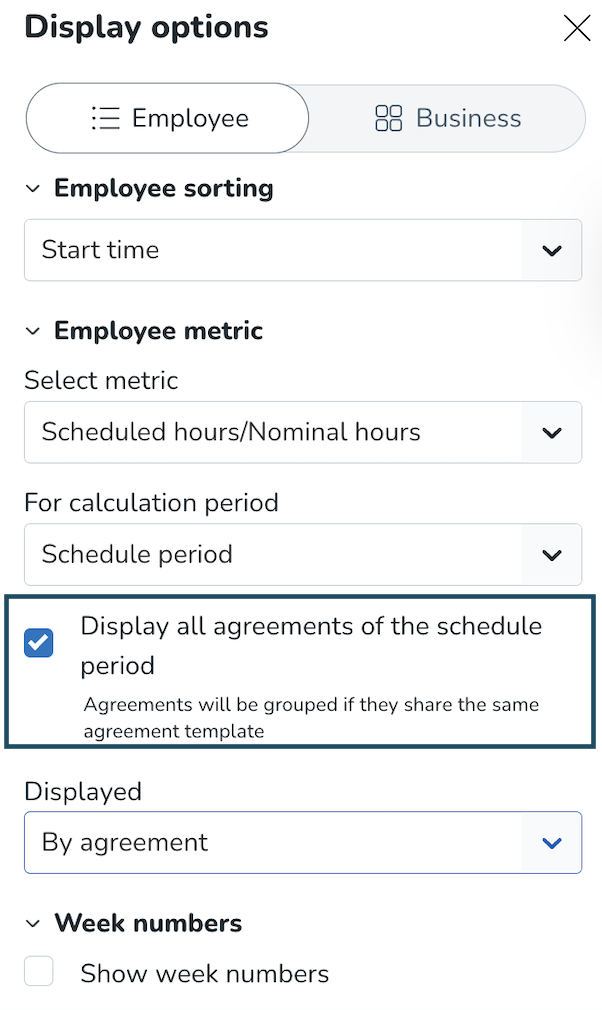
When the checkbox is enabled, all agreements from the schedule period are displayed, regardless of the selected period, using the following rules:
Agreements are shown when they:
- Belong to the current schedule period (overlapping the selected period)
- Share the same agreement template
- Are parallel or consecutive, with no gap in days between them
If you chose the Employee metrics to be displayed per agreement, you will now see:
- All agreements that meet the criteria above
- Other relevant agreements from the selected period that cannot be grouped
- The following details are in the Tooltip: Current week in the schedule period, Unit name, Agreement name, Scheduled, Worked, or Expected hours compared to Nominal hours.
If you chose Totals Employee metrics to be displayed, you will now see:
- Summed up information for all agreements that can be grouped according to the criteria above (agreements that: belong to the schedule period which overlaps the selected period, share the same agreement template, are parallel or consecutive in a way that an employee doesn’t have a gap between them)
- Additional information for any other agreement that is outside the group.
Examples:
When there are 2 agreements that cannot be grouped according to the rules described above, the information shown in "Totals" will be the same as the information in "Per agreement". If there are 3 agreements, and 2 of them can be grouped, then these 2 will be summed, and the 3rd presented as in "Per agreement". If there are 4 agreements where 2 can be grouped, and the other 2 cannot, then we sum them into 2 groups. - The following details are in the tooltip: Current week in the schedule period, Unit name, Up to 2 agreement names (with an indicator if more exist), Scheduled, Worked, or Expected hours compared to Nominal hours.
New functionality requiring configuration updates
None at this time.
Updates and performance improvements
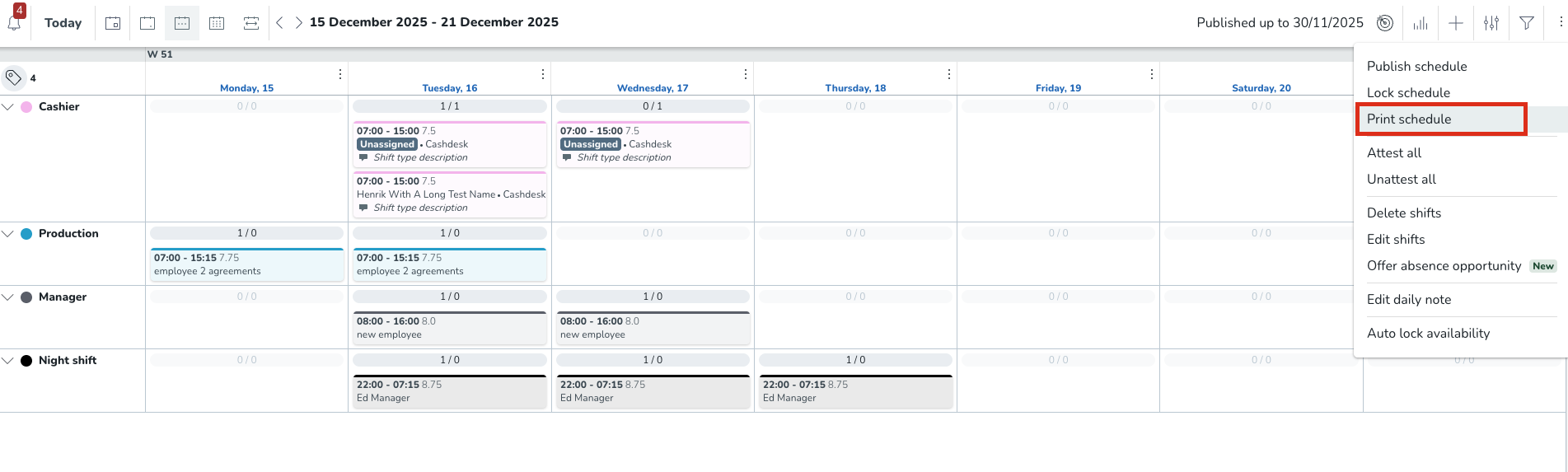
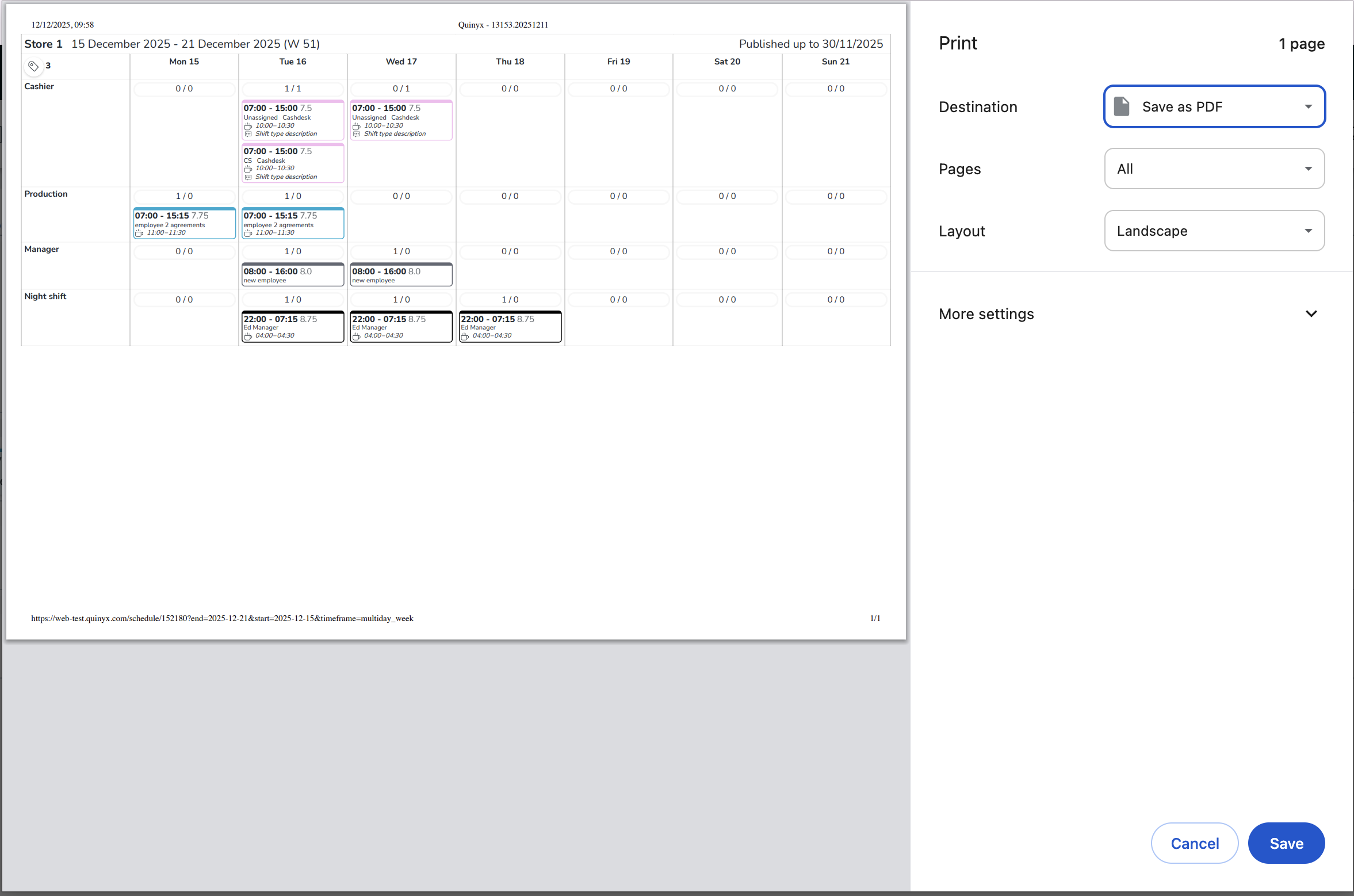
Print schedule is now available in the Business view
You can now print your schedule directly from Business view, making it easy to share shift-based planning with your wider team.
What is new?
The print functionality you are familiar with from the employee-based schedule view is now available in the Business view. When you print from this view, the output reflects the Business View layout, with shift types or sections displayed on the left side rather than individual employees.
Why does it matter?
Many teams need to share schedule information with colleagues who don't have direct system access. Whether you're posting the weekly schedule in a break room, sharing it at a front desk, or keeping a copy in the office for quick reference, the printed Business view gives you a clear, shift-focused overview that is easy for anyone to read at a glance.
How to use it?
Open your schedule in Business View and select the print option. The printed output will match what you see on screen, preserving your current view settings.
Better exports and filter conditions for Advanced Analytics
With this release, we’ve expanded on some of the base functionality available with the new and improved Advanced Analytics.
- New export formats: now you can download reports or export specific insights via PDF, PNG, CSV, or XLSX, depending on the data type.
- Better sorting and filtering: for tabular reports, we’ve fixed sorting as we all added additional filtering control, so that you can set conditions to better your findings in tabular reports.

Bug fixes
- Resolved an issue where overlapping a shift over an absence led to incorrect hard stop notifications.
New HelpDocs content
- Agreement templates - Unsocial and overtime periods
- How to adjust your time and date display settings
- Understanding Vuosivapaa accrual and consumption
- Understanding X and V days in Finnish hospitality law
- Understanding and applying break calculation rules
Employee Hub web app Version 0226
Release date December 17, 2025
New functionality
None at this time.
New functionality requiring configuration updates
None at this time.
Updates and performance improvements
None at this time.
Bug fixes
None at this time.
New HelpDocs content
None at this time.
SOAP API / Web service updates
Tag Categories API update: Deprecation postponement
We are providing an update regarding the deprecation timeline for the unpaginated Tag Categories API endpoint.
The change
The planned deprecation date for the old API endpoint, GET /categories/{categoryExternalId}/tags has been postponed.
Detail | Original | Updated |
Old Deprecation Date | December 10, 2025 (Release 0226) |
|
New Deprecation Date |
| February 4, 2026 (Release 0229) |
Why the Change?
This extension to the dual-run period is being implemented to provide our customers with additional time to successfully migrate their integrations to the new, performant, and paginated API (GET /v2/categories/{categoryExternalId}/tags).
We remain committed to supporting a smooth transition to the new endpoint, which resolves critical performance issues (such as 504 Gateway Timeouts and OutOfMemoryError) experienced by customers using the old endpoint with large datasets.
Action required (for users still on the old API)
Customers using the old API are strongly encouraged to complete their migration to the paginated API as soon as possible.
- Old Endpoint (No Pagination, to be deprecated):
GET /categories/{categoryExternalId}/tags - New Endpoint (With Pagination, required for future stability):
GET /v2/categories/{categoryExternalId}/tags
The deprecation warning will be updated in our official Swagger documentation to reflect the new February 4, 2026, date.
Please make sure to forward this information to the party within your company responsible for integrations.
