Version 0234
 Updated
by
Leigh Hutchens
Updated
by
Leigh Hutchens
- Release summary
- Important information
- Quinyx web app Version 0234
Release summary
Release date April 15th 2026
Short on time and want a high-level summary? 🚀 Quinyx web app Version 0234 New functionality
New functionality requiring configuration updates
Updates and performance improvements
Bug fixes
Employee Hub Version 0234 New functionality
New functionality requiring configuration updates
Updates and performance improvements
Bug fixes
REST API / Web service updates
|
Important information
🛑 NOTICE: POSTPONEMENT OF SCHEDULED MAINTENANCE
The maintenance window originally planned for April 22nd, 2026 has been moved to a later date. No action is required from your teams at this time. We will share updated timing via our standard release channels once the new window is finalized.
Best regards,
The Quinyx team
First speakers announced for Navigate 2026
Don't miss your chance to reserve a seat for Navigate 2026!
We have an action-packed agenda where you get to hear real-world examples from customers such as Kendra Scott and Puuilo, sharing how they use AI-supported workforce management to improve performance, reduce compliance risk, and strengthen frontline outcomes.
We also have Tobias Ahlin, Principal Design Engineer at GitHub and previously at Mojang and Spotify, who'll take us on a deep dive into how organisations can adapt to the rapid advances in AI and emerging technologies.
Mark your calendar for May 6 at At Six in Stockholm – or join us virtually.
👉Read more about Navigate 2026 on our blog here, and secure your place here.
Upcoming webinar: Quinyx Unlocked
Join us for the April installment of Quinyx Unlocked, our monthly webinar series built exclusively for our customer community. In just 30 minutes, we’ll dive into how our latest updates simplify complex scheduling and improve your workforce planning accuracy.
- When: April 15th at 16:00 CEST (10:00 EDT)
- Duration: 30 minutes
- Topics
- Introducing Shared Views: Set up once, use across your organisation.
- Schedule Violations: Turn compliance from an interruption into a checkpoint.
👉 Register here!
Quinyx web app Version 0234
Release date April 15th, 2026
New functionality
Bulk import people into Quinyx
Adding people to Quinyx is now faster and easier with our new bulk import feature.
To use this feature, navigate to Account settings and select Import people under the Import tools section.
You can upload up to 5,000 People at once using an Excel file, making it simple to onboard large groups of employees without entering each person manually.
To help you get started, Quinyx provides a downloadable import template with pre-filled drop-down options based on your account setup. This makes it easier to enter the right information and reduces the risk of mistakes.
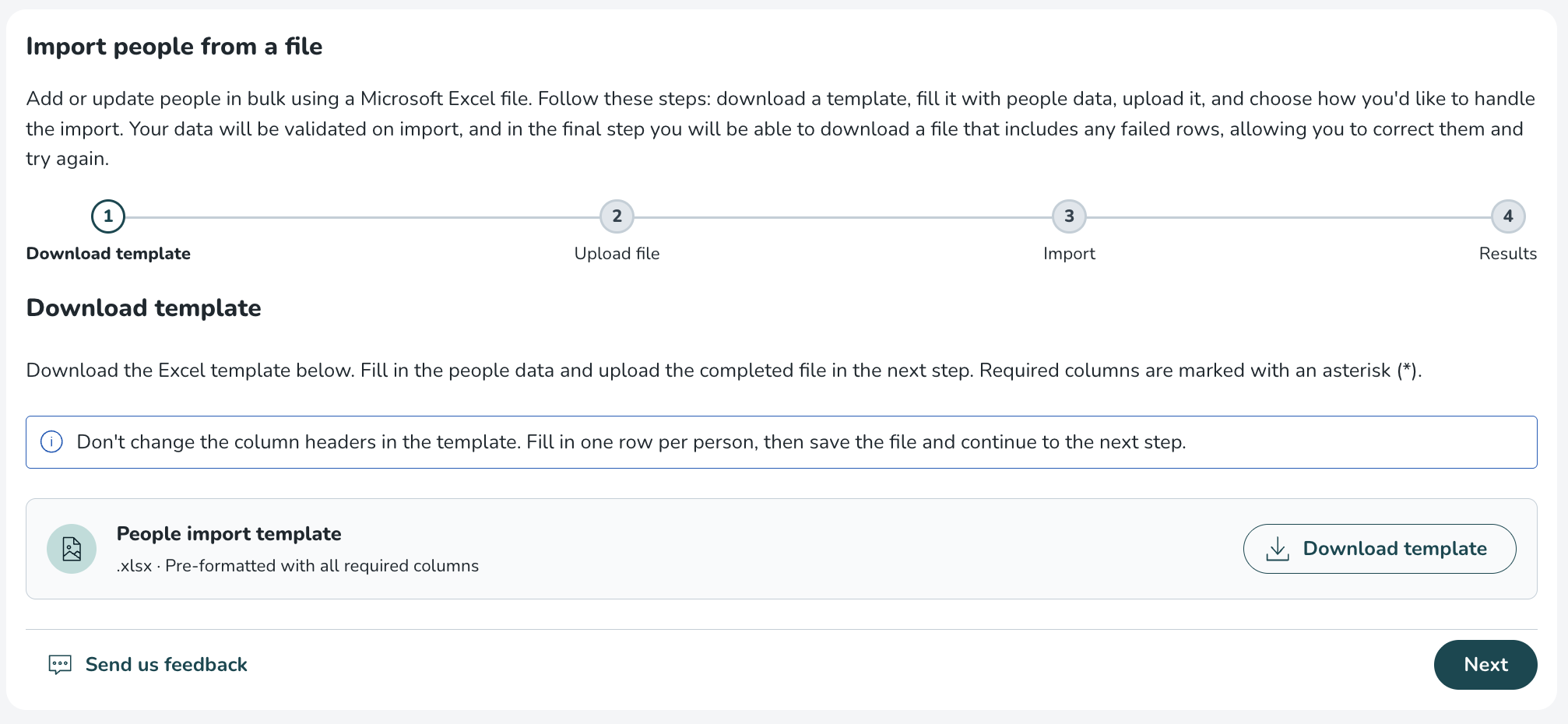
Before actual import, Quinyx automatically validates the entire file to identify potential issues such as missing required fields, incorrect formatting, duplicate entries, or invalid values. This helps ensure your data is correct before the import begins.
When the import is completed, each Person is created in your account, including assigned agreements and roles, so everything is set up just as if the employee had been added manually.
If a Person already exists in Quinyx, the import can update their information by matching them based on badge number or email address.
If any rows cannot be imported, you can download an error report in Excel format to quickly review what needs to be corrected.
New functionality requiring configuration updates
Enabling a weekend start and finish for minimum weekends off per period
The existing Minimum weekends off per period rule type has been updated to support two new fields in the rule parameters.
- Weekend start: The time on Friday when the weekend period starts.
- Weekend finish: The time on Monday when the weekend finishes.
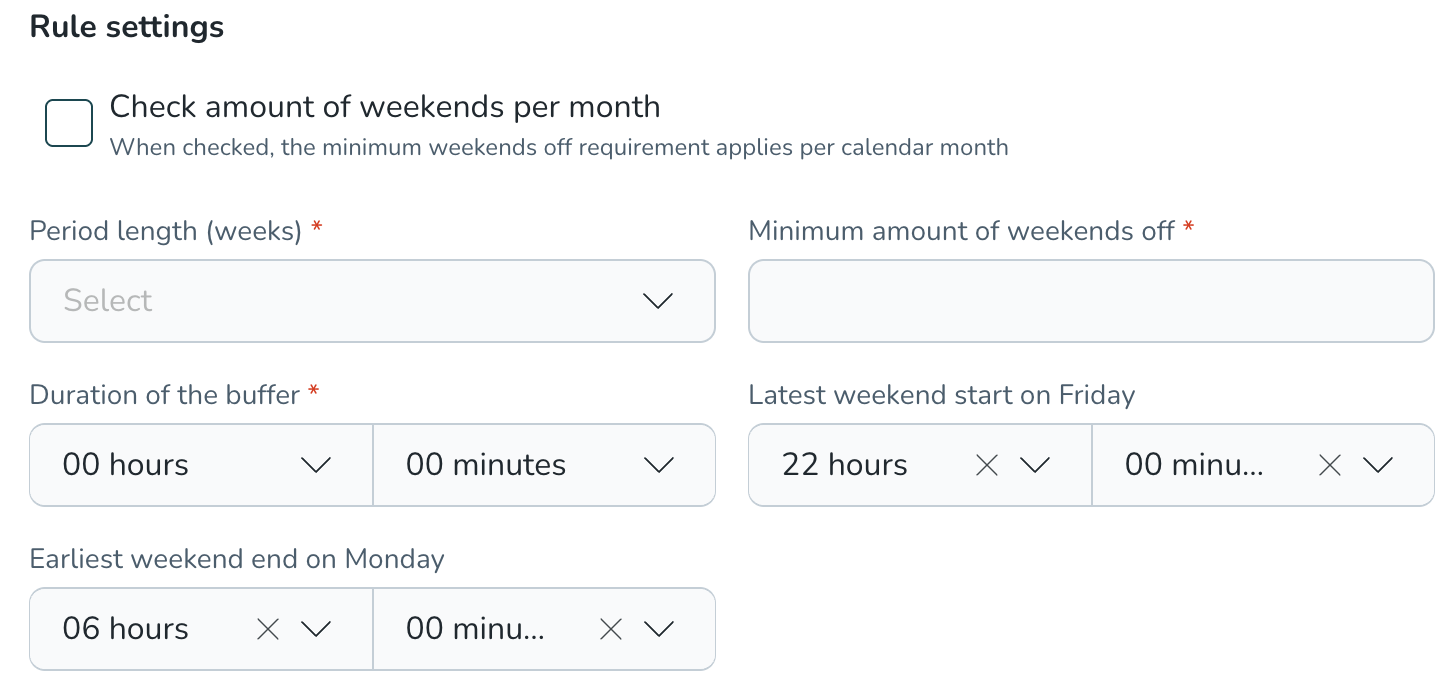
These new fields enable customers not only to ensure that Saturday and Sunday are off, but also to ensure that Friday evening and Monday morning are off. For example, the new collective agreement for Finland’s retail sector determines that the weekend starts on Friday at 22:00 and finishes on Monday at 06:00. If any work is being done between those times, the weekend is not off.
Shared views
Shared views expands the existing personal saved views functionality by introducing two new additions: Shared with Me and Company Views. My views, where you save and manage your own personal views, remain unchanged.
Designated administrators can now configure a schedule view once, give it a name and description, and share it with specific roles across the organisation. This ensures all relevant managers are working from the same setup without requiring manual guidance.
A view saves your complete screen configuration, including:
- Applied filters.
- Display options (such as selected sorting and employee metrics).
- Selected statistics variables.
Key benefits
- Configure a view once and share it with the entire organisation or specific roles.
- Ensure consistency across teams by providing ready-made views for common scheduling tasks.
- Reduce repetitive setup for managers and planners who need the same screen configuration regularly.
- Speed up onboarding for new managers by giving them access to relevant views from day one.
- Reduce dependency between management levels. Managers can resolve scheduling questions independently using the right pre-configured view, freeing up time across the organisation.
How it works
The Filters panel is now organised into three categories:
- My views: Views you have personally created and saved for your own use. This has not changed.
- Shared with me: Views that have been shared directly with your role. The name and description configured by designated administrators are visible, so you always know what the view is for and which filters are applied.
- Company views: A centralised library of all views shared across the organisation. Visibility and management of this section is controlled by the Shared schedule views permission.
Filters that can't be shared
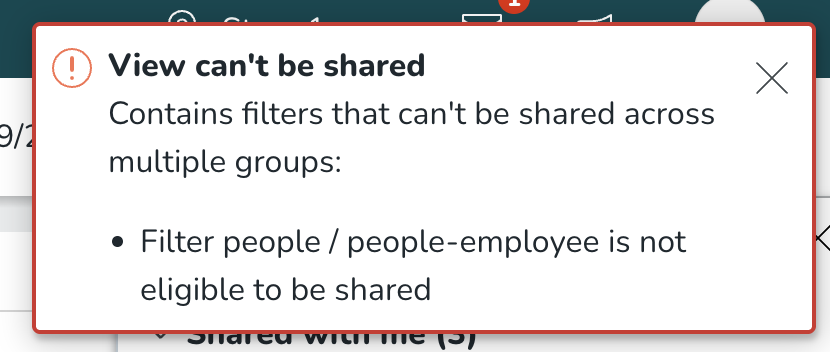
Some filters are tied to a specific unit, section, or group and cannot be shared across the organisation. If a view contains one or more of these filters, sharing will be blocked, and a message will appear listing which filters need to be removed. The following filters are not eligible for sharing:
- Employee
- Home unit
- Reports to
- Employee section
- Shift type (local shift types only)
- Shift section
- Task type (local task types only)
- Task section
Filters configured at the customer level, such as staff category, agreement template, skills, shift status, shift warnings, punch type, absence type, and others, are fully supported and can be included in shared views without any restrictions. To share the view, remove the filters listed in the message and try again.
Sharing views with roles
When sharing a view, designated administrators can select which roles should have access to it, for example, unit managers, section managers, or area managers. This adds an additional layer of configuration depending on what each role needs.
Permissions
Access to Shared Views features is managed through the Shared schedule views permission, which can be configured per role. This also allows organisations to extend view management responsibilities to additional designated administrators with a simple permission assignment. The default value of this permission is “No access”.

- Write access: Users can share their saved views, edit existing shared views, delete existing shared views, and see the full Company Views list.
- Read access: Users can see the Shared with Me list and the full Company Views list, but cannot share, edit, or delete shared views.
- No access: The default for most managers. Users can see views shared directly with them in the Shared with Me list, but do not have access to Company Views and cannot share, edit, or delete them.
Getting started
Follow these steps to set up and use Shared Views in your organisation:
- Assign permissions: Administrators ensure that the relevant roles have the correct access level for the Share schedule views permission before any views are shared.
- Create a view: Users with write access navigate to the schedule, open the filters panel, and use the existing Save as my view option to create and save the view they want to share. The saved view becomes available in My views.
- Share the view: From My views, select the three-dot menu on the view and choose Share. A new panel opens with a list of roles. Select the roles the view should be shared with and confirm.
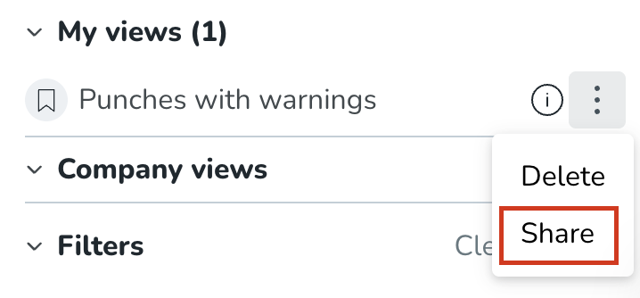
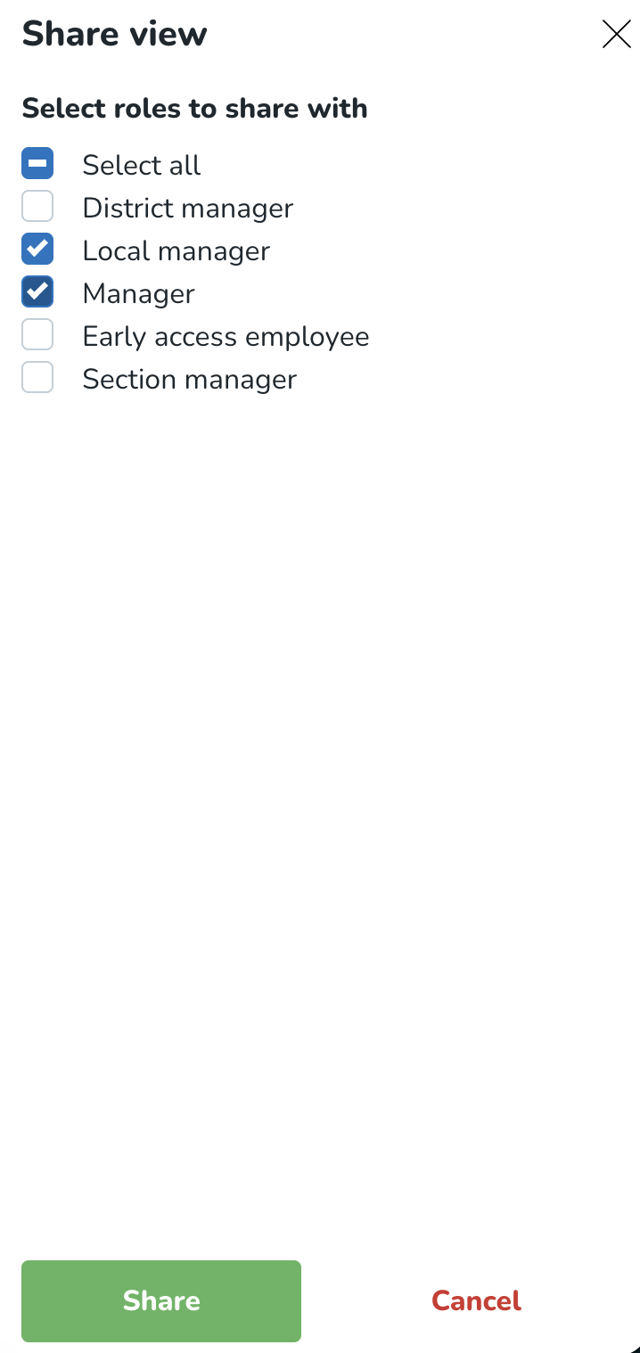
- View is distributed: Once shared, the view is permanently removed from My views and becomes available in Company views. For all roles it was shared with, the view appears in Shared with me.
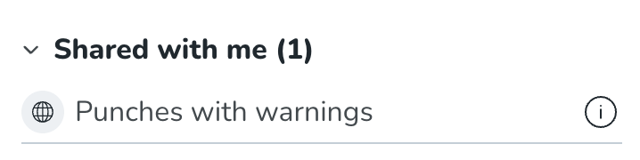
- Update sharing at any time: To change which roles a view is shared with, access the sharing panel again via the three-dot menu. Roles that already have access will appear pre-selected, making it easy to add or remove roles as needed.
- Browsing views: Each section (My views, Shared with me, Company views) displays up to three views by default. If there are more, a See more link opens a full list in an overlay panel on top of the Filters panel.
- Visibility based on permissions: Which sections a user sees in the Views panel depends on their access level for the Share schedule views permission, as outlined in the Permissions section above.
Updates and performance improvements
Take control of how shift types and sections are displayed to match your workflow
You can now apply custom sorting to the Business view, giving managers greater control over how shift types and sections are displayed in the schedule.
What's new
Previously, custom sorting was available for employees in Schedule view. This capability has now been extended to Business view, where the schedule is grouped by sections or shift types rather than individual employees.
Managers can now reorder items within their chosen grouping - either sections or shift types and save that order per user and per group.
How it works
To apply a custom order:
- Open Sorting options in Business view and select Custom.
- Click the pen icon to open the Custom sorting panel, drag and drop sections or shift types into your preferred order.
- Click Save. After that, the sorting order is applied in the view.
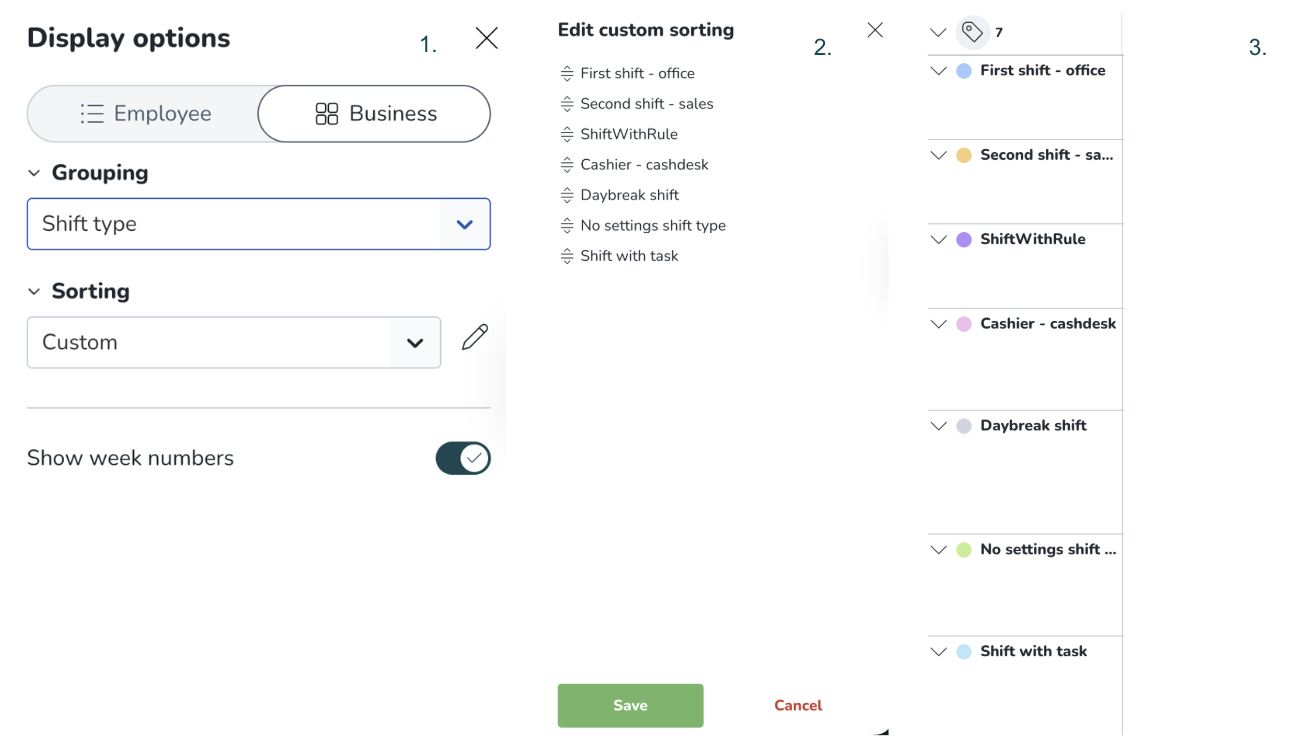
Important to know
- The custom order is saved per user and per group, meaning each manager retains their own preferred layout for each unit they work with.
- Because different units may have different sections or shift types configured, sorting is stored independently per group to reflect those differences accurately.
- The saved order persists across log-out and log-in, so managers always return to their preferred layout.
Week numbers toggle update
The Week numbers control in Display options has been updated from a checkbox to a toggle, aligning it with the design pattern introduced for upcoming additional metrics. A divider line now separates the metrics section from the Week Numbers toggle. Functionality remains unchanged.
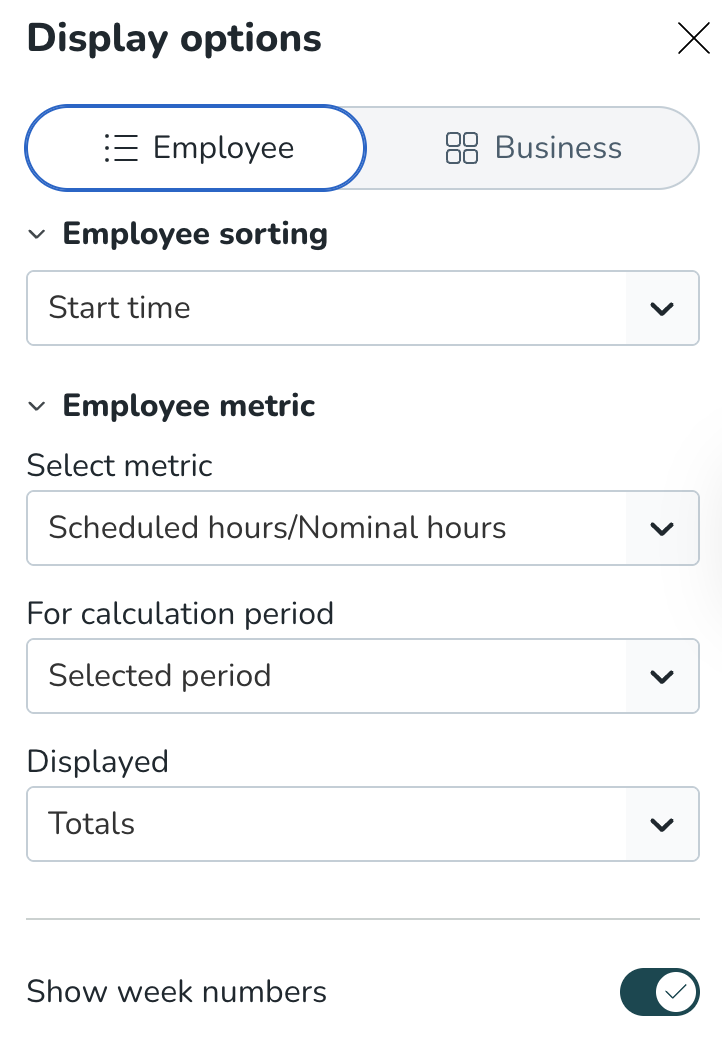
Client credential updates
We are adding a new version of Client credentials to Quinyx to support the new versions of our REST Apis. More information is available in our new Developer portal: Quinyx API Documentation.
The only change is when you create the new credentials you need to select for which version of REST APIs you want to use the credentials.
Version 2 APIs are described here: REST Web Services - Quinyx User Manual and FAQs.
You will also tell from the api url which version you are using https://api.quinyx.com/v2/ or https://api.eu.quinyx.com/organization/v3/
Bug fixes
- Resolved an issue where the first week of 2027 was marked incorrectly.
New HelpDocs content
- None at this time
Employee Hub web app Version 0234
Release date April 15th, 2026
New functionality
None at this time.
New functionality requiring configuration updates
None at this time.
Updates and performance improvements
None at this time.
Bug fixes
- Resolved an issue where completed tasks were displayed as Awaiting my approval.
New HelpDocs content
None at this time.
REST API / Web service updates
New REST API endpoints - version 3
As an initial launch Quinyx is now releasing the first APIs in our new framework for REST APIs.
The first release scope is quite small but sets the foundation for the characteristics of what our new Integration experience will provide.
We have more APIs planned and you will find more information about them in our future release notes.
Please refer to the new documentation at our developer portal Quinyx API Documentation
New endpoints provided in this release:
- OAuth
- Groups
- Roles
- Roles assignments
The new APIs should provide consistency on several key behaviours:
- API url:s now include region: api.eu.quinyx.com or api.us.quinyx.com
- External keys
- Groupid:s is the only identifier for organisation entities (Districts, Units, Sections) apart from external id:s
- Consolidated Error handling
- Pagination of long result sets
Please make sure to forward this information to the party within your company responsible for integrations.
