Read your recent news
 Updated
by
Victor Jespersen
Updated
by
Victor Jespersen
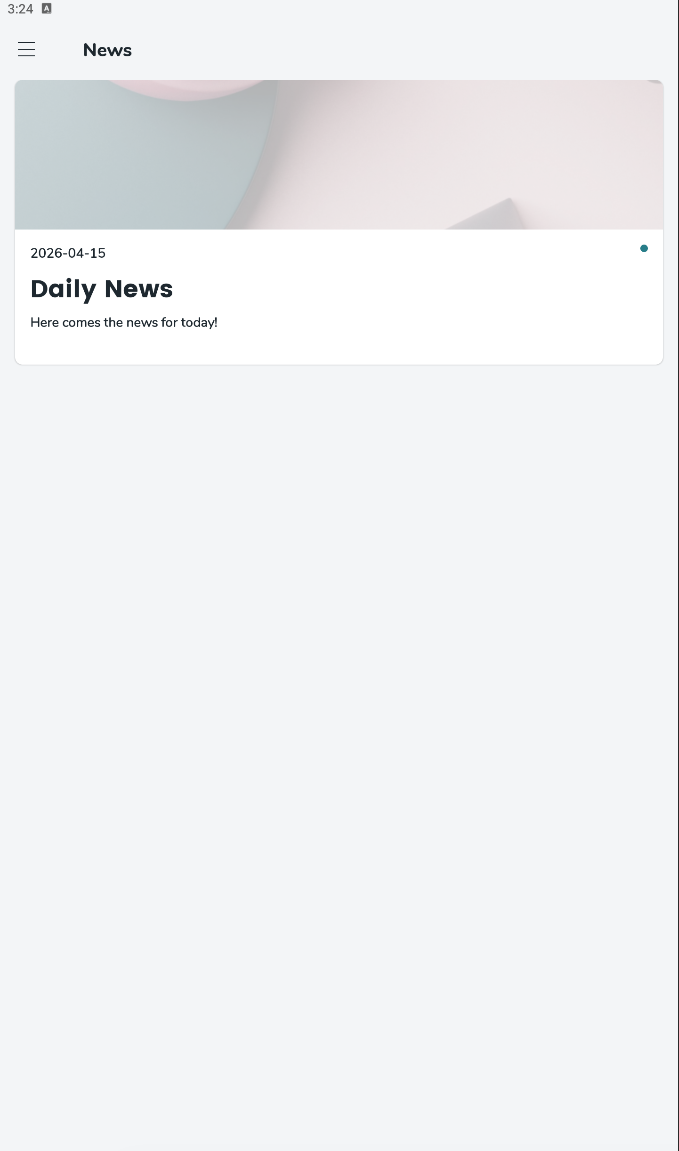
Use the News tab in Quinyx to stay up to date with announcements and updates shared by your organization. In this tab, you can see recent news published by your admin or manager and open each item to read the full details.
Before you start
News articles are published through Quinyx’s Newsfeed feature, and the news articles are also available in the mobile app once they are live. Depending on how your organization is set up, the news you see may vary based on your access and the group you belong to. In addition, articles published before your employee's start date are not shown to you, even if those articles are still active.
View recent news
- Open the Quinyx mobile app and go to the News tab.
- Browse the list of recent news items posted by your organization.
- Tap or click the news banner for the item you want to read.
- The full news article opens so you can view the complete message and any included details.
What you can expect
In the News tab, you will see news items that have been published and made available to you. When a news article is live, it becomes visible in employees’ mobile newsfeeds. If your organization uses a future date as the publishing date, a news article may only appear once its publication date has passed.
Why you might not see a news item
There are a few common reasons a news post may not appear:
- The article has not been published yet, or it is scheduled for a future date.
- The article has expired.
- The article was shared with a different group or audience.
- The article was published before your employee's start date.
