Mobile - Create a Pulse
 Updated
by
Daniel Sjögren
Updated
by
Daniel Sjögren
The idea of Pulse is for managers to be able to send out short questions to staff to gauge how happy and engaged they are. The questions will pop up as a push notification that can be answered quickly and easily so that they are not annoying. The manager creates the questions in the Pulse tab straight away in the mobile app. The setup of the questions is quick and simple with a flexible way of choosing who the question should be sent to.
Manager flow
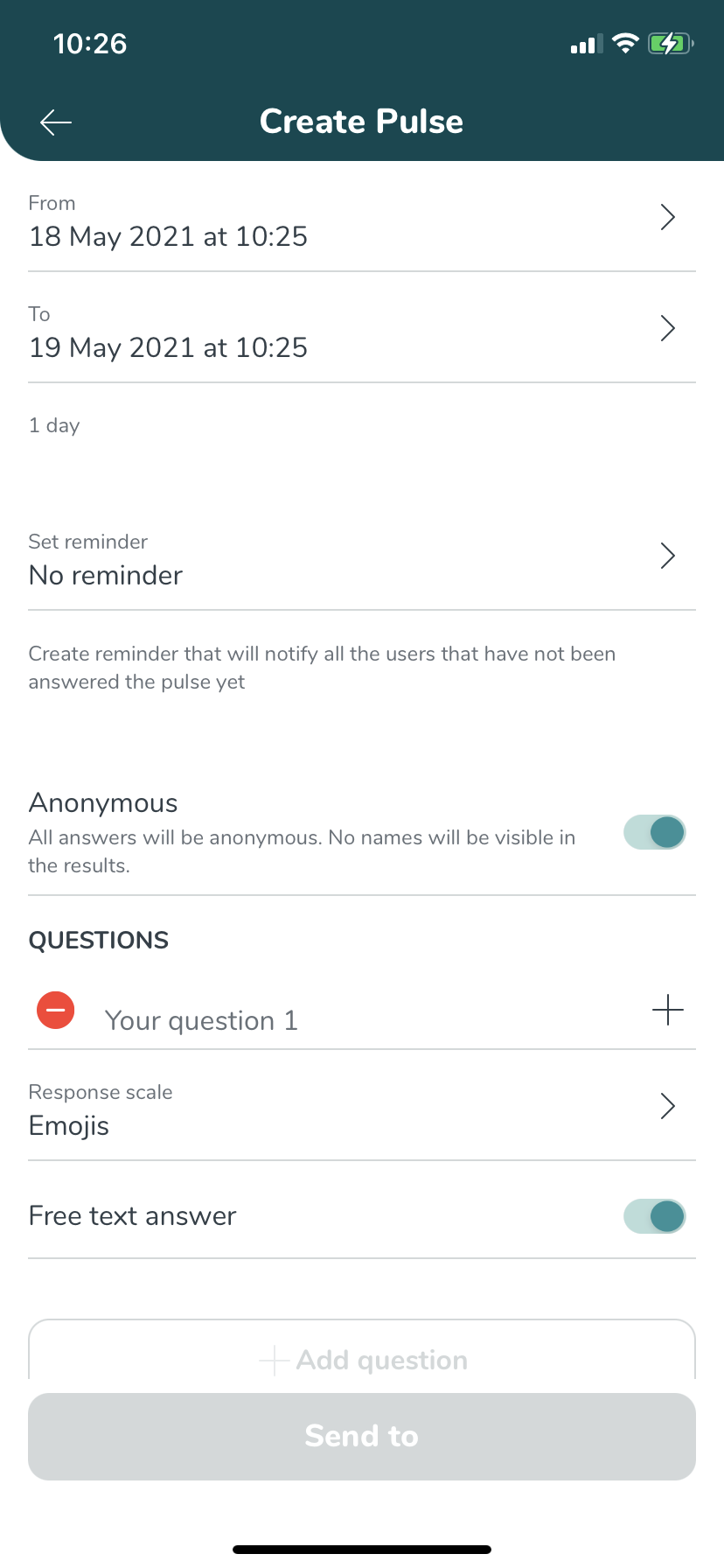
- The manager can see a specific tab called Pulse where they can define a custom question or choose to use a question that is shared by a colleague. You can share questions you created by clicking the lock icon. The manager can choose to send the question as grades 1-5 or consisting of 5 different smiley faces/grades where the person that receives the question grades his answer by choosing a specific smiley face/grade. It is possible to send up to 3 questions in 1 pulse.
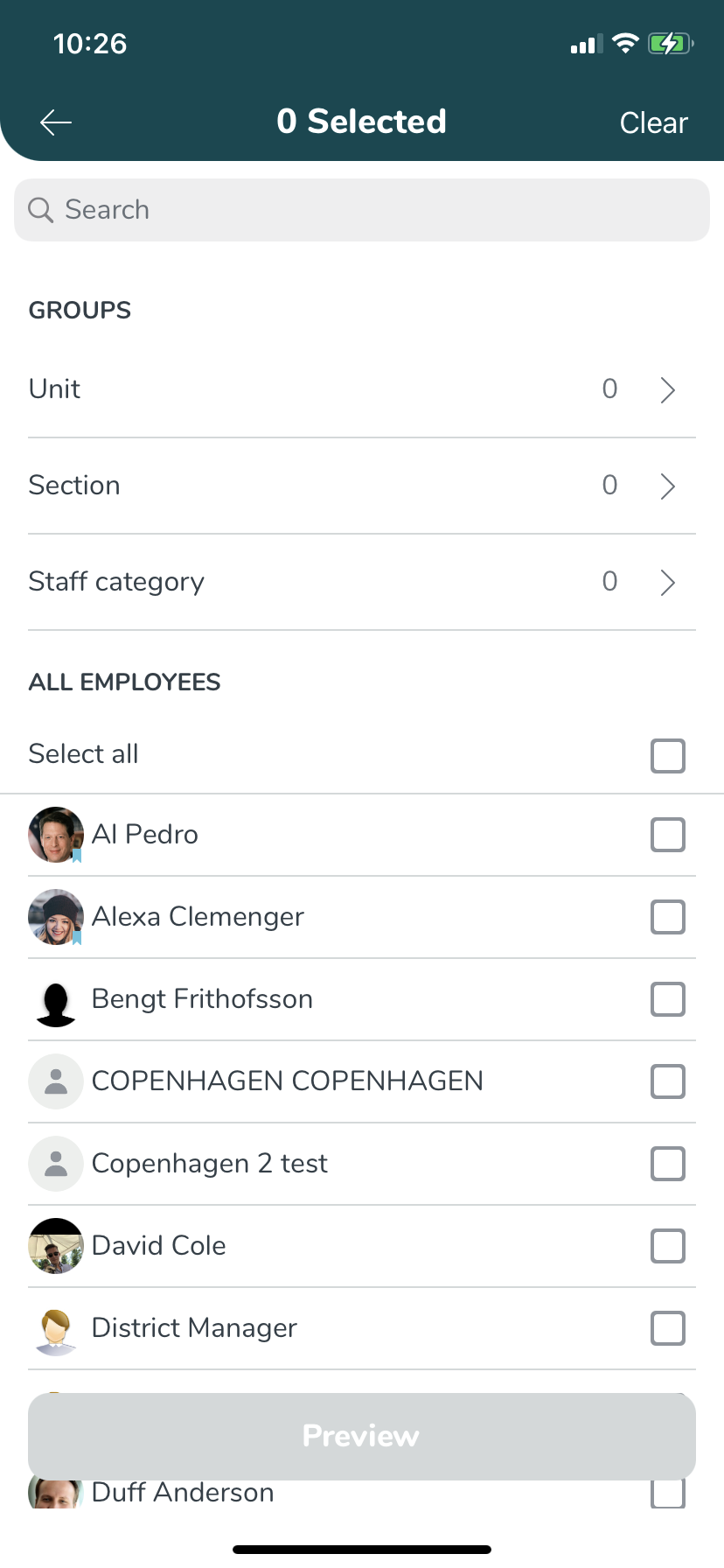
- The manager can choose which parts of the company to send out the Pulse to, for example, specified units, sections, staff categories, or employees. The same rules as which people the manager can add shifts for applies to who the manager can send out a Pulse to, i.e., a local manager can send out the Pulse to all employees in a unit.
- Before the manager sends out the Pulse, they will have to select a time span that defines when the Pulse is sent out and for how long the employees have to answer the Pulse before the results are gathered and sent to the manager.
- The manager can also choose if the answers to the Pulse will be anonymous or not. If the answer is anonymous, this will be clearly stated in the employee receives, e.g., "Your answer is anonymous". There is also a hardcoded setting that states At least 5 people must answer the pulse in order for the Pulse to be deemed anonymous. If this number of recipients is not reached then no gathered data will be sent to the manager since we can't guarantee it is 100 % anonymous. If the Pulse is NOT anonymous, Quinyx will display all individual answers with the person's name and the score they provided. In addition, Quinyx shows the average per unit the same way it does with anonymous Pulses.
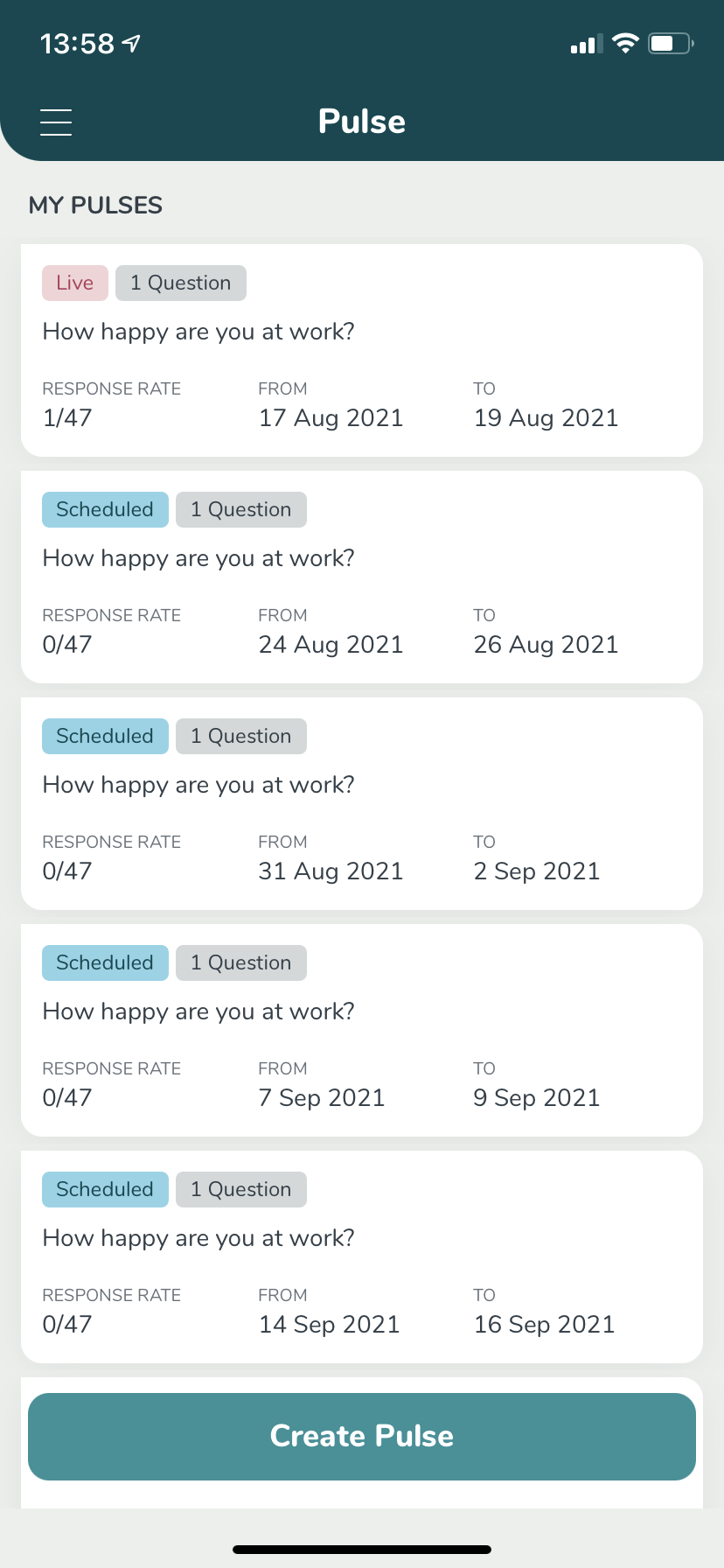
- The manager can see the Pulse that has been sent out and how many of the recipients have answered the Pulse. In addition, the manager has the possibility to send another push notification Qmail to all the recipients that haven't answered the Pulse yet. This function has a cooldown setting in order to avoid spam.
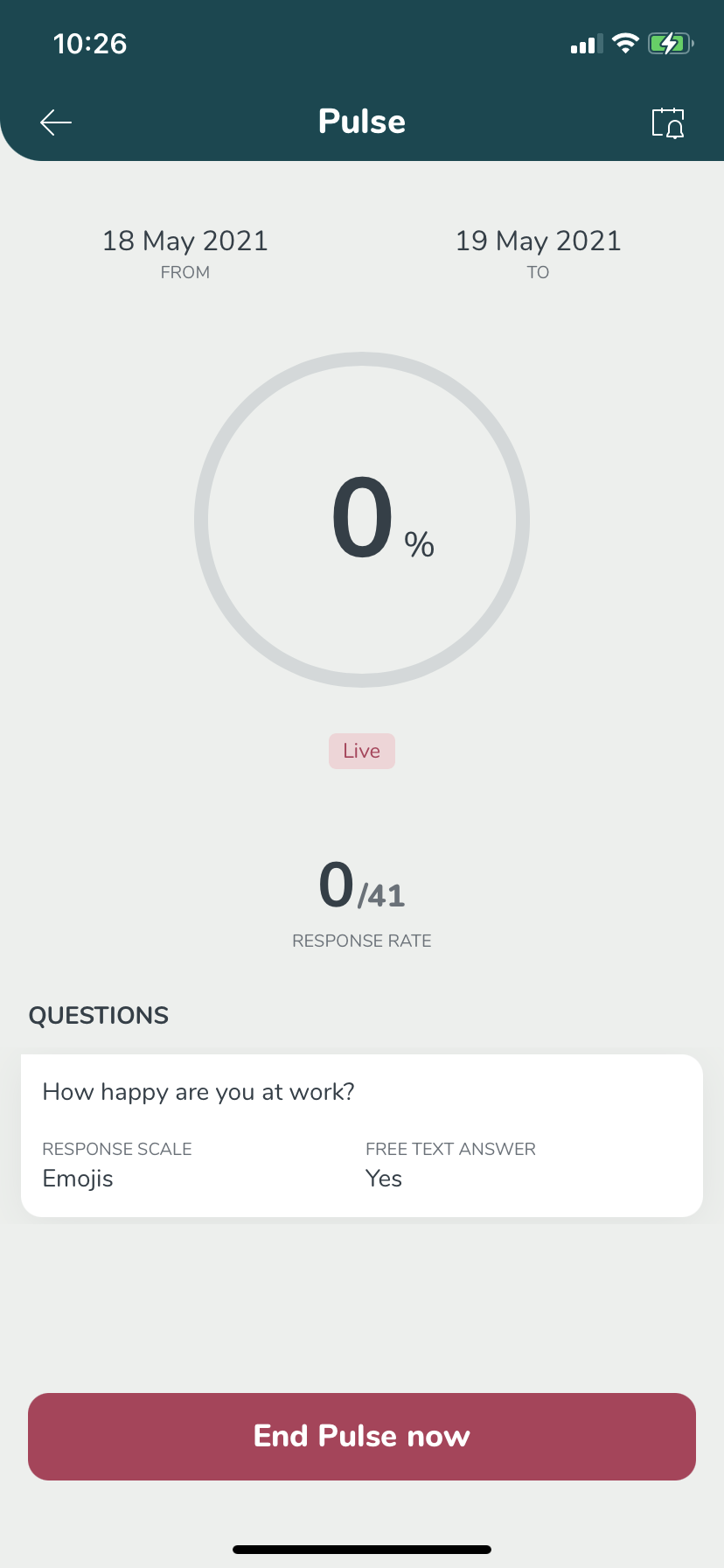
When the time span of the Pulse has run out, the manager downloads the results on the Pulse detailed page. When creating the report, the manager is presented with three options on how to group the report's results:
- Unit and Section level
- Unit level
- Only totals.
Only totals are a good choice if the pulse is anonymous and there are fewer than five responders in each unit/section. If you choose to generate the report with unit and section, you'll see all answers on a unit/section level and the score per unit and section. The report that is generated is defined in an xls document that is sent to the manager's email address.
- It's possible to decide by access rights which managers have the possibility to send out Pulses to employees. Go to Account settings > Role management > Permissions > Create Pulse.
Details
- If they select Send reminder, the reminder will ONLY go to the users that haven't yet answered the Pulse.
- The character limit for pulse survey questions is 255 characters.
- The character limit for a pulse survey free text response is 255 characters.
- When the manager clicks Download results for an already finished Pulse, the results will automatically be sent to the email address the manager has registered in Quinyx.
- The results generated and sent are compiled into an xls file that can be imported to any spreadsheet.
- Create and schedule multiple Pulse surveys at the same time & change future pulses.
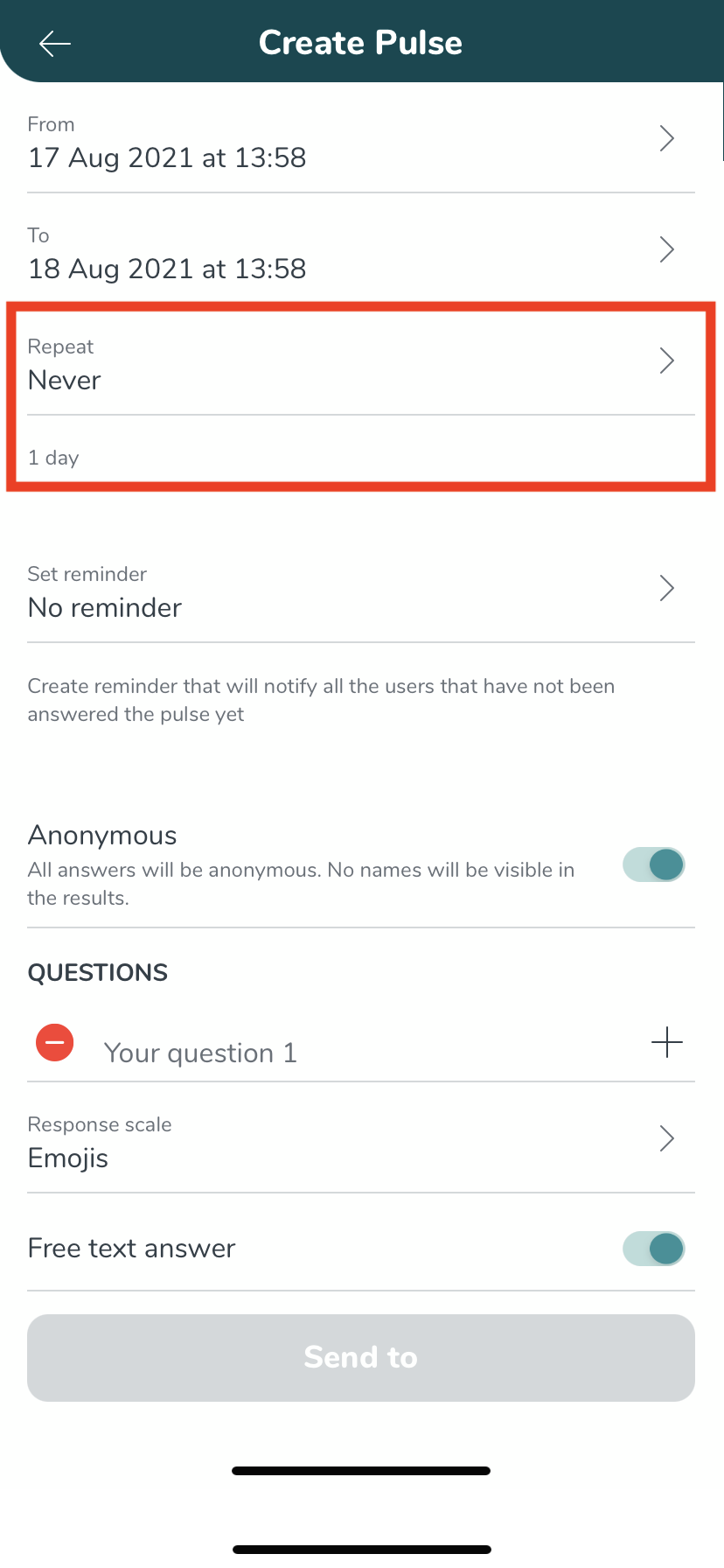
- It's possible to set up a specific repeating Pulse that can be sent out every X number of days, weeks, or months. When you set up a repeating Pulse, it will create new separate Pulses for all the repeat occasions that you choose and will contain all the same information as the first one. This includes the question, all the settings of the Pulse, and the same respondents. We've implemented the possibility to edit and delete the upcoming Pulses you've created before they go live.