Mobile - Approve an absence request
 Updated
by
Daniel Sjögren
Updated
by
Daniel Sjögren
Absence requests
The absence requests you see in the manager tab in the mobile app follows the new notification logic described here.
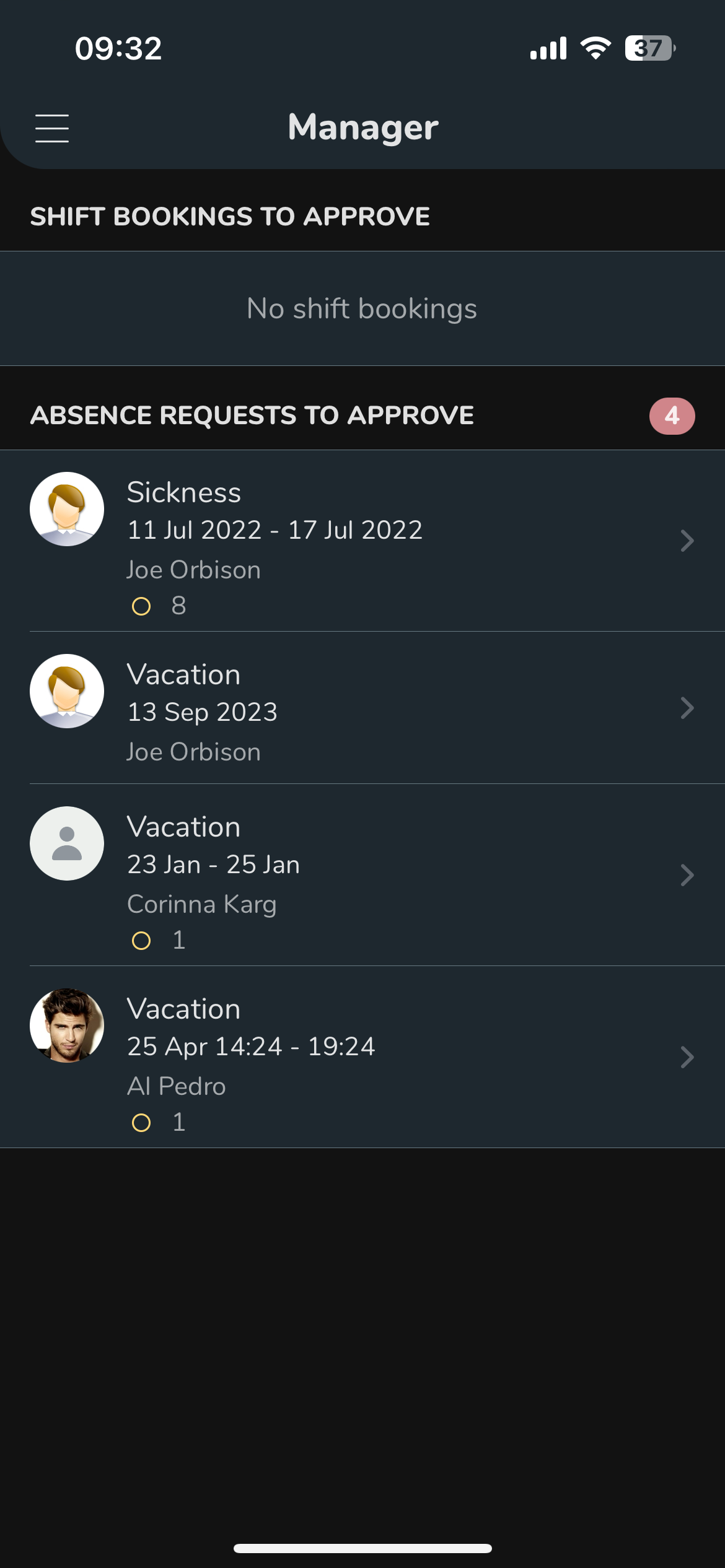
- Select the Manager menu.
- Click on the absence request under Absence requests to approve to see the details of the request and to be able to manage it.
- This displays the time period plus the scheduled shift during the period. You can change all shifts at once, or one at a time.
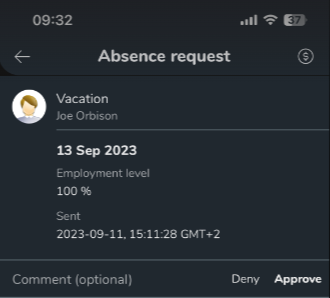
Select the Time trackers icon in the top right corner to see how many holiday days the employees have left before you approve a holiday request. This is assuming your organization uses this functionality.
- Write a comment (free text) and select Deny if you want to reject the request.
- Otherwise select shift by shift to select what is to happen with the shift before the absence is approved.
- Select a shift and all options you can choose appears:
- Unassign
- Delete
- Reassign
- Keep
- When you have made all selections, write a comment (free text) and select Deny or Approve.
After you have managed an absence request, it disappears from view.
