Time Trackers: Prevent granting more absence hours/days than accrued
 Updated
by
Leigh Hutchens
Updated
by
Leigh Hutchens
- How it works
- Setup checklist
- Step 1: Connect your Time Trackers to agreement templates (not salary types)
- Step 2: Use the correct accrual driver
- Step 3: Set the absence reason type to Vacation (if using vacation-specific drivers)
- Step 4: Enable "Only count scheduled day" on the absence type
- Step 5: Enable "Display warnings" on the Time Tracker
- What managers will see
- Troubleshooting: Hard stop not triggering?
- Related articles
- Setup checklist
Use this feature to block managers from assigning more absence than an employee has accrued. When configured correctly, Quinyx displays a warning and prevents the action from completing.
How it works
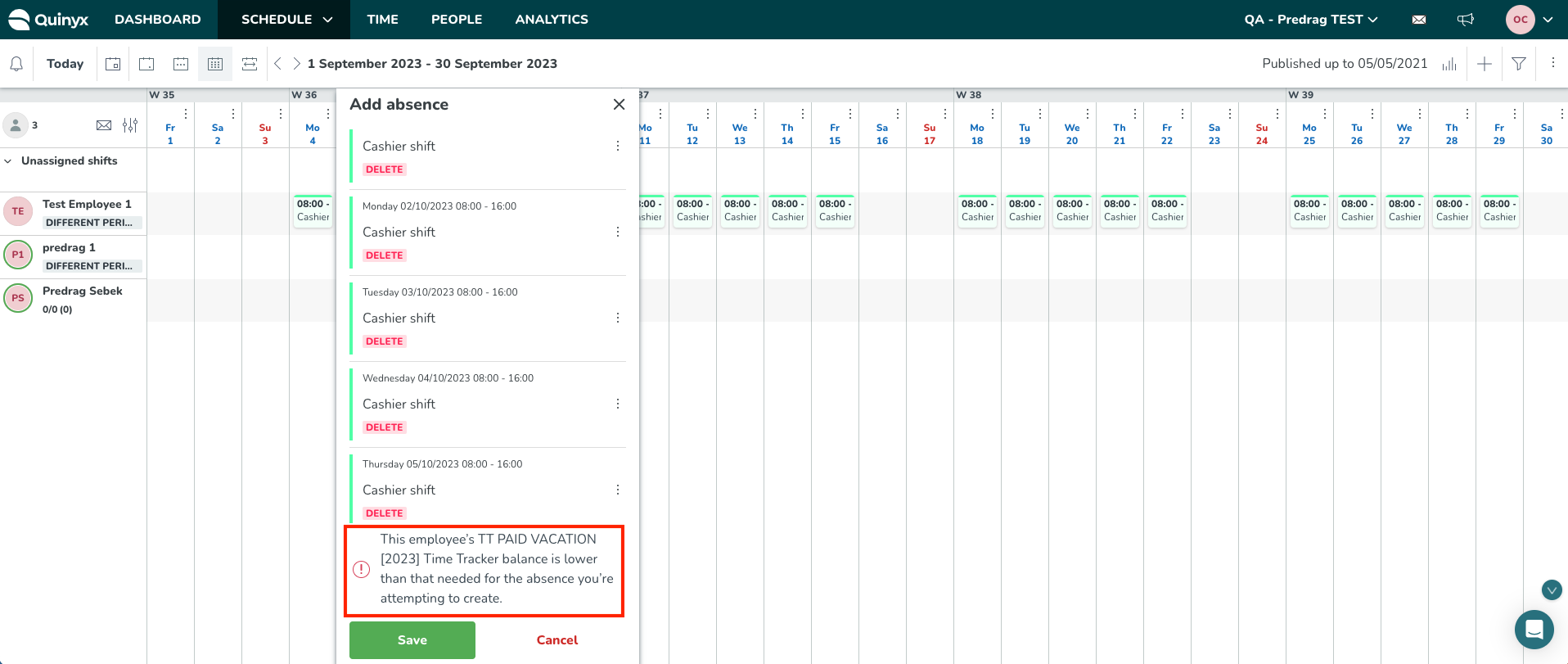
When a manager attempts to create, edit, or approve an absence that would exceed an employee's accrued balance, Quinyx blocks the action and displays a warning. This applies in the manager portal and when rolling out a base schedule.
The block is triggered by the Time Tracker balance — not by the absence request itself. This means every item in the setup checklist below must be correct. If any one setting is missing, the block will not trigger, even if everything else is configured correctly.
Setup checklist
Step 1: Connect your Time Trackers to agreement templates (not salary types)
Your absence Time Trackers must use Time Tracker associations to agreement templates.
Time Trackers connected to salary types will not trigger hard stops — and this will not change in future releases. If your Time Trackers are currently connected to salary types, contact your Quinyx representative or Support to reconfigure them.
Step 2: Use the correct accrual driver
The Time Tracker association must use one of the following accrual drivers:
- Each absence type leave day
- Each absence type leave hours
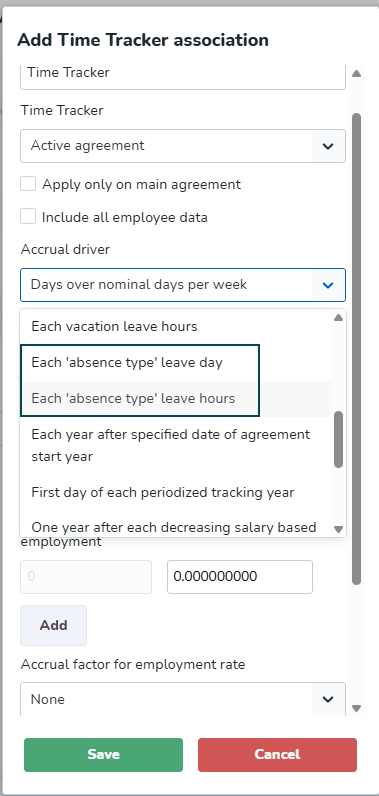
These work with any absence type, not just vacation. We recommend using these over Each vacation leave day or Each vacation leave hour, which are more restrictive.
If you need the absence reason type to be vacation specifically, you can use Each vacation leave day or Each vacation leave hour — but the broader drivers above are the better default.
Step 3: Set the absence reason type to Vacation (if using vacation-specific drivers)
If you chose Each vacation leave day or Each vacation leave hour in Step 2, the absence type must be set to absence reason type Vacation. If you're using the Each absence type drivers, this is not required.
Step 4: Enable "Only count scheduled day" on the absence type
On the absence type, enable the Only count scheduled day checkbox.
This is the most commonly missed setting. Without it, hard stops will not trigger — even if Steps 1–3 are fully correct.
Go to Account settings > Absence types, open the relevant absence type, and confirm this checkbox is enabled.
Step 5: Enable "Display warnings" on the Time Tracker
In Account settings > Time Trackers, open the relevant Time Tracker and tick the Display warnings checkbox.
Also set a minimum and/or maximum value on the Time Tracker. Without a threshold value, there is nothing for the warning to trigger against.
What managers will see
When all five steps are complete, managers in the manager portal will see a warning message and be blocked from proceeding when an absence would exceed the employee's accrued balance.
This applies when:
- Creating a new absence
- Editing an existing absence
- Approving an absence request
- Rolling out a base schedule (see Validations in base schedule)
Troubleshooting: Hard stop not triggering?
Work through this checklist in order. Each item is a known cause of the feature silently failing.
Check | What to verify |
Time Tracker connection | Connected to an agreement template, not a salary type |
Accrual driver | Using Each absence type leave day/hours or Each vacation leave day/hour |
Absence type — Only count scheduled day | Checkbox is enabled on the absence type |
Display warnings | Checkbox is enabled on the Time Tracker |
Min/max value | A threshold value is set on the Time Tracker |
Absence reason type | If using vacation-specific drivers, absence reason type is set to Vacation |
