Version 0241
 Updated
by
Daniel Sjögren
Updated
by
Daniel Sjögren
Release summary
Release date July 22th, 2026
Short on time and want a high-level summary? 🚀 Quinyx web app Version 0241 New functionality
New functionality requiring configuration updates
Updates and performance improvements
Bug fixes
Mobile app New functionality
New functionality requiring configuration updates
Updates and performance improvements
Employee Hub Version 0241 New functionality
New functionality requiring configuration updates
Updates and performance improvements
Bug fixes
REST API / Web service updates
|
Important information
Introducing the Quinyx Developer Portal
We've launched a dedicated developer portal at developer.quinyx.com, centralizing all integration resources in one place.
The portal includes API reference documentation, step-by-step guides, and quick-start resources for both SOAP and REST APIs. Documentation is versioned across v1, v2, and v3, so you can reference the docs that match your current implementation.
Quinyx web app Version 0241
Release date July 22th, 2026
New functionality
Daily metrics in Schedule view
Getting a read on your schedule usually meant scanning rows of shifts or setting up filters just to answer simple questions: is today fully covered? How many shifts still need an owner? How many people are actually working? Daily metrics puts those answers on the screen, so you can spot gaps and confirm coverage at a glance, without leaving the schedule view.
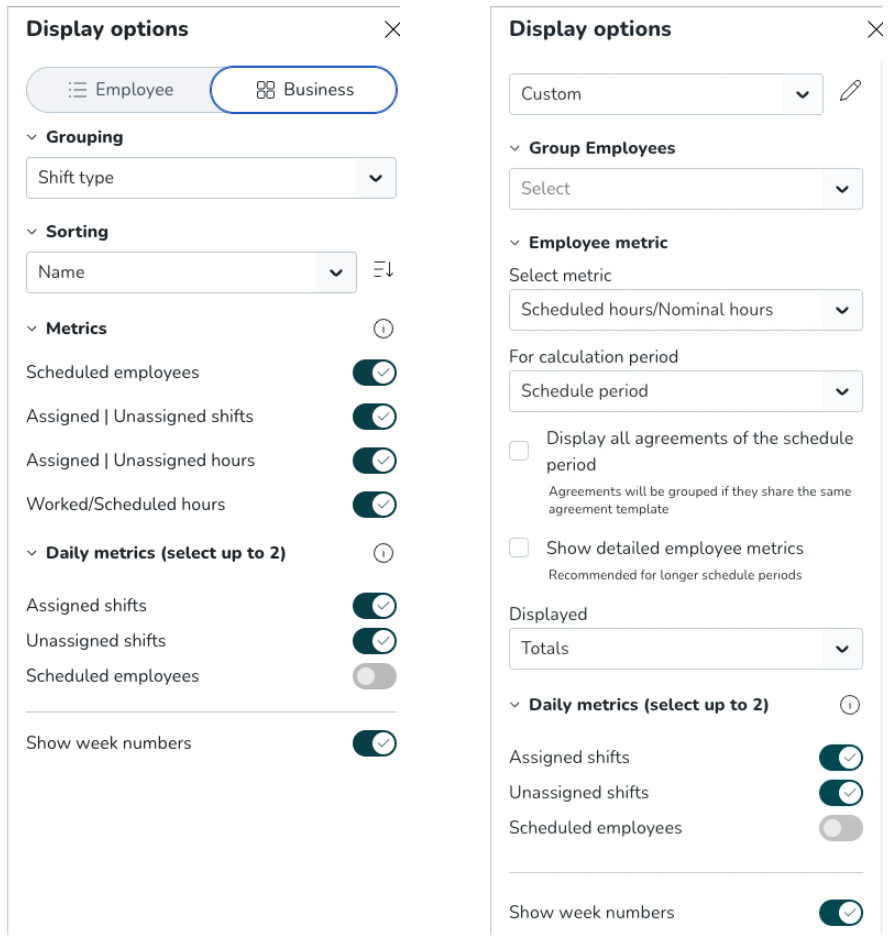
Employee view and Business view now include a new Daily metrics section in Display options.
Three new metrics
- Assigned shifts: count of all assigned shifts on a given day. A quick way to confirm coverage is in place. Where cross-unit scheduling is enabled, this only counts shifts on the unit you're currently viewing, so the number always matches between Employee view and Business view.
- Unassigned shifts: count of all unassigned shifts on a given day. Surfaces gaps early, before they turn into last-minute scrambles.
- Scheduled employees: count of employees with at least one shift that day (people, not shifts). Useful for a fast headcount check, for example against expected footfall or a minimum staffing requirement.
All three respect your active filters. For example, filtering by shift type updates the assigned and unassigned counts accordingly, and filtering by "Reports to" narrows the scheduled employees count to that manager's team, so the numbers always reflect exactly what you're looking at, not the whole unit. If you uncheck shifts out of the view entirely, the relevant metric shows 0.
For shifts that cross a daybreak: on a daily view, the shift is counted on both days; on weekly, monthly, or custom views, it's counted on the day it starts.
Select up to 2 metrics
Toggle each metric on individually; all are off by default, so your view stays as clean or as detailed as you like. You can have up to two active at once; once two are selected, the remaining toggle is disabled until you switch one off, and trying to enable a third shows a quick warning.
Shared between views
Daily metrics is one shared setting: turn a metric on in Employee view and it's on in Business view too, and vice versa, so managers switching between the two always see consistent numbers. A new info tooltip on the section explains what's available: "Select metrics for your daily schedule. Available in monthly and shorter views. Reflected in both Employee and Business view."
How to find it in the product
- Open Schedule (Employee view or Business view).
- Go to Display options.
- Find the new Daily metrics section, below Employee metrics.
- Toggle on up to two metrics: Assigned shifts, Unassigned shifts, or Scheduled employees.
How it's visualised
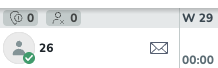
- Daily view: Metrics appear in the space normally used for week numbers, reflecting values for that day only. This line stays in place even if week numbers are switched off. If the period is locked, the metrics stay put and the locked-date indicator shifts to the right.
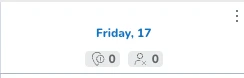
- Weekly view: Metrics appear under each individual date across the week, so you can compare coverage day by day.
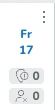
- Monthly or custom view: Metrics appear under each individual date, the same way as in weekly view, giving you a coverage overview across the full period.
- Metrics aren't shown for periods longer than one month, to keep the view focused and readable.
New functionality requiring configuration updates
None at this time.
Updates and performance improvements
Bug fixes
- Resolved an issue where an employee who wasn't assigned an offered shift sometimes would get a notification from the employee that actually was assigned the shift.
- Resolved an issue where tasks would be displayed in the incorrect order in the "Belongs to" overview for punches.
New HelpDocs content
- None at this time.
Mobile apps
New functionality
None at this time.
New functionality requiring configuration updates
None at this time.
Updates and performance improvements
None at this time.
Employee Hub web app Version 0241
Release date July 22th, 2026
New functionality
None at this time.
New functionality requiring configuration updates
None at this time.
Updates and performance improvements
None at this time.
Bug fixes
None at this time.
New HelpDocs content
None at this time.
REST API / Web service updates
None at this time.
Please make sure to forward this information to the party within your company responsible for integrations.
