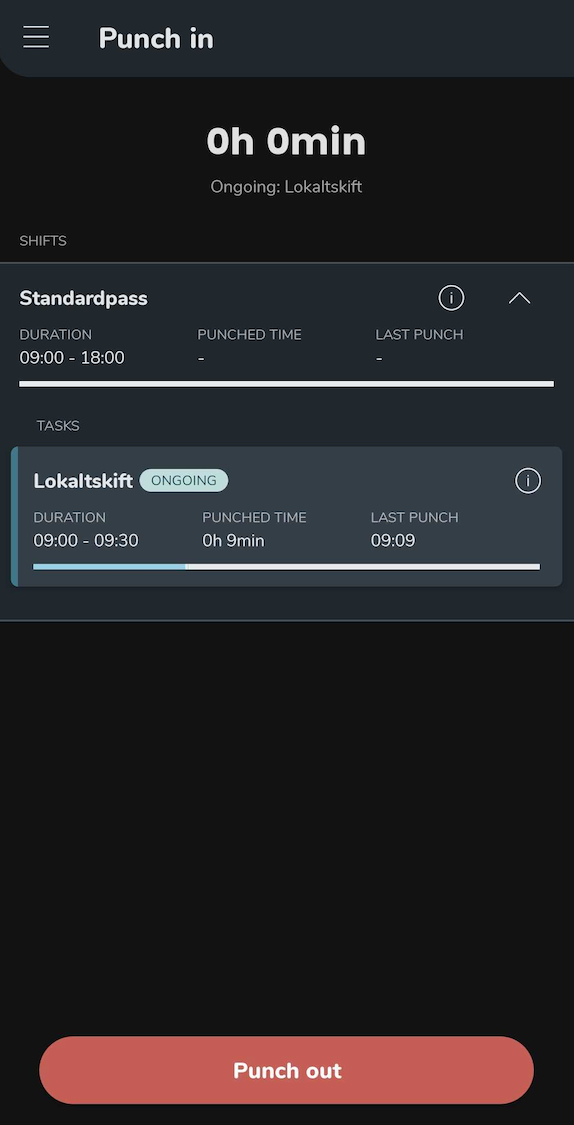
Mobile - Punch in/out on a task
 Updated
by
Daniel Sjögren
Updated
by
Daniel Sjögren
When you are working with tasks you can punch in on each task created during a shift. When you punch in on a task you simply select the task and click Punch in.
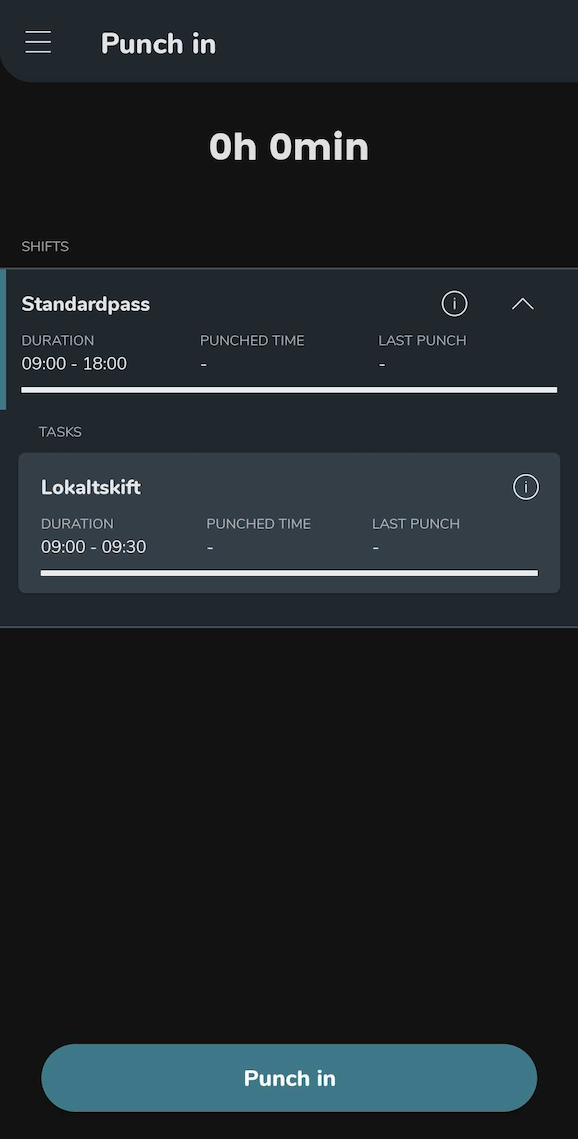
Keep in mind that when you are punched in on a task and want to punch in on the next task, simply punch in on the next task without punching out from the first task. You can always punch back on the mother shift by selecting it and punching in. When you want to punch out for the day you select the task or shift you are currently punched in on and click Punch out. Read FAQs about punches here.