Audit logs - Punches
 Updated
by
Victor Jespersen
Updated
by
Victor Jespersen
In addition to multiple shifts' related audit logs, you can search for the punches audit logs in Quinyx. This provides you with information about who created, updated, or deleted specific punches, when, where (origin), and the action taken. This provides managers with a big picture to understand the punch changes and can be a great support for payroll and configuration troubleshooting.
You can view punch audit logs by navigating to Audit logs > Adjust view > [Item type] Punch.
Groups
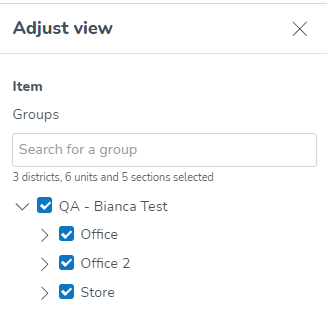
- This tree allows you to select which groups you want Quinyx to fetch logs for. Use the checkboxes of the tree structure of groups to select this. You can use the free text field to more easily locate items in the tree structure. The tree structure is collapsed by default.
- Under the free text field, the number of districts, units, and sections selected will be displayed, respectively.
- You can select any group or groups on which you have at least one non-employee role with at least read access on any of the permissions.
- The default value for this field is the group currently selected in the navigation bar's group selector, along with all of its child groups (if applicable).
- Deselecting a parent group also deselects all of its child groups.
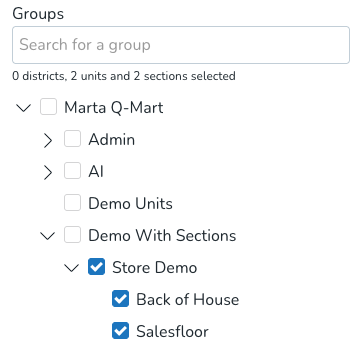
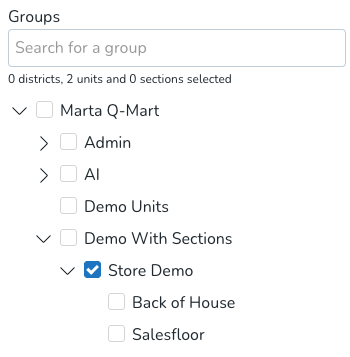
- Selecting a group automatically selects all of its child groups. Note that you're able to deselect all said child groups at your discretion. Example: In the first picture below, Quinyx will search for all items taking place in both the unit Store Demo and its sections: Back of House and Salesfloor. In the second image, we're searching for items that take place in Store Demo but not items that take place directly in the sections. This means punches with the shift section "Store Demo > Back of House" or "Store Demo > Salesfloor" will not be included in that search.
Item type
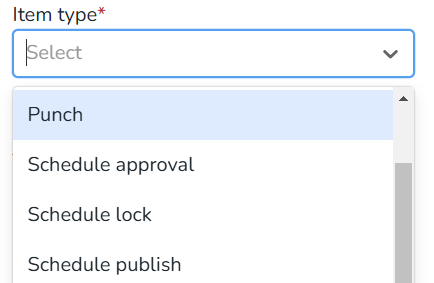
- This field lets you select which items you want Quinyx to fetch logs for.
- This field requires you to select Punch.
- The item type field is mandatory.
Item start date / Item end date
- After selecting the Item type, the Item start date and Item end date fields will appear.
- Item dates apply to punches, so these fields will display if you select Punch in the Item type field.
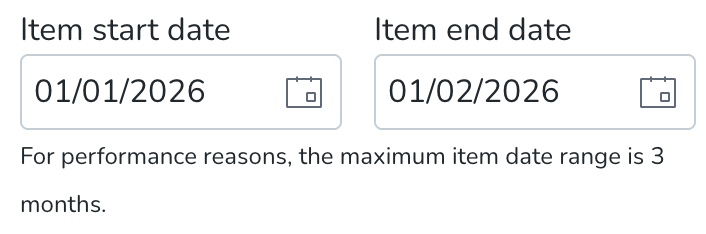
- These dates allow you to set the start and end dates of the period within which the items you’re searching for start.
- This also applies to deleted items; the Item start date and Item end date fields also allow you to search for items that took place in a specific date range when deleted.
- There are no default values for these two date fields.
- Selecting a value in any one of the fields auto-populates the other field with the same value.
- If you edit any of the fields in a non-consistent manner - i.e., so that the item end date is prior to the item start date - Quinyx will auto-populate the other field to the same value as the one you just populated.
- The maximum period you’re able to specify using the Item start date and Item end date is three months.
- The search carried out considers the business daybreak of the group, and the schedule item takes place on.
- The search using the Item start date and Item end date fields considers the time zone used when displaying the schedule in Quinyx.
Type of action
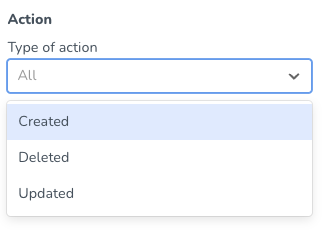
- This field allows you to select which types of actions - taken by a given user - you want Quinyx to fetch logs for.
- Currently, you're able to perform one, several, or all of the following actions on punches:
- Created
- Deleted
- Updated
- If you make no selection in this field, the field will read "All," meaning that logs for all of the above-listed actions will be fetched by Quinyx.
Action start and end date
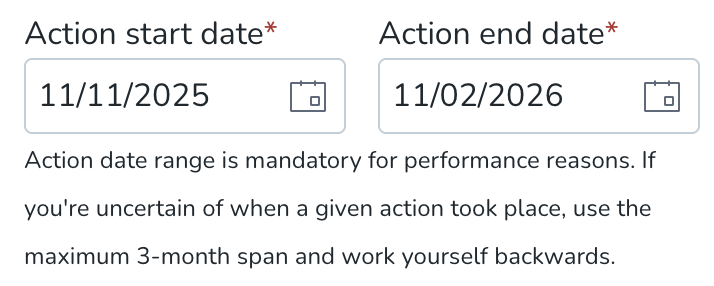
- These date fields allow you to set the start and end dates of the period within which the action you're looking for was carried out in Quinyx.
- The default values for these fields are three months from today's date for the "Action start date" field and today's date for the "Action end date" field. If you're uncertain of when a given action took place, use the maximum 3-month span and work backward.
- Action start and end dates are always in the same time zone as the group currently selected in the group selector of the top bar.
- The action start and end date fields are mandatory for performance reasons.
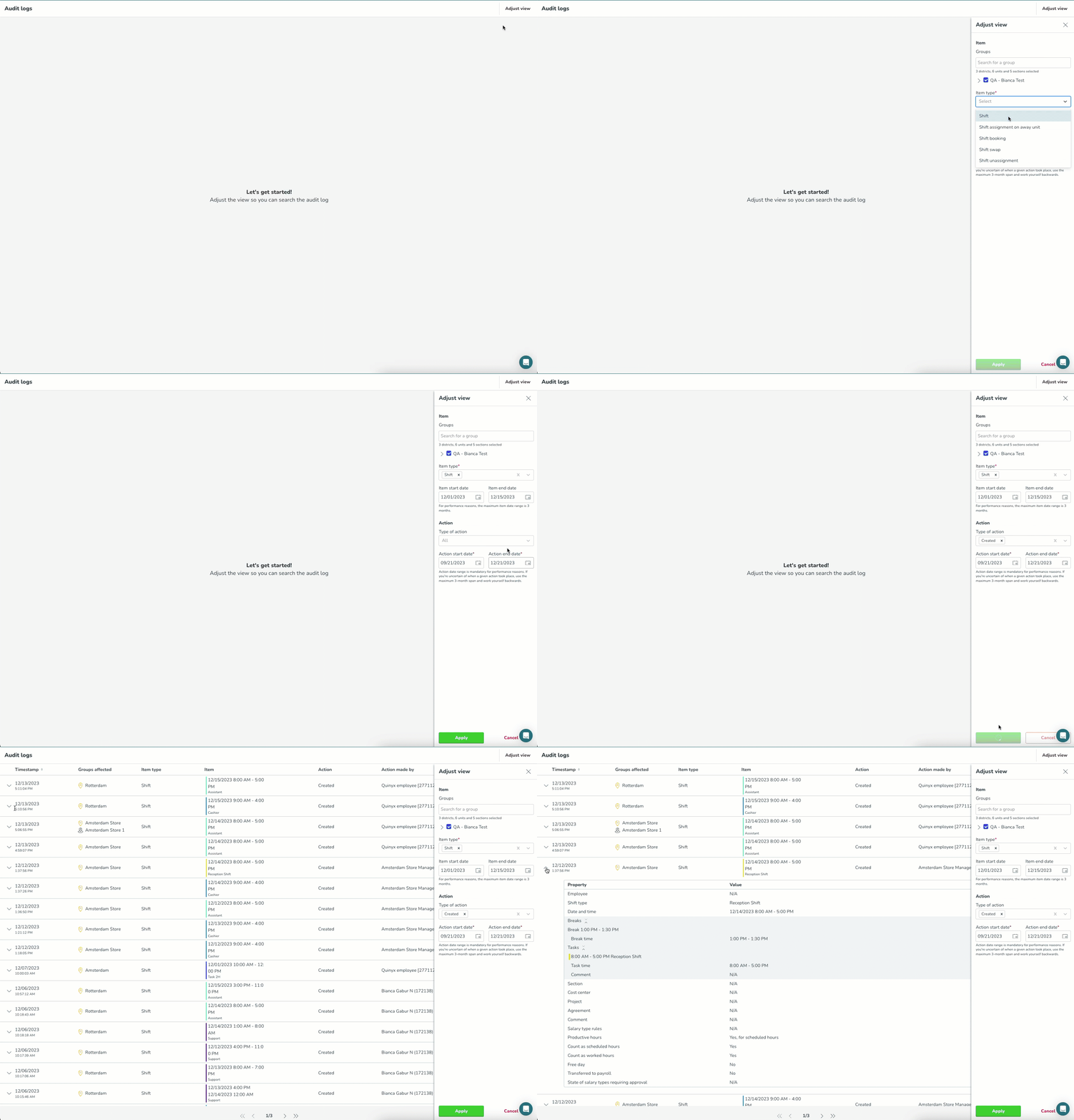
Once you're done adjusting the above search parameters, click Apply, and Quinyx will fetch the log data in question. A spinning wheel will display on top of the Apply button until the results of your search are displayed.
Action made by
You’re able to specify - when using the (current) audit logs - which user has carried out a given action in Quinyx.
In addition, to enable you to further narrow your search for the historical piece of data you’re attempting to locate when using the (current) audit logs, this field also allows you to get a full list of all actions taken by a given user, which is typically useful when attempting to verify claims of particular managers favoring certain employees or making unwanted, or unsolicited changes.
The field used to do so can be found toward the bottom of the Adjust view panel in the (current) audit logs:
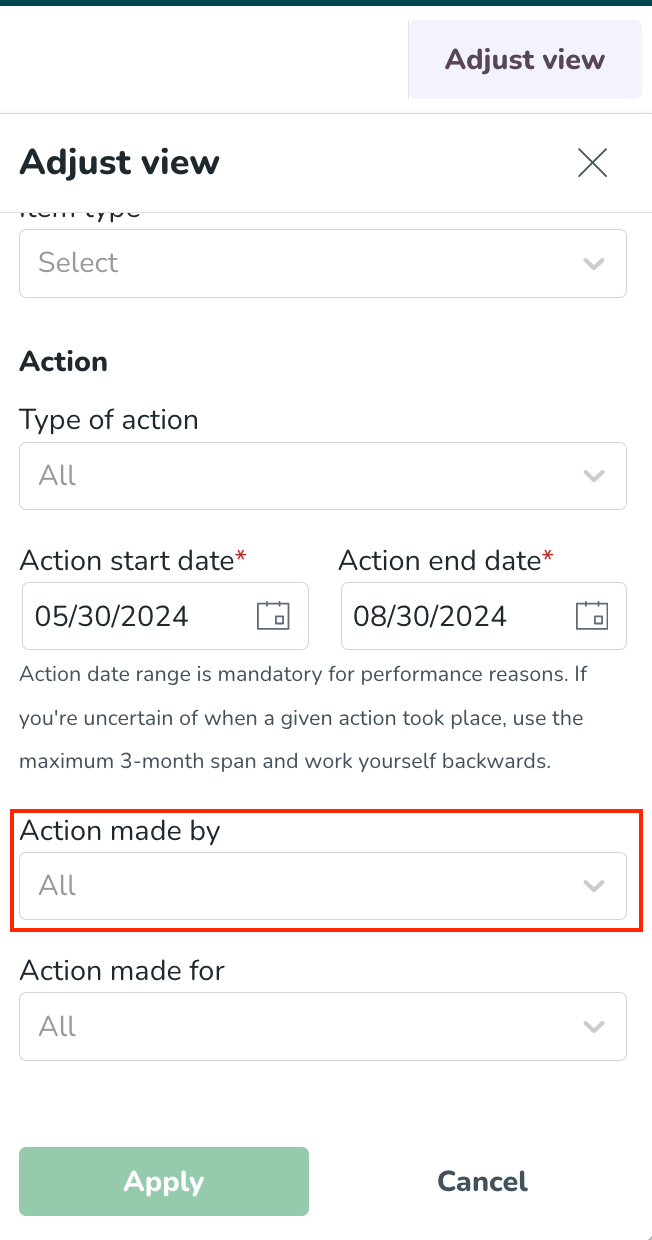
In this field, you’ll be able to select any of the following:
- Any user with any manager or employee* role on at least one of the dates in the Action start date - Action end date range on any of the group(s) selected in the Adjust view panel’s groups tree. For each user, first name, last name, and badge number will display in the following format: [First name] [Last name] [(Badge number)].
- Any Quinyx system administrators on at least one of the dates in the Action start date - Action end date range (displayed as “Quinyx employee [employee ID]”).
- Quinyx System: This option will search for all the updates made by Quinyx as a system.
- Names of integration credentials, or uuid in case the integration name has been deleted. Note that these display regardless of whether the integration credentials in question existed in the (action) date range your search applies to. These will allow you to search specifically for log data of actions stemming from an integration, making use of any of our external REST APIs.
- Due to technical constraints, any deleted integration credentials won’t appear as possible search values in this field. If you need to search for actions related to a deleted integration credential, you will need to search for them manually.
- SOAP. This value allows you to search specifically for log data for actions stemming from an integration making use of any of our external SOAP APIs.
The default value of the field will be “All”, meaning all managers/employees (as defined above) are included in the search by default. The dropdown values will be sorted alphanumerically.
The field will be searchable - like the Action made for the field.
Action made for
You can specify (when using the (current) audit logs) which user has been impacted by a given action in Quinyx. This enables you to get a full list of actions for a specific employee, which is typically useful when verifying claims by specific employees of unfair treatment.
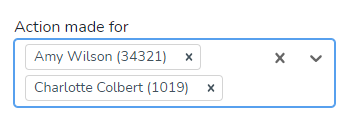
- This field allows you to search for any user with an employee role on the group(s) selected in the Adjust view panel group tree as of today, any time in the past, or in the future.This means that editing your selections in the group's tree after populating the Action made for field will reset the field.
- Each employee in the field’s drop-down will display as per the following format: [first name] [last name] [badge number].
- You may search for a specific employee by typing their name(s) or badge number and/or by scrolling the list that adapts to what you’ve typed. You may also search for employees simultaneously by selecting various employees in this field. The employees in the list are sorted alphabetically.
- The default value is “All”, meaning that if you leave this field blank when clicking “Apply” in the Adjust view panel, log results will not be fetched for one specific employee.
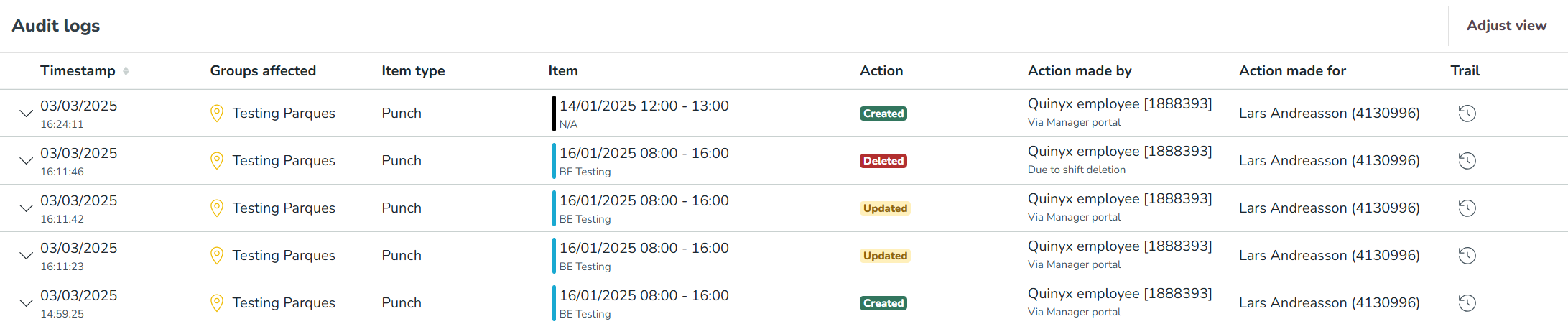
Time stamp |
|
Groups affected |
|
Item type |
|
Item |
|
Action |
|
Action made by |
|
Action made for |
|
Permissions and audit log search results
Your search results as a user will reflect your Quinyx permissions. When it comes to punches, for example, you will only get log data for punches actioned on groups on which you have at least read access on the Scheduling permission. If the permission expires somewhere in the period specified using the Action start date and Action end date fields, respectively, you will only see log data for the calendar dates on which said permission applies.
How do I know what an item looked like at creation?
For items in your audit log search results that are of type Create, you're able to see more details about the properties that applied to said item at the time of creation by clicking the chevron in the left-most column of the table of search results.

As a result, an item sub-table for punch actions expands, listing all possible item properties and their corresponding values. The following illustrates what the said sub-table for a shift can look like:
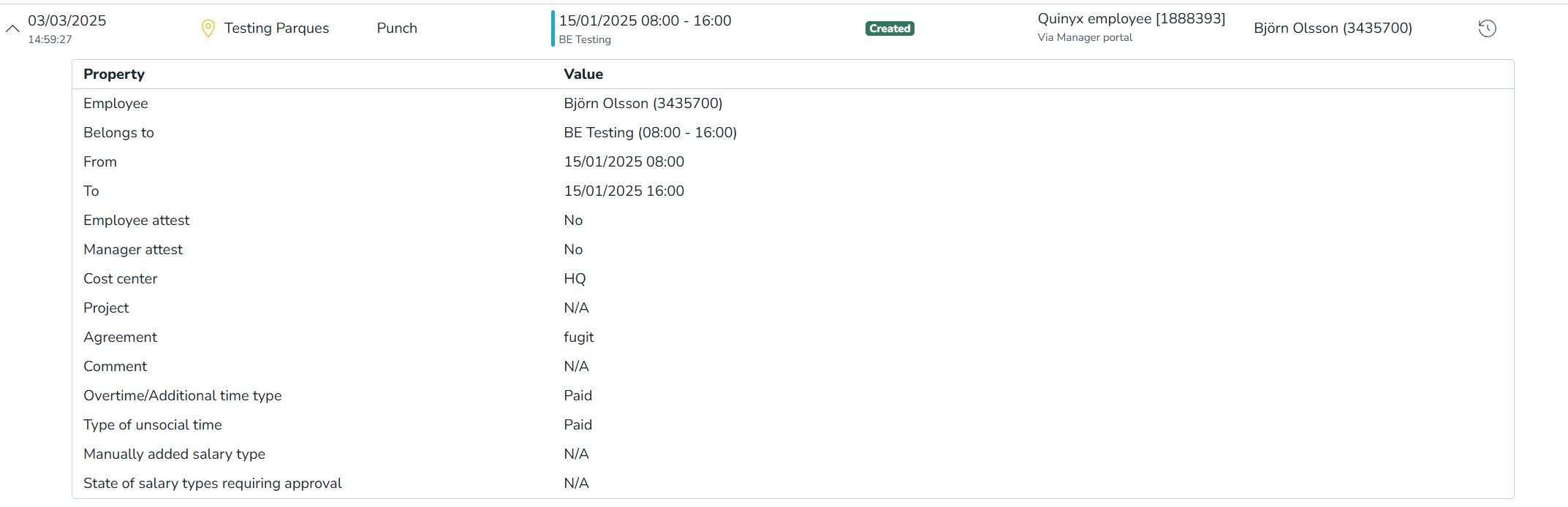
The table below clarifies the values to be expected per property type for punch create actions:
Property | Value |
Employee | This property describes the employee assigned to the punch at punch creation. The information displays as [First name] [Last name] [badge number]. If the employee has been deleted in Quinyx, then "[Employee has been deleted from Quinyx]" displays instead. "N/A" displays if no employee was selected at creation. |
Belongs to | This property refers to the shift the punch is connected to at punch creation. It will display the shift name and start/end values. If the shift has been deleted in Quinyx, then "[Shift type has been deleted from Quinyx]" displays instead. If the punch is not connected to a shift, it will display "N/A". |
From | This property describes the start date and time of the punch. Punches are displayed as follows: [Start date] [Start time]. |
To | This property describes the end date and time of the punch. Punches are displayed as follows: [Start date] [End time]. If a punch is open (no end time) then we will display "Open". |
Employee Attest | This property displays the status of the punch employee attestation. By Default it will display "No". |
Manager Attest | This property displays the status of the punch manager attestation. By Default it will display "No". |
Cost center | The Cost center property describes the punch Cost center. If a punch is connected to a shift, it will inherit its cost center value. If a punch has a Cost center, its full name displays in the Value column. If there's no Cost center, "N/A" displays instead. |
Project | The Project property describes the punch project. If a punch is connected to a shift, it will inherit its project value. If a punch has a project, its full name displays in the Value column. If there's no project, "N/A" displays instead. |
Agreement | The agreement property describes the punch agreement. If a punch is connected to a shift, it will inherit its agreement value. If a punch has an agreement, its full name displays in the Value column. If there's no agreement, "N/A" displays instead. |
Comment | The comment property describes the punch comment. If a punch has a comment, its full text displays in the Value column. If there's no comment, "N/A" displays instead. |
Overtime/Additional Time type | The Overtime/Additional Time type property describes the type of OT/AT salary type associated with the punch. If the punch generates Overtime/Additional time, it will display the default value as determined in the Agreement -> Time -> Overtime and unsocial time -> OT/AT bank. The Overtime/Additional Time type property can display either the value "Paid" or "Saved time off in lieu." If there is no associated OT/AT time salary, "N/A" displays instead. |
Type of unsocial time | The type of unsocial time property describes the type of UT salary type associated with the punch. If the punch generates Unsocial time, it will display the default value as determined in the Agreement -> Time -> Overtime and unsocial time -> OT/AT bank. The Type of Unsocial time property can display either the value "Paid" or "Saved time off in lieu." If there is no associated UT salary, N/A displays instead. |
Manually added salary type | This property describes whether or not a salary type has been manually added to the timecard. If you add a salary type manually, we will display the [name of salary type] [custom salary code] and [quantity] added in the Update action By definition, the value of this property will always be "N/A" at punch creation unless there is a salary generated by agreement or any other rules that require approval; in that case, we will display "No". |
State of salary types requiring approval | This property indicates whether a salary type requires manual approval in the timecard. Each salary type requiring approval in this separate table displays using the following format: [name of salary type] [custom salary code]. The sub-properties for each salary type requiring approval in this separate table display with the following sub-property: State: possible values are "approved" and "unapproved." By definition, the value of this property will always be "N/A" at punch creation unless there is a salary generated by agreement or any other rules that require approval; in that case, we will display "No". |
The table will display 20 search results per page. In this example, our search results populate 21 pages, and we're viewing the first one out of those:

To browse your search results, use the outermost arrows to navigate to the first and last page of your search results, respectively, and the innermost ones to step through each individual page.
How do I know what properties were updated?
For items in your audit log search results that are of type Update, you're able to see more details about which properties were de facto modified at the time of the update by clicking the chevron in the left-most column of the table of search results.

As a result, an item sub-table for punch update actions expands to list all item properties affected by the update in question and their corresponding values. The following illustrates what a sub-table for a punch can look like.

The following applies to the item sub-table for punch update actions:
- It has one column for "Old value" and one column for "New value", which are used to indicate how the value of a given property has evolved.
- "Old value" column values display with strikethrough, in an attempt to highlight that the value in question was made obsolete as of the update in question.
- Just as in the item sub-table for punch create actions, the properties containing sub-properties display within separate tables, which are expanded by default, but can be collapsed at your discretion by clicking the two chevrons next to the property name.
- This separate table has sub-headings indicating what action has been taken on the list of items (manual added salaries, state of salary types, etc). Possible actions are created, updated, and deleted.
- When a sub-item has been created, we will display N/A with strikethrough as the value in the Old value column. When a sub-item has been deleted in Quinyx, we will display N/A as the value in the New value column.
