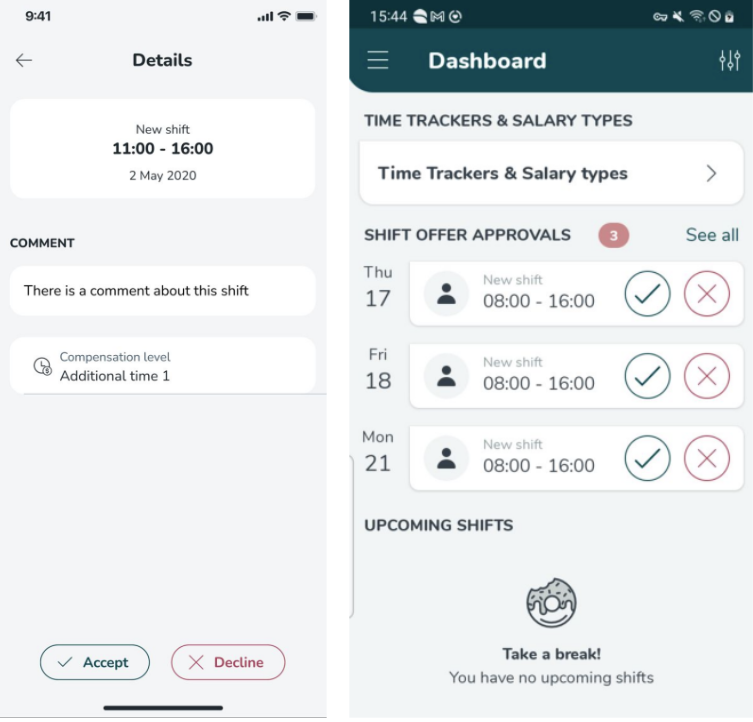
New Additional time basic overview
 Updated
by
Daniel Sjögren
Updated
by
Daniel Sjögren
Starting 1 April 2026, a significant update to the collective agreement (Kollektivavtal) for a large number of our customers goes into effect. These changes are designed to increase predictability for workers and reduce the "misuse" of part-time contracts. The most notable shift is the introduction of Mertidsersättning (Additional Hours Pay), which ensures that part-time employees are compensated for extra hours at the same rates as full-time overtime. Additionally, the update introduces stricter scheduling rules to guarantee "time power" for employees, including more stable schedules and improved rights to holiday leave.
The aim of this article is to give a high-level overview of how to configure the new functionality, as well as a basic idea of how the workflow from manager to employee could look like.
Basic additional time configuration
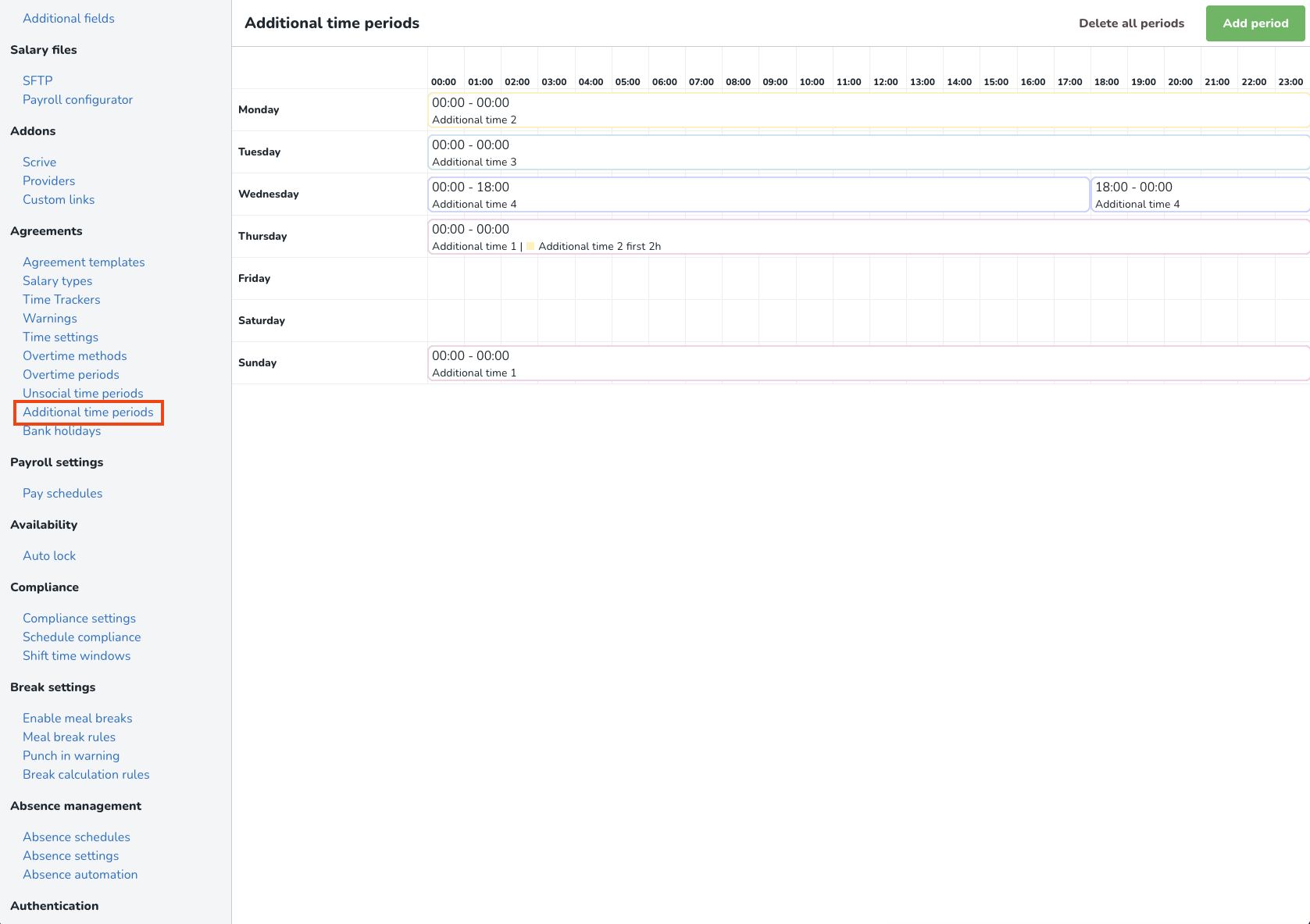
- Create Additional time periods from Account settings > Agreements > Additional time periods. This will create global additional time periods. Optionally, you can also set up additional time periods on any agreement templates that differ from the global periods.
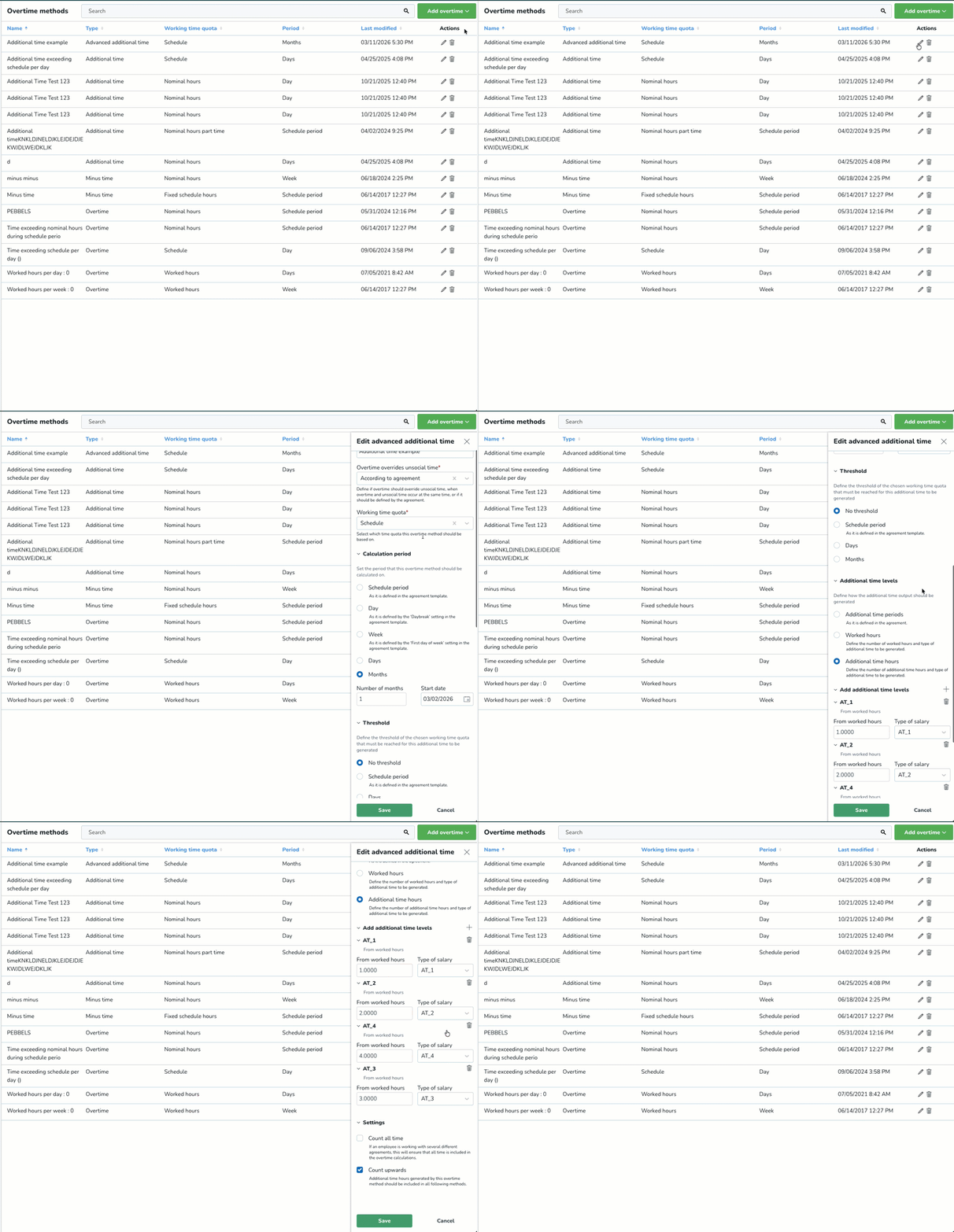
- Create Advanced additional time methods from Account settings > Agreement > Overtime methods > Add overtime button > Advanced additional time. Advanced additional time methods offer the same configurability like overtime does.
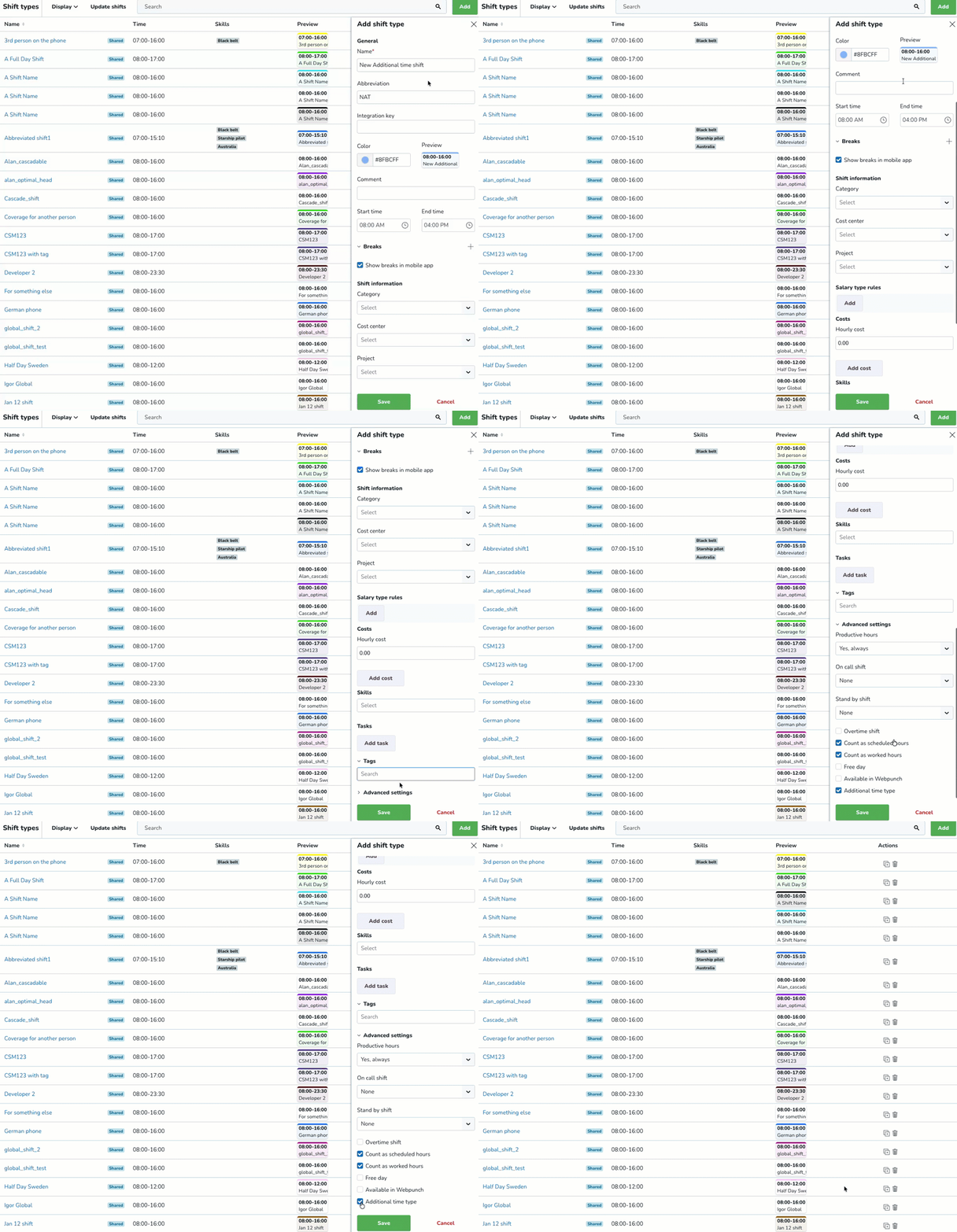
- In Account settings/Group settings, create shift types for additional time. In the Advanced settings section, make sure to tick the checkbox Additional time type in the shift type settings when creating the shift type.
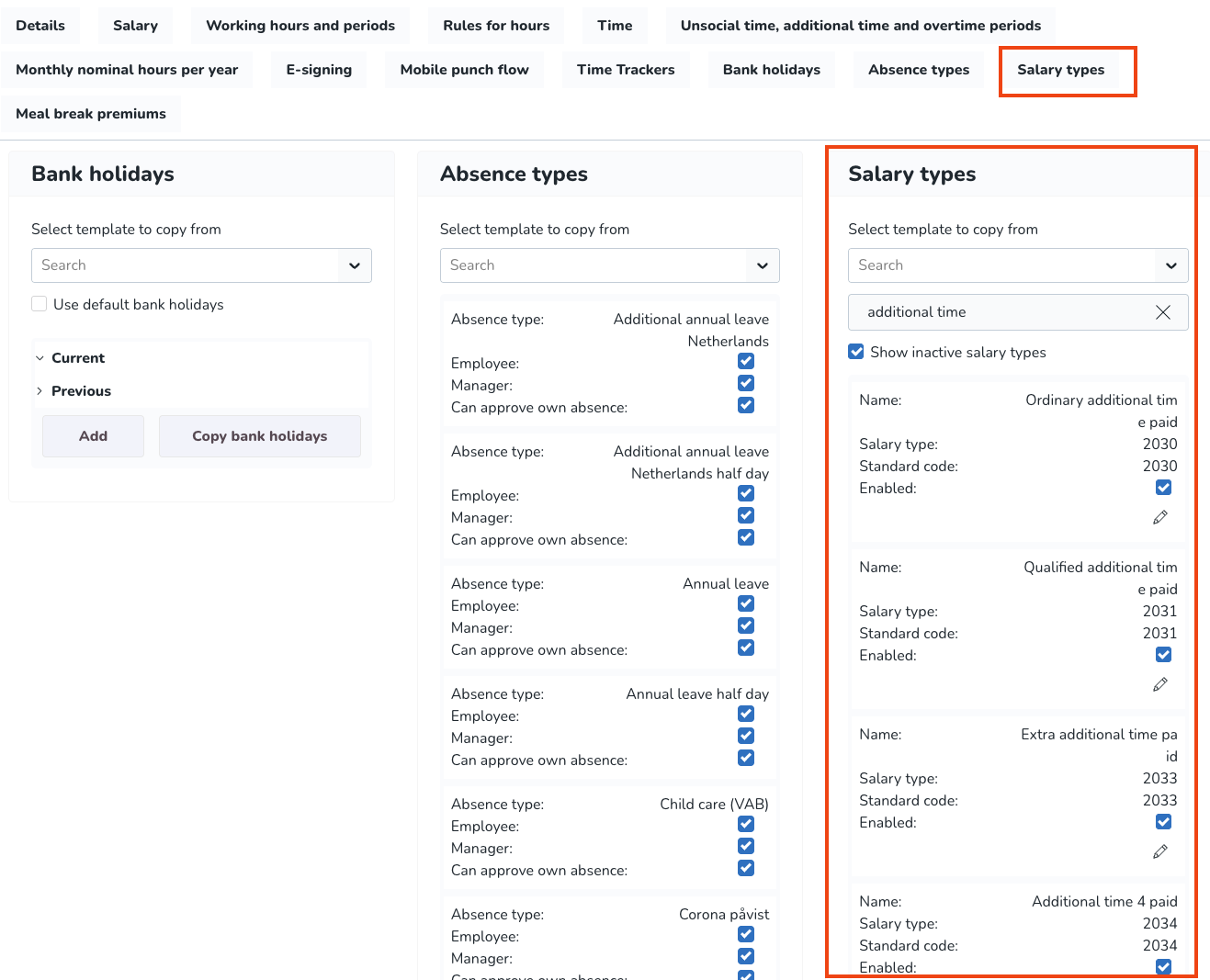
- To conform with the additions of the above functionality, we have created 24 new standard salary types for additional time. These closely mirror the existing standard salary types for overtime. By default these will be deactivated, but in the agreement template(s), you have the option like always to activate/deactivate any salary types that you want to be generated or not.
Schedule approval workflow for managers
- Make sure to enable the shift offer functionality in Account settings > Compliance settings.
- In the Schedule view, create an unassigned shift, using one of the additional time shift types you have created. This is to ensure that the employee(s) get a shift offer, have a chance to approve/decline the offer, and the "digital handshake" can take place.
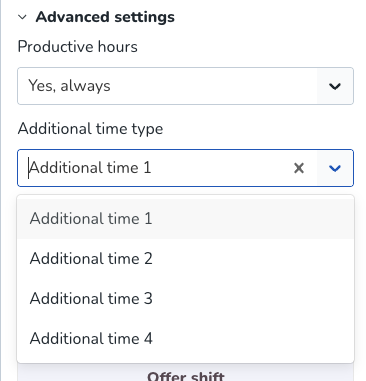
- While creating the shift, in the Advanced settings section, select the additional time type (1-4) that you want to be generated for the shift.
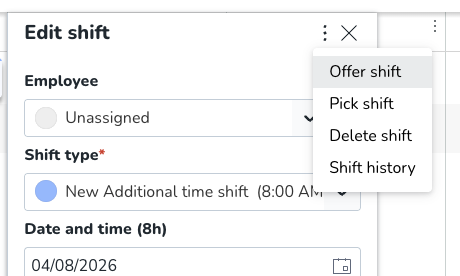
- When the unassigned shift has been created. Click the ellipsis (three dots menu) and select Offer shift.
Clicking on this option will open a new panel that allows you to:
- Select an employee(s) to whom you want to offer that unassigned shift.
- Leave any comment explaining why you have selected the employees.
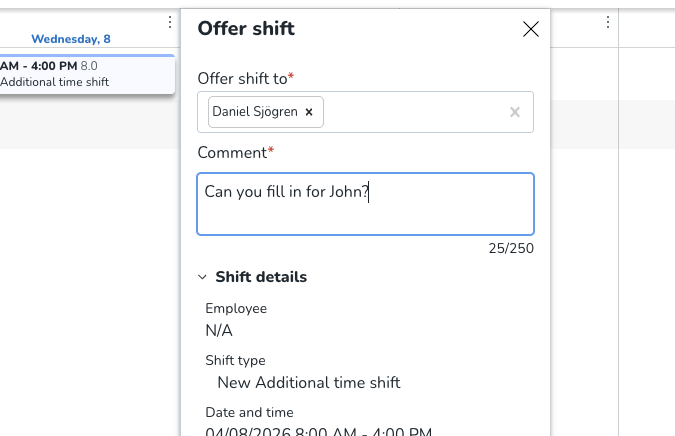
- Click on the Send offer button.
Employee shift offer workflow
The employee(s) will receive a notification in the mobile app of pending shift offers, and can choose to accept or decline. In the details of the shift offer(s), the comment and compensation level will be displayed.