Version 0232
 Updated
by
Leigh Hutchens
Updated
by
Leigh Hutchens
- Release summary
- Important information
- Quinyx web app Version 0232
Release summary
Release date March 19 2026
Short on time and want a high-level summary? 🚀 Quinyx web app Version 0232 New functionality
New functionality requiring configuration updates
Updates and performance improvements
Bug fixes
Quinyx mobile app New functionality
Employee Hub Version 0232 New functionality requiring configuration updates
Updates and performance improvements
Bug fixes
REST API / Web service updates
|
Important information
First speakers announced for Navigate 2026
Don't miss your chance to reserve a seat for Navigate 2026!
We have an action-packed agenda where you get to hear real-world examples from customers such as Kendra Scott and Puuilo, sharing how they use AI-supported workforce management to improve performance, reduce compliance risk, and strengthen frontline outcomes.
We also have Tobias Ahlin, Principal Design Engineer at GitHub and previously at Mojang and Spotify, who'll take us on a deep dive into how organisations can adapt to the rapid advances in AI and emerging technologies.
Mark your calendar for May 6 at At Six in Stockholm – or join us virtually.
👉Read more about Navigate 2026 on our blog here, and secure your place here.
Upcoming Webinar: Quinyx Unlocked
Join us for the April installment of Quinyx Unlocked, our monthly webinar series built exclusively for our customer community. In just 30 minutes, we’ll dive into how our latest updates simplify complex scheduling and improve your workforce planning accuracy.
- When: April 15th at 16:00 CET (10:00 EST)
- Duration: 30 minutes
- Topics
- Shared views: Set up once, use across your organization
- ... and much more!
👉 Register here!
Quinyx web app Version 0232
New functionality
Full transparency with punch audit logs
We're excited to announce a major enhancement to our Audit Logs, specifically focused on Punches. This update provides managers with the granular visibility needed to track time reporting changes, verify claims of unfair treatment, and ensure compliance with company policy.
What's new
The enhanced audit logs provide detailed information about who created, updated, or deleted specific punches, precisely when the action occurred, and the exact nature of the change.
Key highlights
- Granular group selection: A new tree structure allows you to select specific districts, units, or sections to fetch logs for. You can use a free text field to locate specific groups easily.
- Advanced "Action Made By" tracking: Identify exactly who performed an action, whether it was a specific manager, a Quinyx system administrator, or an automated integration using REST or SOAP APIs.
- Targeted "Action Made For" searches: Search for all actions impacting a specific employee. This is particularly useful for verifying claims of unfair treatment.
- Side-by-side update comparison: For any punch update, click the chevron to view an item sub-table. This displays "Old values" (highlighted with a strikethrough) alongside "New values," showing exactly how the data evolved.
- Immutable data integrity: To ensure maximum reliability, Quinyx logs are immutable. Historical logged data remains a permanent record to safeguard your audit trail.
How to get started
To access these logs, navigate to Audit logs > Adjust view and select the relevant item type.
Important details
- Permissions: Your search results will always reflect your specific Quinyx permissions (e.g., Scheduling read access).
- Historical data: Log data is available starting from the date the logging feature was released.
New Employee KPI: Adjusted worked hours / Nominal hours
Adjusted worked hours are worked hours in the period minus hours that have already been paid out or granted as time in lieu as overtime.
The Adjusted worked hours / Nominal hours employee metric helps scheduling managers to see how much of the worked time in a period is still counted as “regular working time” after already compensated overtime has been deducted.
This supports collective agreements such as the Finnish Hotels, Restaurants and Leisure industry agreement (MA‑RA), where:
- “The hours entitling the employee to receive remuneration for additional work or overtime in the specific period are not taken into consideration in the calculation of the total working hours in an adjustment period.”
- In practice, this means that hours that have already been “settled” as overtime or time in lieu should no longer contribute to reaching overtime thresholds again.
Where to turn on the new metric
Go to the Schedule view.
- Open Display options.
- In the Employee metric section, select Adjusted worked hours / Nominal hours.
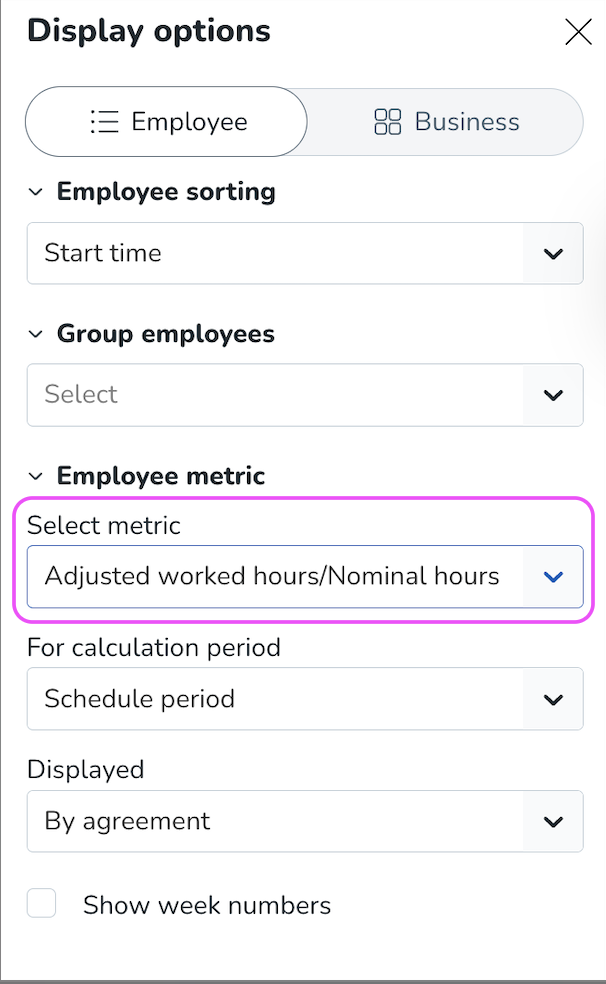
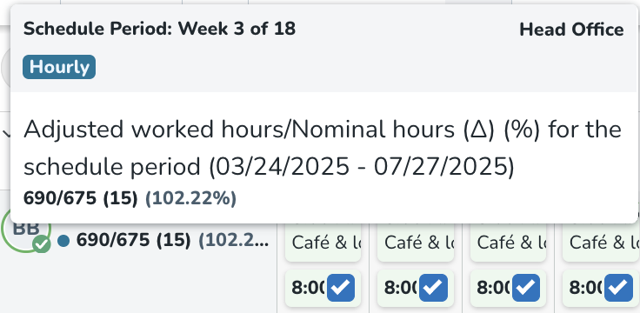
Once selected, Employee KPIs on the Schedule will update to show the new metric for each employee, by agreement, or total for all agreements.
How Adjusted worked hours are calculated
For the chosen Calculation period for each employee, the system:
- Sums all worked hours in the period.
- Identifies all hours that count as already compensated overtime for that same period
- Subtracts already compensated overtime from worked hours to get adjusted worked hours.
- Retrieves nominal hours for the period (as configured in the agreement template or agreement).
- Computes:
- Difference = Adjusted worked hours − Nominal hours
- Percentage = Adjusted worked hours ÷ Nominal hours (expressed as %)
Using (new) Optimal Headcount variables to create custom calculations
Users can now include Optimal Headcount when configuring calculated variables. This enhancement allows Optimal Headcount to be used as an input or operator within custom calculations, giving users greater flexibility to build formulas tailored to their labor management needs.
No additional configuration is required. Optimal Headcount will now appear as an available option when creating or editing calculated variables.
Advanced Analytics: Alerts and scheduled reports
With this release we’re happy to reintroduce Alerts and Scheduled Reports for Advanced Analytics.
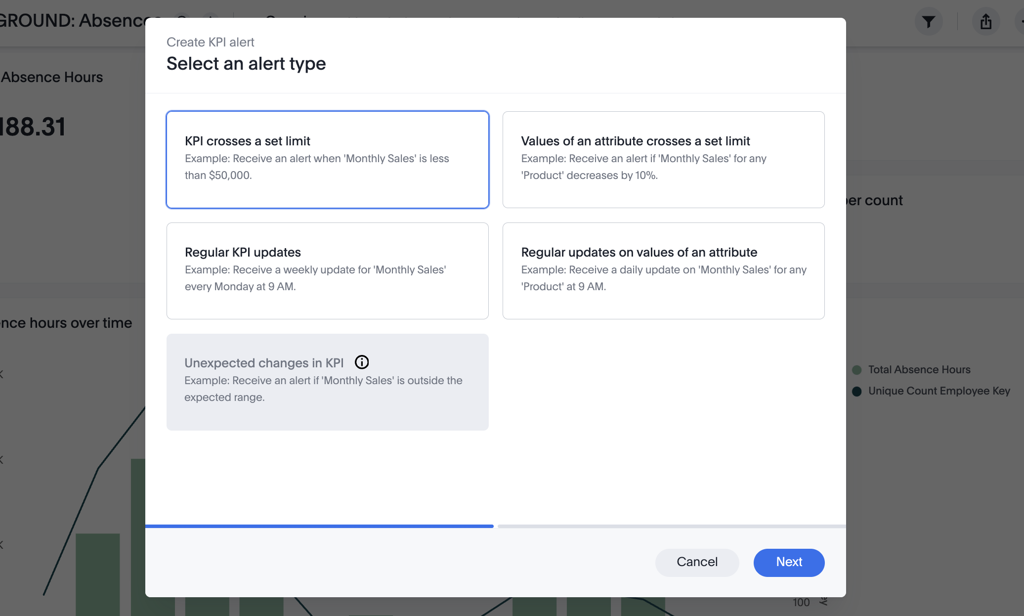
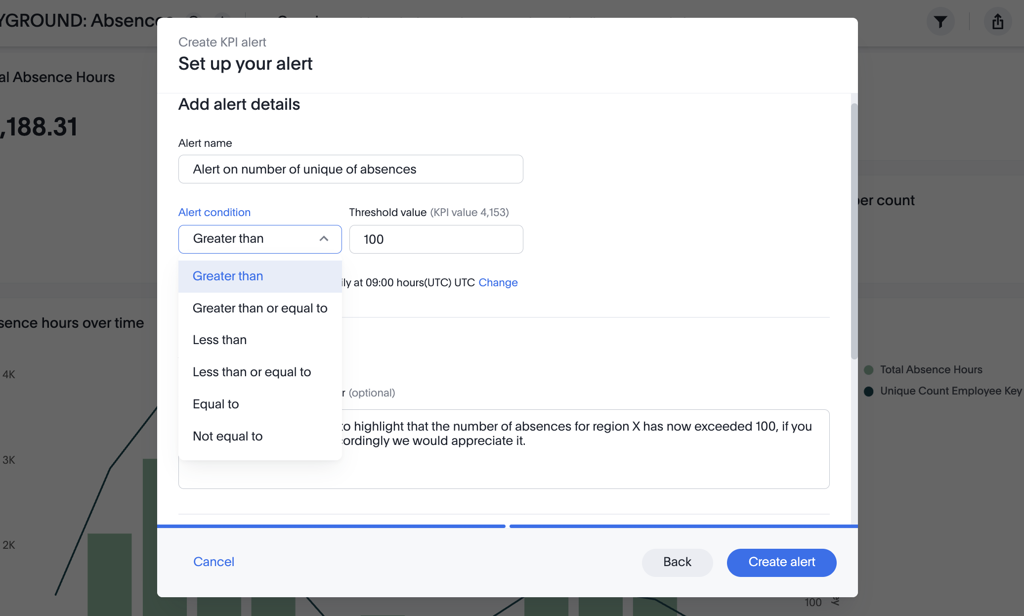
Using threshold alerts you can create automated event-based alerts on a select KPI, when a select attribute hits a set value or threshold. Or, with scheduled alerts you can send automated updates on the same criteria at regular intervals so that you better surface insights and be sure that your users are getting the right updates, at the right time.
For example - you can configure an alert when unique absences in an area exceeds 100, or when total productive hours drop to 1,000 or less - complete with a custom message for your target audience.
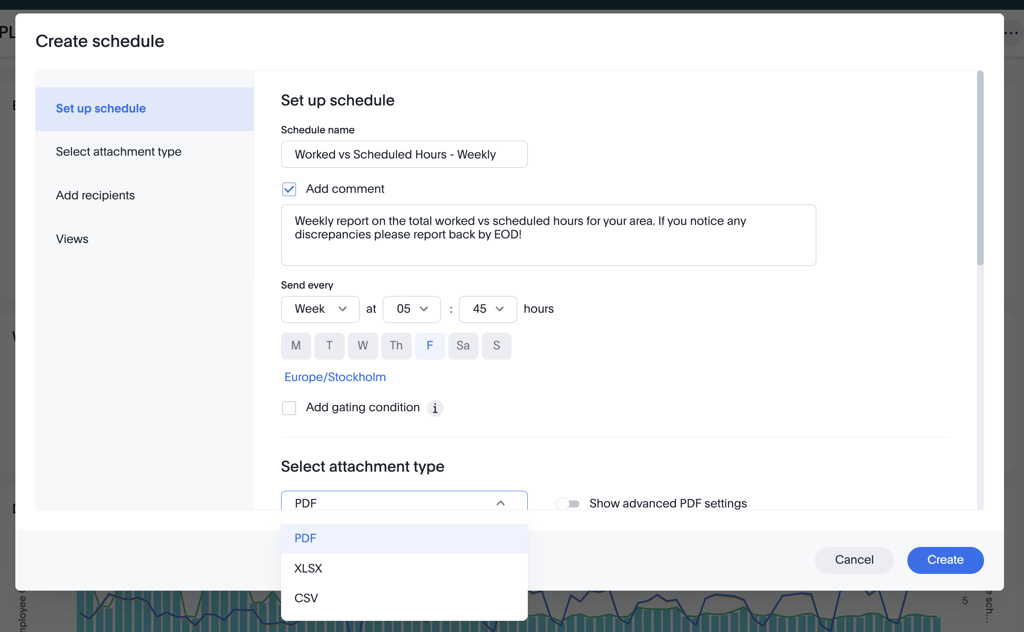
Likewise - if you’d like to generate a report of a complete dashboard, you can use the Schedule Reports function to automatically send an export of a dashboard or report in PDF, XLSX or CSV format at regular intervals to help ensure stakeholders across the organization stay aligned with the same timely insights.
- For example - you can configure a weekly report to all district managers 05:45 every Friday on the total worked vs scheduled hours to ensure everyone is reporting on the same output, at the same time, each week.
To configure an automated report - use the global “…” menu at the top right of your dashboard and select Schedule > Create Schedule.
New functionality requiring configuration updates
Support for changes to Swedish collective agreements
This was found as part of our standard post release monitoring and the increase which we have noted should, in most cases, not have impacted user experience within the web platform, however this is a precautionary step to further investigate the reason.
Specifically to our Swedish customers, this will partially impact the new release for additional time rules - the configuration options in the system will remain; however the back end salary calculation logic will temporarily be unavailable (this is specific to the newly released functionality and not all salary in Quin
We apologize for any inconvenience caused by this precautionary decision while we further investigate to ensure stability.
Starting 1 April 2026, a significant update to the collective agreement (Kollektivavtal) for a large number of our customers goes into effect. These changes are designed to increase predictability for workers and reduce the "misuse" of part-time contracts. The most notable shift is the introduction of Mertidsersättning (Additional Hours Pay), which ensures that part-time employees are compensated for extra hours at the same rates as full-time overtime. Additionally, the update introduces stricter scheduling rules to guarantee "time power" for employees, including more stable schedules and improved rights to holiday leave.
Basic additional time configuration
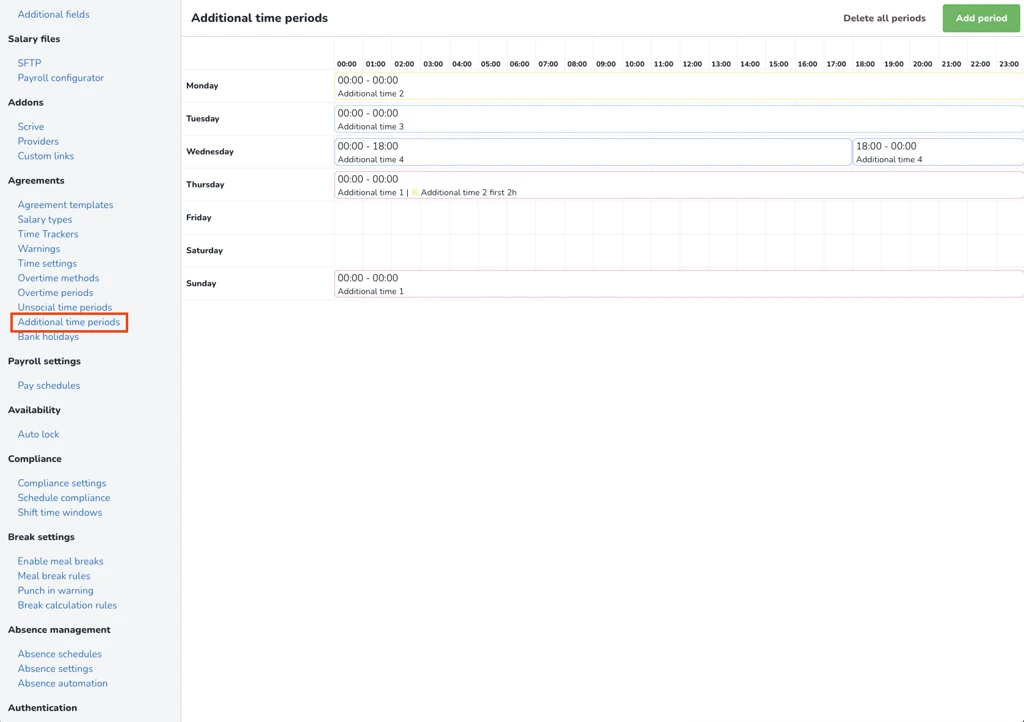
- Create Additional time periods from Account settings > Agreements > Additional time periods. This will create global additional time periods. Optionally, you can also set up additional time periods on any agreement templates that differ from the global periods.
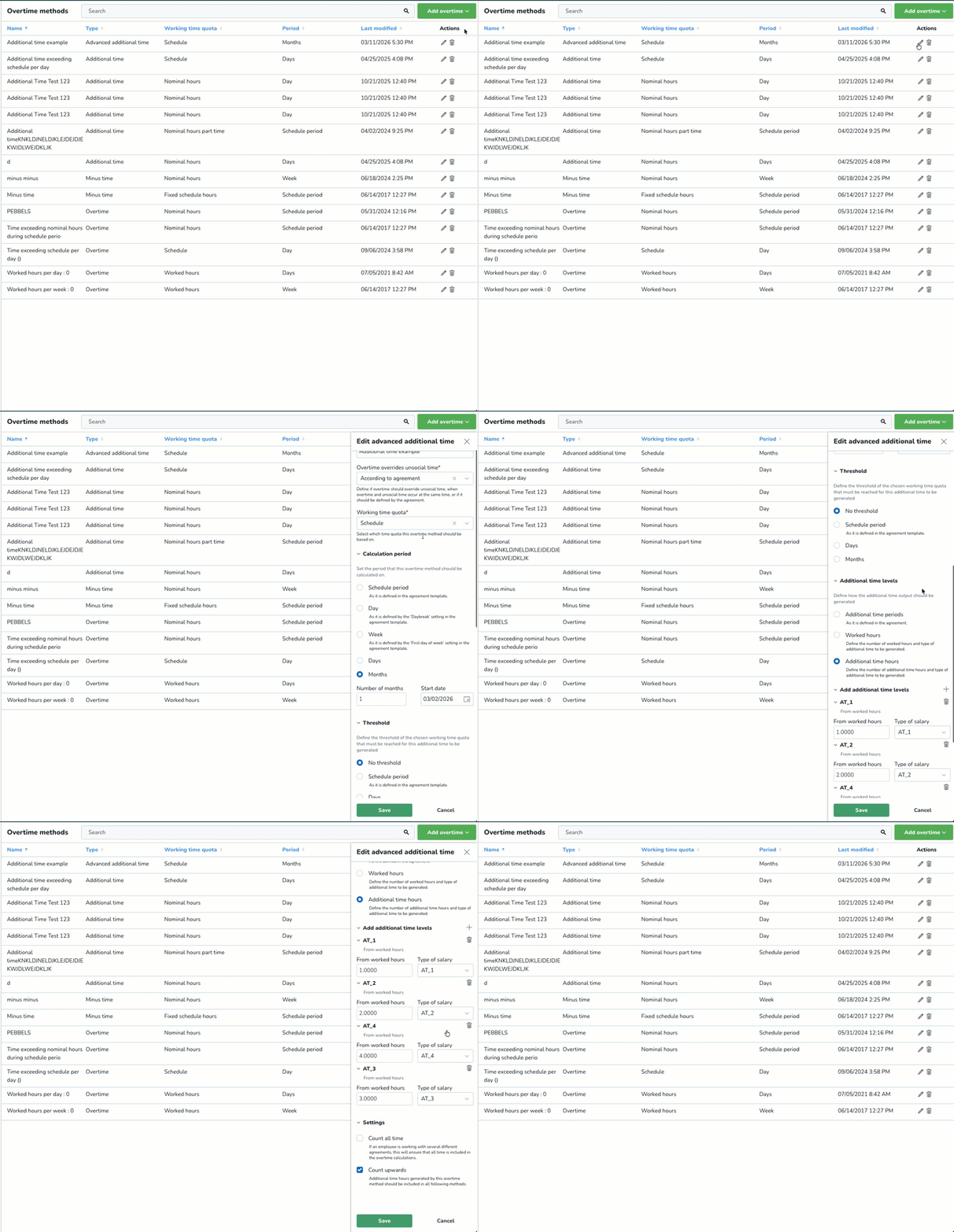
- Create Advanced additional time methods from Account settings > Agreement > Overtime methods > Add overtime button > Advanced additional time. Advanced additional time methods offer the same configurability like overtime does.
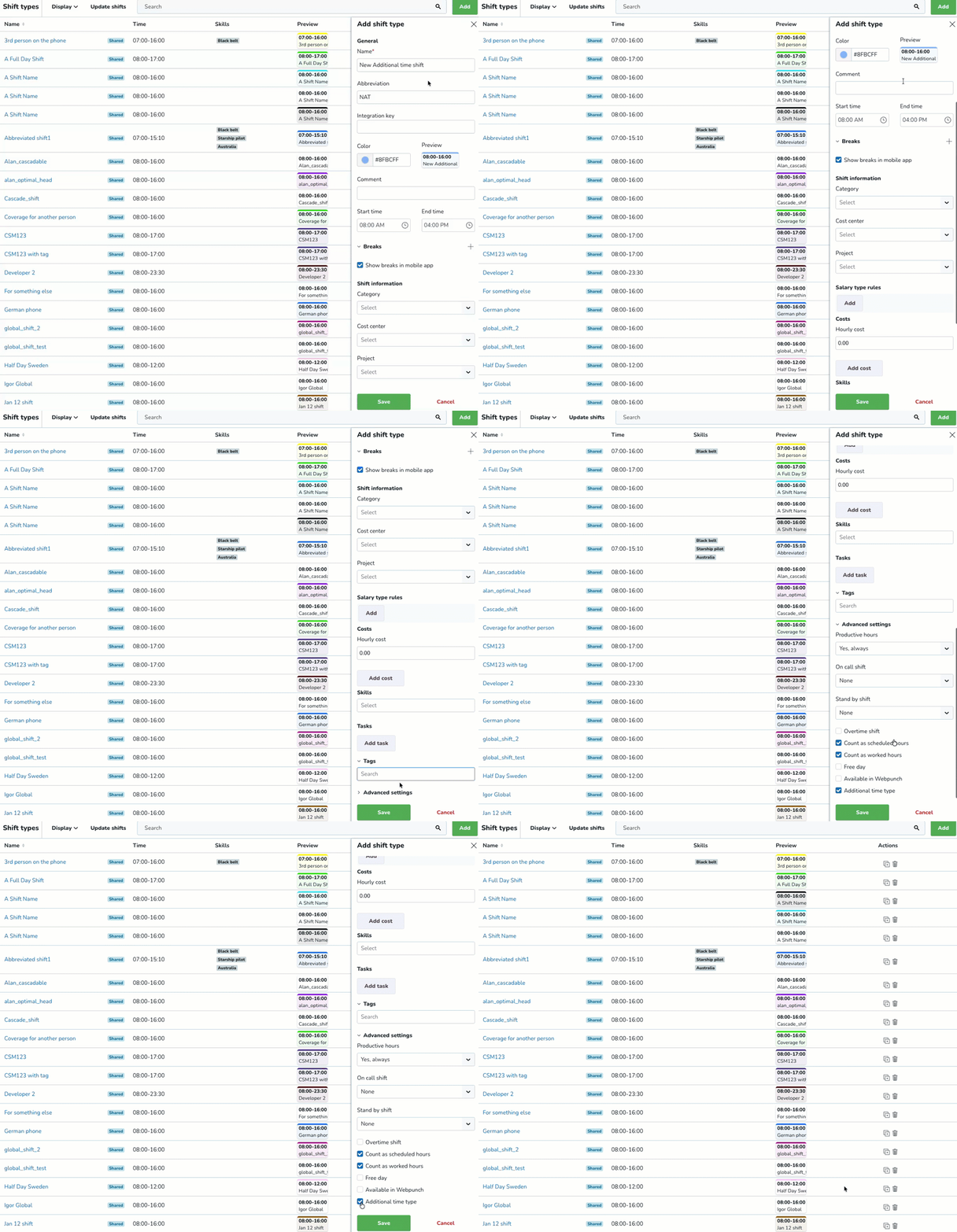
- In Account settings/Group settings, create shift types for additional time. In the Advanced settings section, make sure to tick the checkbox Additional time type in the shift type settings when creating the shift type.
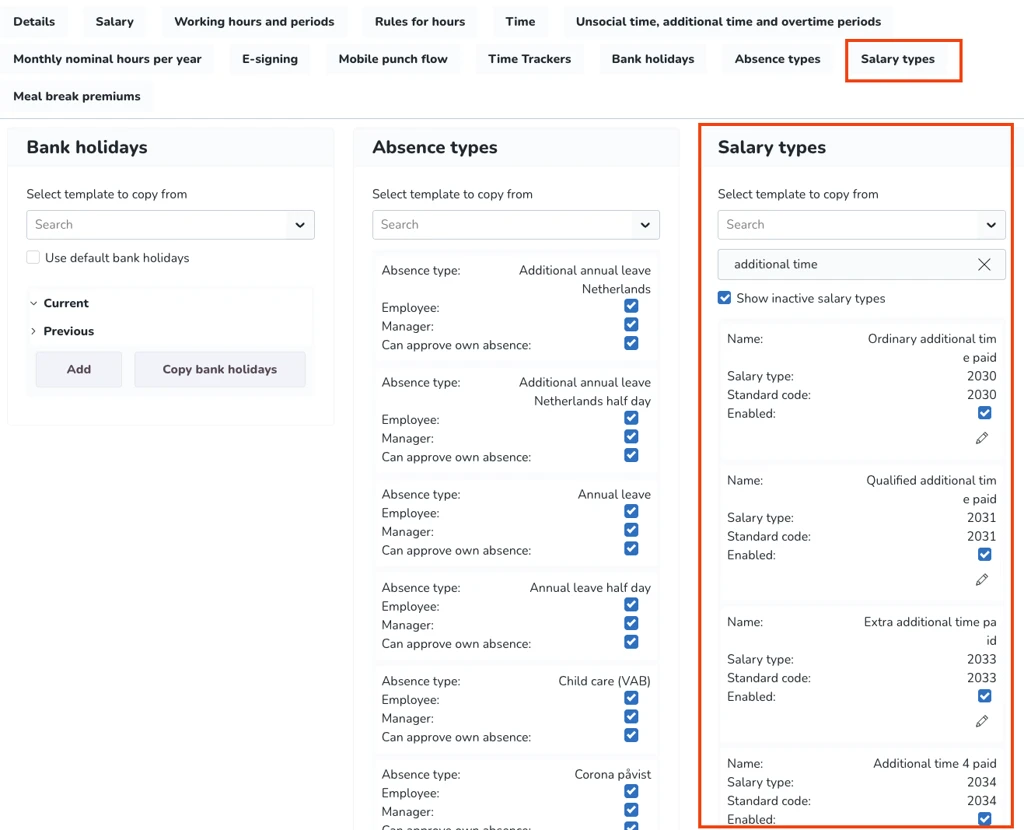
- To conform with the additions of the above functionality, we have created 24 new standard salary types for additional time. These closely mirror the existing standard salary types for overtime. By default these will be deactivated, but in the agreement template(s), you have the option like always to activate/deactivate any salary types that you want to be generated or not.
Schedule approval workflow for managers
- Make sure to enable the shift offer functionality in Account settings > Compliance settings.
- In the Schedule view, create an unassigned shift, using one of the additional time shift types you have created. This is to ensure that the employee(s) get a shift offer, have a chance to approve/decline the offer, and the "digital handshake" can take place.
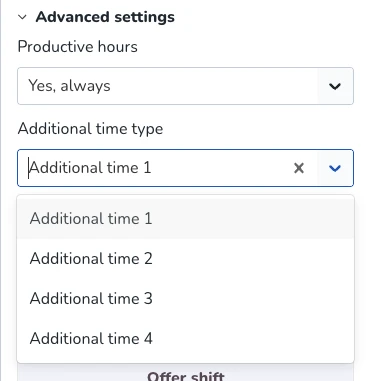
- While creating the shift, in the Advanced settings section, select the additional time type (1-4) that you want to be generated for the shift.
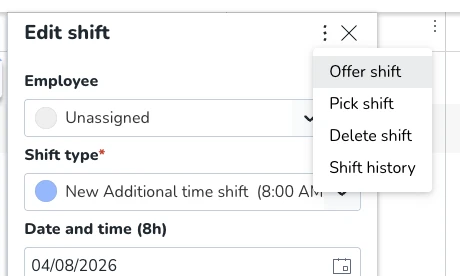
- When the unassigned shift has been created. Click the ellipsis (three dots menu) and select Offer shift.
Clicking on this option will open a new panel that allows you to:
- Select an employee(s) to whom you want to offer that unassigned shift.
- Leave any comment explaining why you have selected the employees.
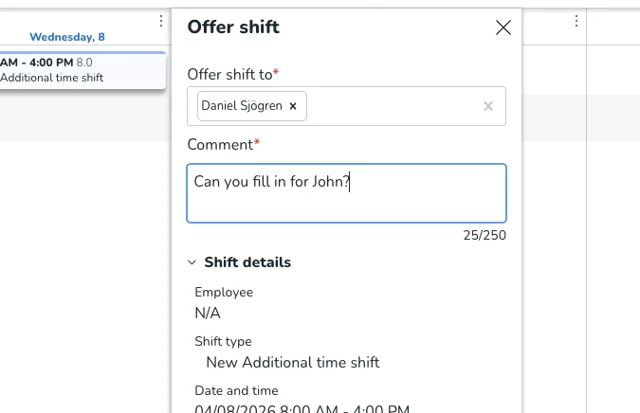
- Click on the Send offer button.
Employee shift offer workflow
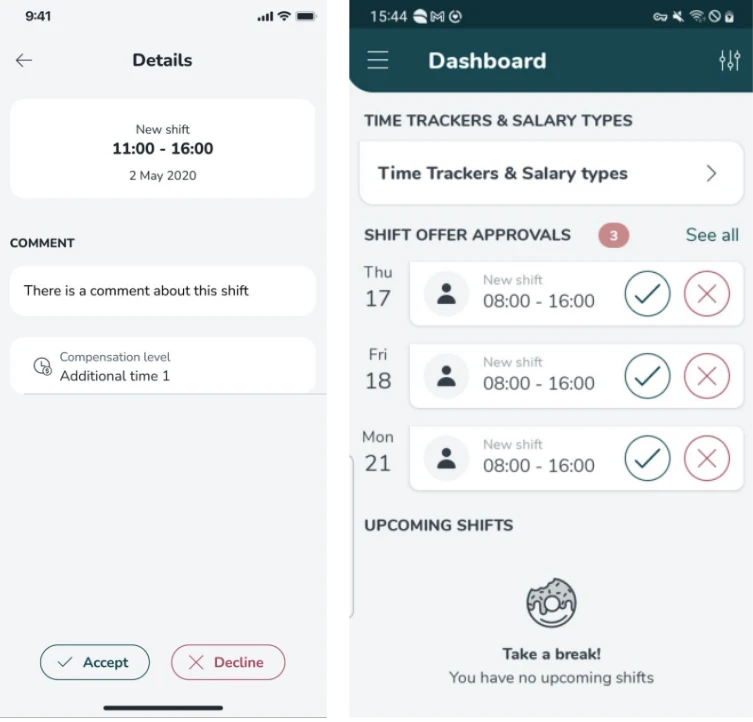
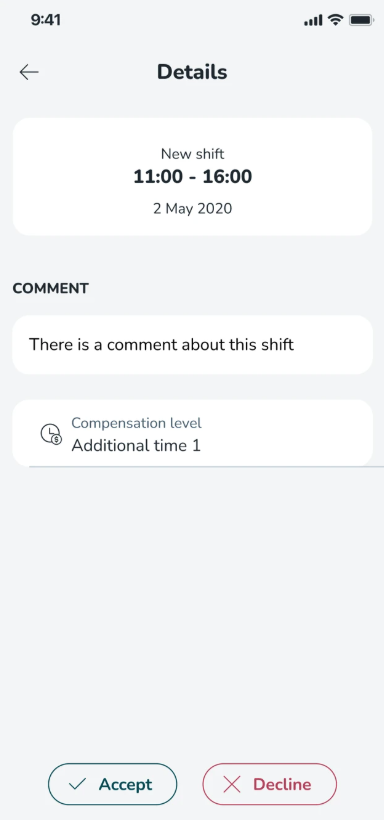
The employee(s) will receive a notification in the mobile app of pending shift offers, and can choose to accept or decline. In the details of the shift offer(s), the comment and compensation level will be displayed.
Control how absence types affect rest validation in Schedule Compliance
When Schedule Compliance validates rest rules (such as minimum rest per week), you can now decide whether each absence reason type should count as rest time or not.
This allows you to differentiate between absence types during scheduling. For example:
- Sickness (an unplanned absence): Typically not counted as rest.
- Vacation: Typically counted as rest
How to configure this: Go to Account Settings → Absence Settings, then edit the relevant absence reason type. To exclude an absence type from rest time, uncheck the Count as resting time for schedule compliance checkbox. | 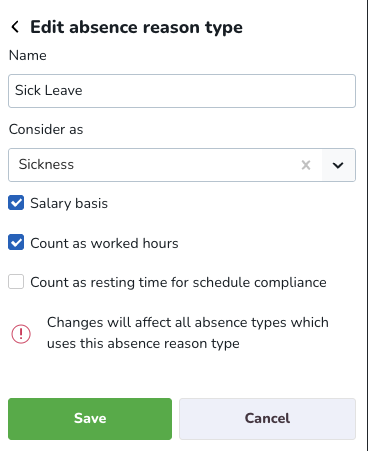 |
Updates and performance improvements
Pay Schedules - Introducing the possibility to permanently delete Pay Schedules
After the Version 0231 release of the new Pay Schedules feature, we received some feedback due to the fact that sometimes honest mistakes happen, and due to the strict rules in place that prevent duplicate Pay schedules ( to prevent payroll extraction issues).
We already had in place validations to prevent the creation of duplicated Pay schedule names and Integration keys.
Up until now you were only able to archive Pay schedules, but in situations where a mistake is done in the pay schedule configuration, archiving is not sufficient since you might need to simply create a new pay schedule with some similar values.
What is the improvement?
We will then introduce the possibility to delete pay schedules that have been archived.
You will only be able to delete a pay schedule if you have archived it before, so this option should only be given in the archived pay schedules view.
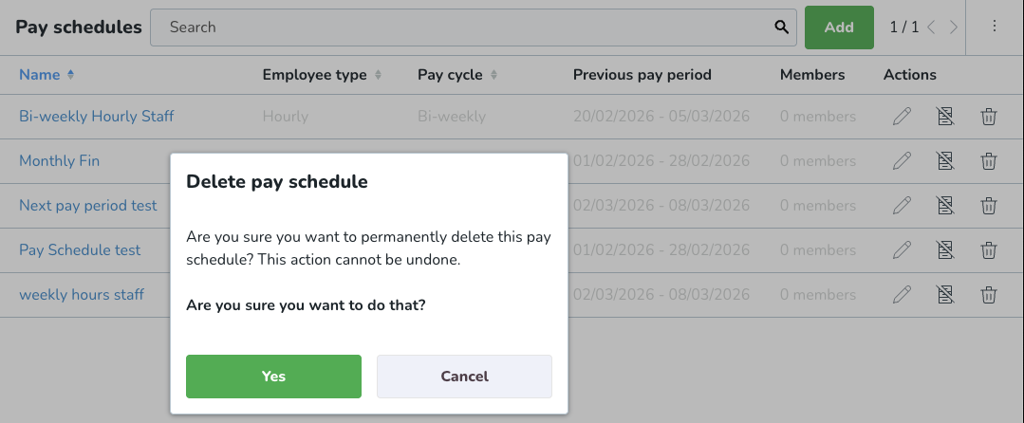
We already unassign all members in the archive process, the Pay Schedule deletion will erase the data. Once you delete a pay schedule it will no longer be recoverable and will be permanently deleted.
Bug fixes
- Resolved an issue that prevented the Schedule UI from responding immediately on tablet devices. Users will no longer need to tap multiple times to activate shift hover states or open detail panels.
- Resolved an issue where editing one task’s time during a bulk shift update would unintentionally change the times of all other connected tasks. You can now adjust individual task times without affecting the rest of the shift.
New HelpDocs content
- Audit logs - Punches
- Configuring Preconditions for Time Trackers
- Pay schedule
- Quinyx Unlocked webinar March 2026
- Swedish Collective "Additional Time" Agreement Changes Webinar (in Swedish)
- New additional time basic overview
- Advanced Additional time periods
- FAQ New rules for Additional time (Mertid)
- Salary types generated from advanced additional time methods
- Working with Advanced Additional time methods
Mobile apps
Shift offer with compensation level
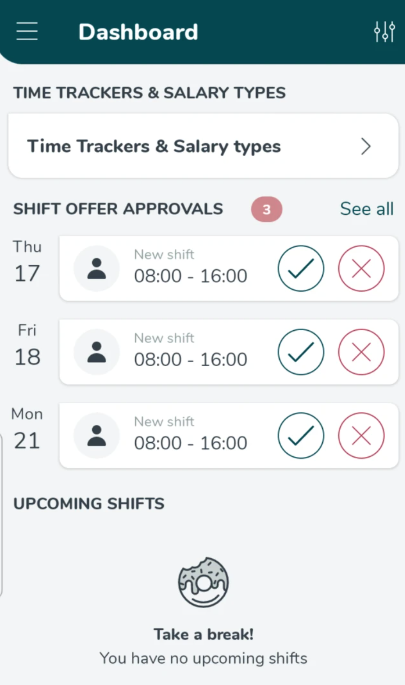
Legislative changes are due to come into force on the 1st of April in Sweden, an update to the Swedish Collective Agreement. This requires employers to show employees the compensation level they will be offered for a shift before they accept or decline it.
We have added new compensation level fields in the following locations:
- Shift offer details page
- Shift details page
Employee Hub web app Version 0232
New functionality requiring configuration updates
Files & Ava: Find the right answers in your internal documentation with Ava
You can now connect your internal documentation in Files & Folders to Quinyx Assistant Ava. This allows employees and managers to ask questions and get instant answers based on your organization’s own documents - combined with existing Quinyx helpdocs content.
With Files & Ava, important information like routines, policies, and guides becomes easier to find, understand, and act on directly inside Employee Hub.
What is Files & Ava?
Files & Ava lets you make selected files in Files in the Employee Hub available to Ava. When users ask questions, Ava will search both:
- Your organization’s uploaded documents that you’ve chosen to enable.
- Quinyx HelpDocs covering Quinyx WFM and Employee Hub functionality.
Ava always respects your existing file and folder permissions — users will only receive answers from documents they already have access to.
Prerequisites
To use Files & Ava, your organization must have Employee Hub activated.
How to activate Ava for Files & Folders
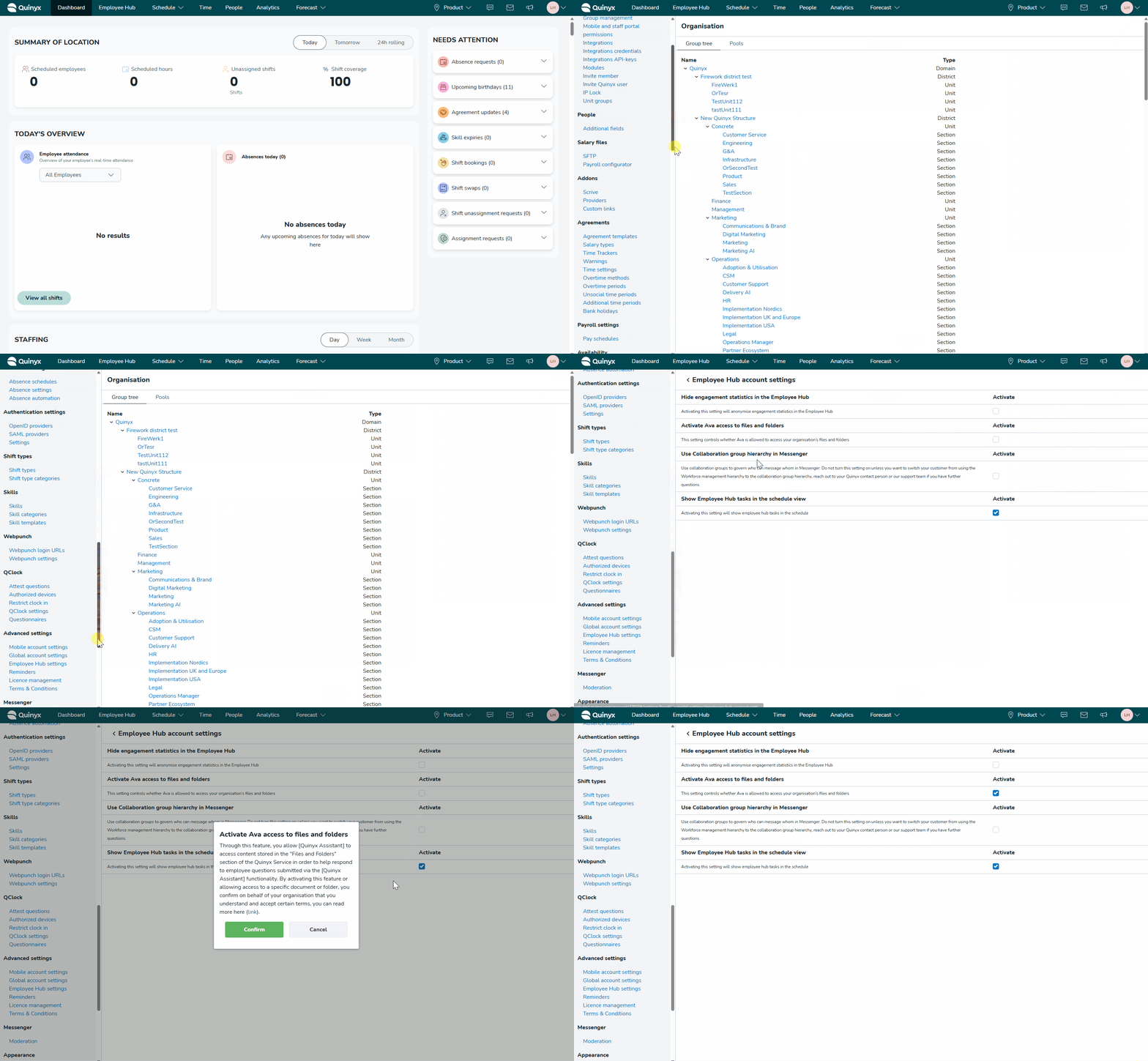
- Go to Account settings > Employee Hub settings > Employee Hub account settings.
- In the section Ava and Files & Folders, toggle Activate Ava access to files and folders.
- Read and accept the disclaimer shown during activation.
- Once activated, you can start enabling individual files for Ava.
Permissions
We have a new role-based permission that controls who can make files available to Ava:
- Give Ava access to files, under Role management > Employee Hub permissions > Give Ava access to files.
- This permission is turned off by default and must be enabled by an admin for managers who should be allowed to connect files to Ava.
Making files available to Ava
Files are enabled one by one.
- Open Files in the Employee Hub.
- Open the file you want to enable.
- Select Make this file available to Ava.
Only individual files can be enabled — entire folders cannot be shared with Ava.
Supported file formats
Currently supported file formats are:
- RTF
- DOC
- DOCX
- ODT
In future updates, Ava will also recognise file titles, descriptions, and media file names (such as images and videos).
How Ava uses your files
Once enabled, Ava can answer questions such as:
- “What’s our process for reporting sick leave?”
- “Where can I find the fire safety routine?”
- “How do I swap shifts in Quinyx?”
Ava combines information from your enabled files in the Employee Hub with Quinyx HelpDocs to provide accurate, relevant answers.
Language support
To ensure Ava can support all employees, we recommend uploading documentation in the same languages you use in Quinyx.
Don’t have Employee Hub?
Files & Ava is available to customers using Employee Hub.
If you don’t have Employee Hub today and are interested, please contact your Quinyx Account Representative.
Updates and performance improvements
None at this time.
Bug fixes
- Resolved an issue that prevented users from rearranging widgets within Stories. Administrators can now successfully use the "Move Up" and "Move Down" options to customize their Story layouts without encountering an error message.
- Resolved an issue in the "Audience by Groups" list where the final store or unit was hidden at standard zoom levels. The full list is now visible and selectable without needing to adjust your browser settings.
- Resolved an issue that incorrectly displayed the generic "This message has been deleted" label when a moderator removed a comment. The system now accurately displays "This comment was deleted by a moderator," providing better clarity and transparency for community interactions.
New HelpDocs content
None at this time.
REST API / Web service updates
None at this time.
Please make sure to forward this information to the party within your company responsible for integrations.
