Audits
 Updated
by
Leigh Hutchens
Updated
by
Leigh Hutchens
Audits in Employee Hub
Audits is a feature in Employee Hub that lets your organisation design, distribute, perform, and track structured audits across your stores, units or gyms. Whether you're running health and safety checks, brand compliance walkthroughs, or quarterly store reviews, you can build the audit once as a template and then send it out to be completed to selected tasking groups - stores/units/gyms/restaurants/sites/locations.
Audits replaces ad hoc forms, paper checklists, and disconnected forms with one consistent flow that captures evidence, scores results, and automatically creates follow-up tasks wherever issues are found.
How Audits works
Audits are built around a template-based approach. You always create a reusable audit template first and then initiate individual audits from that template whenever you need to run it. Templates live in the Audit template library, so they can be reused and are shared across your organisation to users with the permission to initiate audits – which means audits stay consistent over time and across stores.
When you initiate an audit from a template, it's sent to the stores/units you select, and they complete it themselves.
Where to find Audits
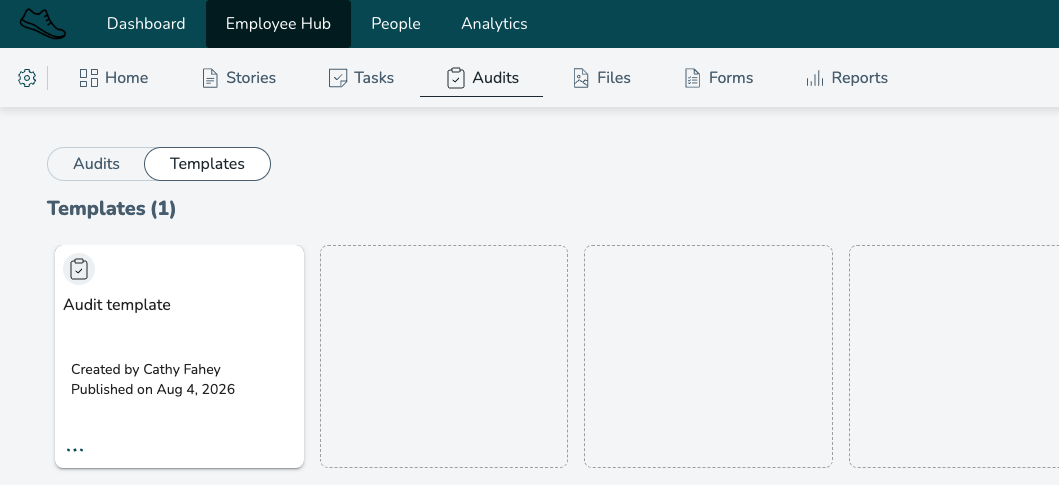
Audits has its own dedicated tab in Employee Hub, alongside Tasks and Forms. The tab is only visible to users with the relevant permission (see Permissions below).
Inside the Audits tab you'll find two main areas:
- Audits – every audit that has been initiated and sent out, organised by status and audience.
- Audit templates – every audit template available to your organisation, including drafts and archived templates.
You can switch between the two views at the top of the page.
Permissions
Three permissions control how users interact with Audits:
- Audits access – controls whether the user sees the Audits tab at all. Without it, the module is hidden completely. Available as no access or read access. This permission also allows users to start and complete audits that were sent to them.
- Create audit templates – controls who can build and edit templates in the Audit template library. Available as no access or write access.
- Initiate audit from template – controls who can launch a new audit using an existing template. Available as no access or write access. Having this permission without the create audit template permissions means you can initiate audits from template, but not create or edit templates. Create and initiate audits also require the distribution permission.
A typical setup could look like this:
- HQ users have all three permissions.
- Area or district managers usually have Audits access plus the ability to initiate audits but not to create templates.
- Store managers and store-level users typically only need access to perform the audits assigned to them.
Permissions follow the same collaboration group hierarchy as the rest of Employee Hub – users only see and act on the audits, stores, and results within their oversight.
Getting started: Create an audit
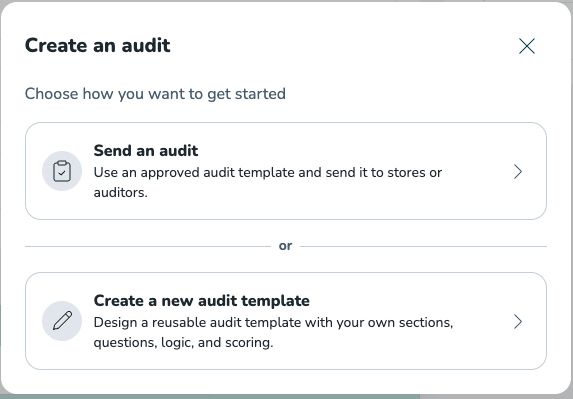
When a user with the right permissions clicks the + button to create an audit, they're presented with two options:
- Send an audit – use an approved audit template and send it to stores.
- Create a new audit template – design a reusable audit template with your own sections, questions, logic and scoring.
Which options a user sees depends on their permissions. A user with Initiate audit from template but not Create audit templates will only see Send an audit, because they can only re-use templates that already exist.
Building an audit template
Audit templates are built in the Audit template library. A template is the reusable blueprint you fill in once and then send out whenever you need to run that audit.
Basic information
Each template includes the same core fields you already know from Tasks:
- Title and description
- Attachments
- Approvers
- Priority, category and tags
- Size
Sections
Audits are organised into sections. Each section has its own name and contains a set of questions, which makes long audits easier to navigate, easier to score, and easier to read in results and reports.
You can copy a section, copy individual questions, and move questions up and down within a section.
Questions
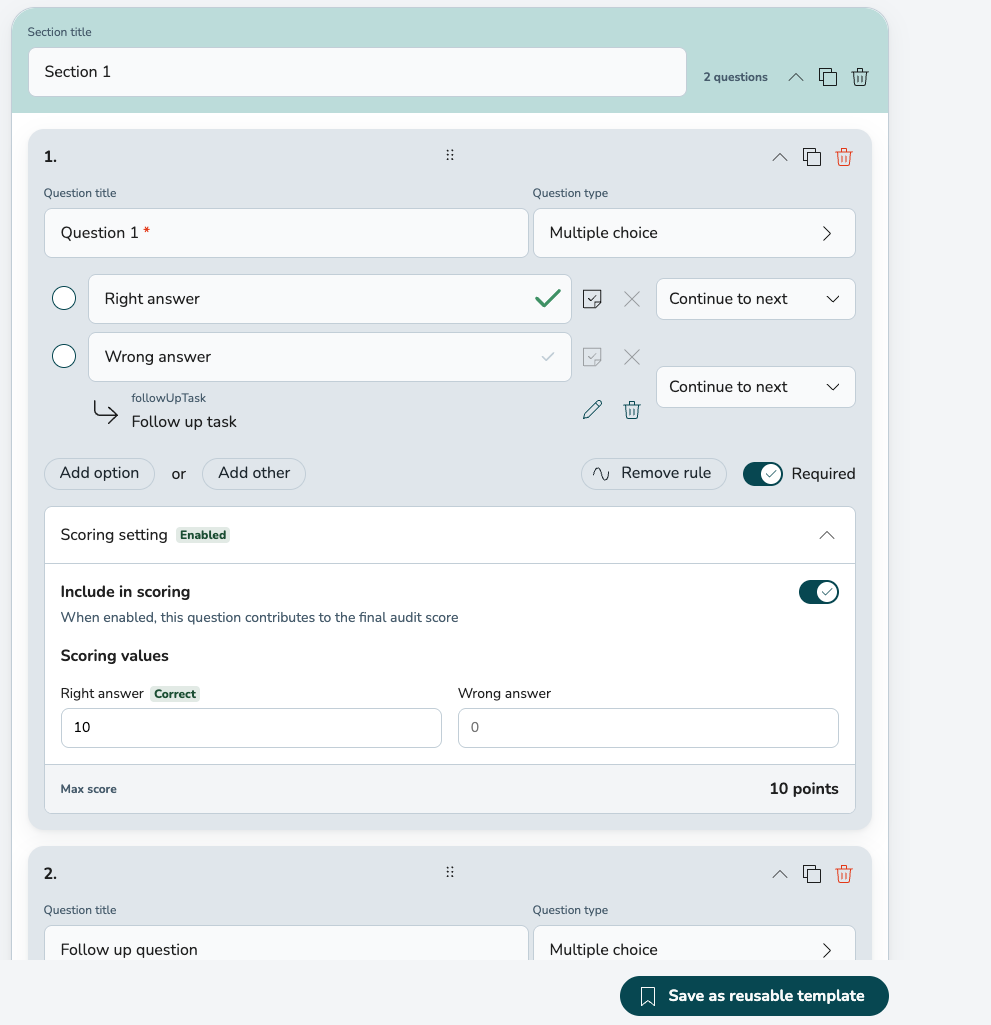
Audits support the same question types as Tasks today: short answer, paragraph, multiple choice, checkboxes, date, file upload, content, and right/wrong style questions.
For each question you can:
- Mark it as required.
- Specify the correct answer (available for short answer, multiple choice and checkboxes).
- Delete the question or any of its answer options.
- Copy questions
- Copy sections
Conditional questions
Conditional logic in Audits is set per answer option, which means a single multiple choice question can branch the audit into completely different paths depending on how it's answered.
To set up a conditional question you first need to click "add rule", once clicked you'll find a routing dropdown labelled Continue to next each answer option. Clicking it opens a Choose where this answer should go panel, where you can pick where the audit should jump to when that specific option is selected:
- Next – continue to the next question in order. This is the default.
- A question in this section – skip ahead to a later question in the same section, bypassing anything in between.
- A question in another section – jump straight into a different section of the audit.
Because the routing is per option, two answers to the same question can take the user down two different paths. For example, on the question "Is the cold room operating within the correct temperature range?":
- Yes might continue to the next question.
- No might jump straight into a Cold room troubleshooting section with detailed follow-up questions.
- Not applicable might skip ahead to the next section entirely.
Since Conditional logic requires specific answer options to be routed to the “place”, the conditional logic only works for the “multiple choice” question type.
This makes audits feel shorter and more relevant to the user, because they only see the questions that actually apply to their situation.
Scoring
Scoring is set per question. On each multiple choice & checkbox question you'll find a Scoring setting that can be turned on or off:
- When disabled, the question is informational only and doesn't count towards the audit score.
- When enabled, the question contributes to the final audit score, and you assign a numeric value to each answer option.
A few rules to keep in mind:
- Only multiple choice (single-select) & checkbox questions can be scored. All other question types are informational.
- The value of the option the user selects becomes that question's score. For multiple choice question the highest possible score is the highest value of the answering options, for checkboxes the highest possible score is the total score for all checkbox alternatives.
- If conditional logic causes a section or question to be skipped, those questions are also excluded – they don't count against the final score.
The total audit score is calculated as a percentage from 0 to 100, and the percentage is also broken down per section, so you can see where a store is doing well and where it isn't.
Because each option carries its own value, you can give certain questions more weight simply by assigning higher values to their answer options – without needing a separate weighting setting.
Automatic follow-up tasks
You can set specific options to automatically trigger a follow-up task. For example, if the answer to "Does the store have a working fire extinguisher?" is No, a follow-up task to source and install one can be created automatically. You can set this for question types with options like "Checkboxes" and "Multiple choice". To create a follow-up task, you click on the little paper icon with a checkbox in it next to the option that you want to trigger a follow up task.
📌 Where do follow-up tasks go? A follow-up task is always distributed to the store/unit the audit is being completed for. The action always lands with the people responsible for that specific store, so the right team picks up the work without anyone having to route it manually.
For each follow-up task you can pre-fill:
- Title and description
- Priority, category, tags and size
- A file upload field
- A question
Follow-up tasks appear in the receiving store's Employee Hub and are linked back to the audit they came from, so you always have full traceability between an audit answer and the action it triggered. The initiator of the audit will be the initiator of the follow up task.
Sending an audit
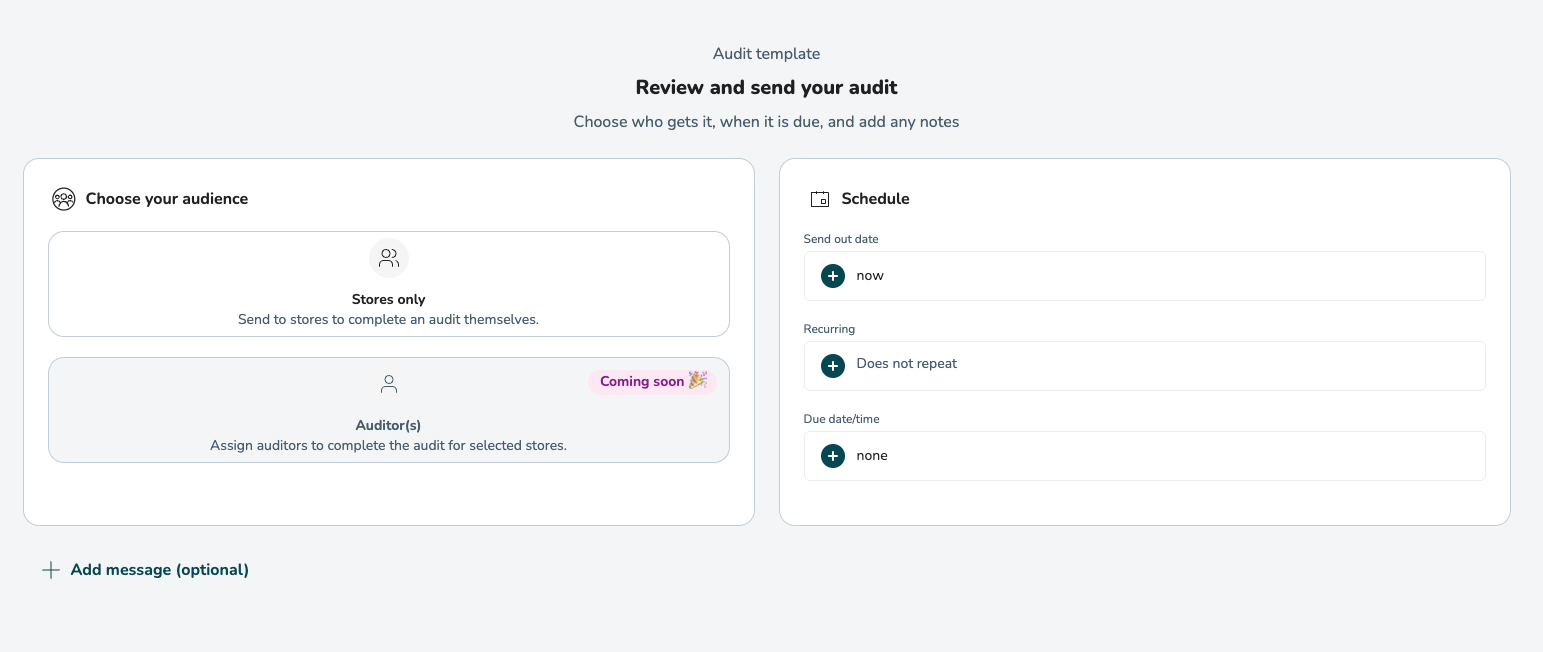
Audits are always initiated from a template. To send an audit, choose Send an audit from the create menu and pick the template you want to use. You'll then be taken to the Review and send your audit screen where you select your audience and set the schedule.
Choose your audience
You send the audit to the stores that need to complete it. The selected stores/units receive the audit in their Employee Hub and complete it on their own.
Schedule
On the same screen, you set when the audit goes out and when it's due:
- Send out date – when the audit should be released to its audience. Choose Now to send immediately, or pick a date in the future.
- Recurring – set a recurring date if the audit should repeat on a regular cadence.
- Start date – the date from which the audit becomes active.
- Due date/time – the deadline by which the audit must be completed.
You can also add an optional message to the recipients before sending.
Approvers
If approvers are set on an audit, the approval flow works the same as it does for Tasks today. Approvers only see the stores they're responsible for.
Editing a sent or scheduled audit
For audits scheduled for a future send-out, you can still edit the audience, the same way you can with Tasks.
For audits that have already been sent, you can add new audiences, but you can't change or remove audiences that have already received the audit.
Performing an audit
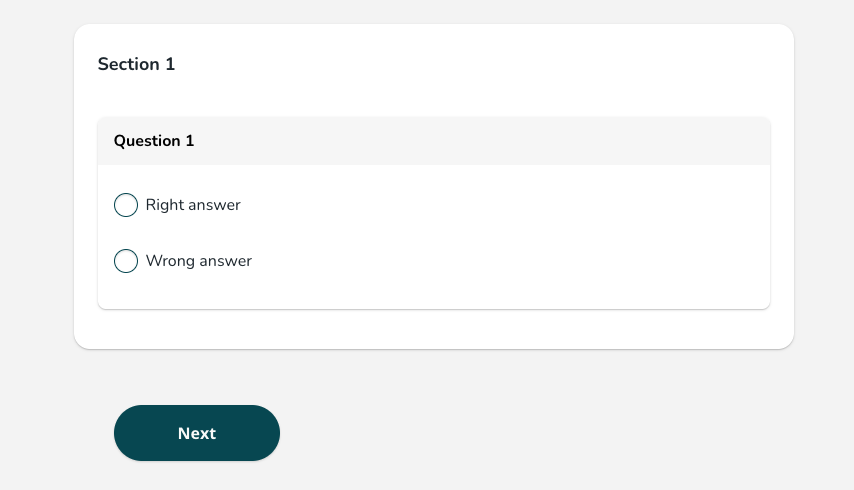
Store users can complete audits from any device – mobile, tablet or computer. The flow is the same on all of them:
- Answer each question in turn.
- Go back to a previous question to review or change an answer. Conditional logic re-evaluates automatically based on your latest answers.
- Tap Complete when you're done.
- See the result – total score as a percentage and a breakdown per section – along with a list of any follow-up tasks that were created.
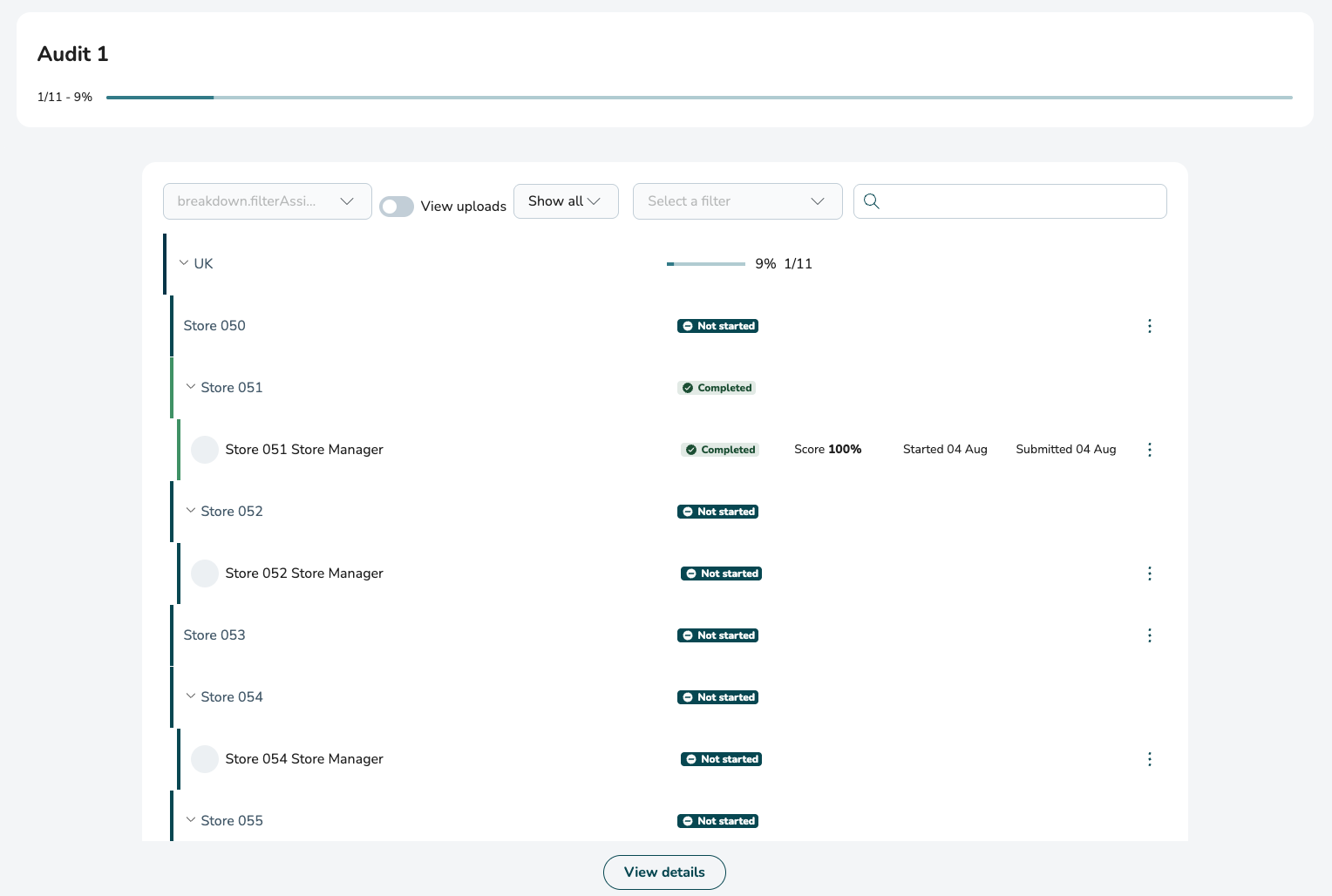
The multi-store breakdown view
For each store you'll see:
- Status (Not started, In progress, Completed, Needs review, Approved)
- The score, where applicable
What you see in the breakdown depends on your access: you see only the stores or areas within your oversight.
The cancel function works the following way:
- Cancel all completions: requires audit initiate permission + and to be the creator or a part of the creators group
- Cancel completions for specific groups: requires Audit initiate permission, does not require you to be creator
The notify function works the following way:
- Only the creator of the audit and people that are in the creators group can notify
The Audits overview
The Audits tab gives you a real-time view of every audit you have access to.
Audit cards
Each audit appears as a card showing:
- Store name (or store count if there are several)
- Status (Not started, In progress, Submitted, Approved)
- Completion progress, for example "3/5 audits completed"
- Priority
Collections
Use collections to filter the Audits view:
- All – everything you have access to.
- Assigned to me – audits you need to perform.
- Awaiting my approval – audits waiting for your review.
- Sent – audits you've initiated.
- Scheduled – audits scheduled for a future send-out.
- Done – completed audits.
In the Audit template library, you can switch between:
- Audit template library – all active templates.
- Drafts – templates saved but not yet published.
- Archived templates – templates that are no longer in use.
Search, filters and the location picker
You can search for any audit within the Audits tab, and any audit you have access to also appears in Employee Hub's global search. Filter audits by status, and use the location picker to focus on a specific part of your organisation.
Audit results
When an audit is completed, the user who performed it can see:
- The total score as a percentage.
- A breakdown of the score per section.
- A list of all follow-up tasks generated, with links to each one.
- A detailed view of every question and answer in the audit.

Home page widget
Users see audits assigned to them on their Employee Hub home page in a dedicated widget showing the most recent audits. The widget appears below the Tasks widget.
Chat
Every audit per store has its own contextual chat, so the people involved in the audit can discuss findings, attach context, or coordinate the response to a specific store's audit. Chat isn't available on audit templates.
Notifications
A store user is notified when an audit is initiated that they need to complete.
