Cross-unit scheduling
 Updated
by
Victor Jespersen
Updated
by
Victor Jespersen
With this functionality, managers who share responsibility for employees can now directly schedule, edit, and delete shifts in any unit where that employee has a role. With Cross-unit Scheduling, we’re giving managers greater autonomy and reduced scheduling friction. This functionality is optional and must be activated in your system configuration. It is not enabled by default.
Configuration
Activation of the cross-unit scheduling module
There are two steps you need to take to enable cross-unit scheduling.
- Role permissions - who can use it
You can give a specific role under your role hierarchy the Cross-unit scheduling permission to allow managers with specific roles to schedule employees across units.
Access level: What they can do
Off: No cross-unit scheduling access
Read: See cross-unit shifts and details, but not edit them
Write: See, create, edit, and delete cross-unit shifts
- Unit enablement - where it can be used
You can enable the cross-unit scheduling functionality per unit by following the steps below.- Go to Account settings > Group management > Select a unit you want to enable cross-unit scheduling > Advanced unit settings.
- Go to Functionality > check Cross-unit scheduling.
- Select Save.
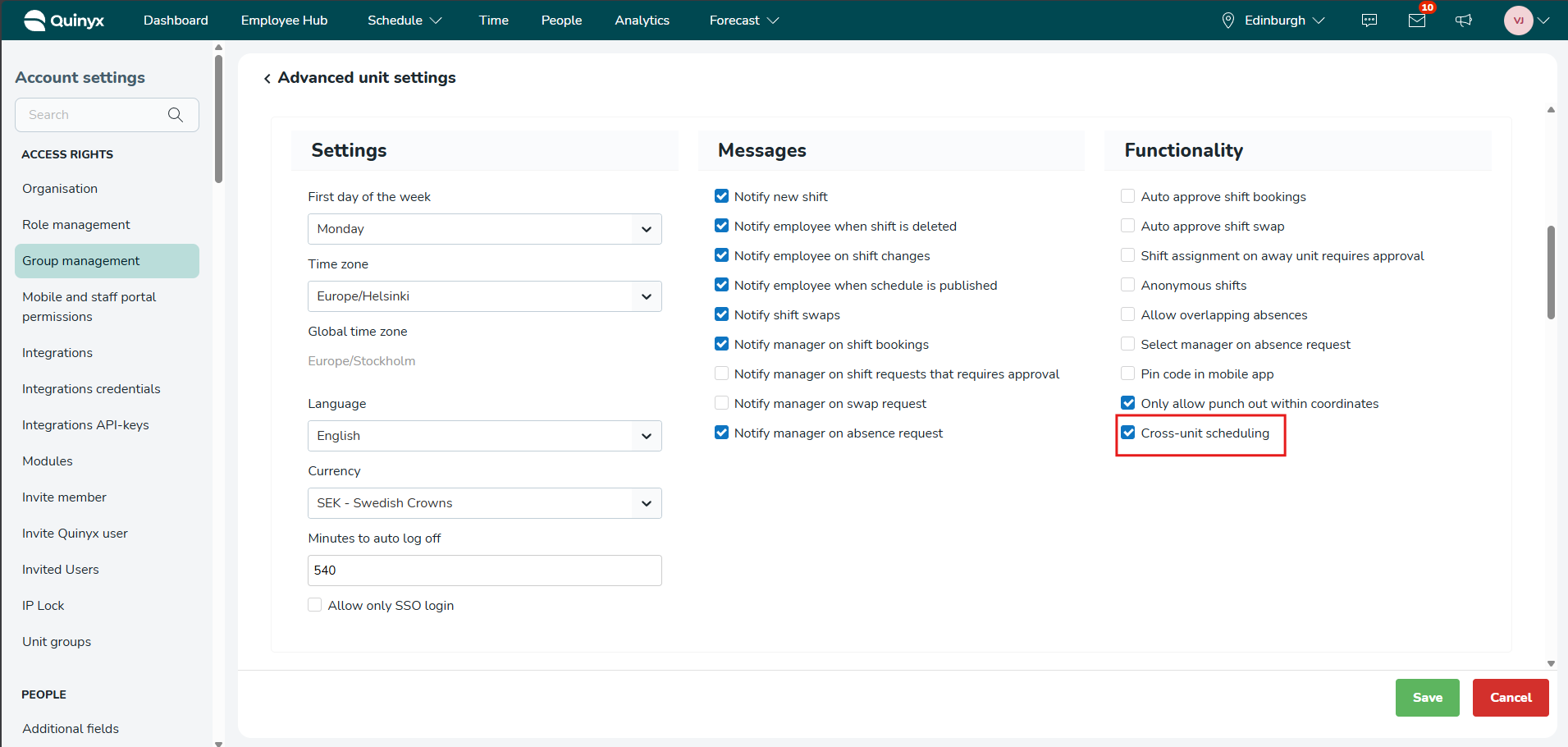
If a unit has the feature switched off, it won't appear in the Unit dropdown within a shift panel — no one can schedule into it, regardless of their permissions.
If a unit has the feature switched on, managers with the right permissions can schedule into it.
Permissions control who can cross-schedule. Unit settings control which units can be scheduled into. Both must be in place for a manager to schedule a shared employee in another unit.
Deactivation of cross-unit scheduling module
- Go to Account settings > Group management > Select a unit you want to enable cross-unit scheduling > Advanced unit settings.
- Go to Functionality > uncheck Cross-unit scheduling.
- Select Save.
Upon deactivation of the module, any shifts created using the cross-scheduling will remain (in the base schedule and the schedule where the shifts take place)
Schedule employees on other units
Once the Cross-unit Scheduling module is activated:
- Managers with Scheduling permissions can schedule shared employees in any unit where the employee has a role.
- Shifts can be created, edited, or deleted in both the Schedule and Base Schedule views.
- When selecting a shared employee in the shift panel, you’ll see a “Unit” field allowing you to choose the unit for the shift. The default is the unit you’re currently in, but you can change it to any unit the employee has a role in.
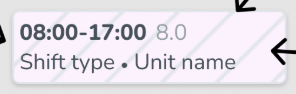
- Cross-unit shifts are clearly labeled with both the unit name and the shift type, so they’re easy to identify.
Special cases:
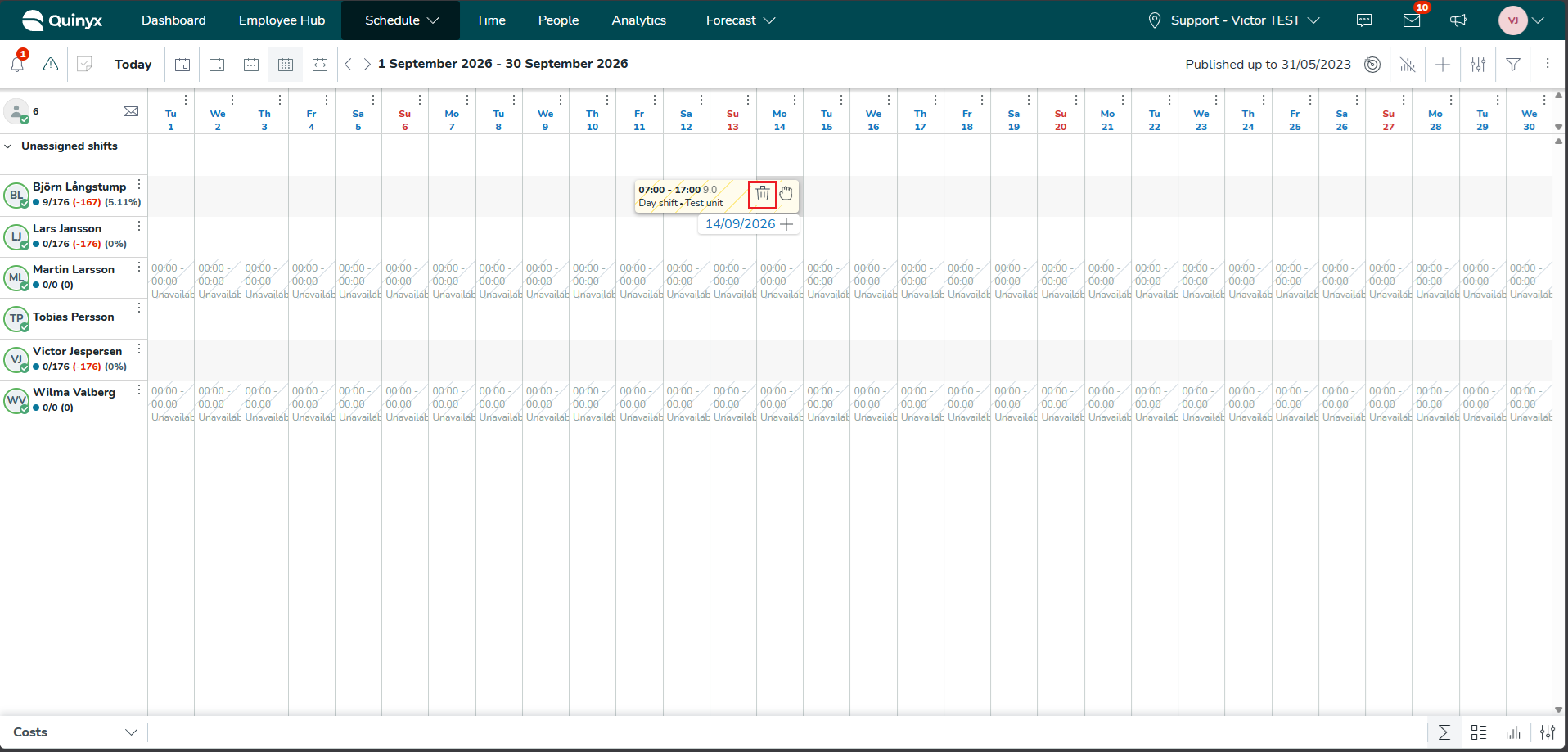
- Deleting shifts: Only possible via the bin icon (hover action).
- Editing shifts: If an employee is unshared or not eligible for a unit, the unit/shift fields reset.
- Copying/moving shifts: Allowed only if the employee has a role in the selected unit destination.
- Base Schedule rollouts: Cross-unit shifts added to your base schedule will appear in the live schedules of the respective units. Away-unit shifts will also be visible for transparency.
- Warnings: Soft warnings on shifts in other units can be overridden by the scheduling manager.
How it works
The following functionality is available in both the Schedule and Base Schedule views:
Shift panel
In the shift panel, when you select an employee who is shared to other units, a unit field appears where you can select the unit you want to schedule the shift in. The default value will always be the unit the user is in currently.
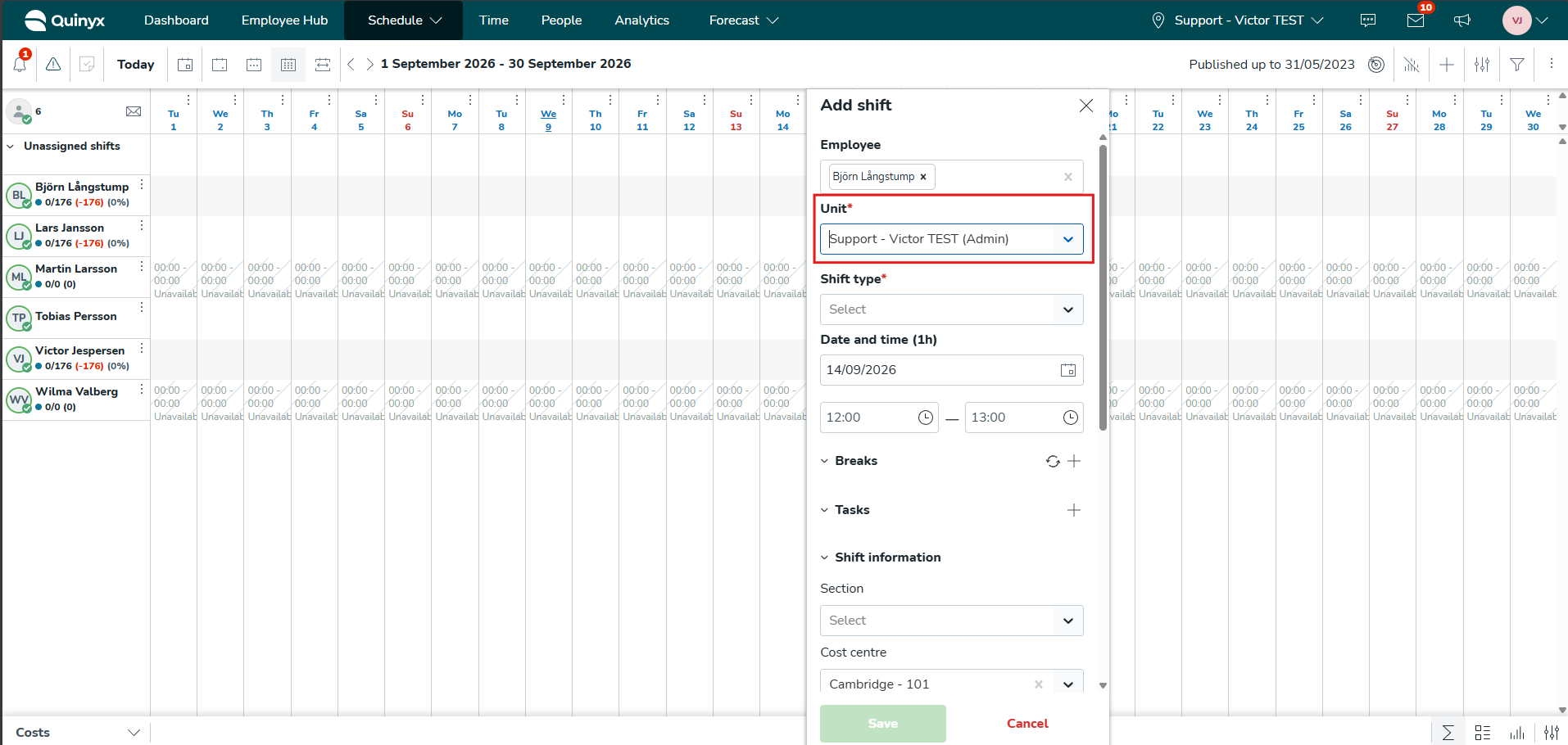
Changing the unit will reset the shift type field and make it empty. Once a shift has been created, cross-unit shifts in the schedule and base schedule views contain the name of the unit the shift takes place in, as well as the shift type
Deleting cross-unit shifts
To delete a shift, click on the bin icon that appears when you hover over a shift. Other routes to delete shifts are not supported.
Editing cross-unit shifts
One thing to note when editing cross-unit shifts is that if you change the assigned employee to one that is not shared to the unit, the unit field and shift type field reset.
Copying and moving cross-unit shifts
You cannot copy a cross-unit shift to a row for an employee who does not have a role on the unit selected in that shift. Meaning that you can only copy a cross-unit shift to a row for employees who have a role on the same unit selected in that shift. These rules apply to moving cross-unit shifts too.
Base Schedule view specific functionality
Roll out
- Any cross-unit shifts for shared employees in other units that you add to your base schedule will appear in the live schedules of the respective units when the base schedule has been rolled out.
- You will also be able to see them in your schedule.
- The cross-unit shifts will show as away units if they are not taking place in a unit (e.g. Unit A base schedule has shifts for shared employee in units A, B and C. Unit B should see any shifts in unit A and C as away units in their schedule)
Warnings
- Warnings work in accordance with your organisation’s warning configurations, meaning any soft warning associated with a shift created in another unit can be overridden by the manager scheduling the shift, but hard warnings cannot.
