Violations Panel
 Updated
by
Leigh Hutchens
Updated
by
Leigh Hutchens
The Violations panel shows every compliance rule violation on the shifts in your schedule in one place, next to the schedule. You can see what is wrong, who it affects and which shifts cause it, and fix each one before you publish.
This article covers the Schedule view in the Manager portal. It does not cover the Quinyx mobile app or the APIs.
Before you start
- You need read access to Schedule.
- The panel shows violations of the compliance rules your organisation has set up. To learn how the rules work, see Schedule Compliance Rules.
Open the Violations panel
- Go to Schedule.
- Choose the period, units and filters you want to review.
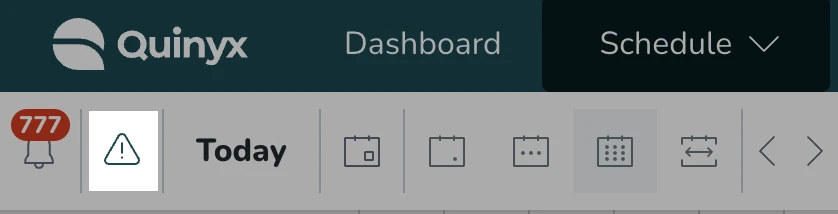
- In the top bar, select the Violations button (the warning icon).
The panel opens beside the schedule. While it loads you see Reviewing your schedule. When it is ready, the top of the panel shows the total, for example 12 violations.
What the panel shows
The panel only checks the shifts you can see in the schedule. If you change the period, the units or a filter, the list changes too. To review a whole unit for a whole period, clear your filters first.
Violations are grouped in up to four levels:
- Rule category — for example Working time, Rest, Break or Availability. Each category shows how many violations it contains. Categories start out expanded.
- Rule type — the rule type that was broken, with its own count. Select a rule to expand it.
- Employee — each person who breaks that rule, with the number of shifts involved, for example 3 shifts.
- Shift — each shift that contributes to the violation, with its shift type colour, shift type name and time.
Some things to know about how violations are listed:
- One violation can involve several shifts. For example, a weekly working-time limit can be broken by a whole week of shifts. It counts as one violation, and all the shifts involved are listed under the employee.
- One shift can appear under more than one rule. A shift that breaks both a rest rule and a working-time rule is listed under each rule.
Fix a violation
- Expand the category and the rule, then expand the employee.
- Select a shift. The shift's edit panel opens next to the day the shift is on, and the schedule scrolls to that employee.
- Change the shift and save.
The panel then checks that employee again. If you fixed the violation, it disappears from the list and the counts go down. While the check runs, the shift's row is greyed out.
To close the shift without changing it, select the same row in the panel again.
When there is nothing to show
- No violations found. None of the shifts in your current view break a rule. If you expected violations, try another unit, team or period, or clear your filters.
- Too many employees selected. The panel works with up to 100 employees at a time. Narrow the view with filters, for example to specific agreement templates, then reopen the panel.
Make it part of how you publish
Open the Violations panel as the last step before you publish a schedule. When it shows No violations found for the period and units you are about to publish, you know the schedule meets the rules you have set up.
Frequently asked questions
Why don't I see the Violations button?
Check three things: the panel is enabled for your account, you have write access to Schedule, and your browser window is wide enough.
Why does the panel show fewer violations than I expected?
The panel only checks the shifts in your current view. Clear filters, or widen the period and units, to review more.
Does the panel stop me from publishing?
No. The panel tells you what to fix, but it doesn't block publishing. Any rule set to block an action still does so when you save the shift.
Where do the rule names come from?
They come from the compliance rules set up in your account. To change a rule or its settings, go to Schedule Compliance in Account settings.
