Version 0248
 Updated
by
Daniel Sjögren
Updated
by
Daniel Sjögren
- Release summary
- Quinyx help and training have moved
- Quinyx web app Version 0248
Release summary
Release date November 5th, 2026
Short on time and want a high-level summary? 🚀 Quinyx web app Version 0248 Announcement!
New functionality
New functionality requiring configuration updates
Updates and performance improvements
Bug fixes
Mobile app
Employee Hub Version 0248 New functionality
New functionality requiring configuration updates
Updates and performance improvements
Bug fixes
REST API / Web service updates
|
Quinyx help and training have moved
Quinyx Knowledge Base
As of Wednesday 21st October, Quinyx product help has a new home. Introducing the Quinyx Knowledge Base at help.quinyx.com. It replaces HelpDocs as the official home of all Quinyx product documentation. Like HelpDocs, it's open to everyone, with no login needed. The one exception is Quinyx Academy for customer training, which has its own login (see below). Nothing changes in Quinyx itself, only where the help lives.
What's new
- Eddy AI. Ask a question in your own words and get a direct answer, with links to the articles it came from.
- Summaries and read-aloud. Get the key points quickly, or have an article read aloud.
- Feedback on every article. Tell us what's helpful and what's missing.
- Dark mode. Choose between light and dark themes to suit your workspace preference.
- Four languages. English, German, Dutch and Swedish. We're refining the translations based on your feedback.
What to do
- Update your bookmarks to help.quinyx.com
- Update HelpDocs links in any of your organization's Confluence pages, decks, guides, and other documentation by early November.
- Looking for an article you used in HelpDocs? HelpDocs links don't redirect to the matching article, but titles haven't changed, so search for the title in the Quinyx Knowledge Base.
What happens to HelpDocs?
HelpDocs will be phased out gradually over the coming months:
- Parallel updates through November: Both platforms will be maintained until late November. We’ll confirm the exact date HelpDocs content is frozen in upcoming release notes.
- Read-only access until 1 January 2027: HelpDocs will remain accessible for reference until early 2027, when it will be permanently retired.
- Recommendation: Start using and linking to the new Knowledge Base today to ensure a smooth transition.
Customer training has moved, too!
Customer training has also moved. Quinyx Academy replaces Attensi, our previous training platform, and is where customers enrolled in Quinyx training take their courses. It's separate from the Knowledge Base and needs a login.
Where to go: Access it at help.quinyx.com (Quinyx Academy has its own dedicated login).
- Password reset: All existing passwords have been reset; users will need to set a new password.
Learn more
- Welcome to the new Quinyx Knowledge Base: A tour of what's new and how to find your way around.
- Quick Quinyx Knowledge Base demo: A brief demo showing features and navigation.
- How to get good answers from Eddy AI: Tips for asking questions that get clear, accurate answers.
- Quinyx Academy first-time login guide: How to log in to Quinyx Academy for the first time.
Quinyx web app Version 0248
New functionality
Support for "Anonymous shifts" in the Staff Portal
Staff Portal now respects the Anonymous shifts setting, working the same way as it already does in our mobile apps. When it’s enabled on a unit, colleagues’ names and pictures on that unit’s shifts are replaced with “Colleague”, so employees can’t see who’s working when.
- Your own shifts and open shifts aren’t affected.
- The setting applies per unit, so shared employees will see names as normal on units where it’s turned off.
- Managers still see real names on units they manage.
Sort and filter absence requests in the notification panel
Until now, absence requests in the Schedule view notification panel arrived in a fixed order with no way to narrow the list down. For managers with a large team, or central planners covering several units, that list can run to a hundred or more requests. You can now sort and filter it to get straight to the ones that matter.
What's new
- Sort by submission date, start date or length. Choose oldest or newest first, soonest or latest start, or longest or shortest absence, from the sort control in the section.
- Filter by absence type. Pick one type or several to see only those requests.
- Switch between Upcoming, Past and All requests. Find the ones that have already started without a decision first.
- Sort and filters work together, and your chosen sort order is remembered between sessions. Filters reset when you reload the page or start a new session, so an old filter never leaves you looking at a shorter list than you realise.
- When there are no absence requests, the sort and filter controls are disabled.
Why it matters
Managers can get to whoever has been waiting longest, whatever's overdue, or whichever absence type they are working through first, without scrolling through every pending request.
New functionality requiring configuration updates
Compliance rules can now use expected worked hours as the calculation method
Until now, Schedule Compliance rules for rest checked only the shift times in the schedule. If an employee started early or stayed late, the rule didn't see it, so warnings could differ from what actually happened in the period.
Same goes for the nominal hours warning. It always checked against how an employee was expected to work, based on how they are scheduled and how they have punched already.
Super users can now choose the calculation method for a rule with the new Check against setting:
- Scheduled hours – the rule checks against the shift times in the schedule.
- Expected worked hours – the rule uses the punched hours wherever a time punch exists. It falls back to scheduled hours where there is no punch yet, such as future shifts, or where the punch is still open because the employee hasn't punched out.
The setting is available on these rules:
- Min average weekly rest – default: Scheduled hours.
- Min consecutive rest between shifts – default: Scheduled hours.
- Min consecutive rest per week – default: Scheduled hours.
- Nominal hours can’t be exceeded – default: Expected worked hours.
Violations and warnings from Min average weekly rest also show in the Violations panel for the selected period.
How to enable it
- Go to Account Settings > Schedule Compliance > Rule set.
- Open the rule you want to change.
- Under Check against, select Scheduled hours or Expected worked hours.
If you don't change the setting, each rule keeps working as it does today. The rules' other settings are unchanged.
Why it matters
Rest and working hours are often broken by small changes on the day: a shift that runs late, followed by an early start. Checking against expected worked hours makes the warnings match what employees actually worked, so you can act before the period ends. Checking against scheduled hours still lets planners validate the schedule before anyone has worked a shift.
Minijobbers Annual earnings limit rule - option to select which salary types to track
Some earnings do not count toward the Minijob income limit (e.g., certain tax-free allowances or one-off bonuses). You can choose which pay components this rule includes when tracking employee earnings.
How to select the salary types
- Go to Account settings > Schedule Compliance > Rule set.
- Open the minijobber rule you want to update.
- Under Rule settings, you will find Salary types as a drop-down list. Select the salary types you want the rule to track. The salary types listed here has the global name and code - it does not inherit any custom name or code that you may set up on an agreement template.
Updates and performance improvements
None at this time.
Bug fixes
- None at this time.
New HelpDocs content
- Filtering absence requests in the notification panel
- Sorting absence requests in the notification panel
- How to configure breaks
Mobile apps
📣 Coming soon: the new Manager Workspace 📣
We’re excited to share that we’ve been rebuilding the manager experience in the Quinyx mobile app, and it’s coming in the next few weeks. Here’s what to expect in the first release:
- A refreshed look: a cleaner design that’s easier to navigate.
- More ways to handle requests: more options when you approve your employees’ absence requests and shift bookings.
- Focused request lists: filter pending requests by unit and section.
- A new foundation: built to support more manager features in future releases.
Employee Hub web app Version 0248
New functionality
Introducing the new story builder
Stories are one of the most important ways you reach your frontline teams, the new story builder gives you a visual, drag-and-drop way to create rich, branded stories – with tables, images placed next to text, highlighted callouts, and full text formatting – without leaving Quinyx.
We've kept it simple on purpose. You get the tools you need to create engaging content, not a full design suite.
What's new at a glance
- Choose between the classic editor and the new story builder when you create a story
- Build your story from ready-made blocks you drag onto a canvas
- Add tables, buttons, dividers, hero banners, columns, callouts, and quotes
- Place images beside text, and crop or resize them without leaving the builder
- Format text with fonts, sizes, weights, colours, highlights, lists, and emojis
- Preview your story on desktop, iPad, and mobile before you send it
- Save your story as a template so others can reuse your layout and branding
Choose your editor when you create a story
Creating a story starts the same way as today:
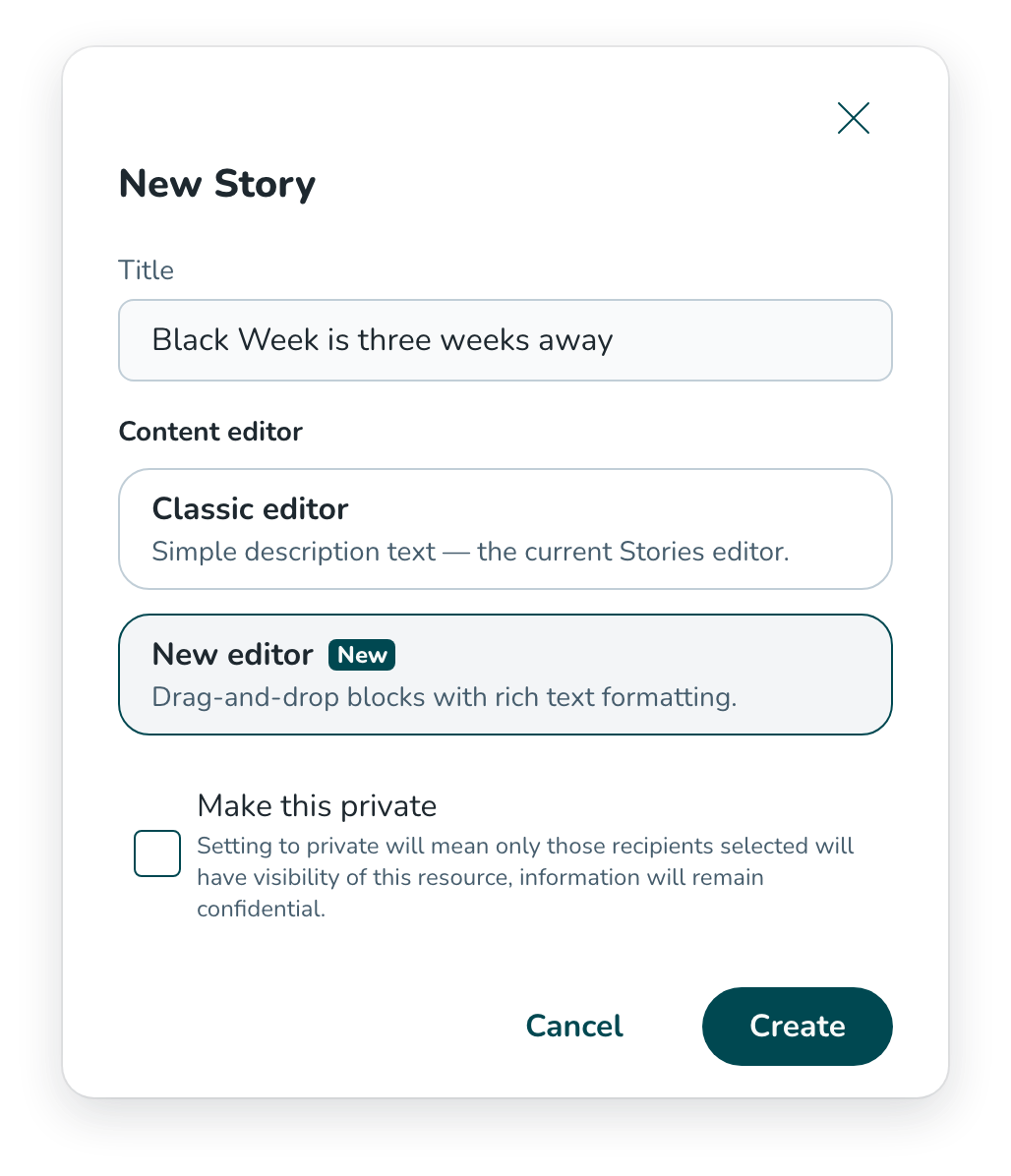
- Select the + icon in the header and choose Story.
- Give your story a title.
- Under Content editor, choose how you want to build your story:
- Classic editor – the simple description text editor you already know.
- New editor – the new drag-and-drop builder with rich text formatting.
- Select Create.
Your choice stays with the story
The editor you pick when you create a story is the editor you use for that story from then on:
- Stories created with the new story builder are always edited in the story builder.
- Stories created with the classic editor are always edited in the classic editor.
- When you copy a story, the copy uses the same editor as the original.
- All stories created before this release continue to use the classic editor, and you can edit them just as you do today.
You can't switch a story from one editor to the other after it's been created, so choose the one that suits the content you're planning.
A clearer story page
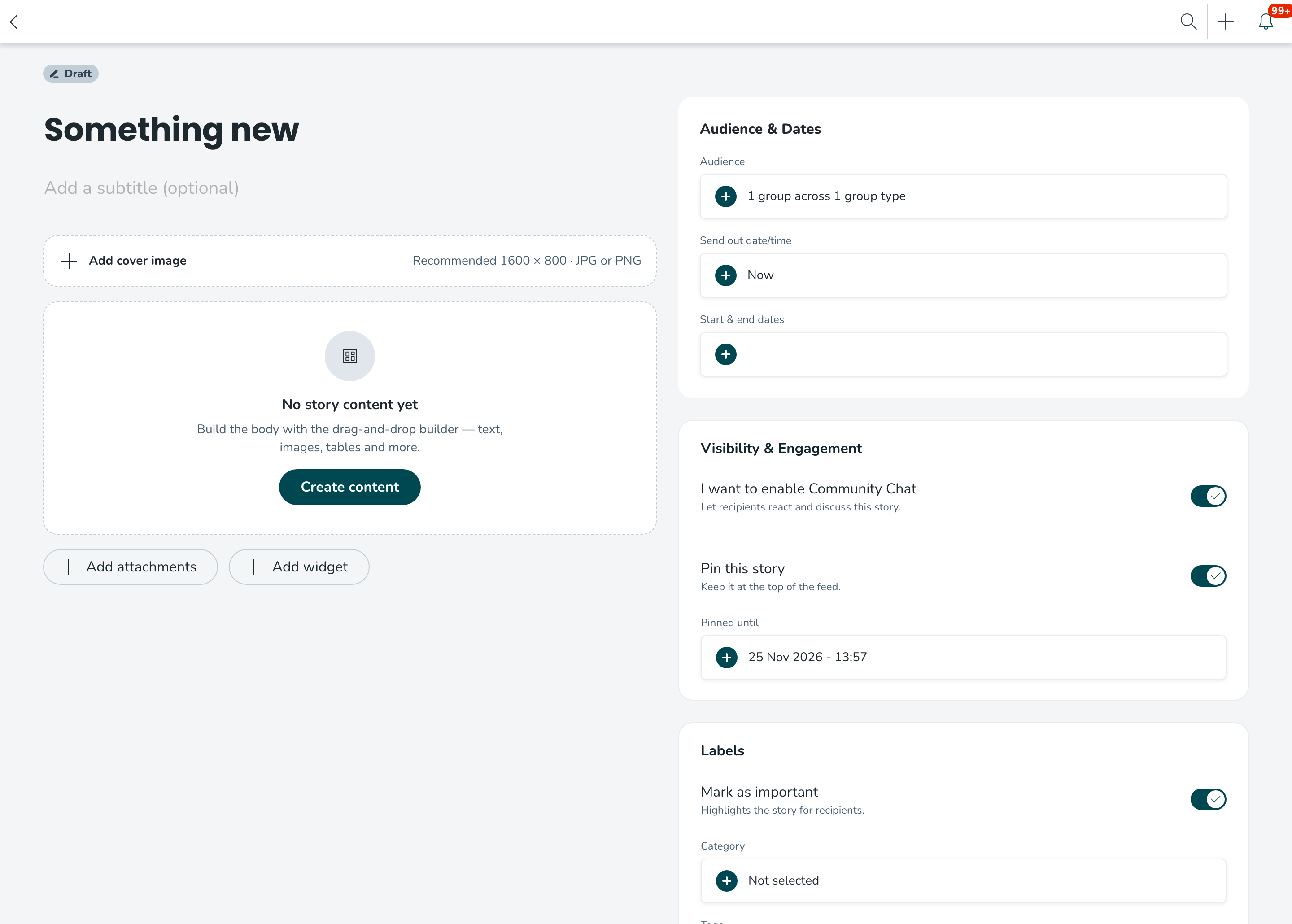
When you create a story with the story builder, you'll see a refreshed story page. Your content sits on the left, with the cover image at the top and a Create content button to open the builder. You can still add attachments below your content.
Below the cover image, you can now add a subtitle. This is a short piece of text describing what your story is about, and it's only used on the story cards in the feed – it isn't shown inside the story itself. Because story builder content is often too large to fit on a card, the summary keeps your cards clean and easy to scan. On the large cards, it's shown next to the cover image. If your story has no cover image, the summary is shown on the card instead. In the classic editor, the card view works as it does today and the subtitle option is not availible.
All the settings you already use are on the right, grouped so they're easier to find:
- Audience & dates – audience, send out date and time, and start and end dates
- Visibility & engagement – Community Chat and pinning
- Labels – mark as important, category, and tags
Sending, saving as a draft, and saving as a template work the same way as before.
Building your story
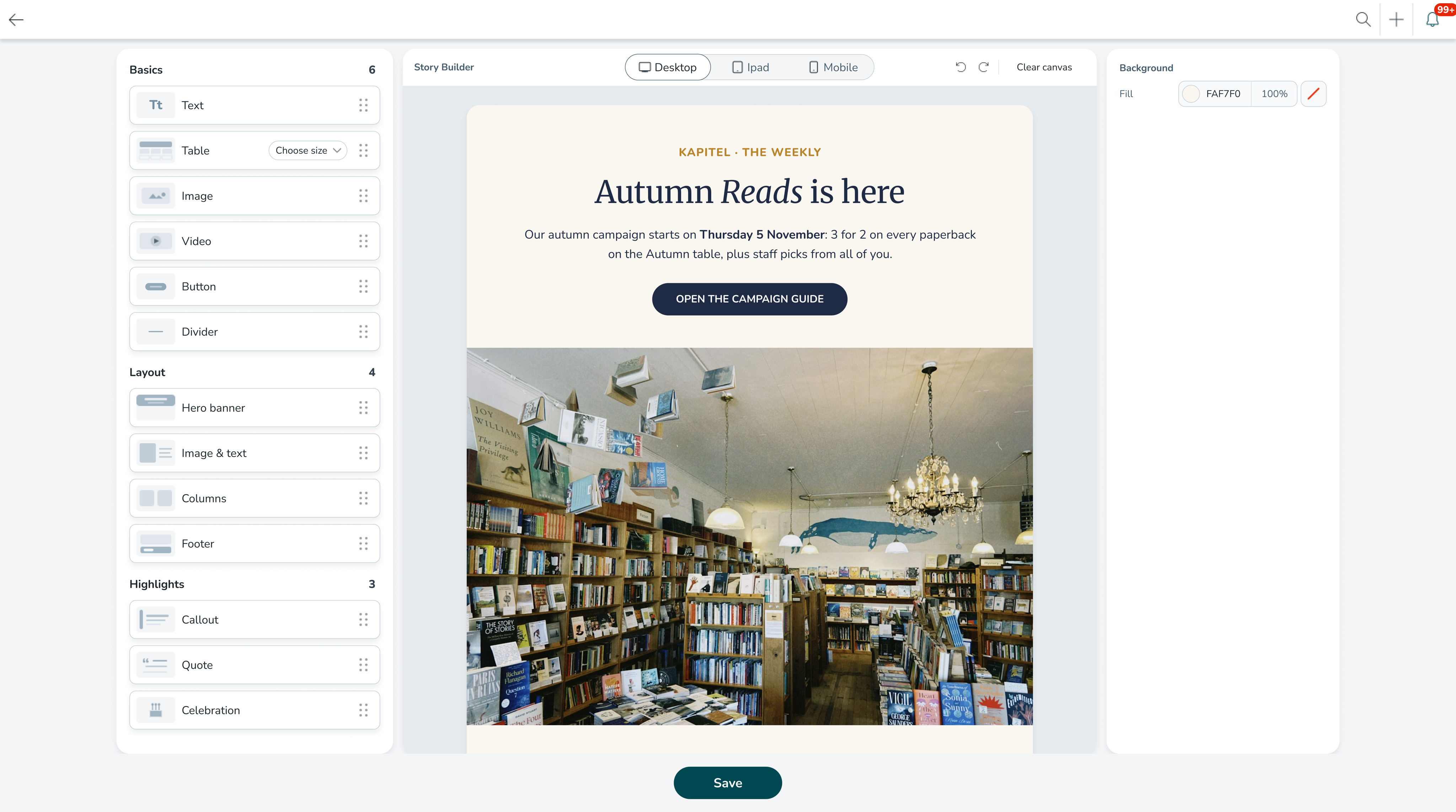
Select Create content to open the story builder. The builder has three areas: a library of blocks on the left, your story canvas in the middle, and a properties panel on the right that shows the settings for whatever you've selected.
Blocks
Drag a block from the left panel onto the canvas to add it to your story. Blocks are grouped into three categories:
Category | Blocks |
Basics | Text, Table, Image, Button, Divider |
Layout | Hero banner, Image & text, Columns, Footer |
Highlights | Callout, Quote, Celebration |
When you select a block, a small toolbar appears so you can move, duplicate, or delete it. You can also use the Files tab in the left panel to work with your uploaded files, undo and redo changes, or start again with Clear canvas.
Text formatting
Click into any text to edit it. A formatting toolbar appears next to your text. Use it to pick a text style (Title, Subtitle, Heading, Section header or Body) and to set the font, size and line spacing. It also gives you bold, italic, underline, strikethrough, links, text colour, highlight colour, bulleted and numbered lists, and an emoji picker – so there's no need to copy emojis from other sites. Highlight a few words to style just those, so one text block can hold a heading and body text.
In the properties panel, you can set the alignment, a background fill, and the spacing around each block. To pull out key information, use a Callout block, which has an accent border and background colour.
Images
Upload an image and then resize it, crop it, or replace it directly in the builder. Use the Image & text block to place an image beside your text, and choose whether the image sits on the left or right.
Tables
Add a table with the Table block instead of uploading a screenshot. You can turn the header row and banded rows on or off to make your table easier to read.
Highlights
Use Callout, Quote, and Celebration blocks to make important messages, quotes, and shout-outs stand out from the rest of your story. All text inside these blocks can be edited.
Preview before you send
Use the Desktop, iPad, and Mobile options at the top of the builder to see how your story will look on different screens. This helps you check that your layout works for colleagues reading on a phone in store.
When you're happy with your content, select Save to return to the story page.
Templates
You can save a story created with the story builder as a template, in the same way you save stories as templates today. When someone creates a story from that template, the layout, formatting, colours, and fonts are all carried over, so it's easy to keep your communications consistent and on-brand across your organisation.
What stays the same
- The classic editor is still available, and works exactly as it does today.
- Existing stories aren't changed or converted.
- Audience selection, scheduling, Community Chat, pinning, categories, tags, attachments, and templates all work as before.
Look out for a more detailed help article on the new story builder, which will walk you through each block and setting step by step.
New functionality requiring configuration updates
None at this time.
Updates and performance improvements
- Alongside the new story editor introduced in this version, we’ve fixed an issue where story cover images could appear blurry or low quality to recipients.
Bug fixes
- Resolved an issue in the Staff Portal where selected language wasn't retained after logging out and back in.
New HelpDocs content
REST API / Web service updates
Employee API v3: changes to /hr/v3/employees ( going live in release 248, 5 November 2026)
In release 248 we will make the Employee API v3 more consistent and more predictable according to our published API guidelines. Some of these changes can affect your integration. Please review the list below before 5 November 2026.
Action required if you use PATCH
- PATCH requests must use the header
Content-Type: application/merge-patch+json. Requests withapplication/jsonwill fail with 415 Unsupported Media Type. The response headerAccept-Patchshows the accepted content type. - In a PATCH request,
nullremoves the value ofdateOfBirth,managerId,costCentreIdandemploymentEndDate. Today,nullis ignored. - PATCH no longer accepts an empty string (
"") forbadgeNumber,email,firstName,lastNameandemployment.homeGroupId. - PATCH returns 422 for unknown properties, for system-set properties (
id,created,updated) and for values of the wrong type. Today, these are ignored or converted. - If the stored data of an employee is not valid, PATCH accepts only a request that corrects that data.
Please check if you use GET
- Responses no longer include properties that have no value. Today they return
null. This applies todateOfBirth,managerId,costCentreId,employmentEndDateandcreated. createdandupdatedare returned in UTC in RFC 3339 format, in whole seconds (for example2026-11-05T09:30:00Z). Today they are in Stockholm local time without an offset.- In the API specification,
idInitems are strings, not integers. The request itself does not change.
Changes to PUT
- PUT returns 422 for an empty string (
"") indateOfBirth,managerId,costCentreIdandemploymentEndDate. Sendnullinstead. - PUT no longer accepts an enum value given as a number (for example
1instead of"LOCKED_BY_MANAGER"). Send the enum name. - PUT that doesn't send cardNumber now resets a card number that differs from the badge. If you omit the cardNumber value, we will consider that you sent all the data, and do what UI does - set the cardNumber to badgeNumber
Changes to POST
- The POST response now includes
created. - POST returns 422 for an empty string (
"") indateOfBirth,managerId,costCentreIdandemploymentEndDate. Sendnullinstead.
Changes to validation and errors
- Error responses use the
application/problem+jsonformat (RFC 9457), withtype,title,status,detailanderrors[].pointer. Today they are a JSON array. errors[].detailcontains a readable sentence instead of a message key.- An invalid request body on POST, PUT or PATCH returns 422 instead of 400.
- A duplicate employee email returns 409 Conflict instead of 403.
- A non-numeric
idInvalue still returns 400, but with type/invalid-parametersand new detail text. - New length limits:
socialSecurityNumber30 characters,pictureURL128 characters. Longer values return 422. Today they are cut to fit.
What to do
- If you use PATCH, update the
Content-Typeheader before 5 November 2026. - If your code reads error messages, status codes or the
createdandupdatedfields, test it against the new behaviour. - If you generate your client from the API specification, generate it again after release 248.
- All changes can be tested in RC as of October 29th 2026.
