Sorting absence requests in the notification panel
 Updated
by
Leigh Hutchens
Updated
by
Leigh Hutchens
What this is for
If you manage a large team, the absence requests waiting for you in the Schedule view notification panel can run to a hundred or more. Until now that list has arrived in a fixed order, so the only way through it is top to bottom.
Sorting lets you put the list in the order that suits the decision you are making, so you can deal with whoever has been waiting longest, or the absences starting soonest, or the long ones that need cover arranged.
Where to find it
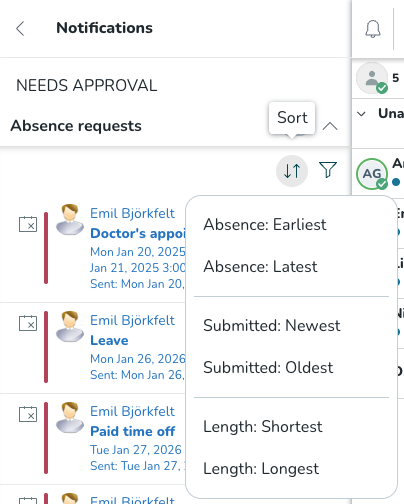
Open the Schedule view and expand the absence requests section of the notification panel. The sort control sits with the section. When there are no absence requests to sort, the sort control is disabled.
How you can order the list
By when the request was submitted
Puts the list in the order people asked. Choose oldest first to deal with whoever has been waiting longest.
By when the absence starts
Choose earliest first and the absences happening soonest come to the top. Requests for absences that have already started appear above all the future ones, since those are usually the ones needing urgent attention. An absence covering several days is positioned by its first day, not its last.
By how long the absence lasts
Choose longest first to deal with the extended absences that need cover planning, or shortest first to clear the quick ones.
Every order can be reversed, and the control always shows which order is currently applied.
How length is measured
Length is the time from the start of the absence to the end of it, exactly as requested. It is not the number of shifts or scheduled hours the absence covers.
So a seven day absence counts as longer than a five day absence even if the seven day one happens to overlap fewer shifts. This keeps the order predictable no matter what working pattern each employee is on.
Part day requests are measured the same way, by elapsed time. Two hours off ranks as shorter than six hours off, and both rank as shorter than a whole day.
Before you choose an order
Nothing about the starting order has changed. Until you choose a sort, the list arrives in exactly the order it does today, and the control shows that no sort has been applied.
The order you choose is remembered
Your chosen order stays applied when you click into the schedule to check something and come back, when you reload the page, and when you switch to another unit in the same session. It is also still there the next time you log in, so you do not have to set it up again each day.
It is saved in your browser, against your own user. If you share a back office machine with other managers, each of you gets your own order, and nobody inherits yours. If you sign in on a different computer or browser, or clear your browsing data, the list goes back to the default order.
Working with filters
Sorting and filtering work together. Applying or changing a filter keeps the order you chose, and changing the order keeps your filters.
What is not included
- Sorting in the mobile manager portal
- Sorting the other sections of the notification panel, such as shift swaps
