Filtering absence requests in the notification panel
 Updated
by
Leigh Hutchens
Updated
by
Leigh Hutchens
The absence requests section of the Schedule view notification panel shows you every pending request across all the units where you have absence write permission. For a central planner that can be a hundred or more requests at once, with no way to narrow it down.
Filtering lets you cut the list to the requests you are ready to deal with right now, whether that is one kind of absence, the ones that have already slipped past their date, or the ones that came to you rather than to a colleague.
Where to find it
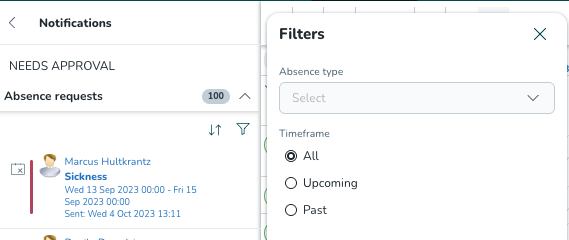
Open the Schedule view and expand the absence requests section of the notification panel. The filter control sits with the section, and shows how many filters you currently have applied. When there are no absence requests to filter, the filter control is disabled.
Filter by absence type
Pick one absence type to see only those requests, or pick several to see any of them. Only the absence types your organisation has in use are listed.
Clearing the filter brings the whole list back.
If you pick a type with no pending requests, the panel tells you nothing matches rather than leaving you looking at an empty space.
Switch between upcoming, past and all requests
By default you see all pending requests whatever their dates.
- Upcoming shows the requests whose absence starts today or later
- Past shows the requests whose absence start date has already gone by
A request where the absence started yesterday and runs into next week counts as past, because the absence has already begun without a decision. These are the ones worth finding first.
Today is worked out from your organisation's business day break rather than from midnight, so the split matches how your day is set up.
Using filters together, and with sorting
Filters work together, and they work alongside sorting. Narrowing by absence type and switching to past requests at the same time is fine, and whichever order you have chosen is kept.
You can clear filters one at a time or all at once.
How long filters stay applied
Your filters stay applied while you click into the schedule to check something and come back.
Reloading the page clears them, and starting a new session clears them too. This is deliberate. A filter hides requests, so a filter still sitting there from days ago could leave you looking at a short list without realising a whole absence type is missing from it. Sorting behaves differently and is remembered, because changing the order never hides anything.
What is not included
- Filtering by another named manager, so you can work through a colleague's requests while covering for them. This is a separate piece of work and is not delivered by these filters.
- Filtering by a date range, either on the absence dates or on when the request was submitted
- Filtering the other sections of the notification panel, such as shift swaps
