Version 0246
 Updated
by
Victor Jespersen
Updated
by
Victor Jespersen
- New functionality
- New functionality requiring configuration updates
- Updates and performance improvements
- More Languages available with bank holiday import feature
- More flexible Hit percentage
- Smarter date & Time validation for manual punches
- Required fields are now marked in Tag forms
- See why you can't delete a tag in Group settings
- Long lists are easier to handle in the Tag edit form
- Refreshed top bar in the Base Schedule
- Bug fixes
- New HelpDocs content
Release summary
Release date October 7th, 2026
Short on time and want a high-level summary? 🚀 Quinyx web app Version 0246 Important notice
New functionality
New functionality requiring configuration updates
Updates and performance improvements
Bug fixes
Mobile app
Employee Hub Version 0246 New functionality
New functionality requiring configuration updates
Updates and performance improvements
Bug fixes
REST API / Web service updates
|
Quinyx help and training have moved
Introducing the Quinyx Knowledge Base - coming soon!
We've moved our product help to a new platform so you can find answers faster. Nothing changes in Quinyx itself. Only the help documentation moves. We're excited that in the coming week(s), you can look forward to a bunch of amazing improvements to accessing the Quinyx help documentation. Here is a sneak peek at some of the new features you can look forward to:
- Faster answers with Eddy AI. Ask a question in your own words and get a direct answer, with links to the articles it came from.
- Summaries and read-aloud. Get the key points quickly, or have an article read aloud.
- Feedback on every article. Tell us what's helpful and what's missing so we can keep improving.
- Four languages. Content is available in English, German, Dutch and Swedish.
Training with Quinyx Academy
Customer training has also moved. Quinyx Academy replaces Attensi, our previous training platform, and is where customers enrolled in Quinyx training take their courses. It's separate from the Knowledge Base and needs a login. More information coming soon!
Important information
Important: Changes to Quinyx's sub-processors
We want to inform you of upcoming changes to the sub-processors engaged by Quinyx under your Data Processing Agreement.
Removal of sub-processor
Attensi AS, is no longer engaged as a sub-processor under your Data Processing Agreement.
New sub-processors
As of 2 November 2026, Document360 Limited, Unit 2 White Oak Square, London Road, Swanley, Kent, England, BR8 7AG, company registration number 13728159, United Kingdom (“Document360”) and Hookdeck Technologies Inc., 2001 Boulevard Robert Bourassa Suite 1700, Montreal, QC H3A 2A6 Canada (“Hookdeck”) are engaged as sub-processors under your Data Processing Agreement.
Document360 is used for onboarding and product training purposes. Hookdeck provides webhook infrastructure services. For clarity, Hookdeck is only relevant if you order webhook infrastructure services, which is a new service we intend to offer to our customers.
Processing is within the EEA/UK, unless otherwise agreed.
Other than the changes described above, no changes are made to the Data Processing Agreement and no further action is required on your part.
If you have any questions or feedback, please write to us at dataprivacy@quinyx.com.
Join us for the next Quinyx Unlocked: Improve schedule compliance and legal security with Violations Panel
14 October 2026 | 16:00 CEST / 10:00 EDT | 30 minutes
Every week, the vast majority of compliance warnings in your schedules are overridden instead of being resolved. Every override quietly slips out of sight and will eventually lead to costly fines, legal disputes, failed audits, and lost employee trust.
Join this live session to see why that happens and how our latest release, Violations Panel, can help.
Employee API v3: upcoming changes to /hr/v3/employees ( going live in release 248, 5 November 2026)
In release 248 we will make the Employee API v3 more consistent and more predictable according to our published API guidelines. Some of these changes can affect your integration. Please review the list below before 5 November 2026.
Action required if you use PATCH
- PATCH requests must use the header
Content-Type: application/merge-patch+json. Requests withapplication/jsonwill fail with 415 Unsupported Media Type. The response headerAccept-Patchshows the accepted content type. - In a PATCH request,
nullremoves the value ofdateOfBirth,managerId,costCentreIdandemploymentEndDate. Today,nullis ignored. - PATCH no longer accepts an empty string (
"") forbadgeNumber,email,firstName,lastNameandemployment.homeGroupId. - PATCH returns 422 for unknown properties, for system-set properties (
id,created,updated) and for values of the wrong type. Today, these are ignored or converted. - If the stored data of an employee is not valid, PATCH accepts only a request that corrects that data.
Please check if you use GET
- Responses no longer include properties that have no value. Today they return
null. This applies todateOfBirth,managerId,costCentreId,employmentEndDateandcreated. createdandupdatedare returned in UTC in RFC 3339 format, in whole seconds (for example2026-11-05T09:30:00Z). Today they are in Stockholm local time without an offset.- In the API specification,
idInitems are strings, not integers. The request itself does not change.
Changes to PUT
- PUT returns 422 for an empty string (
"") indateOfBirth,managerId,costCentreIdandemploymentEndDate. Sendnullinstead. - PUT no longer accepts an enum value given as a number (for example
1instead of"LOCKED_BY_MANAGER"). Send the enum name. - PUT that doesn't send cardNumber now resets a card number that differs from the badge. If you omit the cardNumber value, we will consider that you sent all the data, and do what UI does - set the cardNumber to badgeNumber
Changes to POST
- The POST response now includes
created. - POST returns 422 for an empty string (
"") indateOfBirth,managerId,costCentreIdandemploymentEndDate. Sendnullinstead.
Changes to validation and errors
- Error responses use the
application/problem+jsonformat (RFC 9457), withtype,title,status,detailanderrors[].pointer. Today they are a JSON array. errors[].detailcontains a readable sentence instead of a message key.- An invalid request body on POST, PUT or PATCH returns 422 instead of 400.
- A duplicate employee email returns 409 Conflict instead of 403.
- A non-numeric
idInvalue still returns 400, but with type/invalid-parametersand new detail text. - New length limits:
socialSecurityNumber30 characters,pictureURL128 characters. Longer values return 422. Today they are cut to fit.
What to do
- If you use PATCH, update the
Content-Typeheader before 5 November 2026. - If your code reads error messages, status codes or the
createdandupdatedfields, test it against the new behaviour. - If you generate your client from the API specification, generate it again after release 248.
- All changes can be tested in RC as of October 29th 2026.
Quinyx web app Version 0246
New functionality
Algorithm settings: Choose units per algorithm
You can now choose which units can run each algorithm (Auto Schedule, Auto Assign and Demand Forecasting) separately on the Algorithm settings page. Before this, one unit selection applied to all three algorithms. This means you can roll out each algorithm at its own pace. For example, you can enable Demand Forecasting for the whole organization while limiting Auto Schedule to a pilot district.
What happens to your current settings
You don't need to do anything. Your previous unit selection has been copied to each algorithm, so the same units are enabled for Auto Schedule, Auto Assign, and Demand Forecasting as before. The only difference is that each algorithm now has its own selection, which you can change independently.
Where to find it
Go to Algorithm settings and select the edit icon next to an algorithm under Units enabled to run the algorithms.
Automate adhering to Swedish Overtime limits
What shipped
The compliance rule Overtime limit can't be exceeded counts the additional-time and overtime hours an employee accrues over a configured period, and flags a violation when the total goes past the configured limit.
Why this rule?
Overtime is capped by law or collective agreement in most of our markets, and breaching a cap carries real fines. Until now that exposure only surfaced downstream in payroll. The rule moves the warning to the point of scheduling, where a manager can still act on it.
Configuration and enablement
- Configured at Schedule Compliance > Rule set > Overtime limit can't be exceeded.
- Two settings: Salary types (only additional-time and overtime types are selectable — no other salary types appear in the dropdown) and Period (Monthly or Yearly, both full calendar periods).
- Threshold: Amount of hours to limit
Hybrid calculation caveat: live simulation covers only 62 days back and 90 days forward relative to the shifts being edited. Anything outside that window must be transferred to payroll (non-preliminary) or it is not counted.
New currencies
Brazilian Real (BRL) and Mexican Peso (MXN) are now supported currencies.
New functionality requiring configuration updates
- None at this time.
Updates and performance improvements
More Languages available with bank holiday import feature
We have adjusted our Bank Holiday import function to include all Quinyx supported countries and languages. You can confirm which languages are supported by Quinyx here.
More flexible Hit percentage
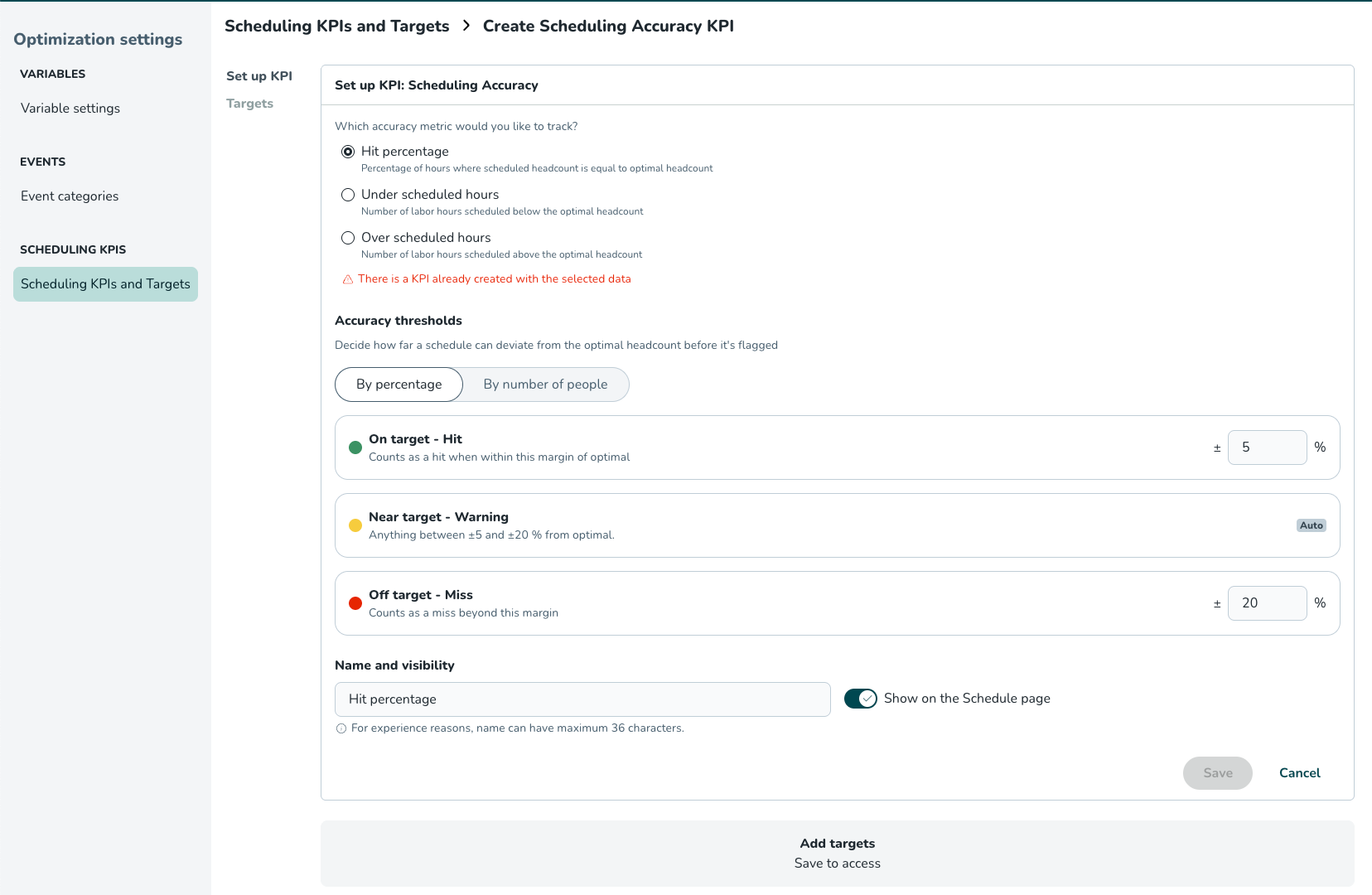
We’ve made Hit percentage more flexible so it better reflects how close a schedule is to optimal headcount. Previously, an hour only counted as a hit when scheduled headcount exactly matched optimal headcount. This meant that being slightly off was treated the same as being far off.
When creating a Hit percentage KPI, superusers can now configure acceptable margins either by percentage or by number of people.
You can set:
- an On target/Hit margin
- an Off target/Miss margin
Anything between those two is shown as Near target/Warning.
For example, if optimal headcount is 10 and the Hit margin is ±1 person, scheduling 9–11 people counts as a Hit. If the Miss margin is ±3, then 7–8 or 12–13 is shown as Warning, and anything further away is a Miss.
Only periods classified as Hit contribute to the overall Hit percentage.
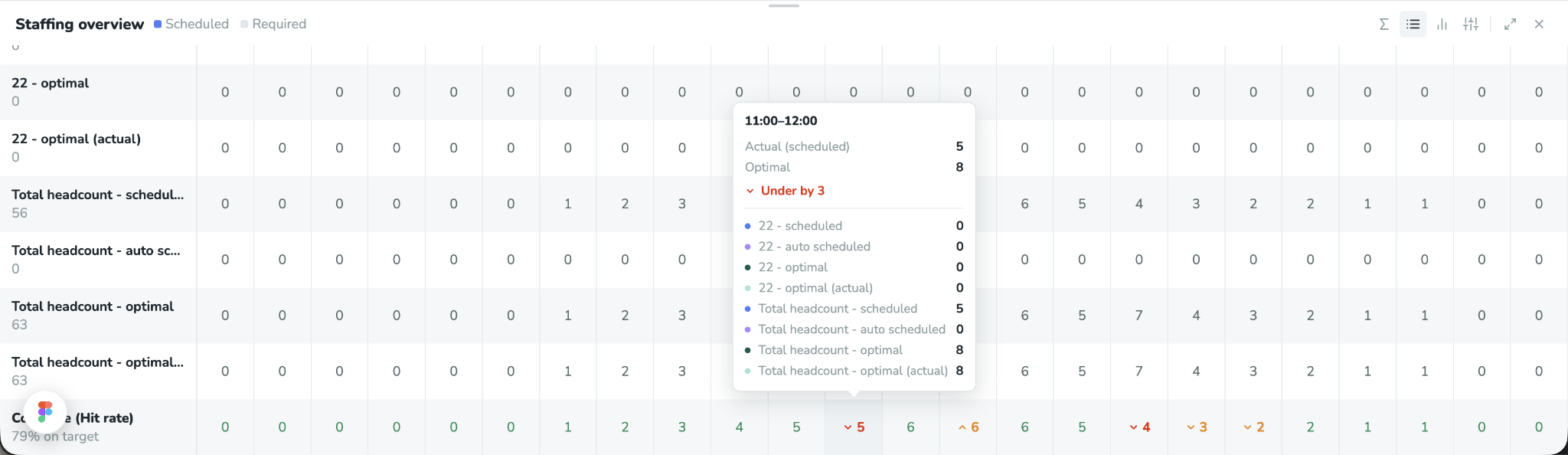
In addition to this, we have also added clearer Hit percentage information in the Staffing overview in Statistics in the Schedule, so managers can see where they are on target, overstaffed or understaffed and how far they are from optimal.
Existing Hit percentage KPIs will keep their current exact-match behaviour unless the configuration is changed.
Smarter date & Time validation for manual punches
What changed: When editing punch start or end times, Quinyx now automatically adjusts the corresponding time to prevent invalid punches (start times after end times).
Use Case: If a punch is set for 08:00–17:00 and you change the start time to 18:00, the end time automatically updates to 19:00, saving you from manual fixes and validation errors.
Required fields are now marked in Tag forms
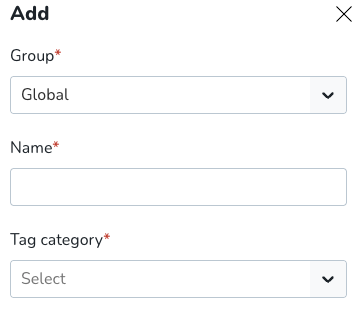
Required fields in tag and tag category forms are now marked with a red asterisk, and the save button stays disabled until you fill them in.
When you add, edit, or copy tags and tag categories, required fields are now marked with a red asterisk (*). The save button stays disabled until every required field has a value. A text field needs at least one character. A dropdown needs a selected option.
Account settings:
- Tag categories (add and edit): Name, Type
- Tags (add and copy): Group, Name, Tag category
- Tags (edit): Name
Group settings:
- Tags (add and copy): Name, Tag category
- Tags (edit): Name
See why you can't delete a tag in Group settings
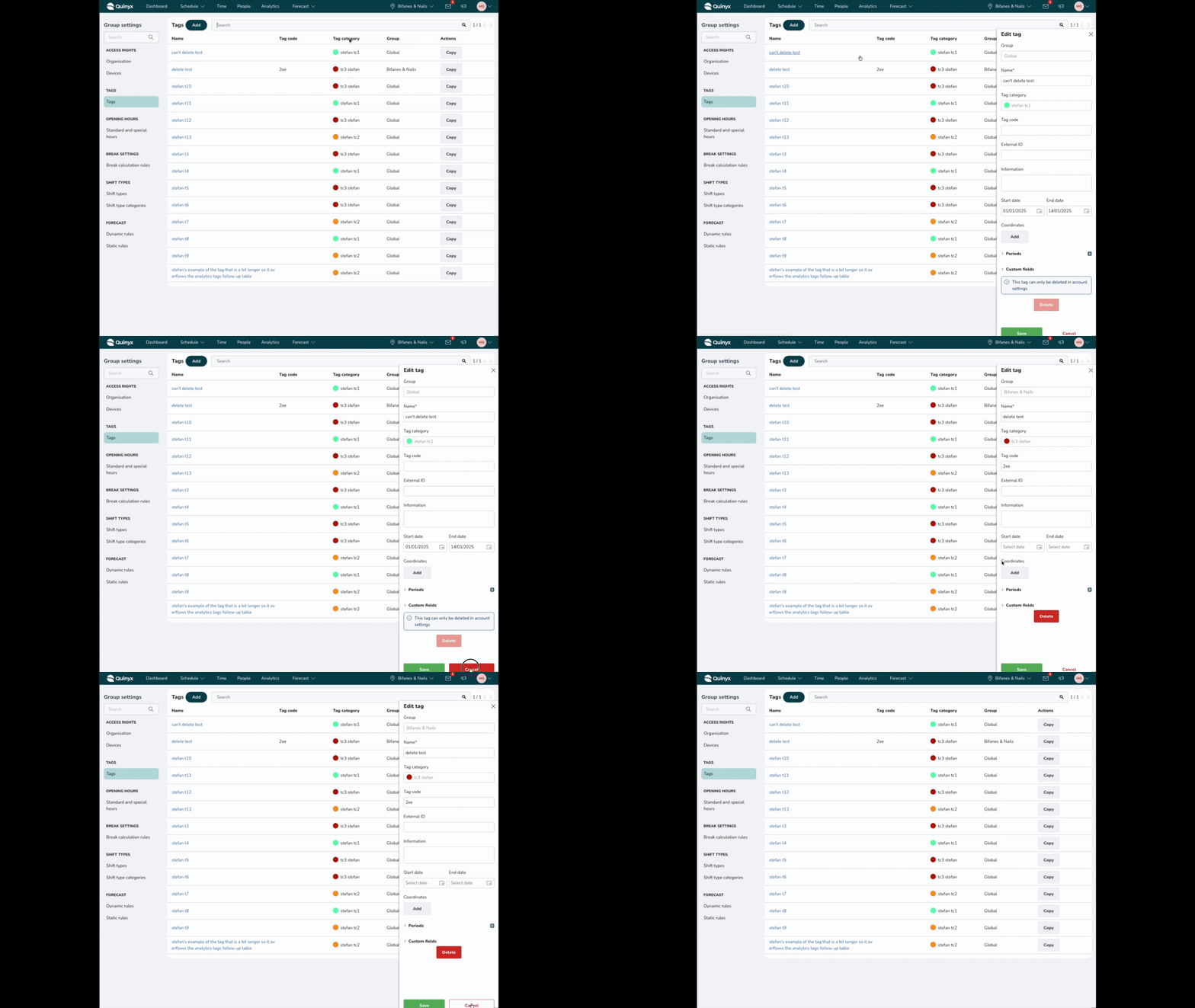
In Group settings, when you edit a tag ( you can edit a tag by clicking the name link) that belongs to a group higher up in the hierarchy, the delete button is disabled. Until now, there was no explanation, so we added a note next to the button that now says you can delete the tag only in the group it belongs to, or in Account settings. The note shows only when the delete button is disabled.
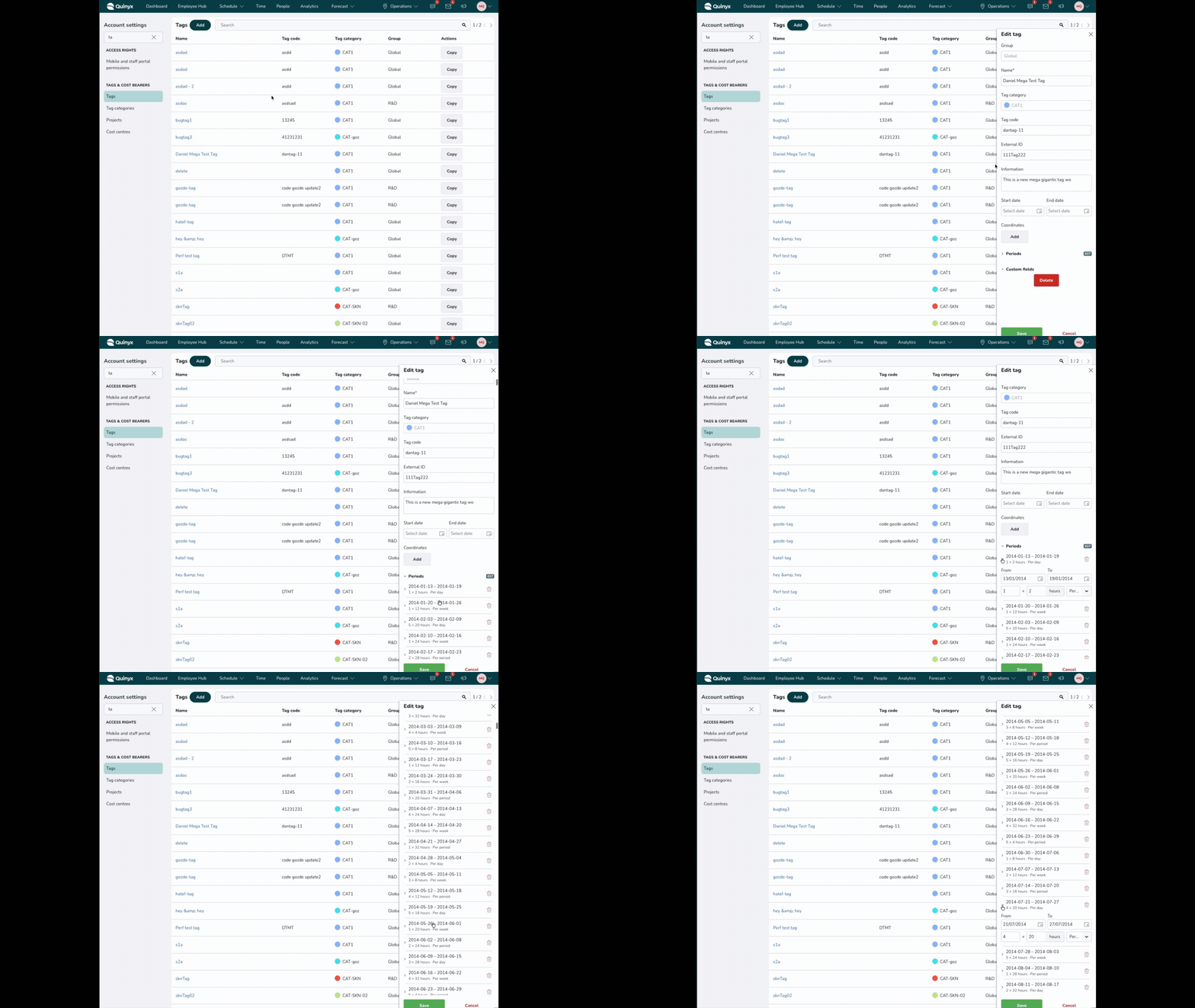
Long lists are easier to handle in the Tag edit form
If a tag has many periods or custom fields, the Tag edit form now shows these long lists in a clearer way, and they load faster.
Refreshed top bar in the Base Schedule
The top bar in Base Schedule has been updated to match Quinyx's new design system, giving it a cleaner look and consistent behaviour across screen sizes. This is part of the same design refresh already rolled out to the Base Schedule overview table, with more areas of the product to follow.
Bug fixes
- Resolved an issue where the Budget in hours column in the Tag Follow-up report excluded the final day of any tag period configured with an end date(To date).
- The report now includes the final day when calculating budget hours for end-dated periods, aligning with both the search criteria and the hours columns (Scheduled and Punched).
- Remaining budget comparisons (
Budget − ScheduledandBudget − Punched) are now fully accurate. - Open-ended tag periods and existing scheduled/punched hours calculations remain unchanged.
- Resolved an issue where saved views in the schedule view reverted back to First name sorting.
- Resolved an issue with the Minijobber Annual earnings limit compliance rule that could raise an error during scheduling if the rule was added to a Group rule set.
New HelpDocs content
- None at this time.
Mobile apps
Want to know more about the new mobile app version? Click here to check the mobile release notes.
Employee Hub web app Version 0246
New functionality
Audits
Audits is a new feature in Employee Hub that lets your organisation design, distribute, perform, and track structured audits across your stores, units or gyms. Whether you're running health and safety checks, brand compliance walkthroughs or quarterly reviews, you can build the audit once as a template and then send it out to be completed to selected tasking groups - stores/units/gyms/restaurants/sites/locations.
Audits replaces ad-hoc forms, paper checklists and disconnected forms with one consistent flow that captures evidence, scores results, and automatically creates follow-up tasks wherever issues are found.
How Audits works
Audits is built around a template-based approach. You always create a reusable audit template first, and then initiate individual audits from that template whenever you need to run it. Templates live in the Audit template library so they can be reused and are shared across your organisation to users with the permission to initiate audits – which means audits stay consistent over time and across stores.
When you initiate an audit from a template, it's sent to the stores/units you select, and they complete it themselves.
📣 Coming soon: Auditor(s)In this first version, Audits supports self-audits only. The ability to assign designated auditors to complete an audit on a store's/units behalf is planned for a future release.
Where to find Audits
Audits has its own dedicated tab in Employee Hub, alongside Tasks and Forms. The tab is only visible to users with the relevant permission (see Permissions below).
Inside the Audits tab you'll find two main areas:
- Audits – every audit that has been initiated and sent out, organised by status and audience.
- Audit template library – every audit template available to your organisation, including drafts and archived templates.
You can switch between the two views at the top of the page.
Permissions
Three permissions control how users interact with Audits:
- Audits access – controls whether the user sees the Audits tab at all. Without it, the module is hidden completely. Available as no access or read access.
- Create audit templates – controls who can build and edit templates in the Audit template library. Available as no access or write access.
- Initiate audit from template – controls who can launch a new audit using an existing template. Available as no access or write access. Having this permission without the create audit template permissions means you can initiate audits from template, but not create or edit templates.
A typical setup could look like this:
- HQ users have all three permissions.
- Area or district managers usually have Audits access plus the ability to initiate audits, but not to create templates.
- Store managers and store-level users typically only need access to perform the audits assigned to them.
Permissions follow the same collaboration group hierarchy as the rest of Employee Hub – users only see and act on the audits, stores and results within their oversight.
Getting started: Create an audit
When a user with the right permissions clicks the + button to create an audit, they're presented with two options:
- Send an audit – use an approved audit template and send it to stores.
- Create a new audit template – design a reusable audit template with your own sections, questions, logic and scoring.
Which options a user sees depends on their permissions. A user with Initiate audit from template but not Create audit templates will only see Send an audit, because they can only re-use templates that already exist.
Building an audit template
Audit templates are built in the Audit template library. A template is the reusable blueprint you fill in once and then send out whenever you need to run that audit.
Basic information
Each template includes the same core fields you already know from Tasks:
- Title and description
- Attachments
- Approvers
- Priority, category and tags
- Size
Sections
Audits are organised into sections. Each section has its own name and contains a set of questions, which makes long audits easier to navigate, easier to score, and easier to read in results and reports.
⚠️ A note on the word "section" in an Audit context"Sections" inside an audit are not the same as Sections in your Quinyx organisational hierarchy. In Audits, a section simply means a grouping of questions inside the audit – for example "Front of house", "Stockroom", or "Health and safety". They have no connection to the organisational Sections used for scheduling and org structure in Quinyx.
You can copy a section, copy individual questions, and move questions up and down within a section.
Questions
Audits support the same question types as Tasks today: short answer, paragraph, multiple choice, checkboxes, date, file upload, content, and right/wrong style questions.
For each question you can:
- Mark it as required
- Specify the correct answer (available for short answer, multiple choice and checkboxes)
- Delete the question or any of its answer options
- Copy questions
- Copy sections
Conditional questions
Conditional logic in Audits is set per answer option, which means a single multiple choice question can branch the audit into completely different paths depending on how it's answered.
To set up a conditional question you first need to click "add rule", once clicked you'll find a routing dropdown labelled Continue to next each answer option. Clicking it opens a Choose where this answer should go panel, where you can pick where the audit should jump to when that specific option is selected:
- Next – continue to the next question in order. This is the default.
- A question in this section – skip ahead to a later question in the same section, bypassing anything in between.
- A question in another section – jump straight into a different section of the audit.
Scoring
Scoring is set per question. On each multiple choice & checkbox question you'll find a Scoring setting that can be turned on or off:
- When disabled, the question is informational only and doesn't count towards the audit score.
- When enabled, the question contributes to the final audit score, and you assign a numeric value to each answer option. For multiple choice question the highest possible score is the highest value of the answering options, for checkboxes the highest possible score is the total score for all checkbox alternatives.
Automatic follow-up tasks
You can set specific options to automatically trigger a follow-up task. For example, if the answer to "Does the store have a working fire extinguisher?" is No, a follow-up task to source and install one can be created automatically.
📌 Where do follow-up tasks go?A follow-up task is always distributed to the store/unit the audit is being completed for. The action always lands with the people responsible for that specific store, so the right team picks up the work without anyone having to route it manually.
Sending an audit
Audits are always initiated from a template. To send an audit, choose Send an audit from the create menu and pick the template you want to use. You'll then be taken to the Review and send your audit screen where you select your audience and set the schedule.
Choose your audience
You send the audit to the stores that need to complete it. The selected stores/units receive the audit in their Employee Hub and complete it on their own.
📣 Coming soon: the ability to assign designated auditors to complete an audit on a store's behalf will be available in a future release.
Performing an audit
Store users can complete audits from any device – mobile, tablet or computer. The flow is the same on all of them:
- Answer each question in turn.
- Go back to a previous question to review or change an answer. Conditional logic re-evaluates automatically based on your latest answers.
- Tap Complete when you're done.
- See the result – total score as a percentage and a breakdown per section – along with a list of any follow-up tasks that were created.
The multi-store breakdown view
When an audit covers multiple stores, there's a breakdown view inside the audit that lists every store included.
For each store you'll see:
- Status (Not started, In progress, Completed, Needs review, Approved)
- The score, where applicable
What you see in the breakdown depends on your access: you see only the stores or areas within your oversight.
Reporting and analytics
Audit analytics is available under the “Analytics” tab and in the “Employee Hub” side menu. It is called “Audits (BETA)”. If you are unable to reach this tab, please contact our customer support that can assist you in activating this.
Store-level view
For each store, you can see:
- Latest audit score (%)
- Audit status
- Date of the audit
- Audit template used
- Historical audits for the same store and template
Filter by category, audit template, section, and date range.
Multi-store / HQ and area manager view
For users with access to multiple stores, you'll see a list of stores with their latest audit score, date, and template, plus aggregated insights such as average score and the number of audits completed in a given period.
Filter by category, template, store, area, region, group, section, or date range. Sort by template, specific audit, area, lowest score, or latest audit date.
Template-based comparison
Filter the analytics by a single template to view all audits created from it and compare results over time. This is the easiest way to track whether a store or region is improving against a consistent standard.
More detailed information about audits can be found here.
New functionality requiring configuration updates
- None at this time.
Updates and performance improvements
Group level ordering for Collaboration Groups
You can now set the order of collaboration group type levels, giving you more control over how group levels are organised in the analytics tool. This change is purely an organisational function for our analytics tool and does not affect collaboration groups, how they work, or the group type label management functionality.
Improved scheduling of resources
In this release, we have also done improvements to the scheduling of resources like tasks and stories.
Bug fixes
- None at this time.
New HelpDocs content
- None at this time.
REST API / Web service updates
Improved performance of the /organisation/groups endpoint
This endpoint returns the current users groups and the frontend waits for the response of this call before it renders our application. The more groups, the longer this call took.Whilst we are working on removing this block all together, the BE work has made it considerably quicker: We've reduced the response time on average by 75%, in our tests, calls that took 4 seconds now take 0.5 seconds, and a call that previously took 11 seconds now takes 4 seconds.
