Employee Hub - Story builder
 Updated
by
Daniel Sjögren
Updated
by
Daniel Sjögren
The story builder is a visual, drag-and-drop way to create rich, branded stories in Employee Hub. You build your story from ready-made blocks – text, tables, images, banners, callouts, and more – and style them with fonts, colours, and spacing, all without leaving Quinyx.
This article explains how the story builder works alongside the classic editor, how to create and edit a story with it, and what each block and setting does.
Classic editor or Story builder?
When you create a story, you choose which editor to build it with. Both editors share the same story settings – audience, dates, Community Chat, pinning, categories, tags, attachments, and templates. The difference is how you create the main content of the story.
Your choice stays with the story
The editor you choose when you create a story is the editor you use for that story from then on.
- Stories created with the story builder are always edited in the story builder.
- Stories created with the classic editor are always edited in the classic editor.
- When you copy a story, the copy uses the same editor as the original.
- Stories created before the story builder was released continue to use the classic editor. You can view and edit them exactly as before.
Create a story with the Story builder
- Select the + icon in the header.
- Choose Story from the drop-down menu.
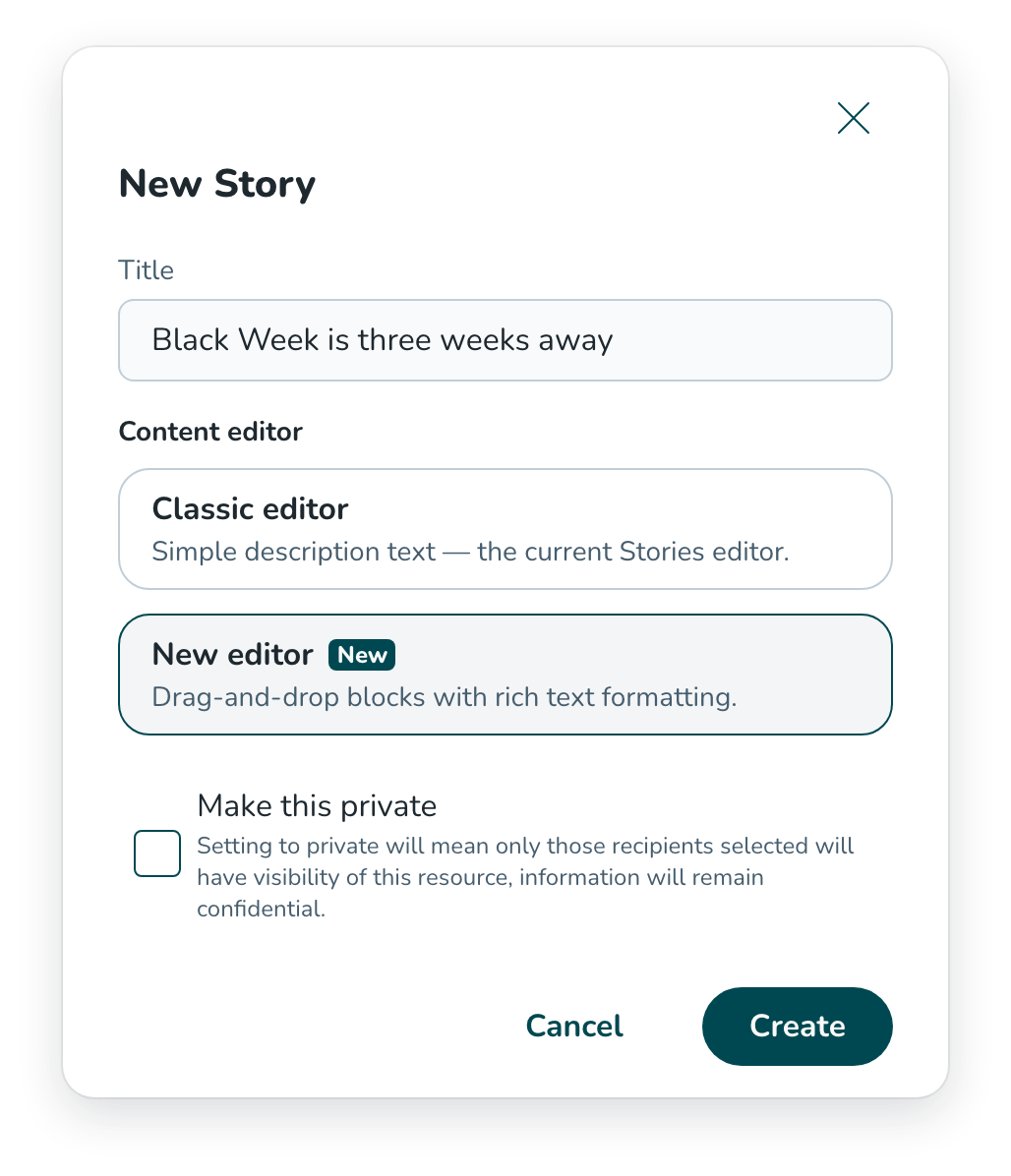
- In the New Story window, enter a Title for your story.
- Under Content editor, select New editor.
- If the story should only be visible to its recipients and author, select Make this private.
- Select Create.
Your story is created as a draft and the story page opens.
The story page
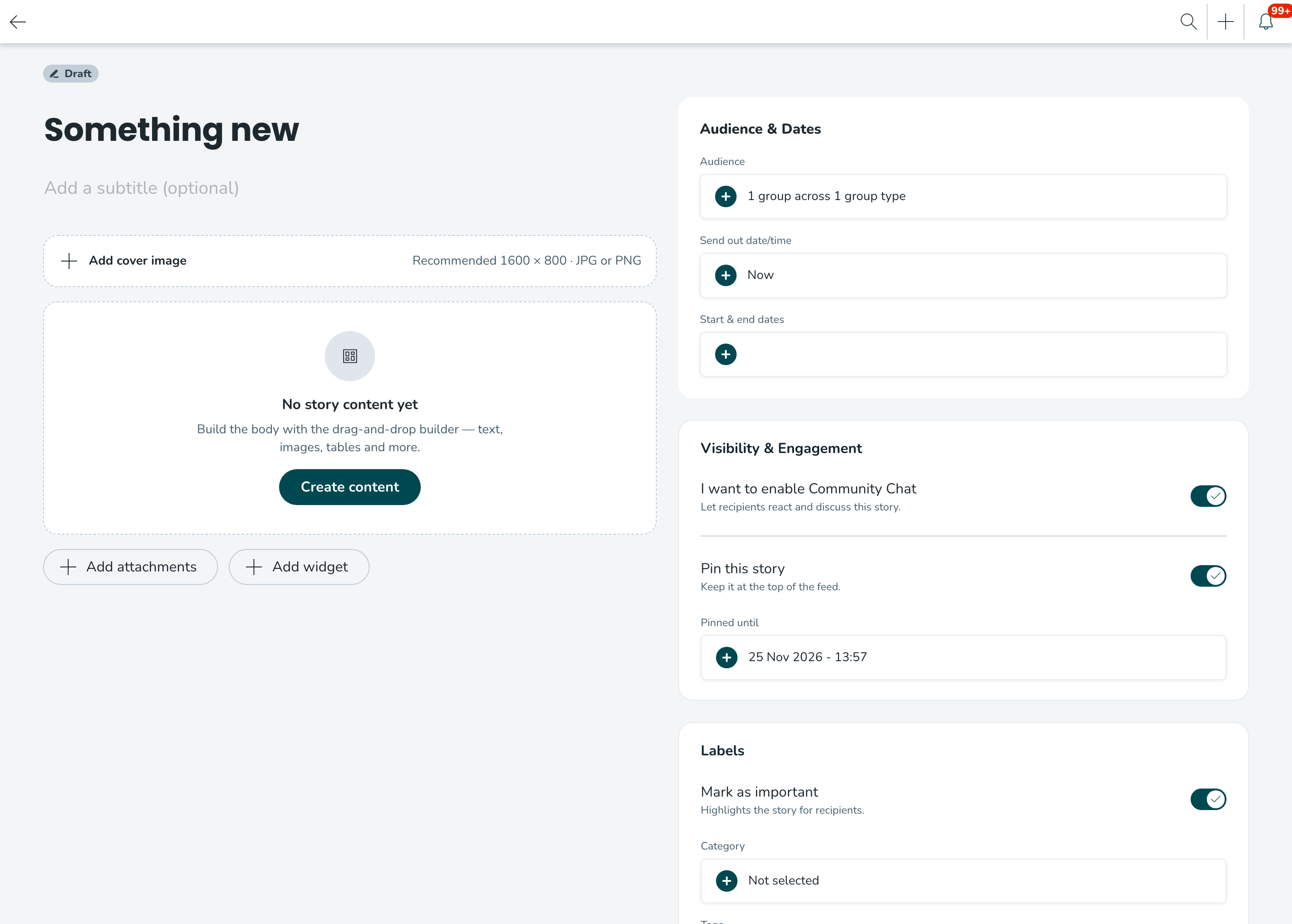
The story page is where you manage everything about your story. Your content is on the left and your story settings are on the right. A Draft label is shown at the top until the story is sent.
Cover image
Select Add cover image to upload an image that represents your story. The cover image is shown on the story card in the Stories dashboard, so it's the first thing your colleagues see.
Subtitle
Above the cover image, add a Subtitle – a short piece of plain text describing what your story is about. The subtitle is shown next to the cover image on the large story cards. If your story doesn't have a cover image, the subtitle is shown on the regular story card instead.
Story content
Until you've added content, this area shows No story content yet. Select Create content to open the story builder. See Using the story builder below.
Basic fields in story creation
Selecting audience, send out date/time, start & end times, pinning stories, marking as important, categorising and tagging and other functions not directly connected to content creation works the same way is it always has, no changes to existing behaviour.
Using the story builder
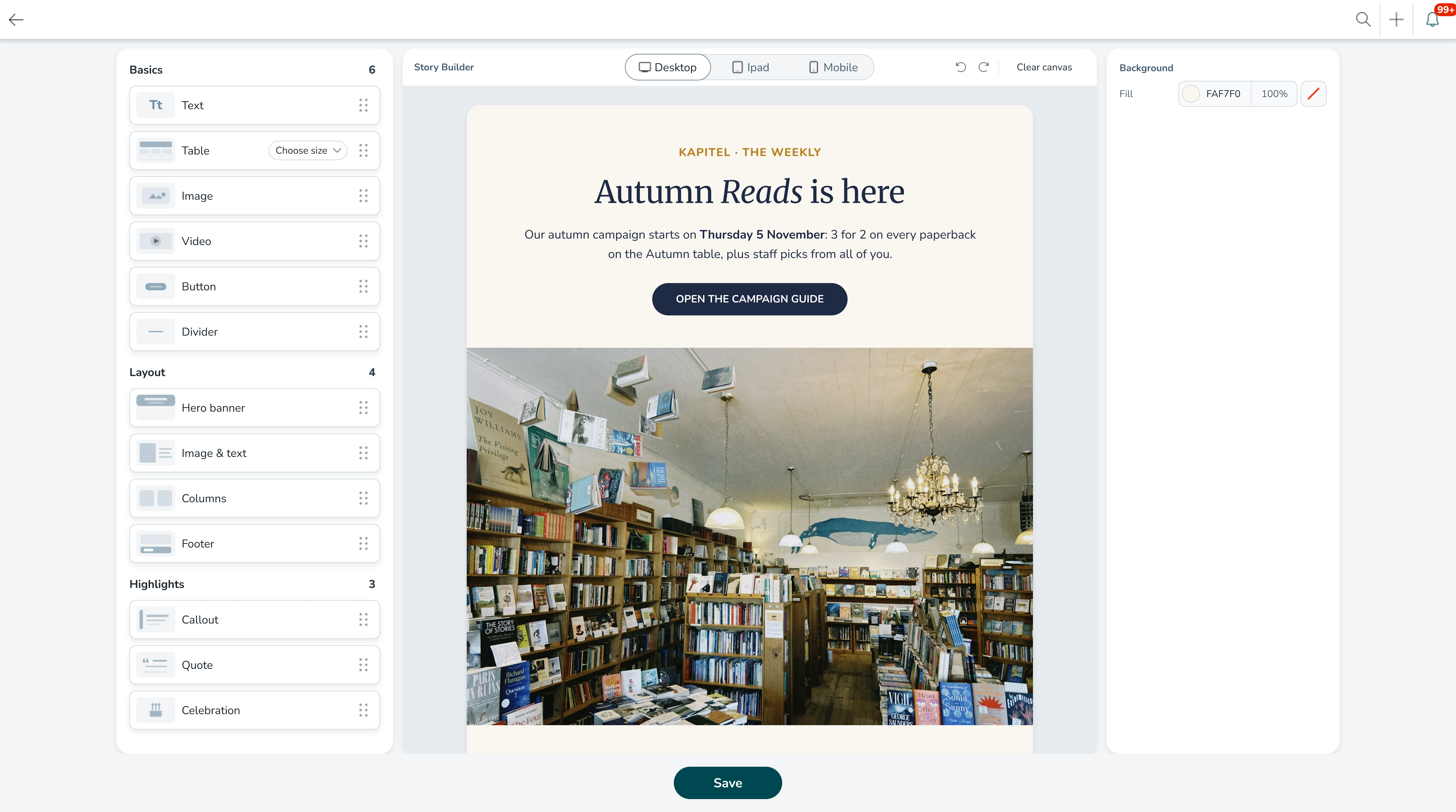
Select Create content on the story page to open the story builder. The builder is made up of four areas:
- Blocks panel (left) – the blocks you can add to your story. Switch to the Files tab to see your files.
- Canvas (centre) – your story as it's being built. Select anything on the canvas to edit it.
- Properties panel (right) – the settings for whatever you've selected. When nothing is selected, it shows the background settings for the whole canvas.
- Top bar – device preview, undo and redo, and Clear canvas.
When you've finished, select Save at the bottom of the builder to return to the story page.
Add a block
Drag a block from the blocks panel and drop it onto the canvas. Each block is added with placeholder content that you can replace with your own.
Move, duplicate, or delete a block
Select a block on the canvas to show its toolbar in the top-right corner of the block. From here you can:
- move the block to a new position in your story
- duplicate the block
- delete the block
Undo, redo, and clear canvas
Use the undo and redo arrows in the top bar to step backward and forward through your changes. Select Clear canvas to remove all content and start again.
Blocks
Blocks are grouped into three categories: Basics, Layout, and Highlights.
Basics
Block | What it's for |
Text | Paragraphs, headings, and lists. Text blocks can have an accent border and a background colour to make key information stand out. |
Table | Structured information such as schedules, prices, or targets. Use the properties panel to turn the Header row and Banded rows on or off. |
Image | A single image that you can resize, crop, and replace. |
Button | A button that draws attention to an action. |
Divider | A line that separates sections of your story. |
Layout
Block | What it's for |
Hero banner | A large banner at the top of your story with a title and a short introduction. You can add a background image or choose a background colour. |
Image & text | An image with text next to it. Choose whether the image is on the left or right, and whether the text lines up with the top or centre of the image. |
Columns | Content arranged side by side in columns. |
Footer | A closing section at the bottom of your story. |
Highlights
Block | What it's for |
Callout | A highlighted box for key information, reminders, or tips. |
Quote | A quote or key message that captures the spirit of your story. |
Celebration | A block for recognising achievements and celebrating successes. |
Formatting text
Click into any text on the canvas to start editing. A formatting toolbar appears next to the text with the following options:
- Text style – Title, Subtitle, Heading, Section header, or Body
- Font – the typeface and its weight
- Size – the font size
- Line spacing – Tight, Normal, or Relaxed
- bold, italic, underline, and strikethrough
- link
- text colour and highlight colour
- bulleted list and numbered list
- emoji picker
- more options – indent, outdent, and clear formatting
Highlight a few words to style just those, so one text block can hold a heading and body text. To set the alignment, use the Text section in the properties panel.
Colours, backgrounds, and spacing
Background
Most blocks have a Background setting in the properties panel. Enter a colour code in Fill and set the opacity as a percentage. To change the background of the whole canvas, select an empty area of the canvas.
Accent
Text blocks have an Accent setting that adds a coloured border, so you can create a highlighted box without using a separate block.
Spacing
Use the Spacing section to control the space around a block. Choose a size for the top, right, bottom, and left sides independently. This lets you add breathing room between sections without using empty lines.
Working with images
Add an image
- Drag an Image or Image & text block onto the canvas.
- Select Upload image in the block.
- Select or drag and drop the image you want to upload, then select Upload.
Resize, crop, or replace an image
Select the image on the canvas. In the Image section of the properties panel you can:
- set the Width (%) of the image
- select Crop to crop the image without leaving the builder
- select Replace image to swap it for a different image
Place an image beside text
Use the Image & text block. In the properties panel, under Image & text:
- Image – choose whether the image is on the left or right
- Text – choose Top or Center to align the text with the image
Preview your story
Use the Desktop, iPad, and Mobile options at the top of the builder to see how your story looks on different screen sizes. Many of your colleagues will read your story on a phone, so it's worth checking the mobile view before you send.
Send your story
- Select Save to close the builder and return to the story page.
- Check your cover image, audience, and other settings.
- Select Send Now. If you've chosen a future send out date and time, the story is sent then.
Edit a story
Open the story and select Create content to return to the story builder. Make your changes and select Save. Stories created with the story builder always open in the story builder.
Templates
You can save a story built with the story builder as a template, in the same way as with the classic editor. Select Save as template at the bottom of the story page.
When someone creates a story from your template, your layout, formatting, colours, and fonts are all carried over. This is a great way to set up branded master templates – for example a weekly update or a campaign launch – so every story your organisation sends looks consistent.
Frequently asked questions
Q: Will my existing stories change?
A: No. Stories created before the story builder was released keep using the classic editor and look exactly as they did before.
Q: Can I convert a classic story into a story builder story?
A: No. A story always keeps the editor it was created with. To use the story builder, create a new story and choose Story builder under Content editor.
Q: Can I switch editors after creating a story?
A: No. Once a story has been created, it can only be edited with the editor it was created with. This also applies after the story has been sent.
Q: Can I still use the Classic editor?
A: Yes. Both editors are available when you create a story, so you can choose the one that suits your content.
Q: What happens when I copy a story?
A: The copy uses the same editor as the original story.
Q: Do story settings work differently in the story builder?
A: No. Audience, send-out date and time, start and end dates, Community Chat, pinning, mark as important, categories, tags, attachments, and templates work the same way in both editors.
